Colony Counter manual

Colony Counter manualคู่มือ Colony Counter

Every feature, step by step. Follow the numbers on each screen.ทุกฟีเจอร์ ทีละขั้นตอน ทำตามหมายเลขบนแต่ละหน้าจอ

App versionแอปเวอร์ชัน 0.9.5

Getting startedเริ่มต้นใช้งาน

The tabs, the menu and settings.แท็บ เมนู และการตั้งค่า

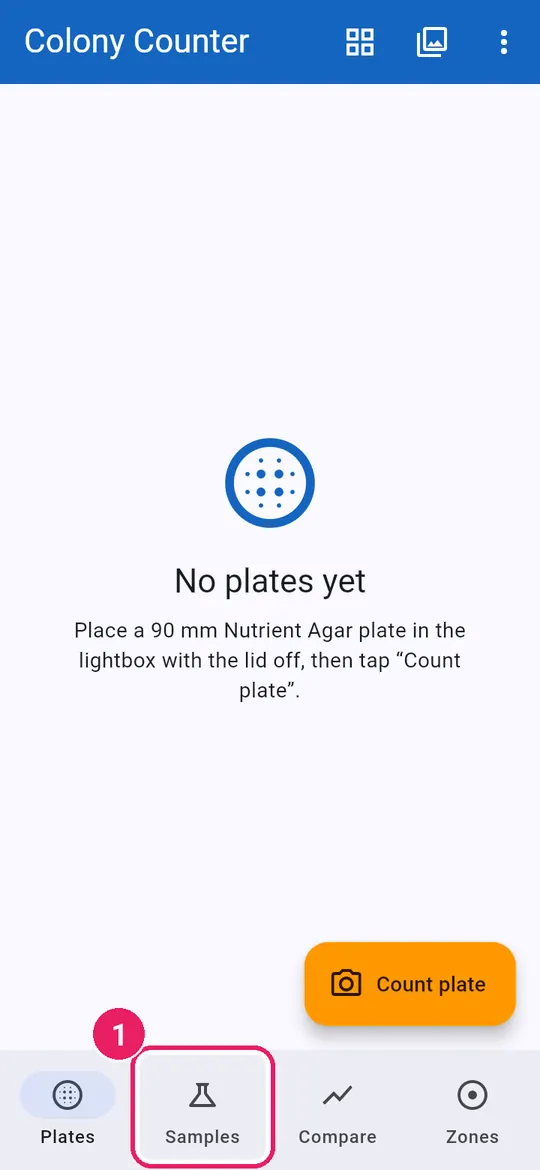
The four tabsแท็บทั้งสี่
1
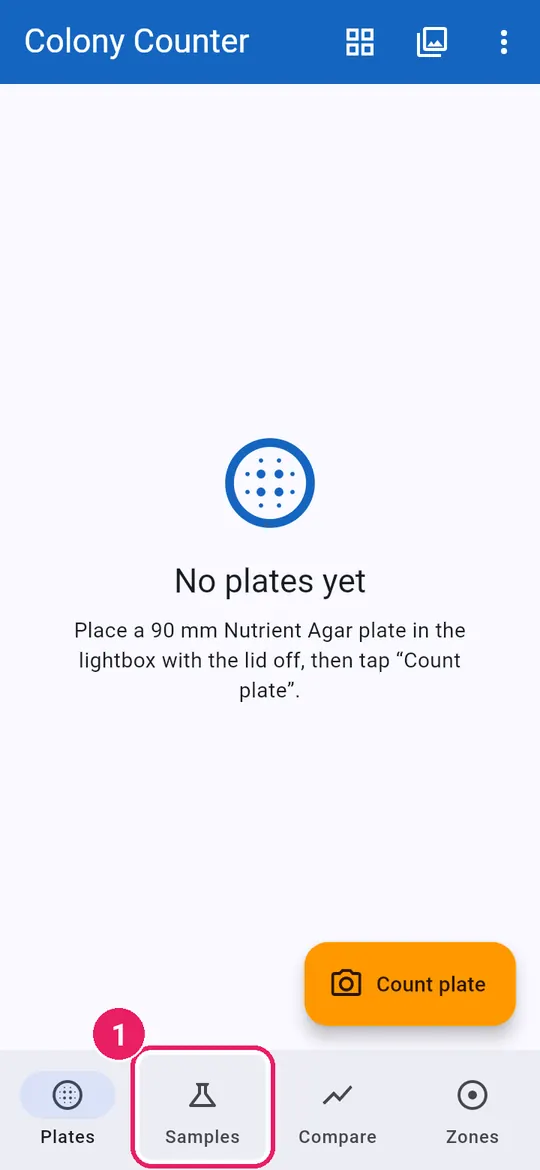
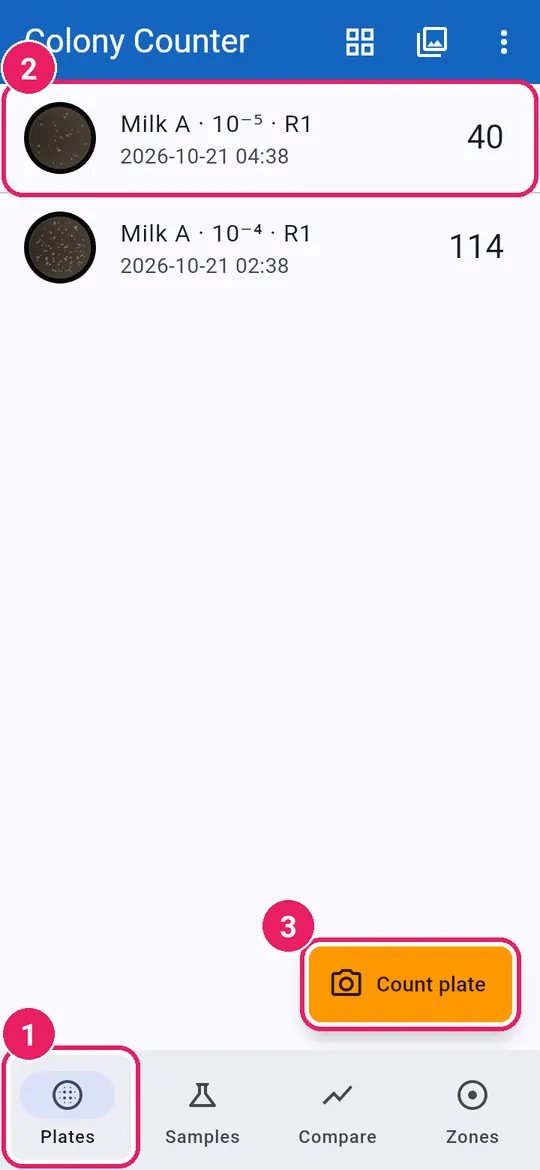
  1. 1Plates: every plate you countedเพลต: ทุกเพลตที่นับแล้ว
  2. 2Tap a plate to open itแตะเพลตเพื่อเปิด
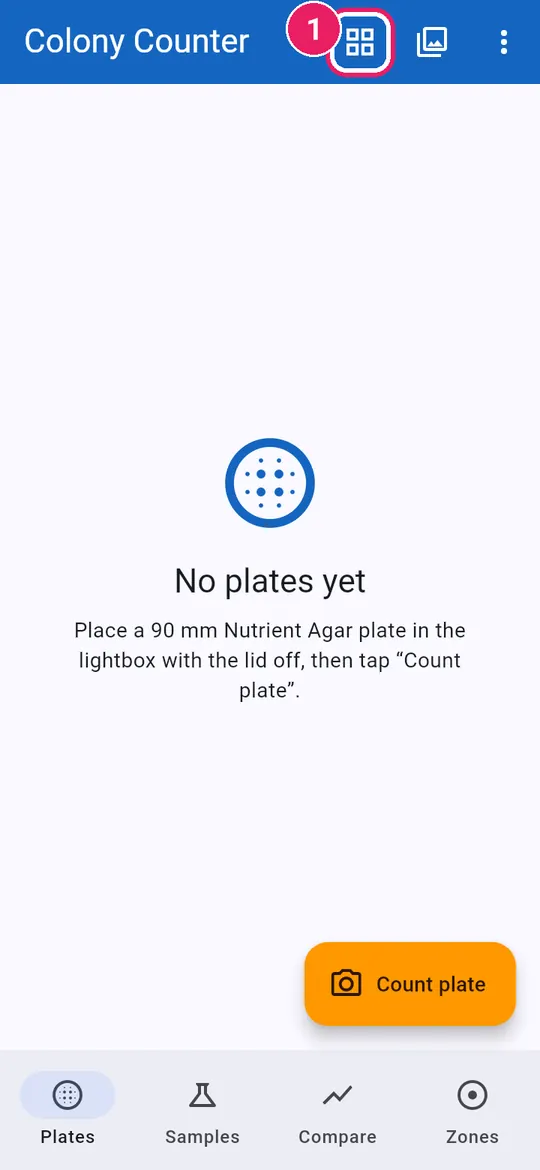
  3. 3Count plate: photograph a new plateนับเพลต: ถ่ายภาพเพลตใหม่
2
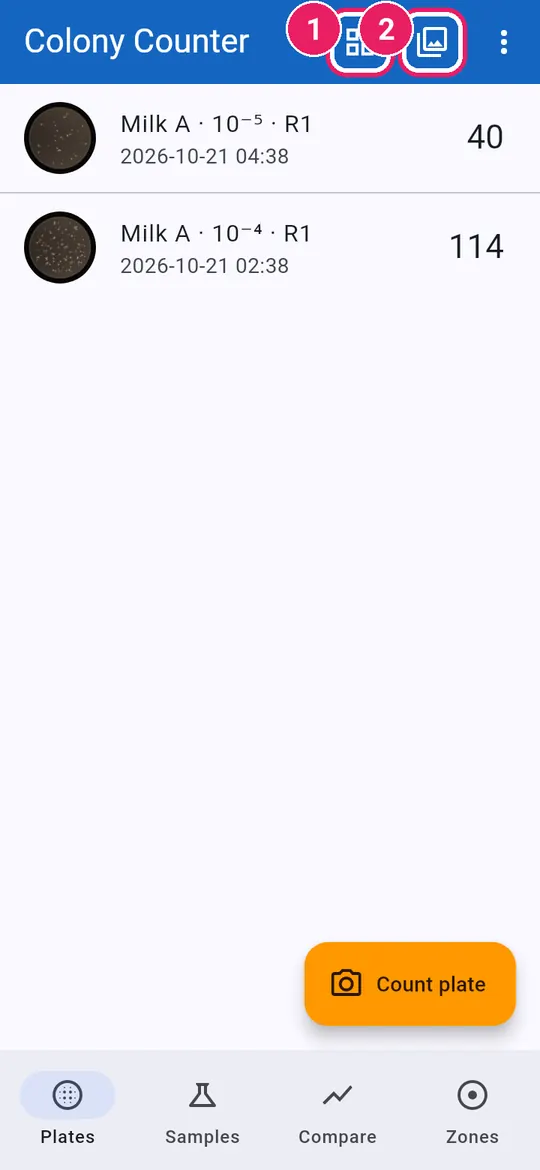
  1. 1Several plates in one photoหลายเพลตในภาพเดียว
  2. 2Import photo from the galleryนำเข้าภาพ จากคลังภาพ
3
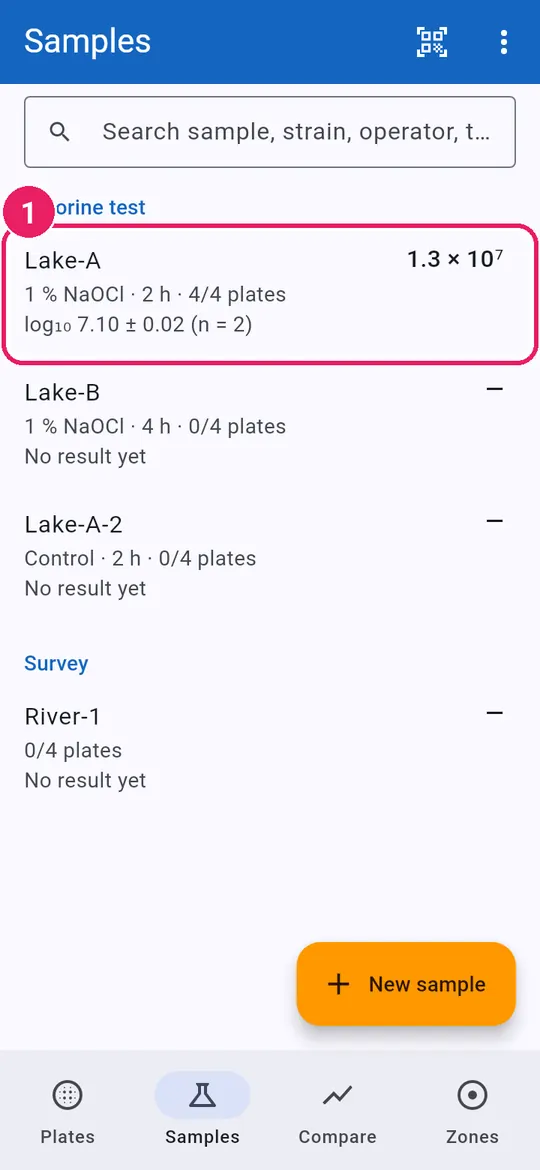
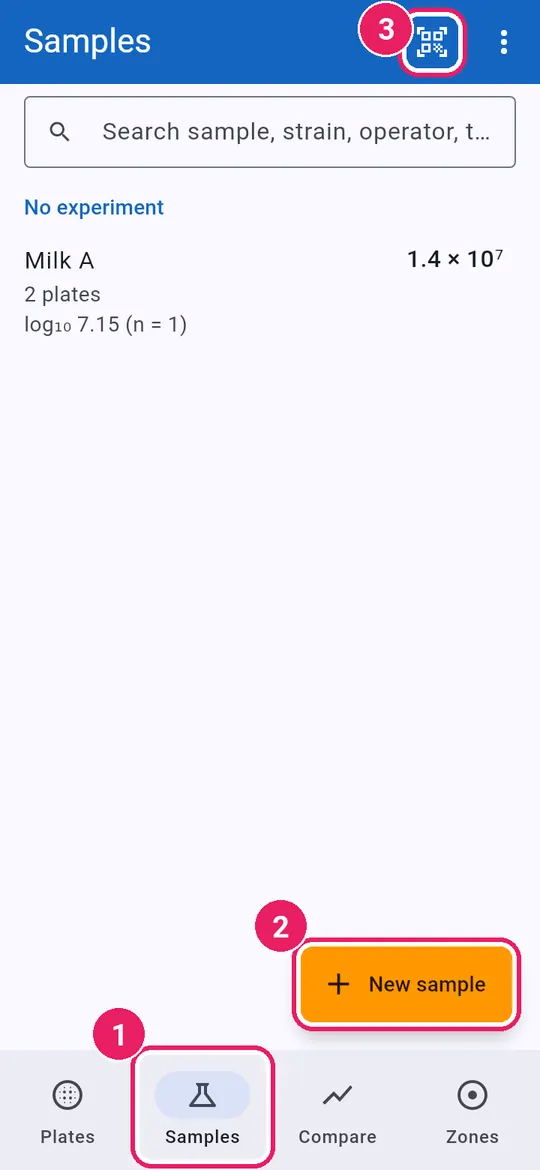
  1. 1Samples: CFU/mL of each sampleตัวอย่าง: CFU/mL ของแต่ละตัวอย่าง
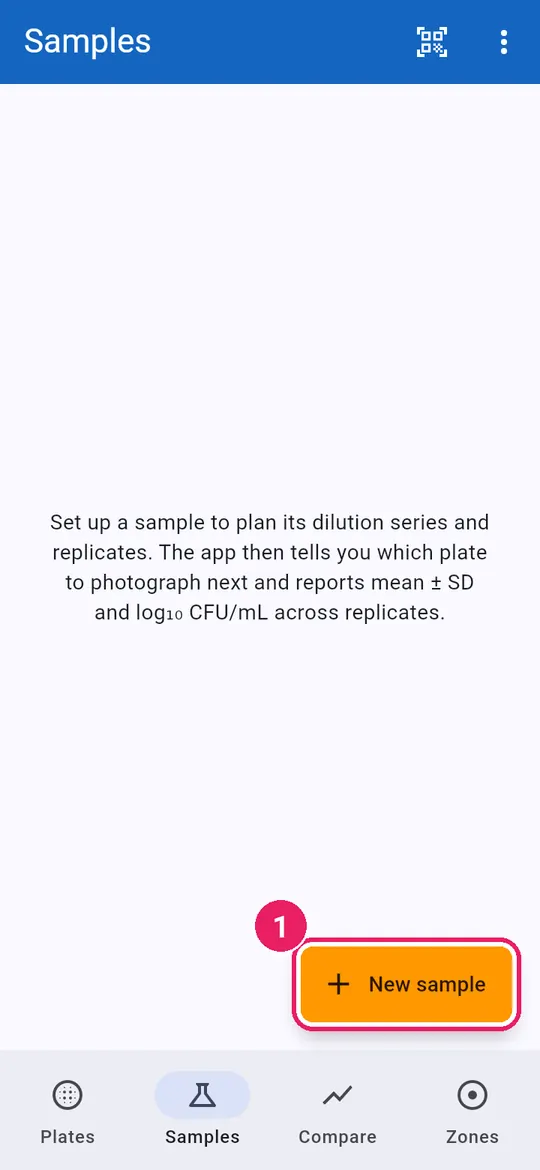
  2. 2New sample: plan a dilution seriesตัวอย่างใหม่: วางแผนการเจือจาง
  3. 3Scan plate label (QR code)สแกนฉลากเพลต (คิวอาร์โค้ด)
4
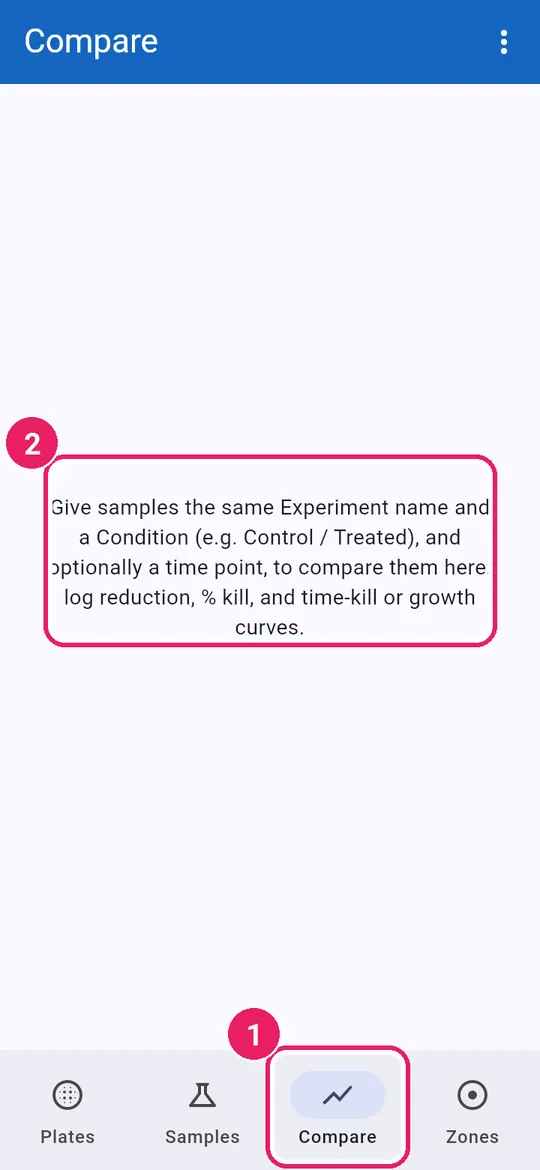
  1. 1Compare: conditions and curves over timeเปรียบเทียบ: สภาวะและกราฟตามเวลา
  2. 2How to set up a comparisonวิธีเริ่มการเปรียบเทียบ
5
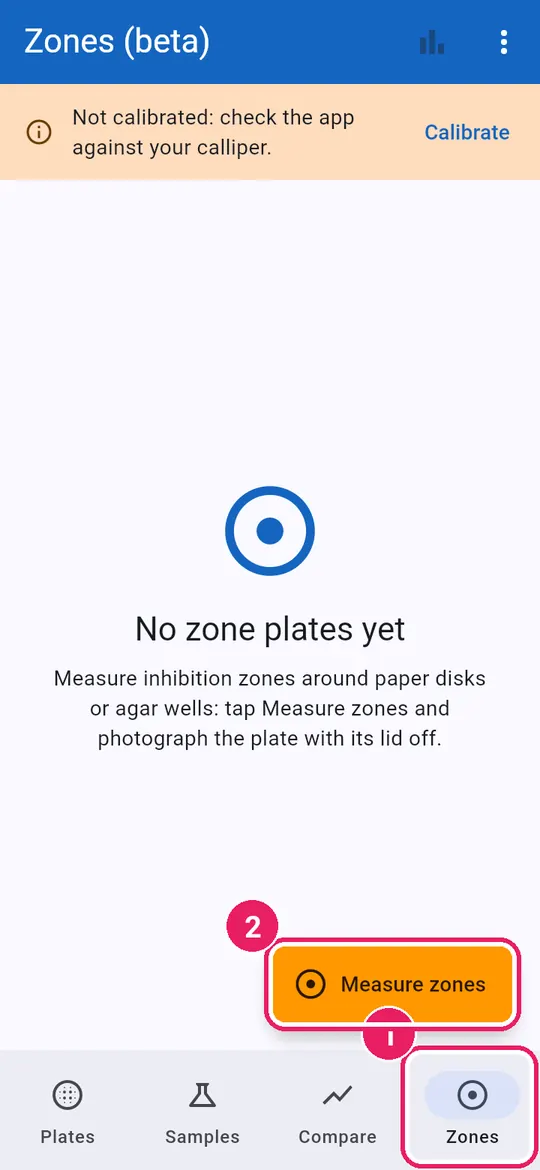
  1. 1Zones: inhibition zone platesโซนยับยั้ง: เพลตวัดโซนยับยั้ง
  2. 2Measure zones: photograph a plateวัดโซนยับยั้ง: ถ่ายภาพเพลต

The ⋮ menuเมนู ⋮
6
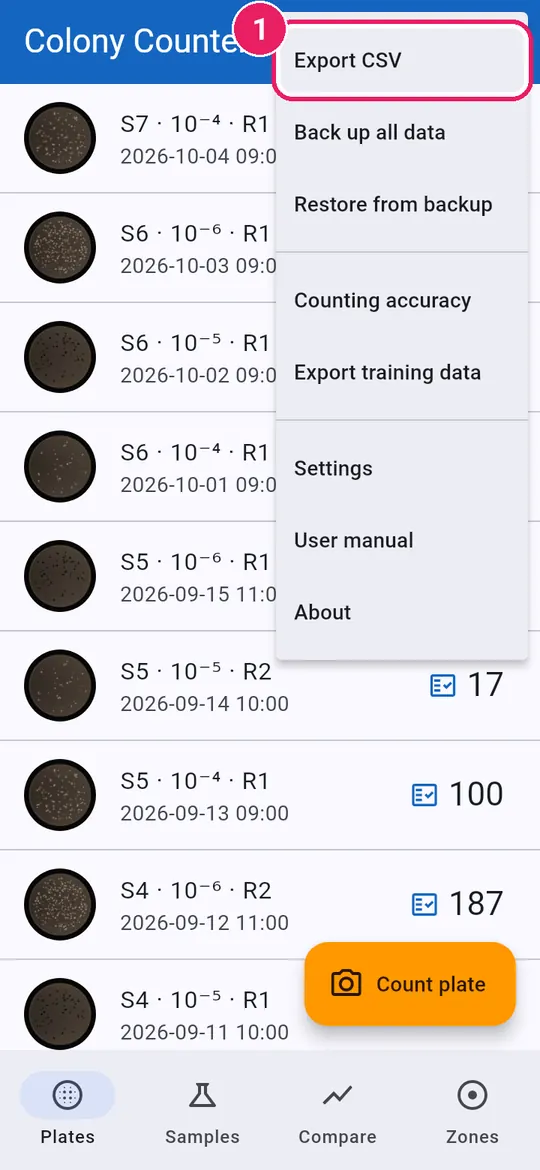
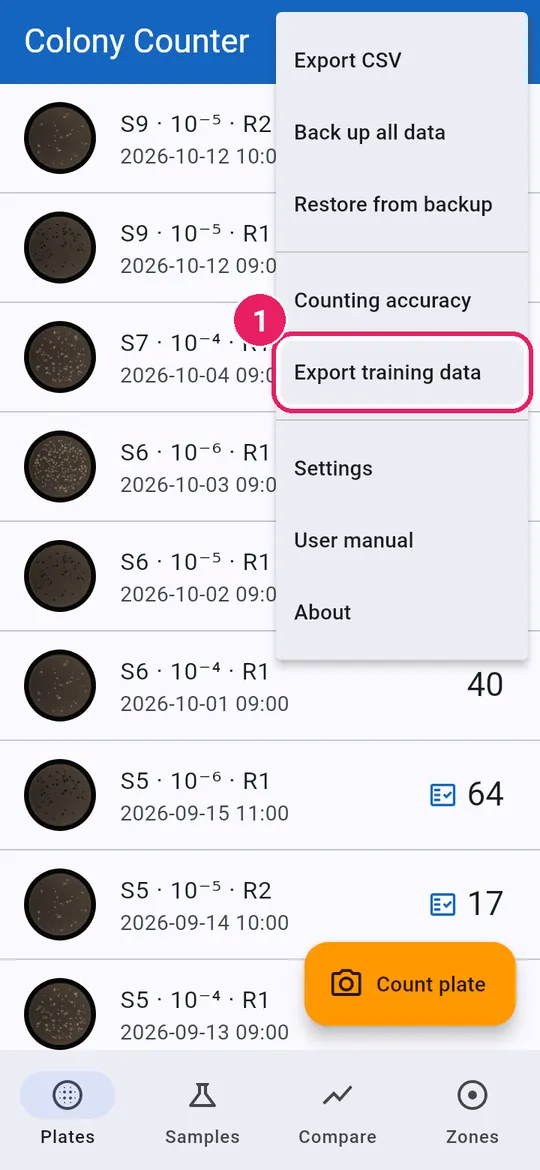
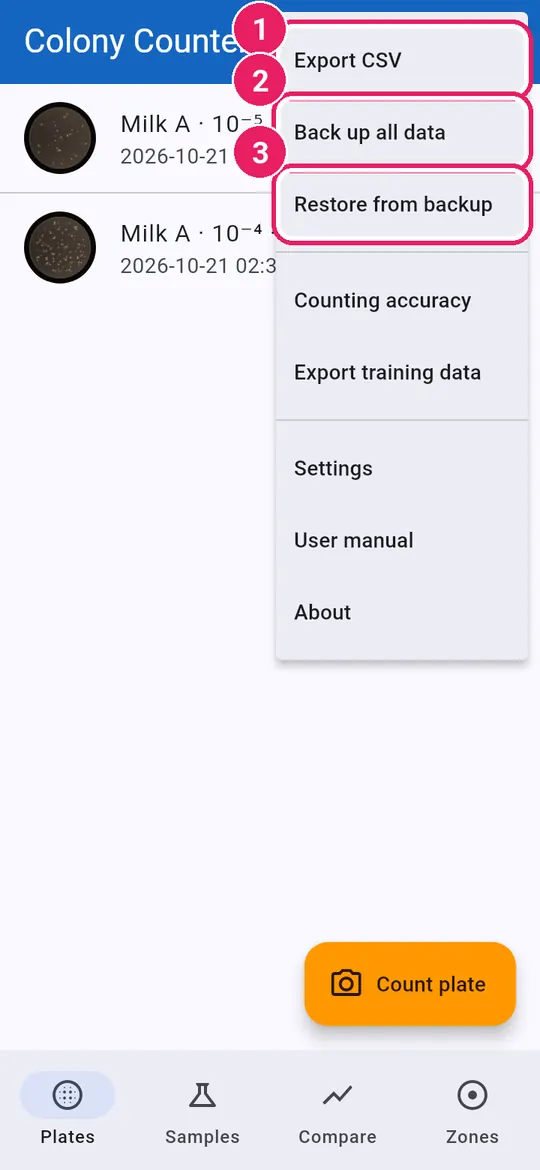
  1. 1Export CSV of the countsส่งออก CSV ของผลการนับ
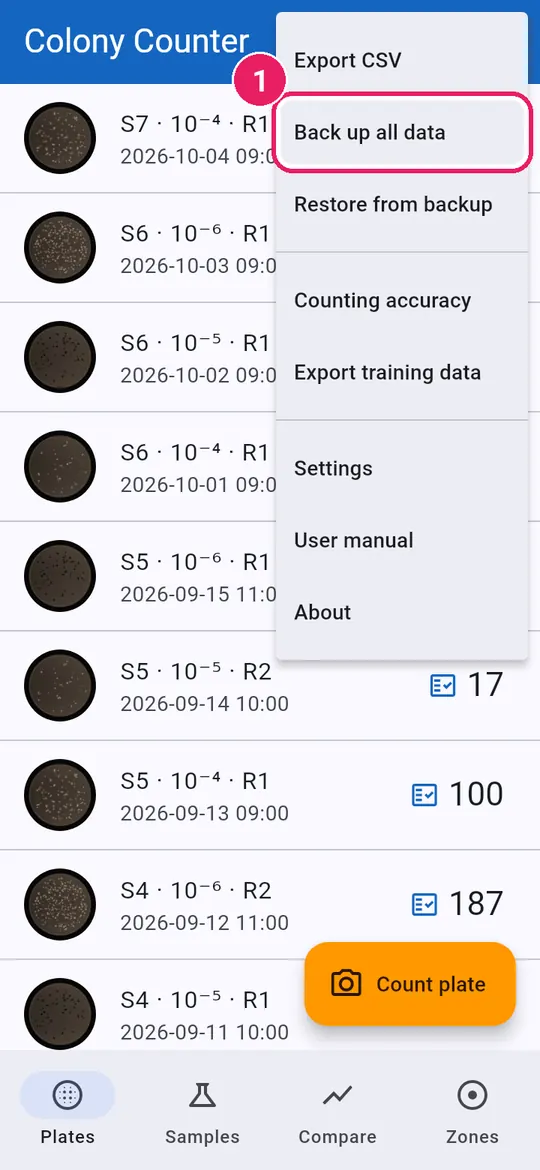
  2. 2Back up all data to a fileสำรองข้อมูลทั้งหมด เป็นไฟล์
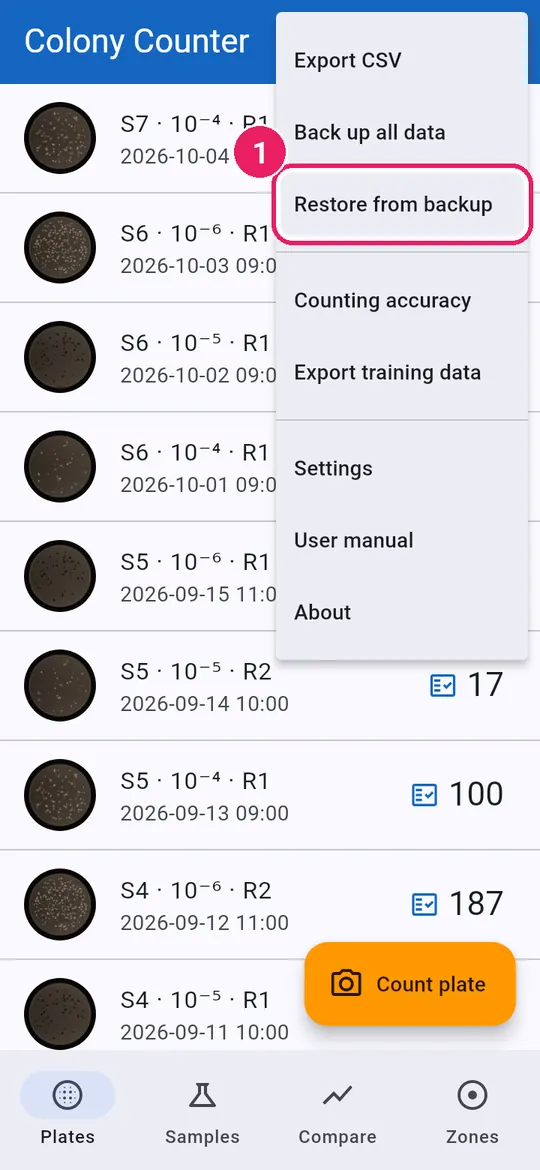
  3. 3Restore from backupกู้คืนจากข้อมูลสำรอง

Tap ⋮ at the top right.แตะ ⋮ ที่มุมขวาบน
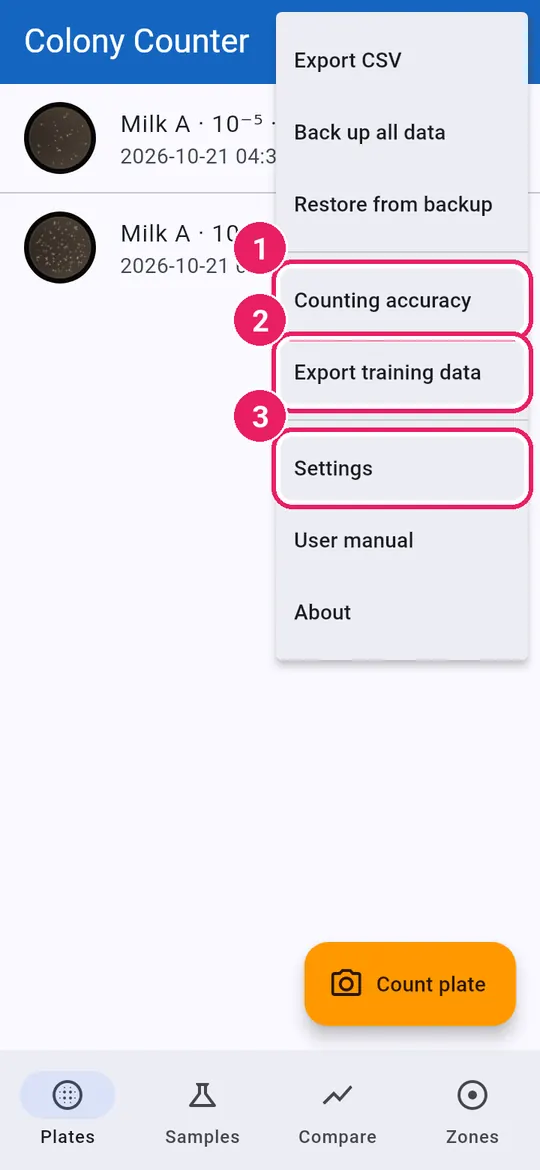
7
  1. 1Counting accuracy on your platesความแม่นยำการนับ กับเพลตของคุณ
  2. 2Export training data: photos with marksส่งออกข้อมูลสำหรับฝึกโมเดล
  3. 3Settingsการตั้งค่า

Settingsการตั้งค่า
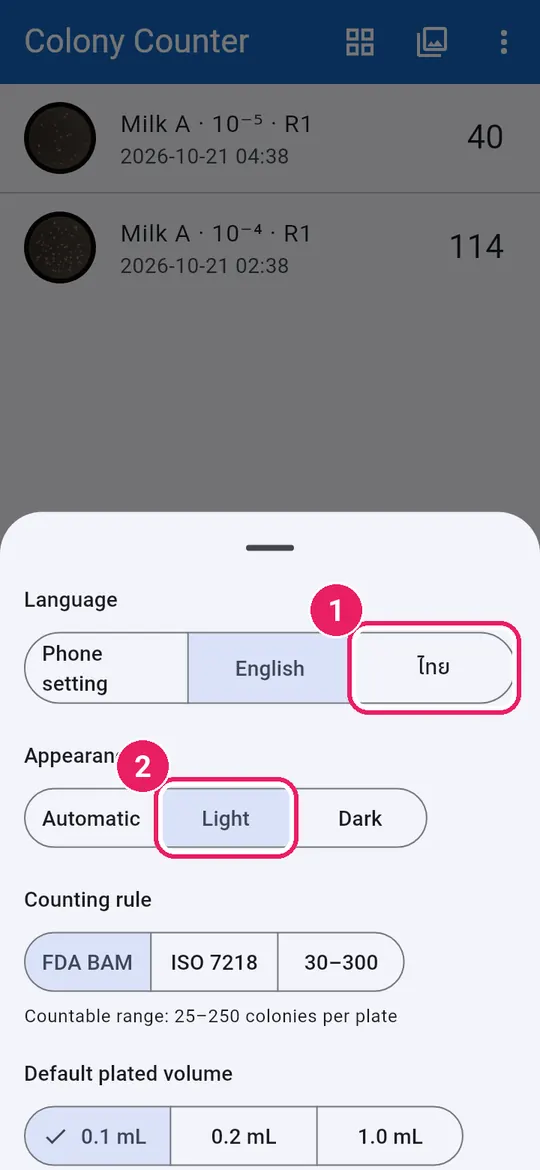
8
  1. 1Language: Phone setting, English or ไทยภาษา: ตามเครื่อง English หรือ ไทย
  2. 2Appearance: Automatic, Light or Darkรูปแบบการแสดงผล: อัตโนมัติ สว่าง มืด
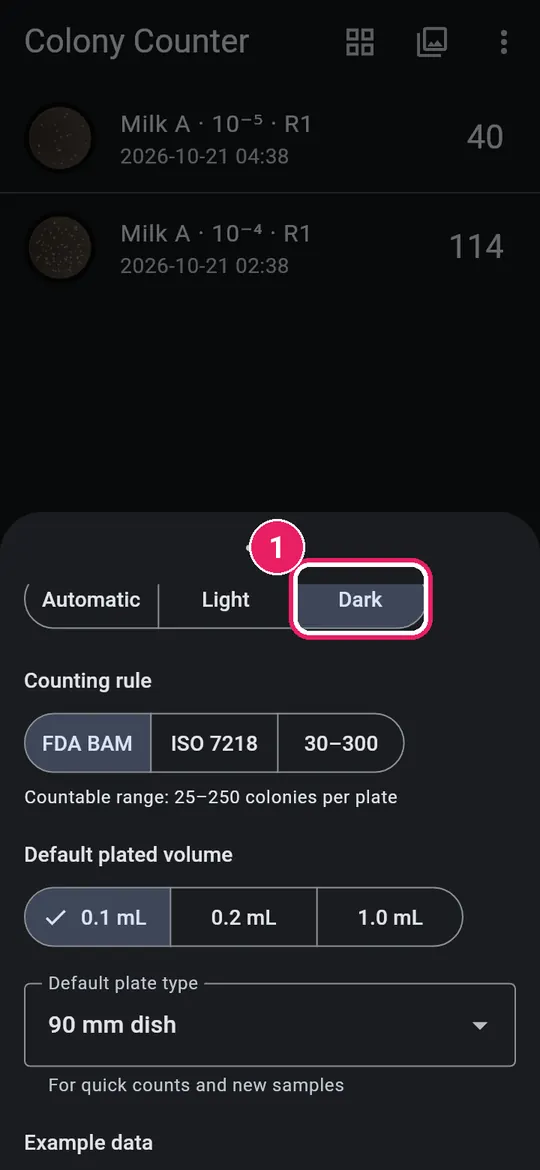
9
  1. 1Dark: the dark themeมืด: ธีมสีเข้ม
10
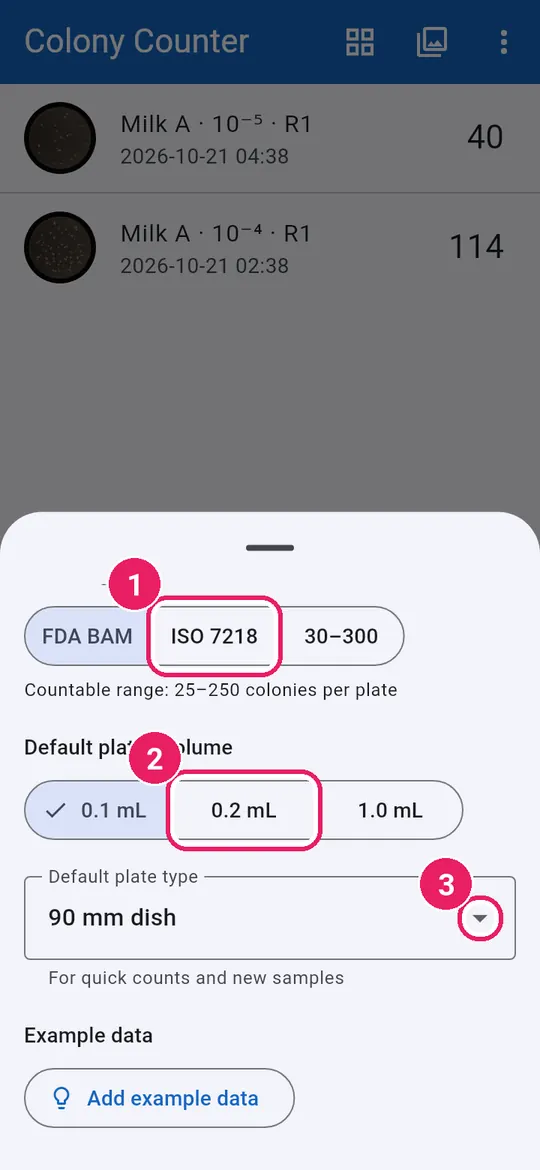
  1. 1Counting rule for CFU/mLเกณฑ์การนับ สำหรับ CFU/mL
  2. 2Default plated volumeปริมาตรที่เพาะเริ่มต้น
  3. 3Default plate typeชนิดจานเริ่มต้น

The countable range is shown under the rule.ช่วงที่นับได้แสดงใต้เกณฑ์การนับ
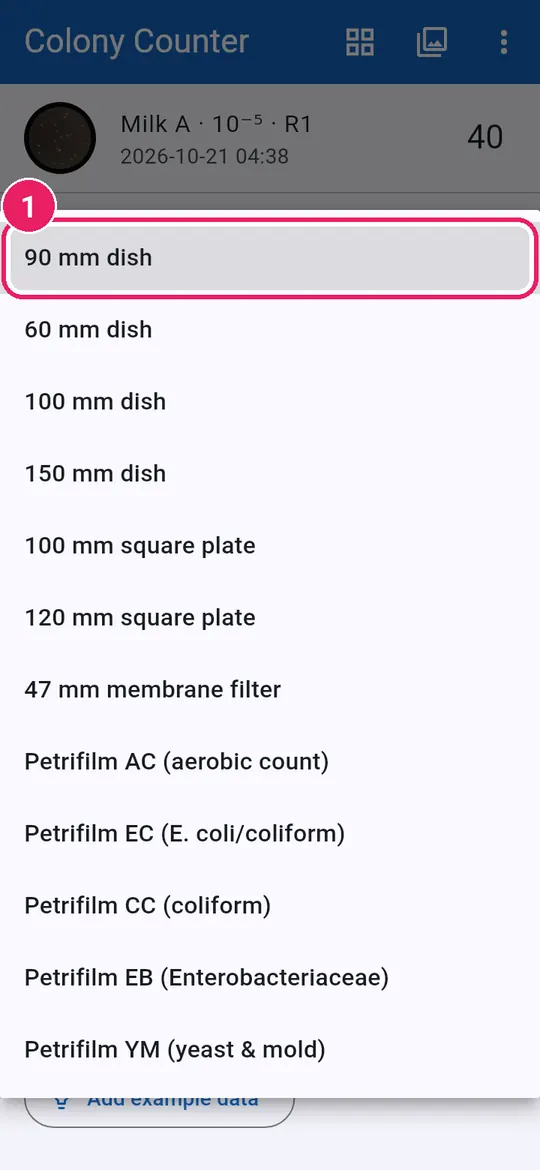
11
  1. 1Pick the dish or film you useเลือกจานหรือฟิล์มที่ใช้ประจำ

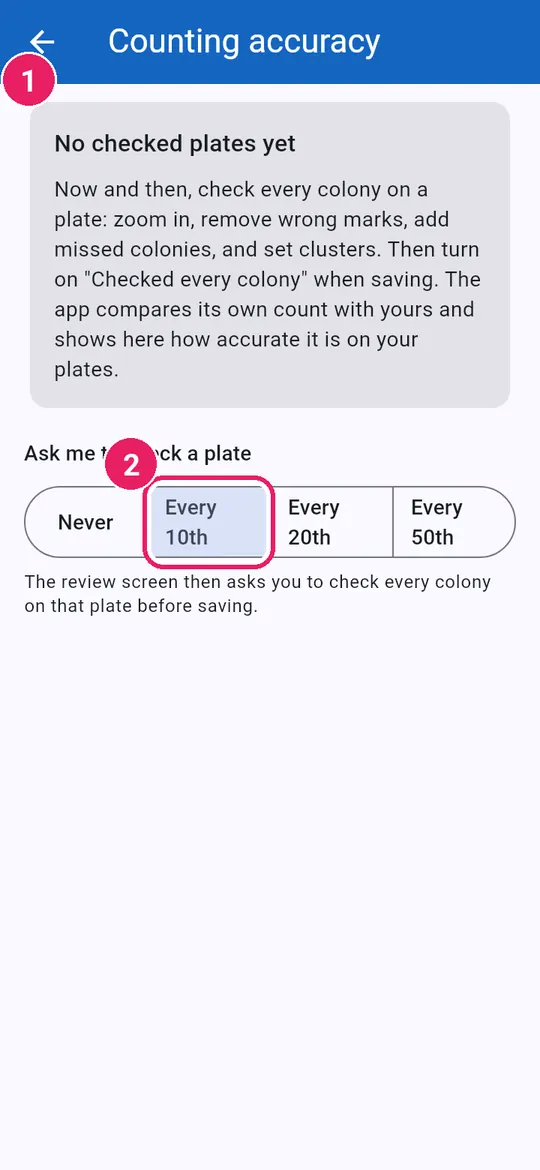
Counting accuracyความแม่นยำการนับ
12
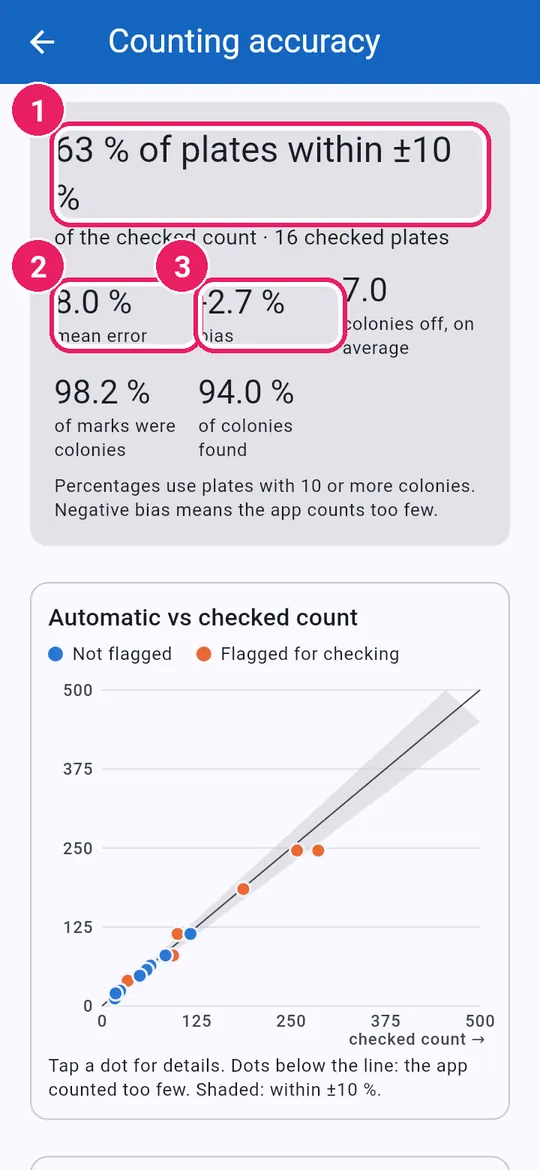
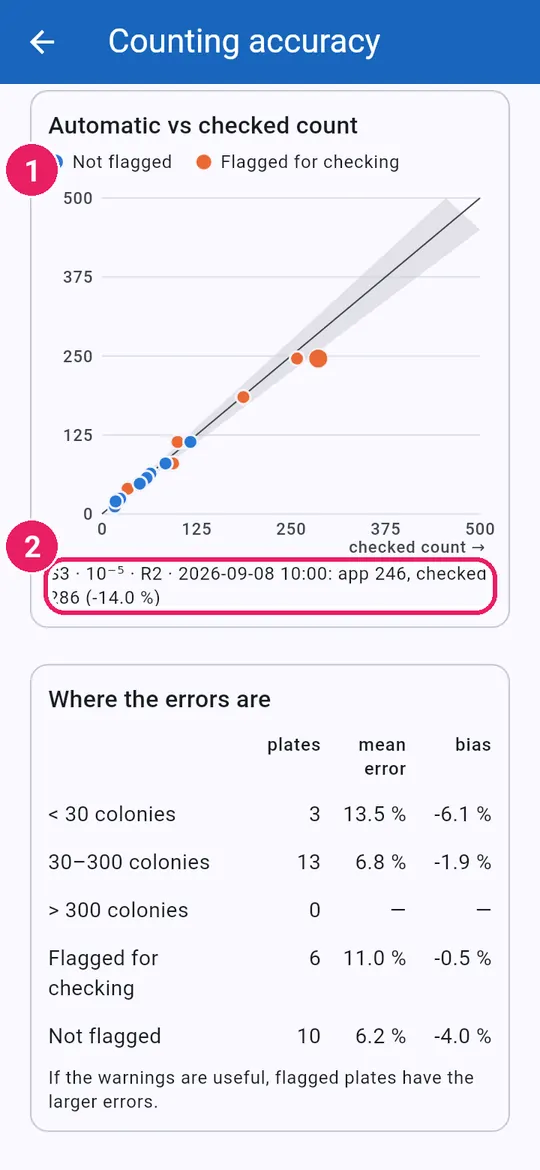
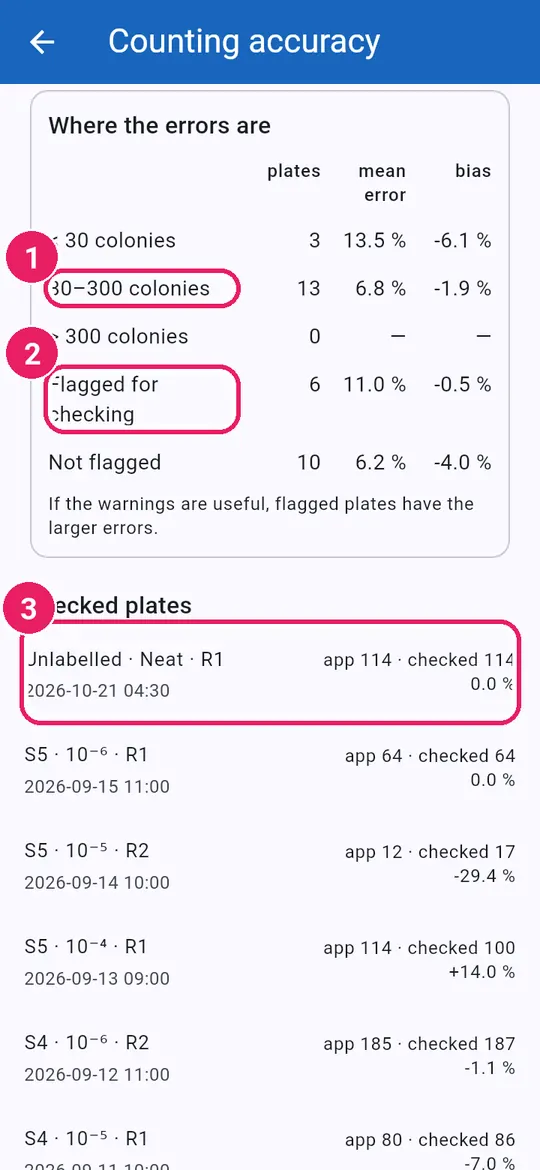
  1. 1How accuracy tracking worksวิธีติดตามความแม่นยำ
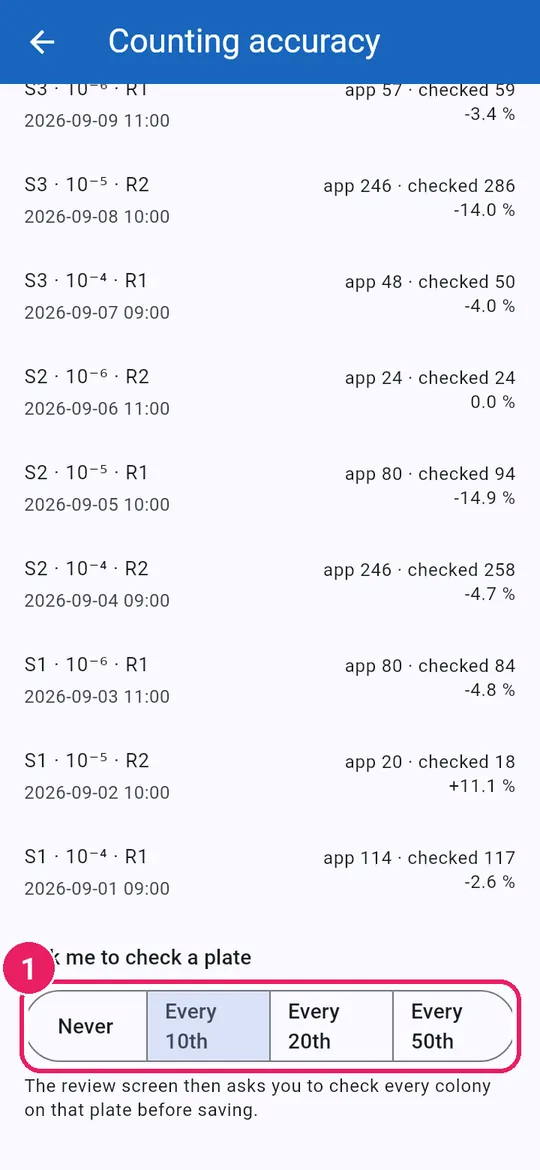
  2. 2How often to ask for a checkขอให้ฉันตรวจเพลต: บ่อยแค่ไหน

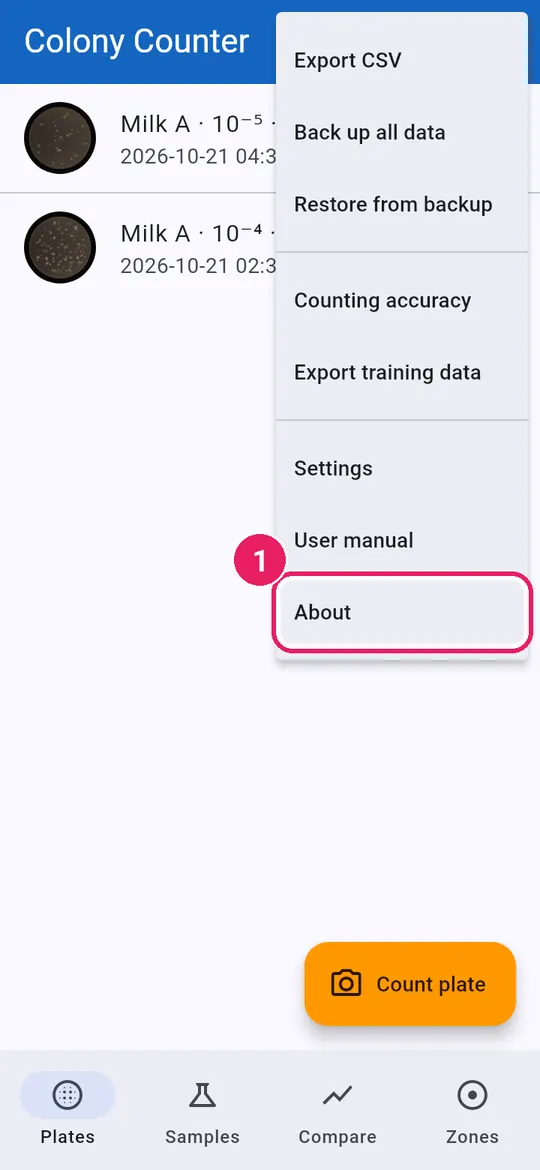
Aboutเกี่ยวกับแอป
13
  1. 1Tap Aboutแตะ เกี่ยวกับแอป
14
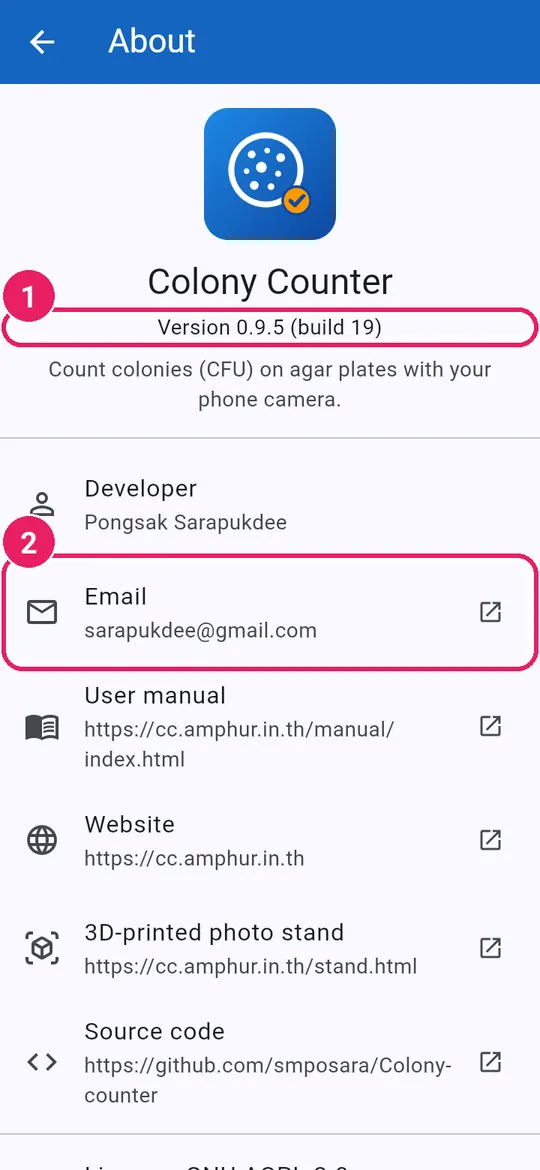
  1. 1The app versionเวอร์ชันของแอป
  2. 2Email the developerอีเมลถึงผู้พัฒนา
15
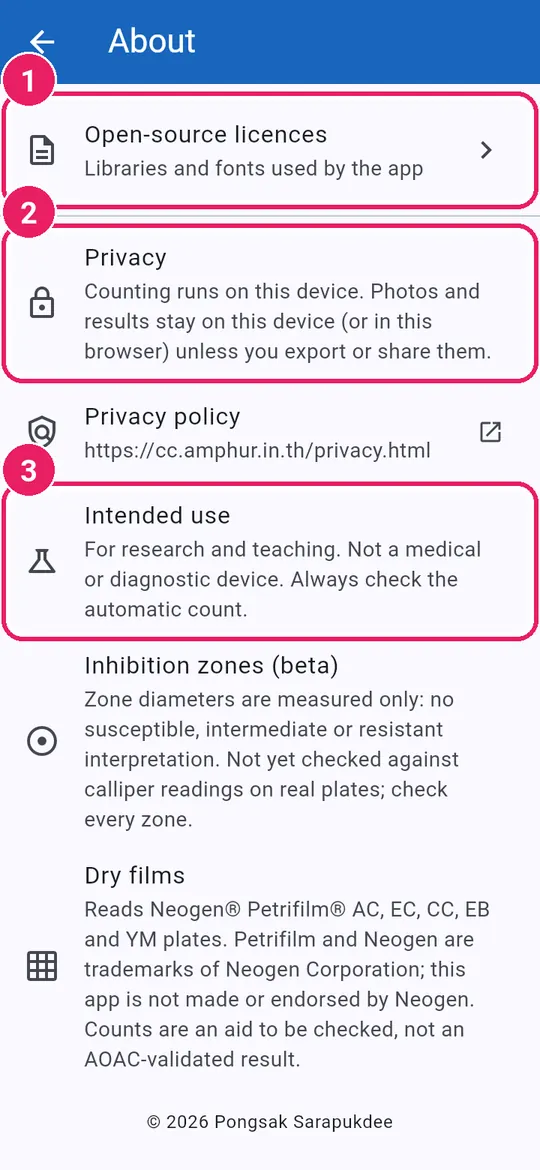
  1. 1Open-source licencesสัญญาอนุญาตโอเพนซอร์ส
  2. 2Privacy: data stays on this phoneความเป็นส่วนตัว: ข้อมูลอยู่ในเครื่องนี้
  3. 3Intended use: research and teachingวัตถุประสงค์: งานวิจัยและการสอน
↑ Back to contentsกลับไปสารบัญ

Try the examplesลองใช้ข้อมูลสาธิต

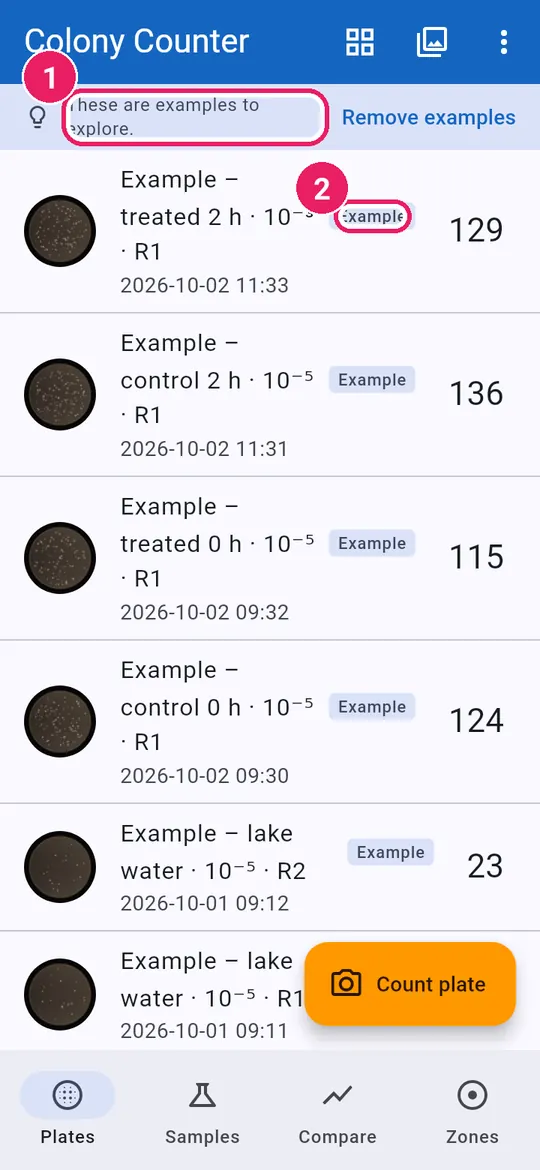
The app starts with example plates to explore.แอปเริ่มต้นพร้อมเพลตสาธิตให้ลองใช้งาน

Exploreสำรวจ

1
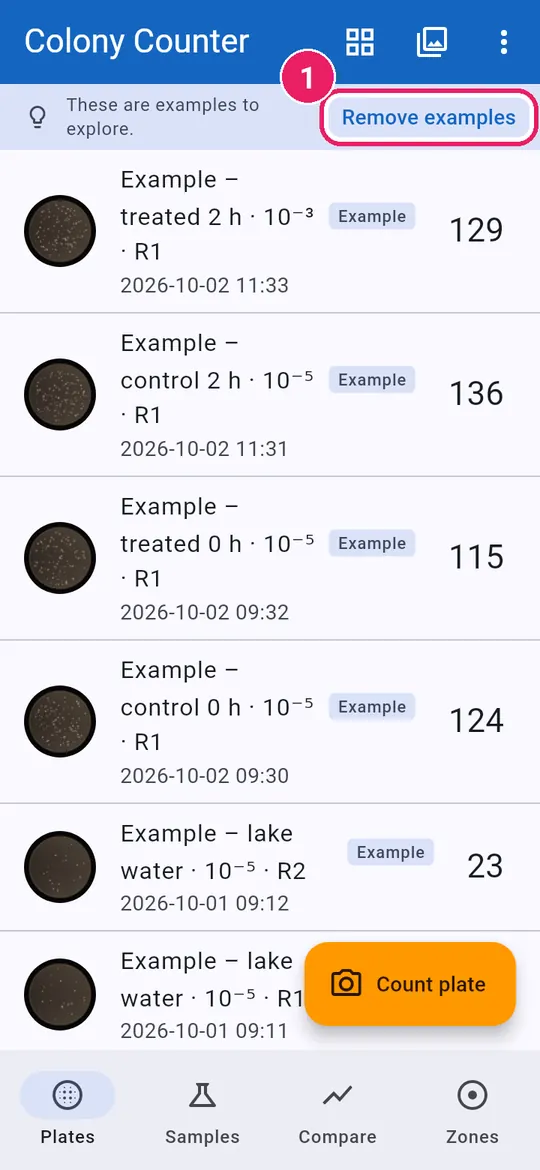
  1. 1Example data, ready to tryข้อมูลสาธิต พร้อมให้ลองใช้
  2. 2Every example is markedข้อมูลสาธิตทุกรายการมีป้ายกำกับ
2
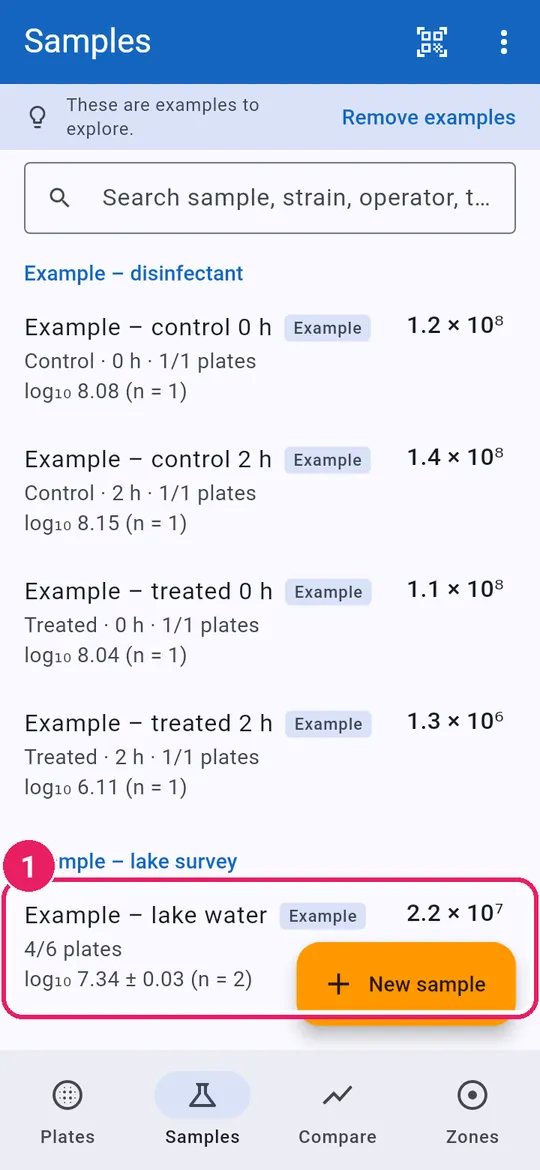
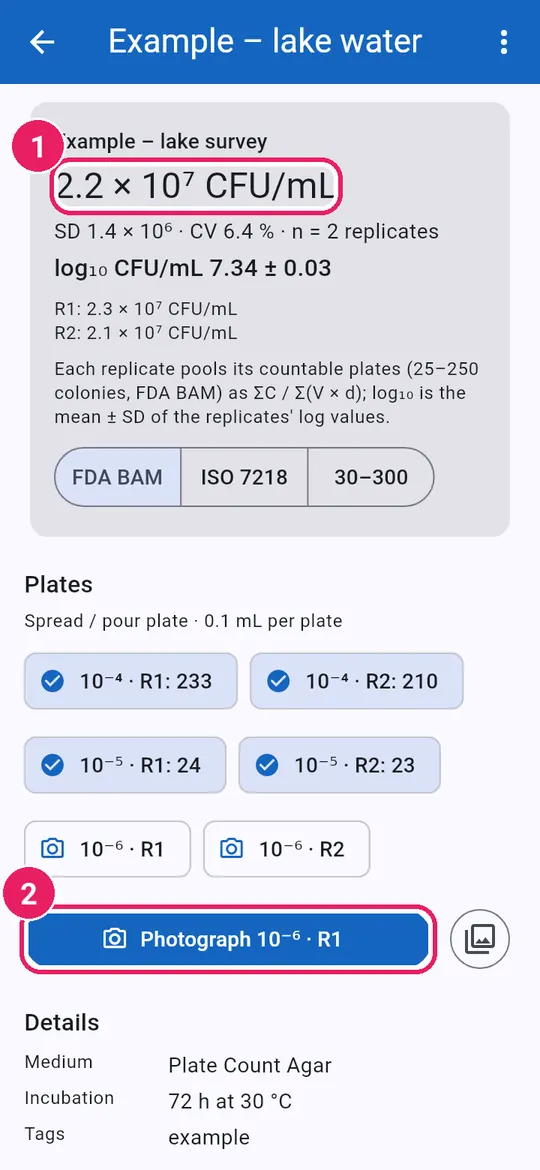
  1. 1Open the lake water sampleเปิดตัวอย่างน้ำในทะเลสาบ
3
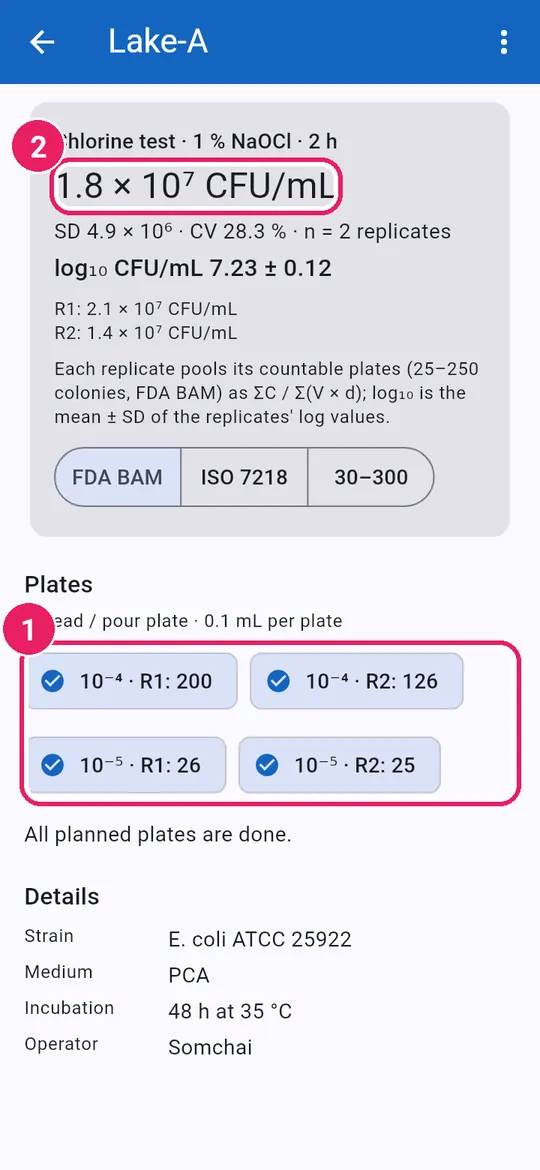
  1. 1The result from 4 platesผลจากเพลต 4 แผ่น
  2. 2Try photographing the next plateลองถ่ายภาพเพลตถัดไป
4
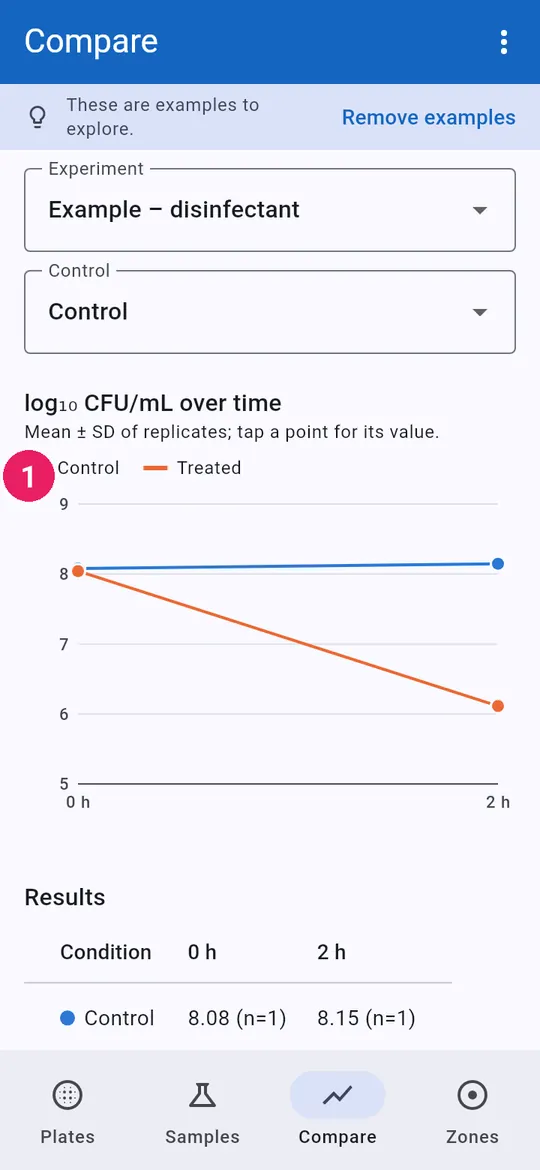
  1. 1Control vs treated over timeกลุ่มควบคุมเทียบกลุ่มทดสอบตามเวลา
5
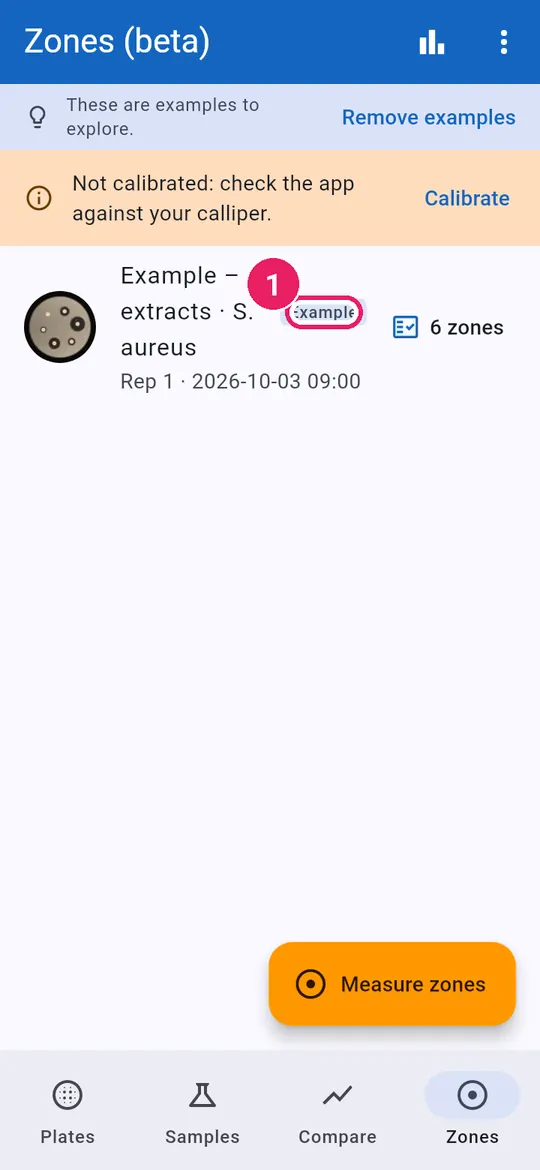
  1. 1An example zone plateเพลตวัดโซนยับยั้งสาธิต

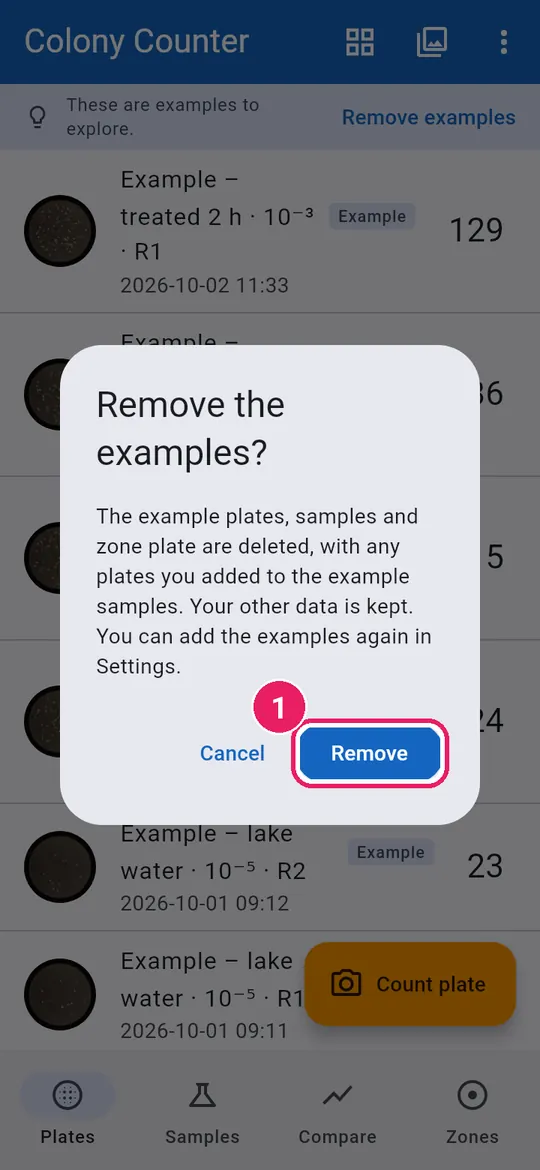
Remove themลบข้อมูลสาธิต

6
  1. 1Tap Remove examplesแตะ ลบข้อมูลสาธิต
7
  1. 1Tap Removeแตะ ลบ

Plates you added to an example go with it; the rest of your data is kept. Add the examples again in Settings.เพลตที่คุณเพิ่มลงในตัวอย่างสาธิตจะถูกลบไปด้วย ข้อมูลอื่นของคุณยังอยู่ เพิ่มข้อมูลสาธิตอีกครั้งได้ในการตั้งค่า

8

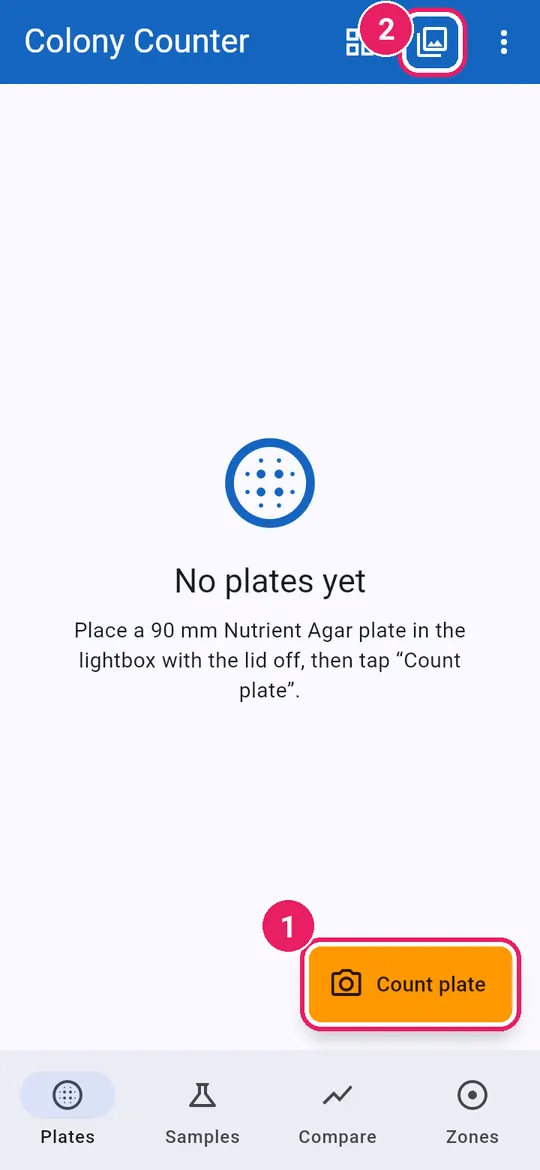
Ready for your own plates.พร้อมสำหรับเพลตของคุณ

↑ Back to contentsกลับไปสารบัญ

Count a plateนับเพลต

Photo, check, fix, save.ถ่ายภาพ ตรวจ แก้ไข บันทึก

Take the photoถ่ายภาพ

1
  1. 1Tap Count plateแตะ นับเพลต
  2. 2Or Import photo from the galleryหรือ นำเข้าภาพ จากคลังภาพ

Lid off, plate in the lightbox.เปิดฝา วางเพลตในกล่องไฟ

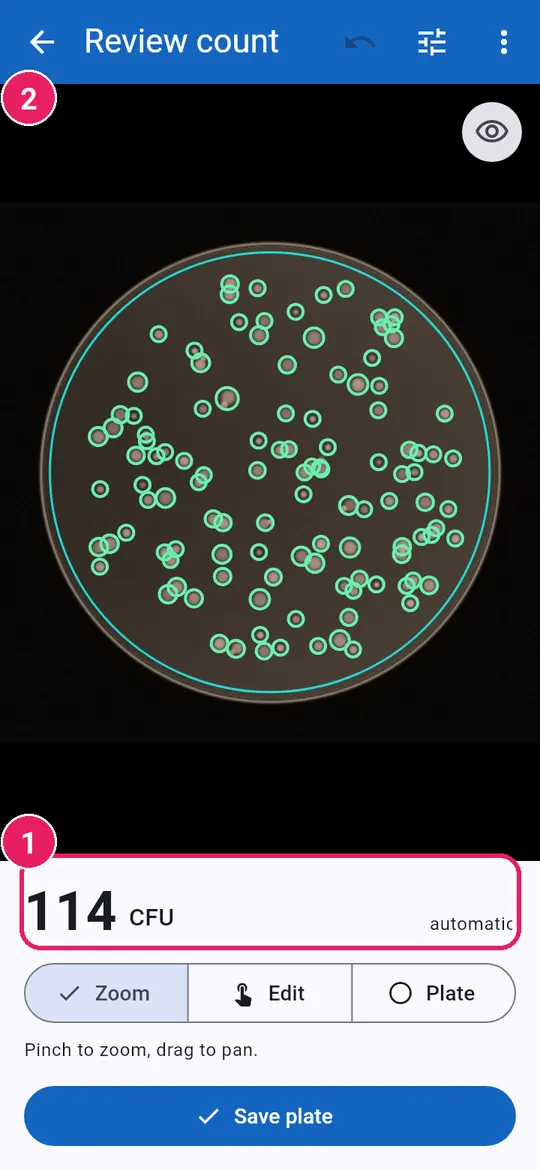
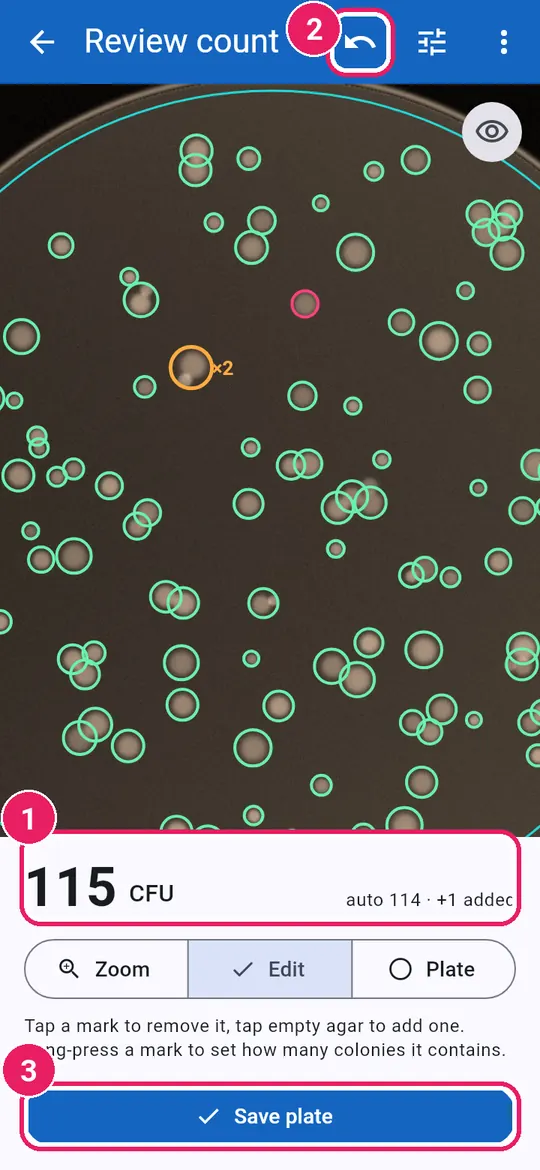
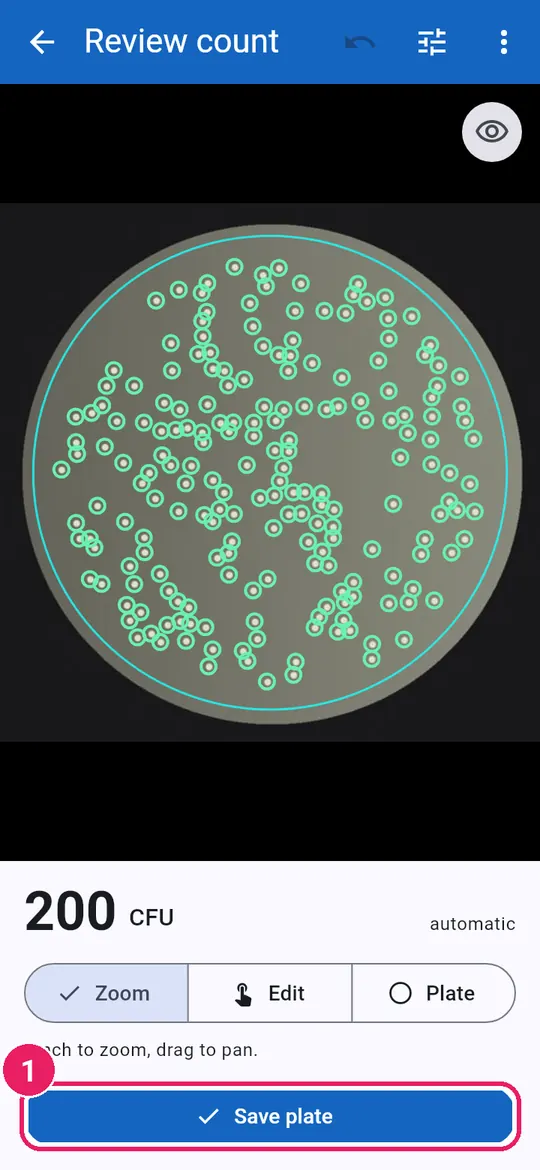
Look at the countดูผลการนับ

2
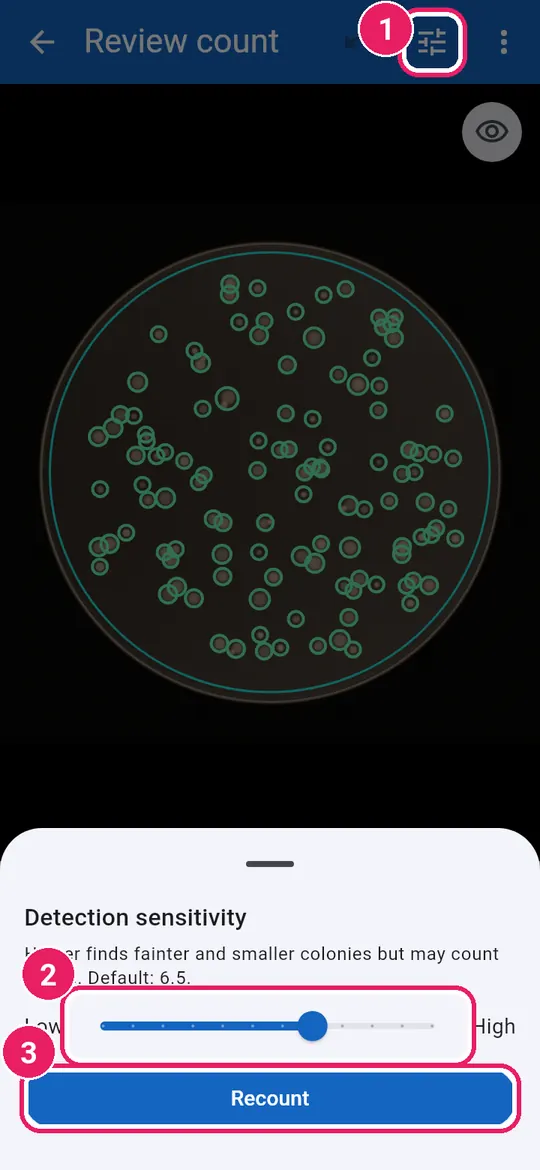
  1. 1The automatic countจำนวนที่นับอัตโนมัติ
  2. 2Each green ring is one colonyวงสีเขียวหนึ่งวงคือหนึ่งโคโลนี

The blue circle is the plate edge.วงสีฟ้าคือขอบเพลต

3
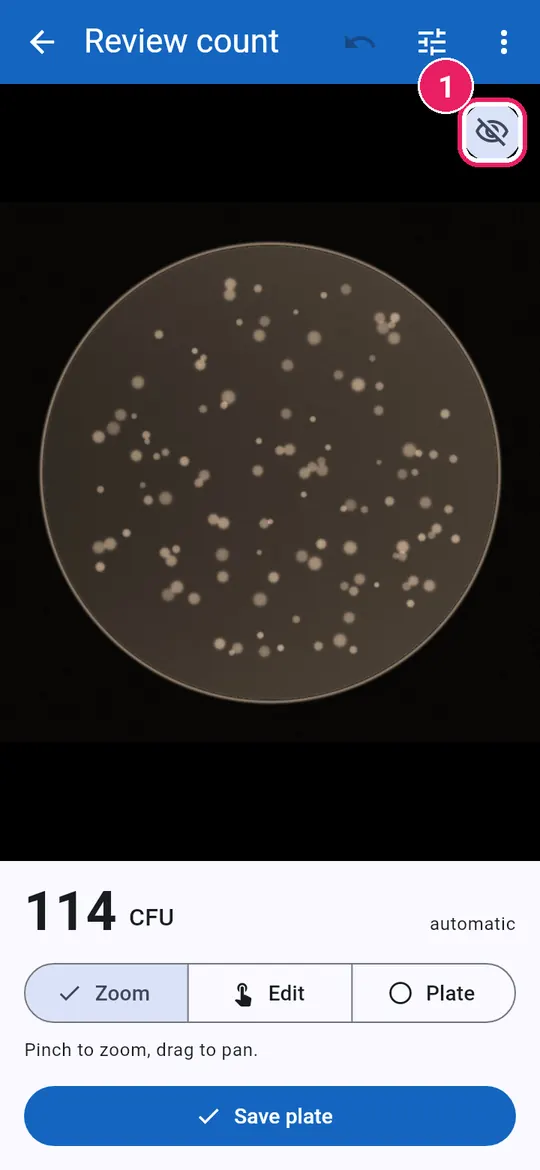
  1. 1Tap the eye to hide marksแตะรูปตาเพื่อซ่อนเครื่องหมาย

Tap it again to show them.แตะอีกครั้งเพื่อแสดง

4
  1. 1Tap Detection sensitivityแตะ ความไวในการตรวจจับ
  2. 2Towards High finds fainter coloniesไปทาง สูง จะพบโคโลนีที่จางขึ้น
  3. 3Tap Recountแตะ นับใหม่

Recounting discards edits: do it first.การนับใหม่จะทิ้งการแก้ไข จึงควรทำก่อน
Fit the plate circleปรับวงกลมของเพลต

5
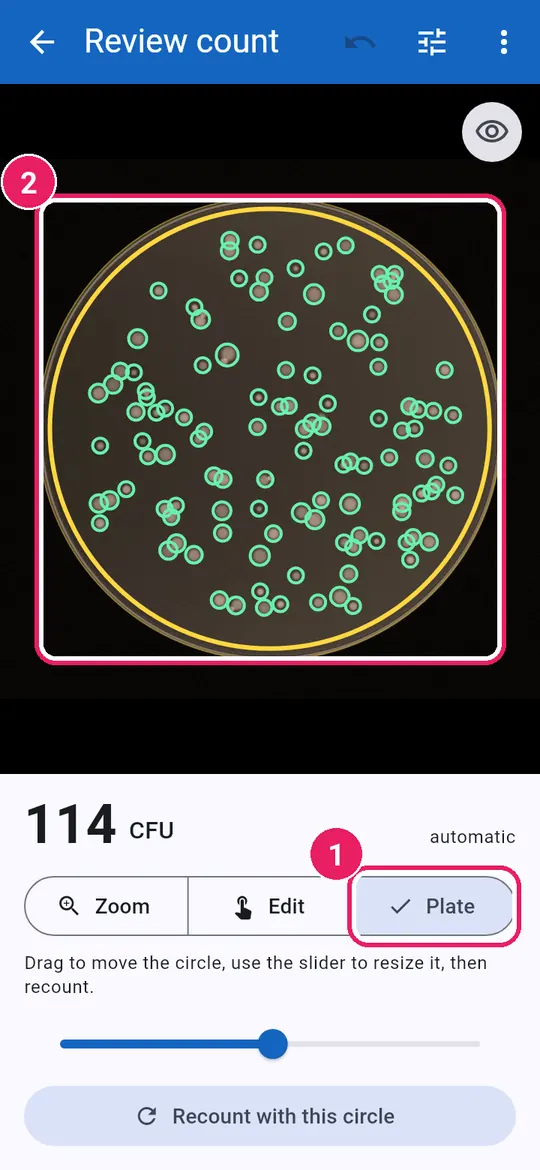
  1. 1Tap Plateแตะ เพลต
  2. 2Drag the circle onto the plate rimลากวงกลมให้ตรงขอบเพลต
6
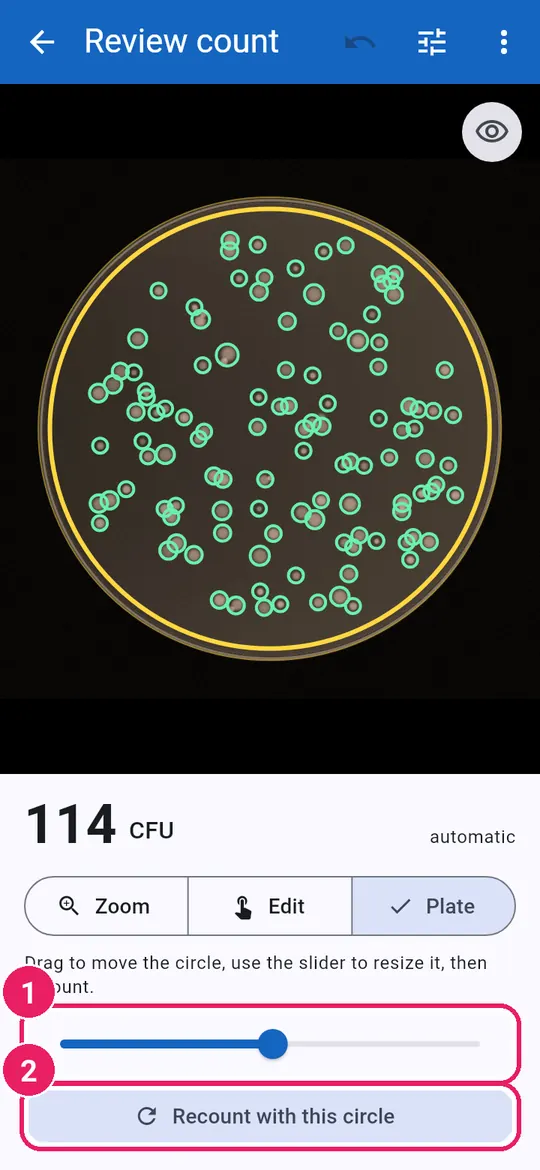
  1. 1Slide to resize the circleเลื่อนเพื่อปรับขนาดวงกลม
  2. 2Tap Recount with this circleแตะ นับใหม่ด้วยวงกลมนี้

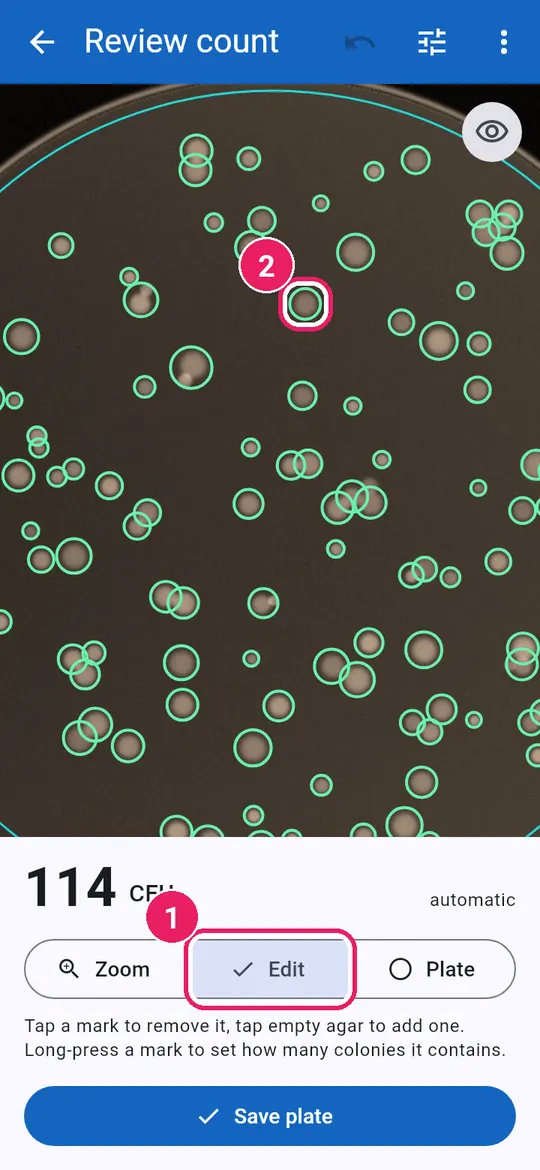
Fix the marksแก้ไขเครื่องหมาย

7
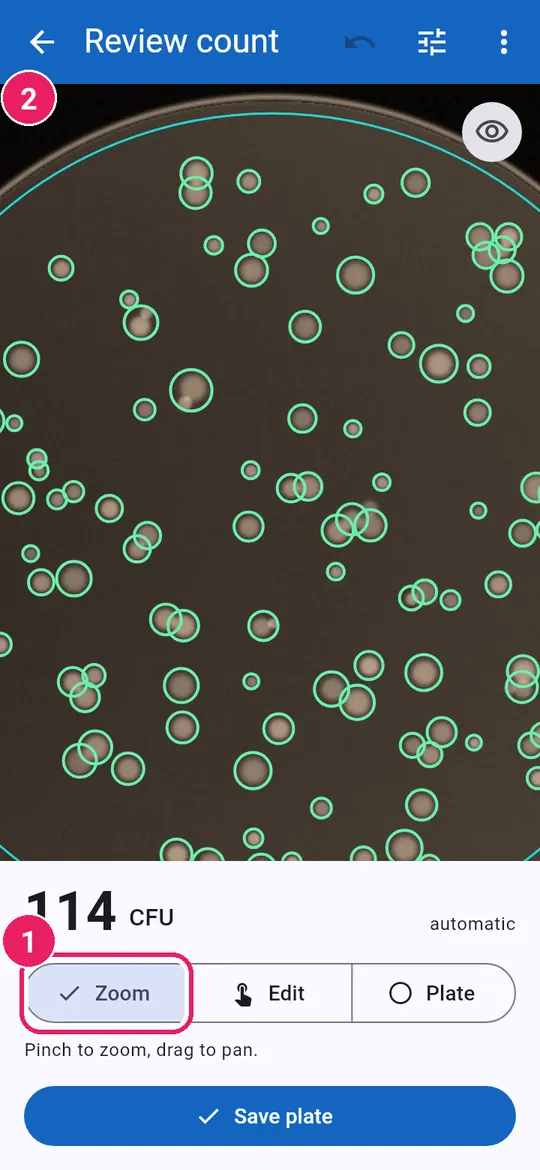
  1. 1Tap Zoomแตะ ซูม
  2. 2Pinch to zoom, drag to moveใช้สองนิ้วซูม ลากเพื่อเลื่อน
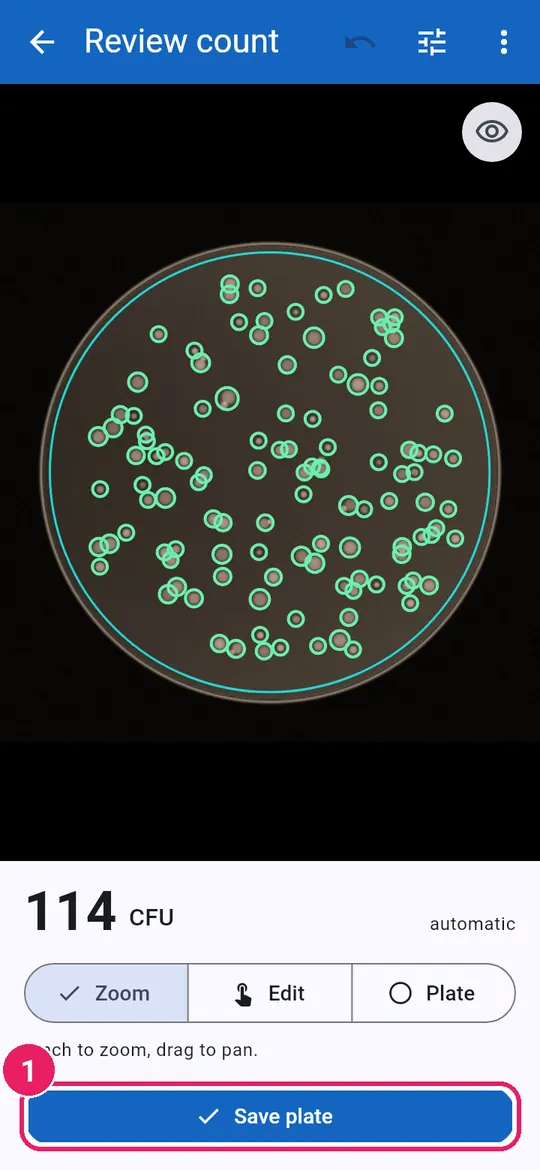
8
  1. 1Tap Editแตะ แก้ไข
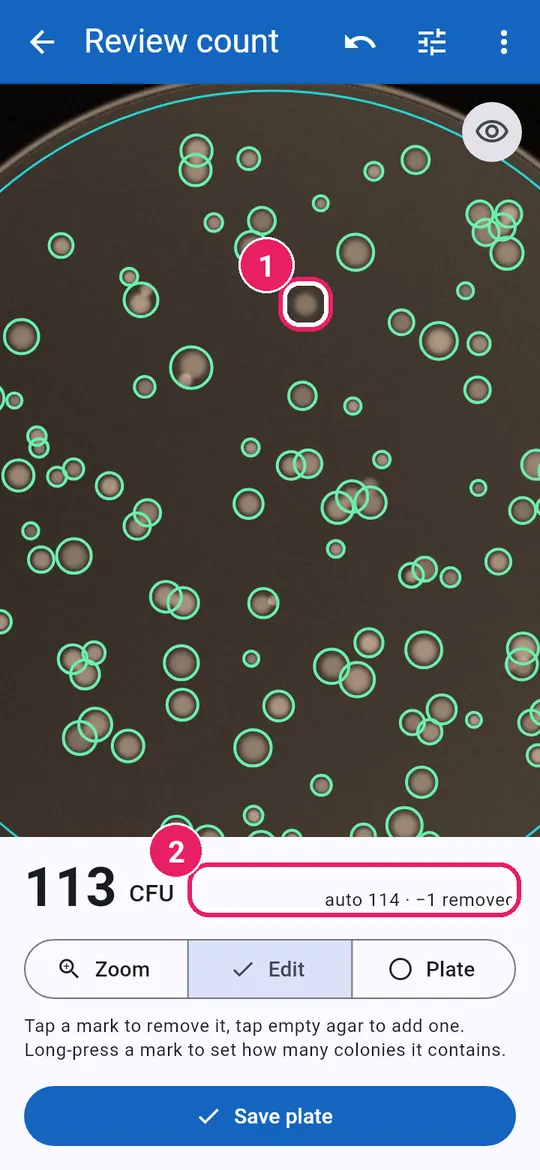
  2. 2Tap a wrong mark to remove itแตะเครื่องหมายที่ผิดเพื่อลบ
9
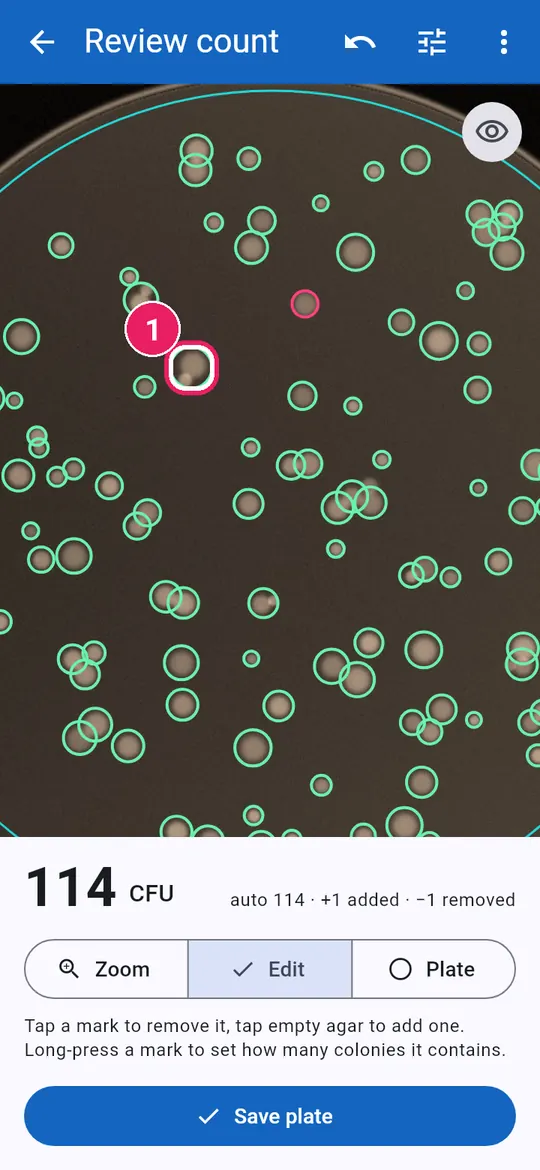
  1. 1Tap a missed colony to add itแตะโคโลนีที่ขาดเพื่อเพิ่ม
  2. 2Your edits are listed hereการแก้ไขแสดงที่นี่
10
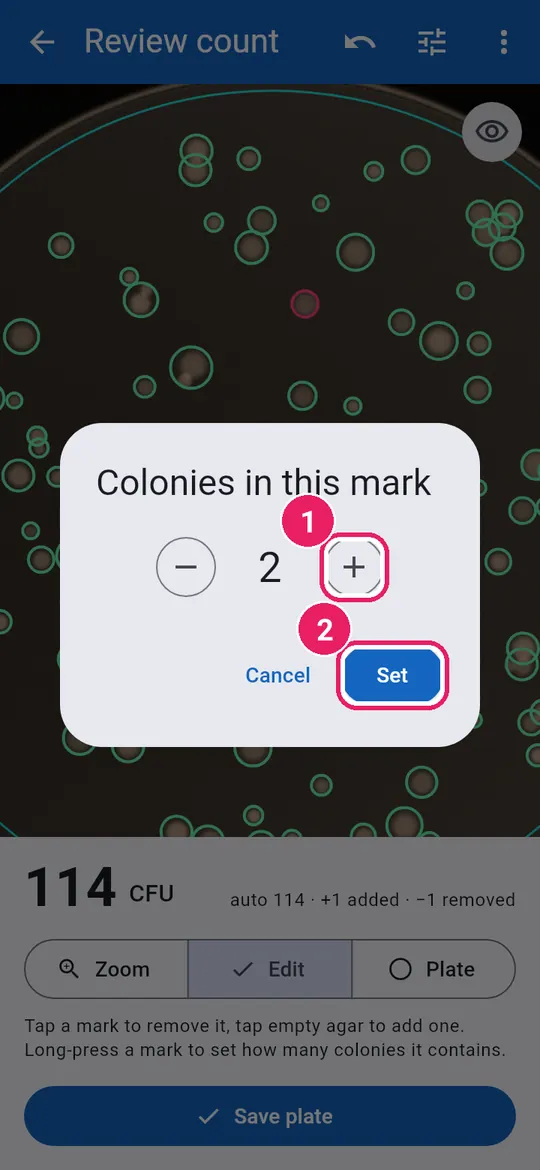
  1. 1Long-press a clump of coloniesกดค้างที่กลุ่มโคโลนี
11
  1. 1Tap + for each colonyแตะ + ตามจำนวนโคโลนี
  2. 2Tap Setแตะ ตั้งค่า

The mark then shows ×2.เครื่องหมายจะแสดง ×2

12
  1. 1The corrected countจำนวนที่แก้ไขแล้ว
  2. 2Undo the last changeเลิกทำ การแก้ไขล่าสุด
  3. 3Tap Save plateแตะ บันทึกเพลต

Save the plateบันทึกเพลต

13
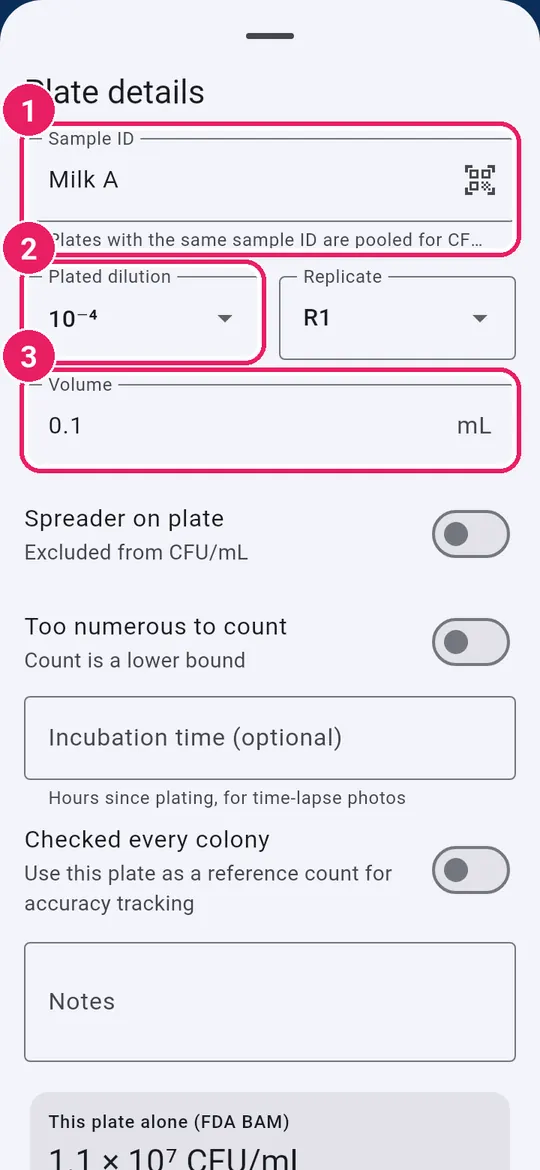
  1. 1Type the Sample IDพิมพ์ รหัสตัวอย่าง
  2. 2Pick the Plated dilutionเลือก ระดับการเจือจางที่เพาะ
  3. 3Check the Volumeตรวจ ปริมาตร

Plates with the same ID are pooled.เพลตรหัสเดียวกันรวมกันคำนวณ CFU/mL

14
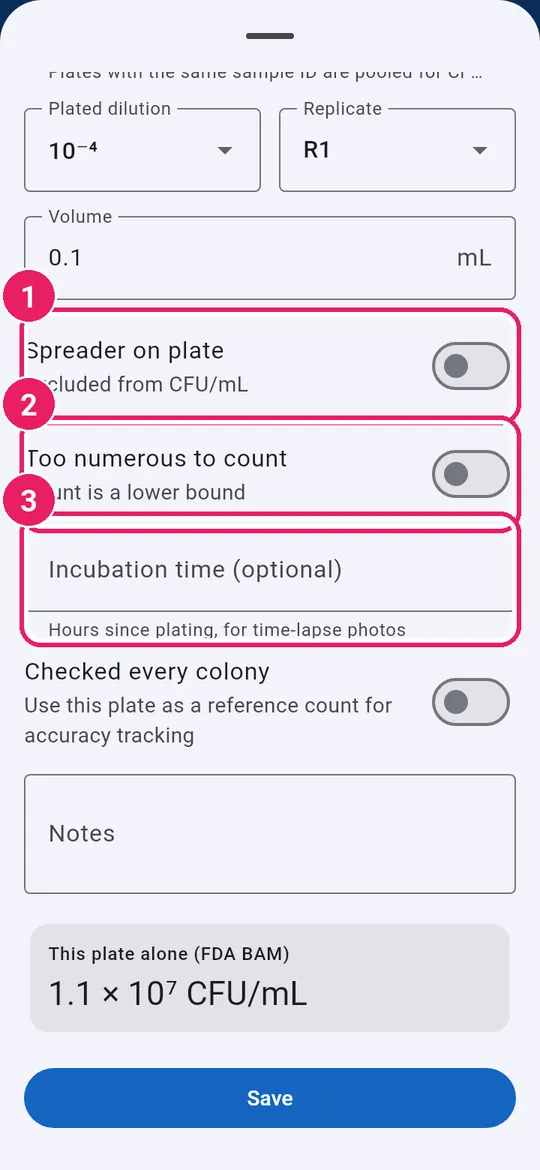
  1. 1Spreader on plate, if there is oneมีโคโลนีแผ่กระจายบนเพลต ถ้ามี
  2. 2Too numerous to count, if soมากเกินนับ (TNTC) ถ้าใช่
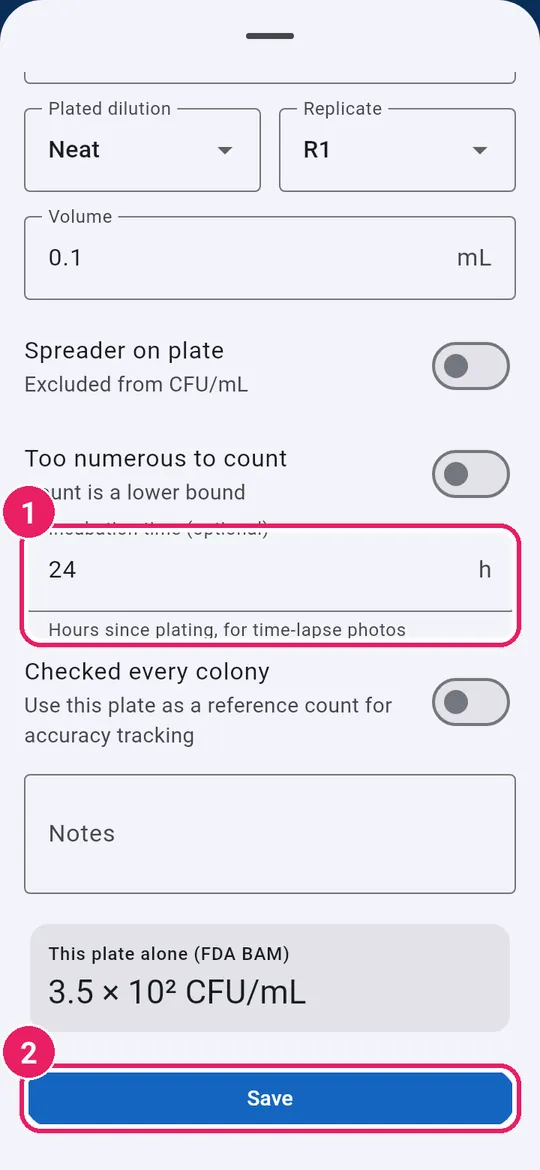
  3. 3Incubation time, for time-lapseเวลาบ่ม สำหรับไทม์แลปส์
15
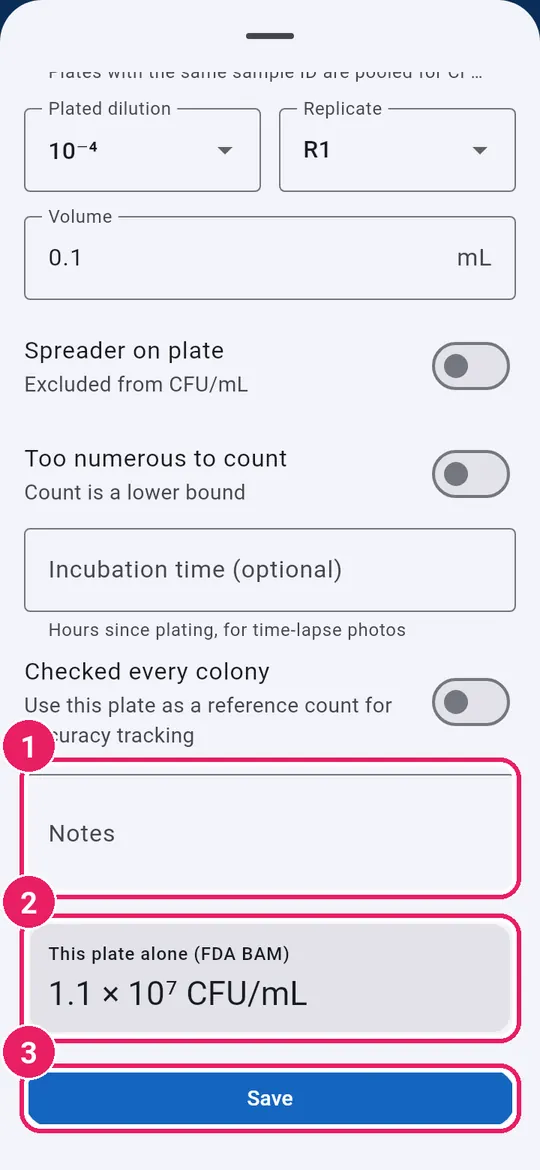
  1. 1Notes, if anyหมายเหตุ ถ้ามี
  2. 2CFU/mL from this plate aloneCFU/mL จากเพลตนี้
  3. 3Tap Saveแตะ บันทึก

Your saved platesเพลตที่บันทึกแล้ว

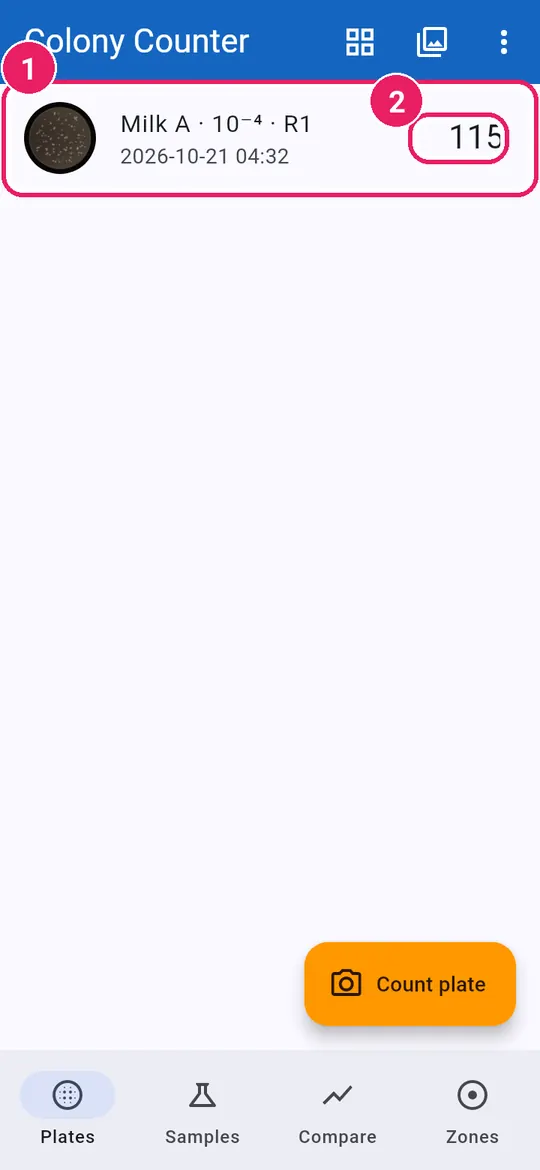
16
  1. 1Tap the plate to open it againแตะเพลตเพื่อเปิดอีกครั้ง
  2. 2Its countจำนวนนับ
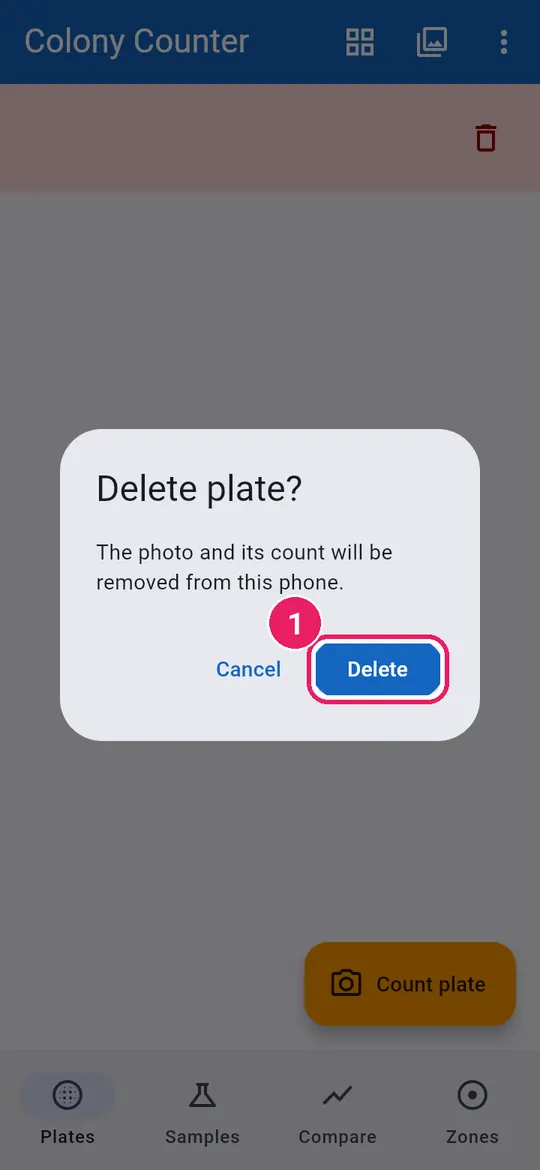
17
  1. 1Swipe left, then tap Deleteปัดไปทางซ้าย แล้วแตะ ลบ

Cancel keeps the plate.แตะ ยกเลิก เพื่อเก็บเพลตไว้

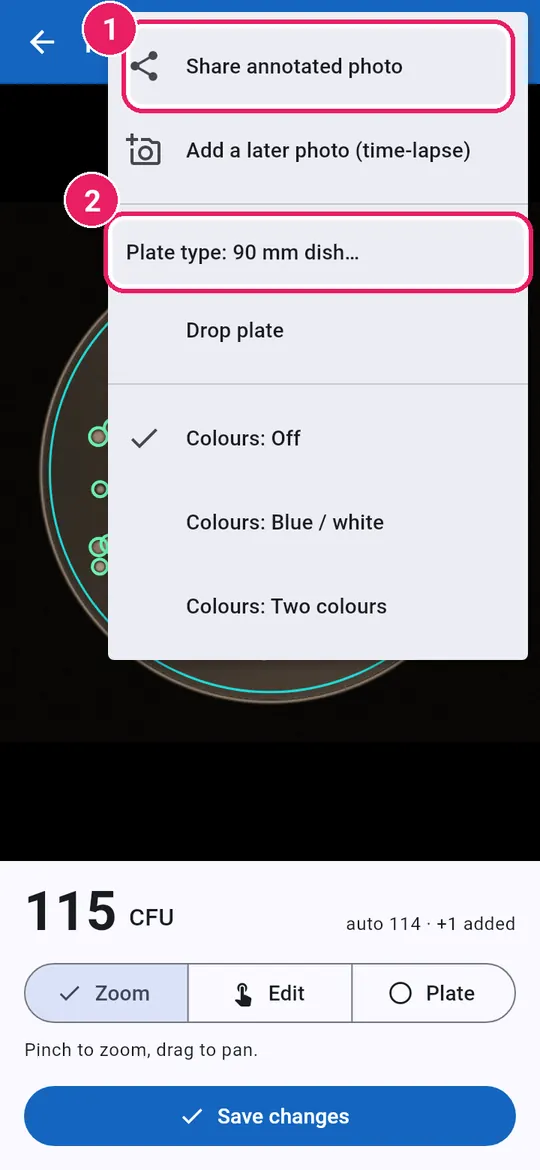
18
  1. 1Share annotated photoแชร์ภาพที่มีเครื่องหมาย
  2. 2Change the Plate typeเปลี่ยน ชนิดจาน

Open this menu with ⋮.เปิดเมนูนี้ด้วย ⋮

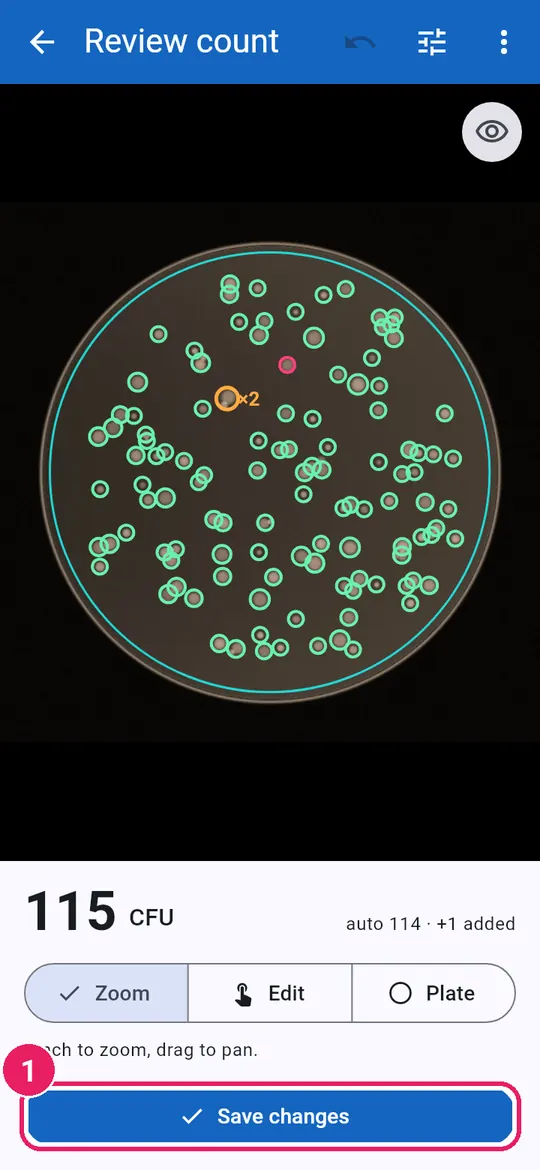
19
  1. 1Fix marks, then Save changesแก้ไข แล้วแตะ บันทึกการแก้ไข

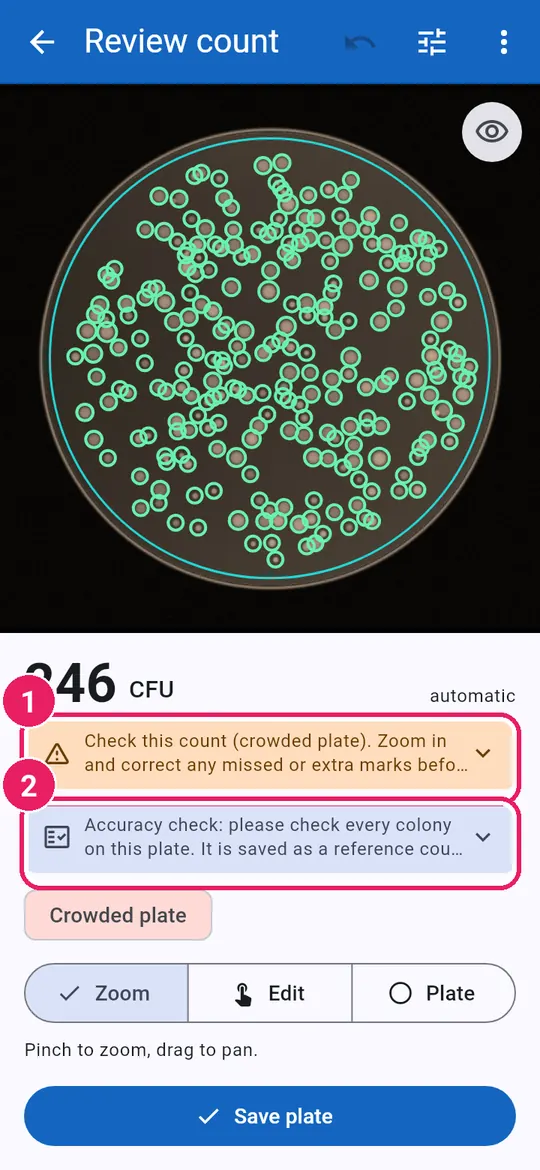
Check a crowded plateตรวจเพลตที่หนาแน่น

20
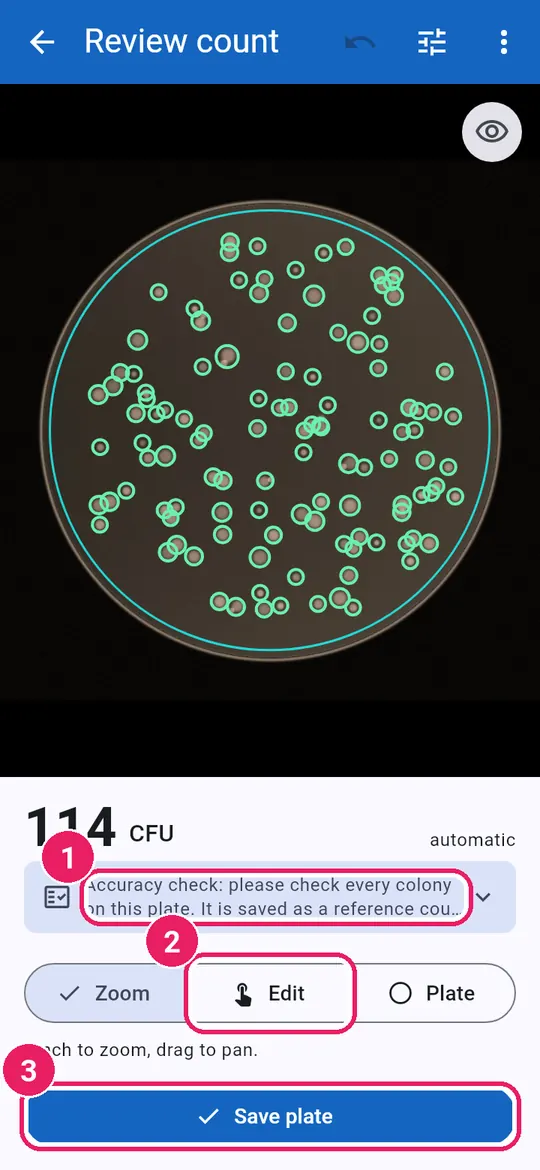
  1. 1Check this count: zoom in, fixโปรดตรวจผลการนับ: ซูมแล้วแก้ไข
  2. 2Accuracy check: check every colonyตรวจความแม่นยำ: ตรวจทุกโคโลนี

Set how often in ⋮ › Counting accuracy.ตั้งความถี่ที่ ⋮ › ความแม่นยำการนับ

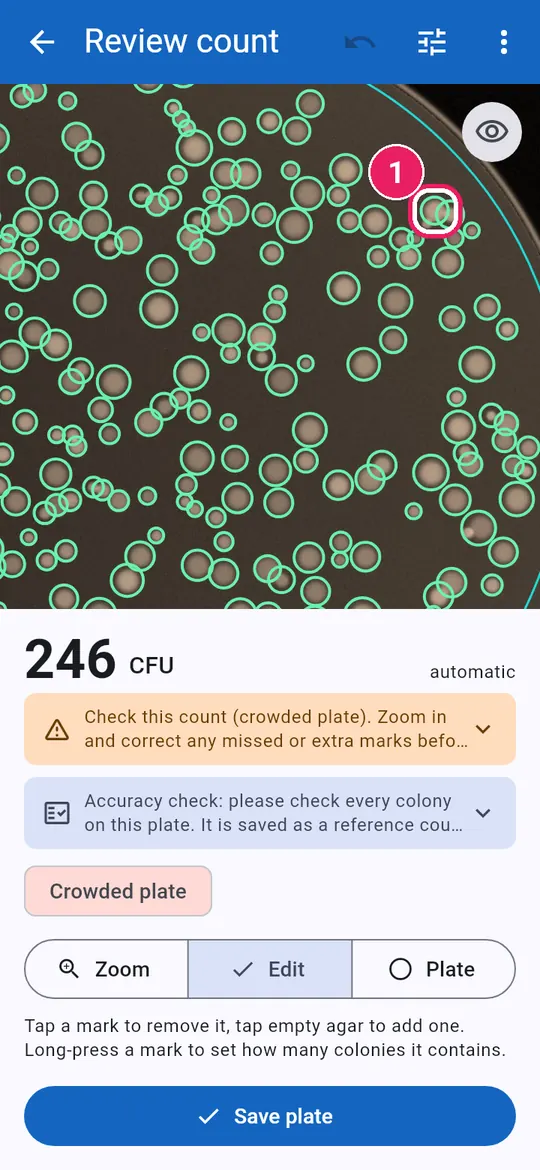
21
  1. 1Long-press merged colonies, set the numberกดค้างที่โคโลนีติดกัน แล้วกำหนดจำนวน
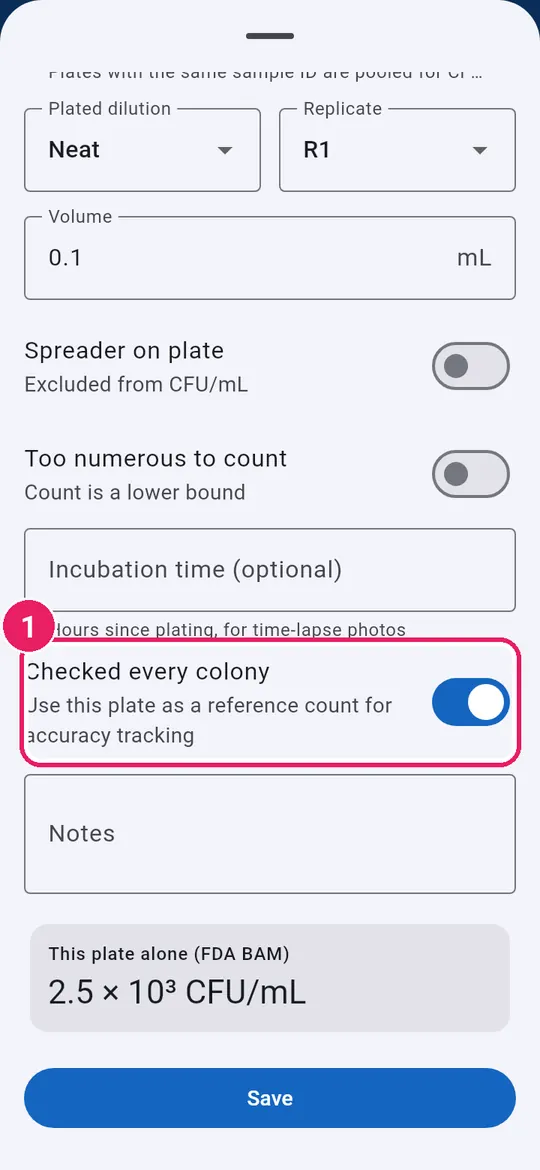
22
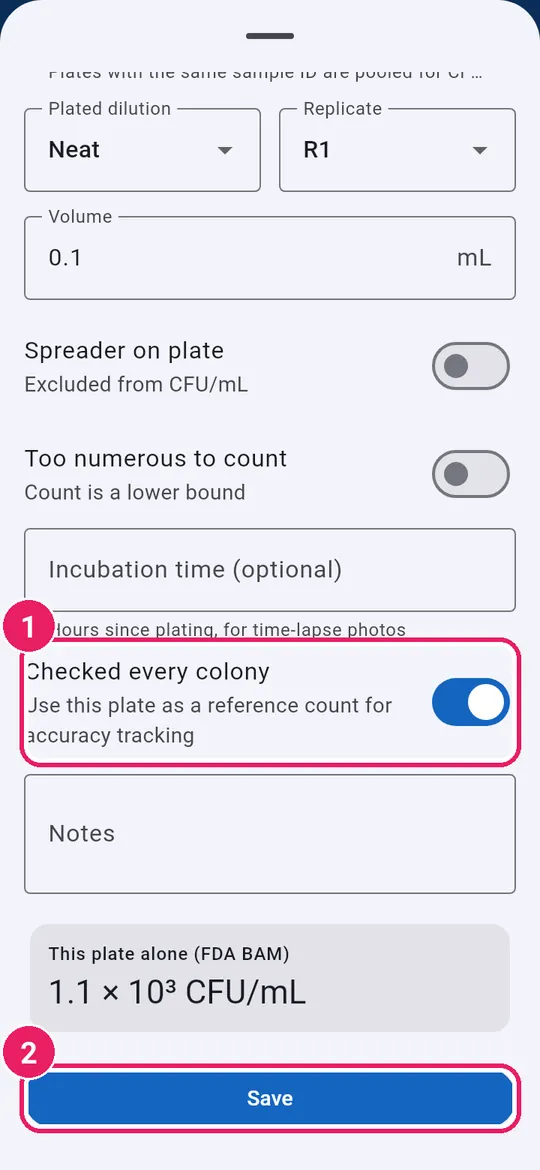
  1. 1Turn on Checked every colonyเปิด ตรวจทุกโคโลนีแล้ว

Only when every mark is right.เปิดเมื่อทุกเครื่องหมายถูกต้องเท่านั้น

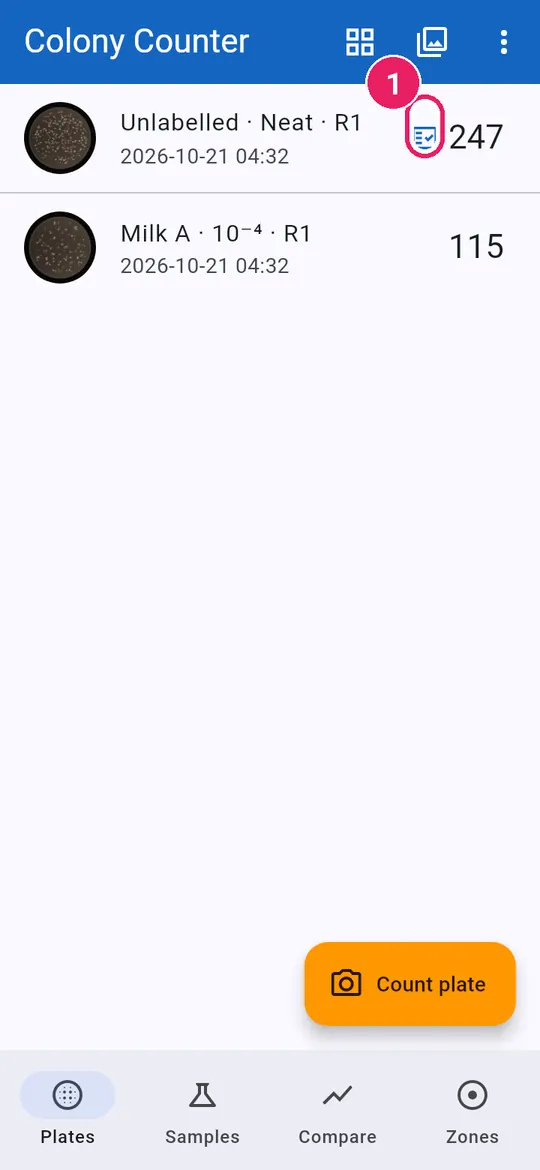
23
  1. 1Checked plates show this signเพลตที่ตรวจแล้วแสดงเครื่องหมายนี้
↑ Back to contentsกลับไปสารบัญ

Samples and replicatesตัวอย่างและการทำซ้ำ

Plan a dilution series, photograph each plate, get mean ± SD.วางแผนการเจือจาง ถ่ายภาพทีละเพลต ได้ค่าเฉลี่ย ± SD

Set up a sampleตั้งค่าตัวอย่าง

1
  1. 1Tap Samplesแตะ ตัวอย่าง
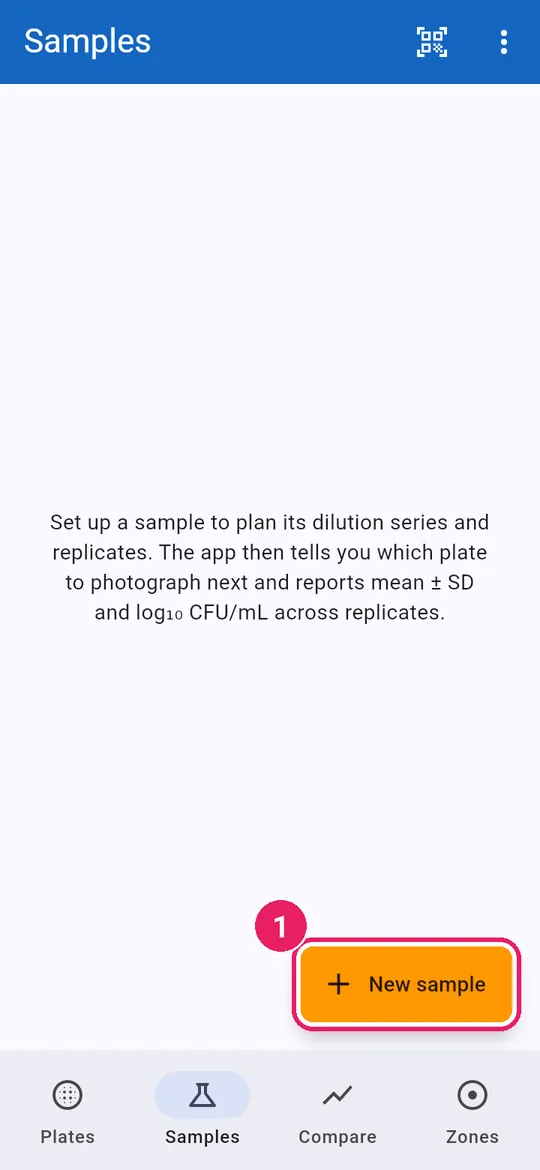
2
  1. 1Tap New sampleแตะ ตัวอย่างใหม่
3
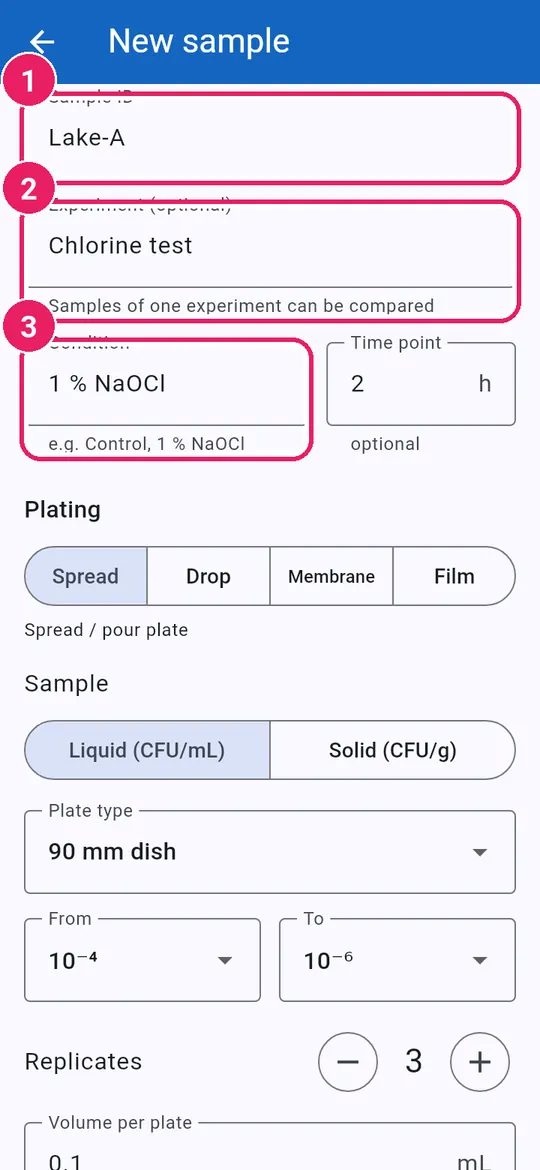
  1. 1Type the Sample IDพิมพ์ รหัสตัวอย่าง
  2. 2Experiment: groups samples to compareการทดลอง: จัดกลุ่มไว้เปรียบเทียบ
  3. 3Condition and time point (optional)สภาวะ และจุดเวลา (ไม่บังคับ)
4
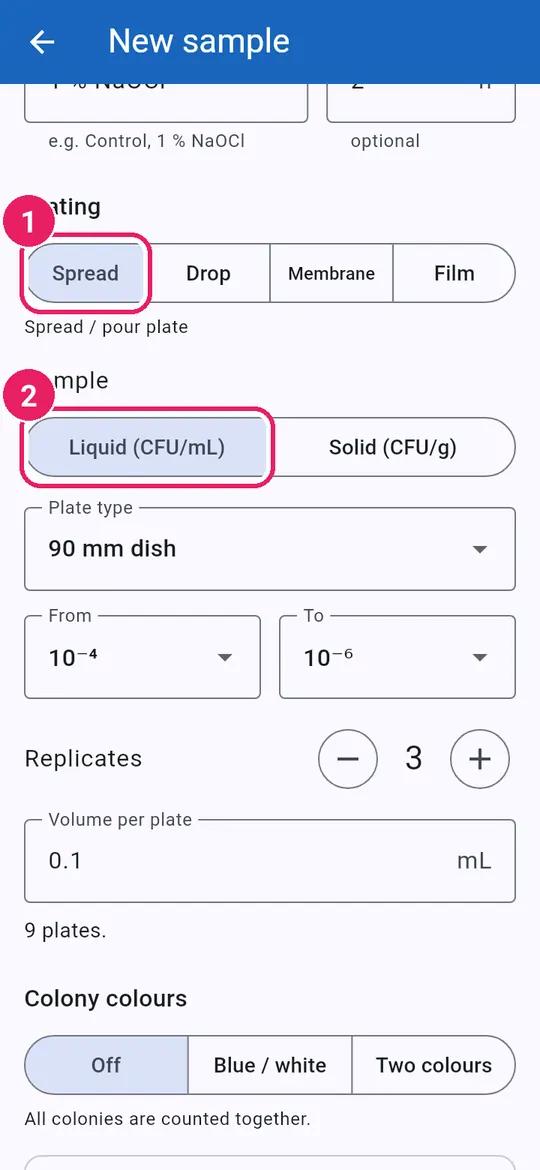
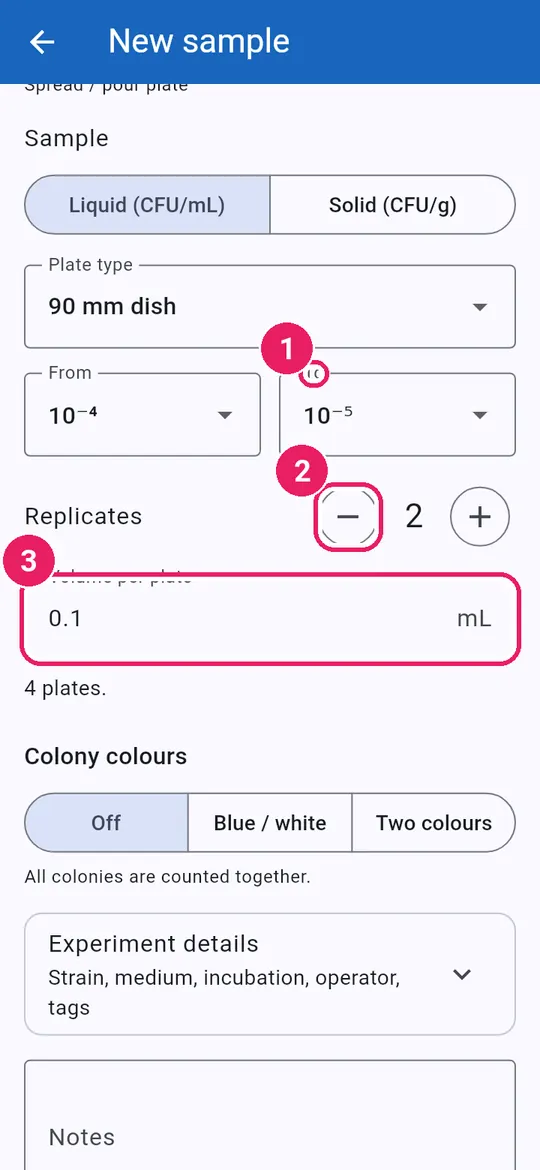
  1. 1Spread for spread or pour platesสเปรด สำหรับเพลตเกลี่ยหรือเท
  2. 2Liquid (CFU/mL) for liquid samplesของเหลว (CFU/mL) สำหรับตัวอย่างเหลว
5
  1. 1Pick the dilutions From and Toเลือกระดับการเจือจาง จาก และ ถึง
  2. 2Set the Replicatesตั้ง จำนวนซ้ำ
  3. 3Volume per plateปริมาตรต่อเพลต

The plate count updates as you go.จำนวนเพลตด้านล่างจะเปลี่ยนตามทันที

6
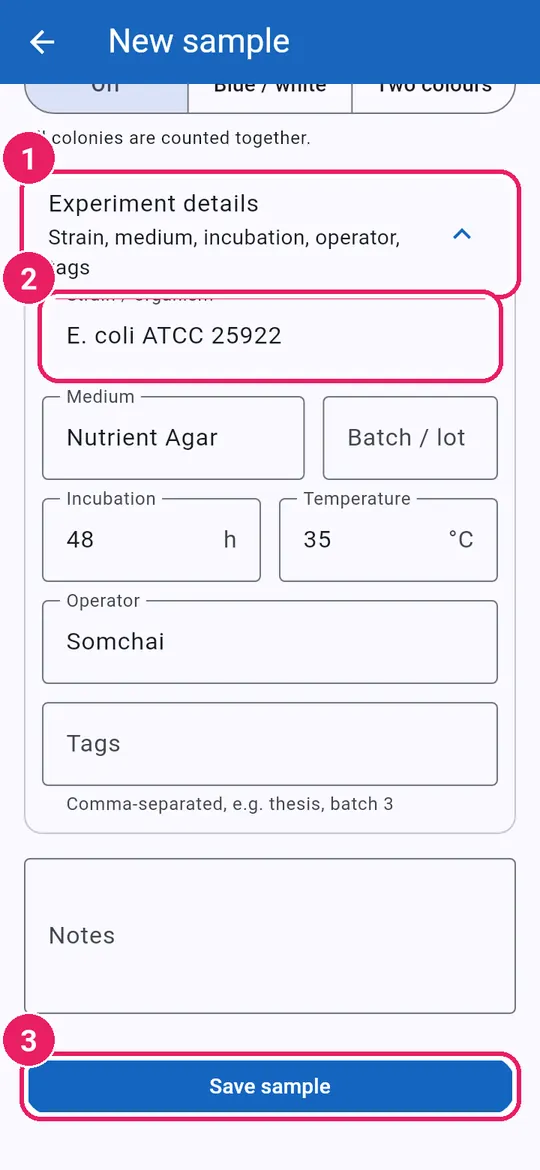
  1. 1Open Experiment detailsเปิด รายละเอียดการทดลอง
  2. 2Strain, medium, incubation, operatorสายพันธุ์ อาหารเลี้ยงเชื้อ การบ่ม ผู้ปฏิบัติงาน
  3. 3Tap Save sampleแตะ บันทึกตัวอย่าง

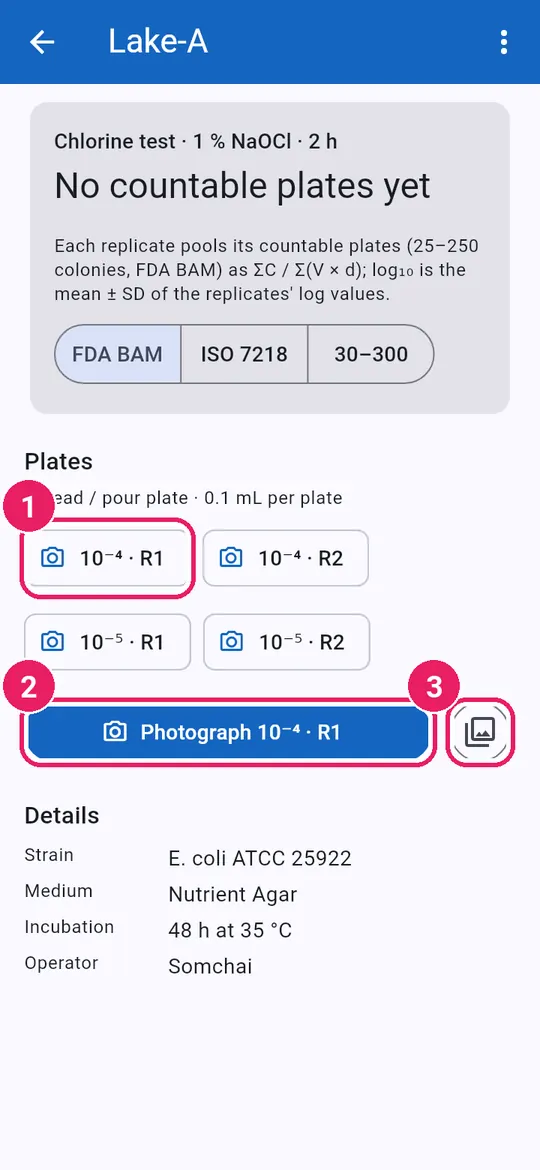
Photograph the platesถ่ายภาพเพลต

7
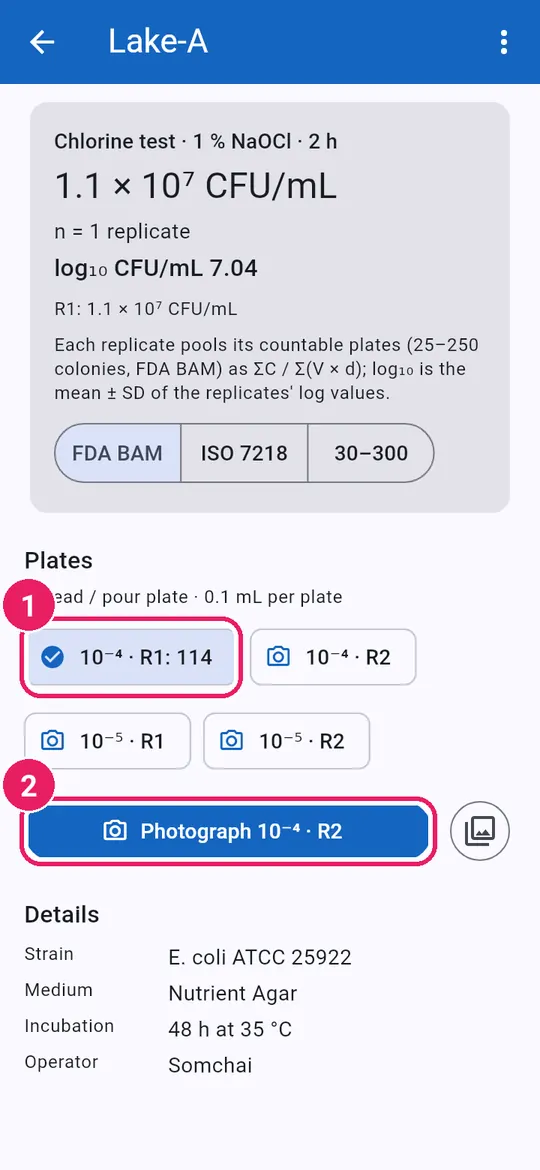
  1. 1One chip per planned plateหนึ่งชิปต่อหนึ่งเพลตตามแผน
  2. 2Tap Photograph 10⁻⁴ · R1แตะ ถ่ายภาพ 10⁻⁴ · R1
  3. 3Or import a photoหรือนำเข้าภาพ
8
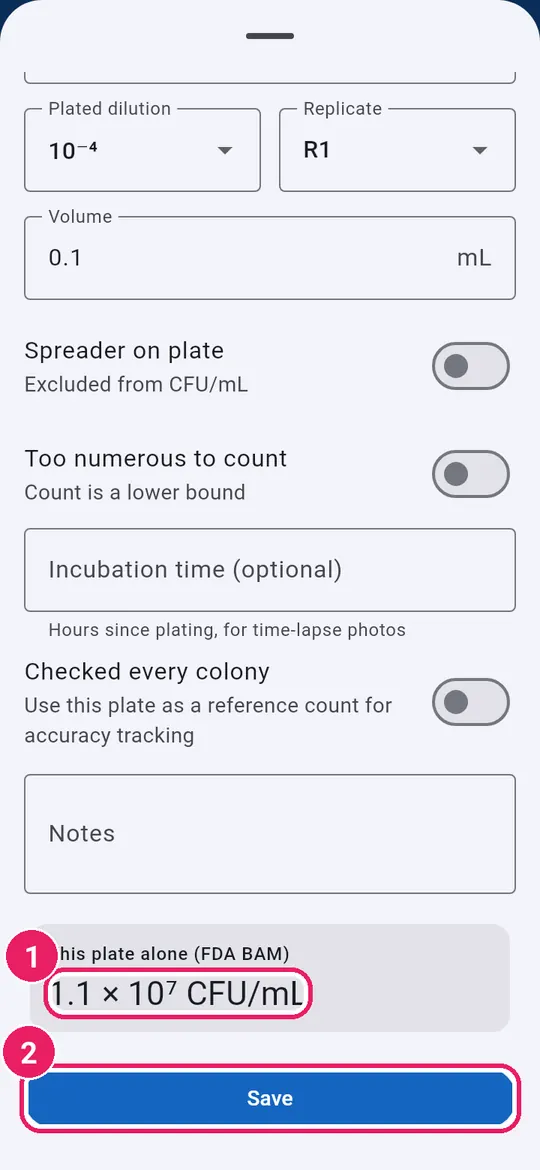
  1. 1Check the count, tap Save plateตรวจผลนับ แตะ บันทึกเพลต
9
  1. 1This plate's own resultผลของเพลตนี้
  2. 2Tap Saveแตะ บันทึก

Sample, dilution and replicate are filled in.รหัสตัวอย่าง ระดับการเจือจาง และซ้ำ กรอกให้แล้ว

10
  1. 1Done plates show their countเพลตที่เสร็จแสดงจำนวนโคโลนี
  2. 2Tap Photograph for the next plateแตะ ถ่ายภาพ เพลตถัดไป

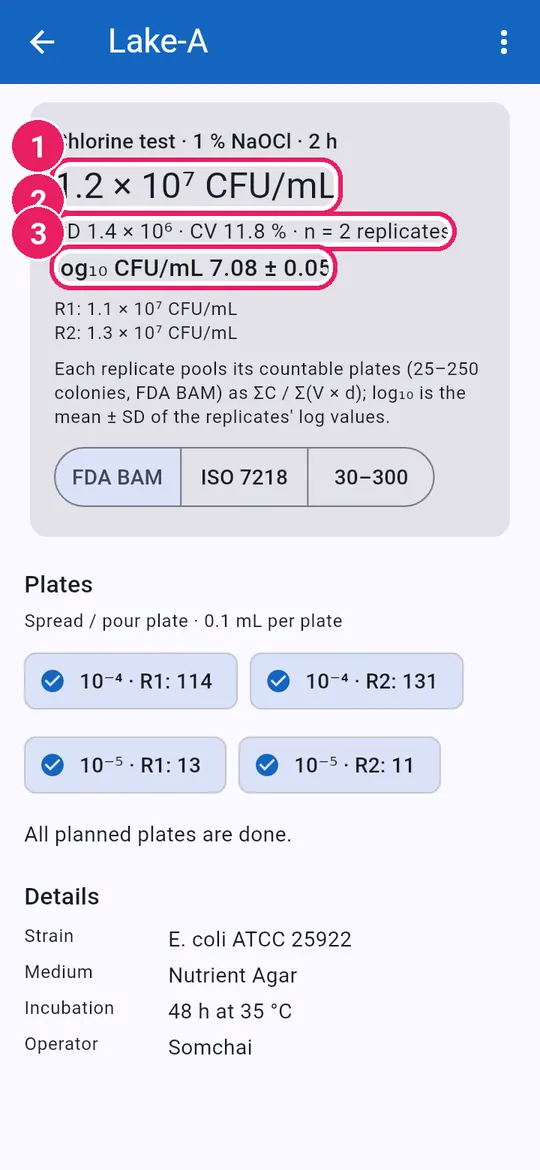
Read the resultอ่านผล

11
  1. 1Mean CFU/mLค่าเฉลี่ย CFU/mL
  2. 2SD, CV and replicatesSD, CV และจำนวนซ้ำ
  3. 3log₁₀ CFU/mL ± SDlog₁₀ CFU/mL ± SD
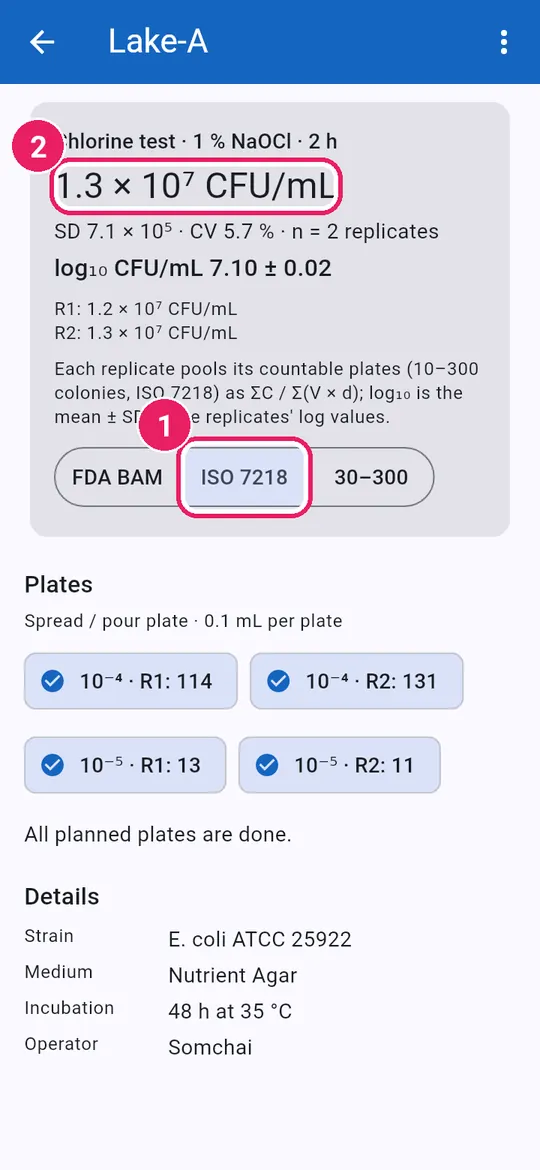
12
  1. 1Pick the counting ruleเลือกเกณฑ์การนับ
  2. 2The result follows the ruleผลคำนวณใหม่ตามเกณฑ์

Plates outside the countable range are left out.เพลตที่อยู่นอกช่วงที่นับได้จะไม่ถูกนำมาคำนวณ

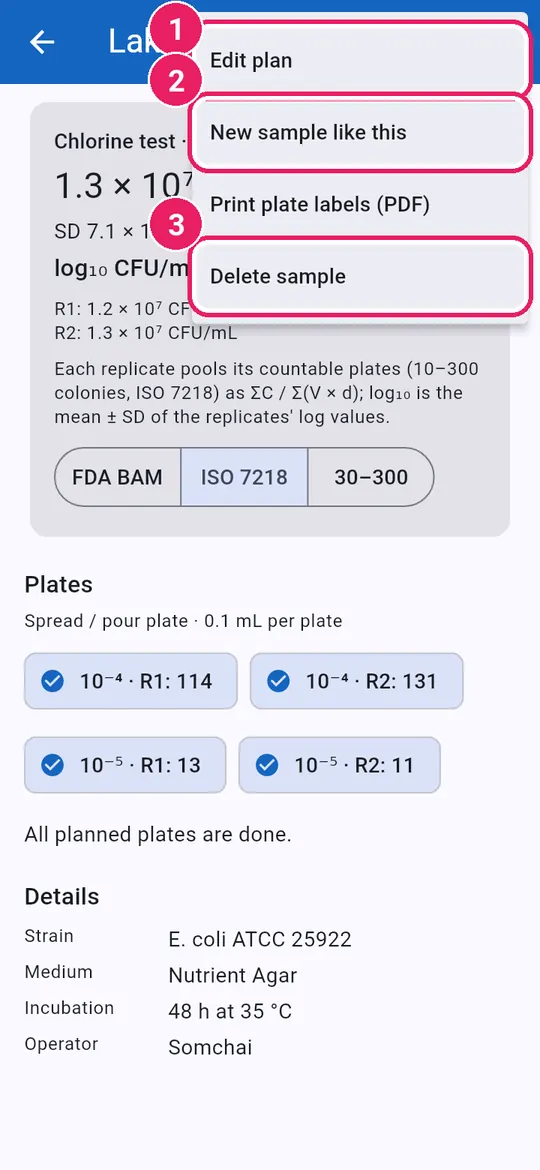
More samplesตัวอย่างเพิ่มเติม

13
  1. 1Edit plan: change the planแก้ไขแผนการเพาะ
  2. 2New sample like thisสร้างตัวอย่างใหม่แบบนี้
  3. 3Delete sampleลบตัวอย่าง
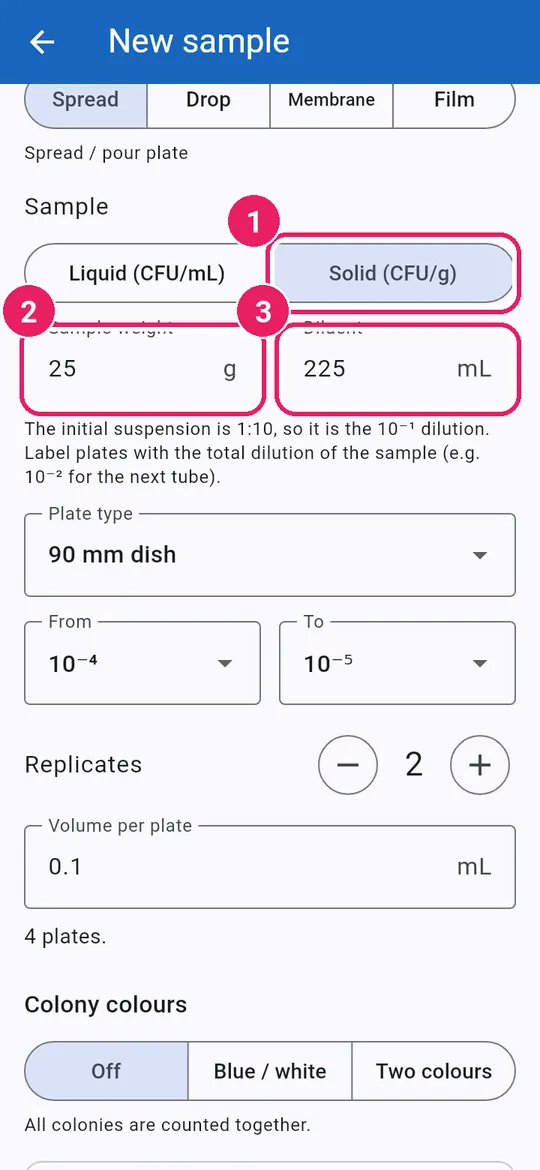
14
  1. 1A new ID, same settingsรหัสใหม่ การตั้งค่าเดิม
  2. 2Change only what differsแก้เฉพาะส่วนที่ต่างกัน
15
  1. 1Solid (CFU/g) for food, soilของแข็ง (CFU/g) สำหรับอาหาร ดิน
  2. 2Sample weightน้ำหนักตัวอย่าง
  3. 3Diluent volumeปริมาตรสารละลายเจือจาง

25 g in 225 mL is the 10⁻¹ dilution.25 g ใน 225 mL คือระดับการเจือจาง 10⁻¹

16
  1. 1Samples grouped by experimentตัวอย่างจัดกลุ่มตามการทดลอง
17
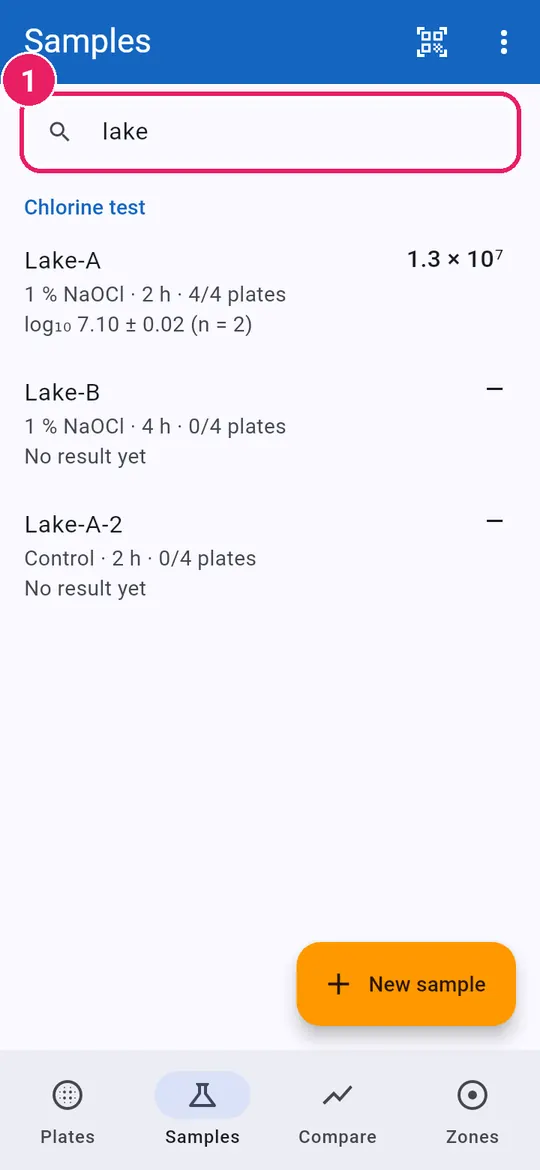
  1. 1Search by sample, strain, operator, tagค้นหาตัวอย่าง สายพันธุ์ ผู้ปฏิบัติงาน แท็ก
↑ Back to contentsกลับไปสารบัญ

QR plate labelsฉลากเพลต QR

Print a label per plate; scan it to open that plate.พิมพ์ฉลากทุกเพลต สแกนเพื่อเปิดเพลตนั้น

Print labelsพิมพ์ฉลาก

1
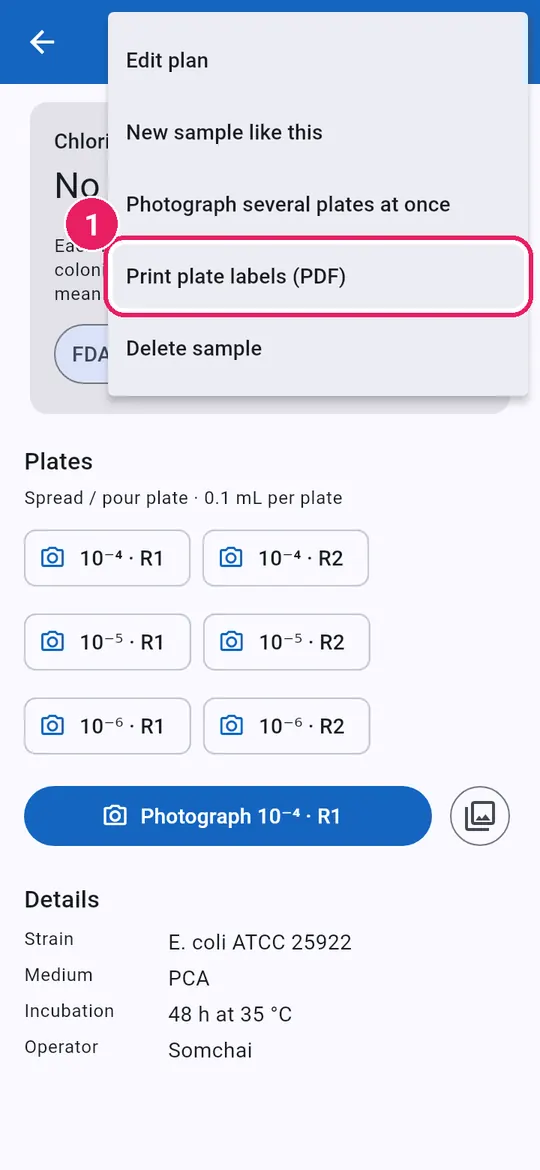
  1. 1In the sample menu, Print plate labels (PDF)ในเมนูตัวอย่าง พิมพ์ฉลากเพลต (PDF)
2
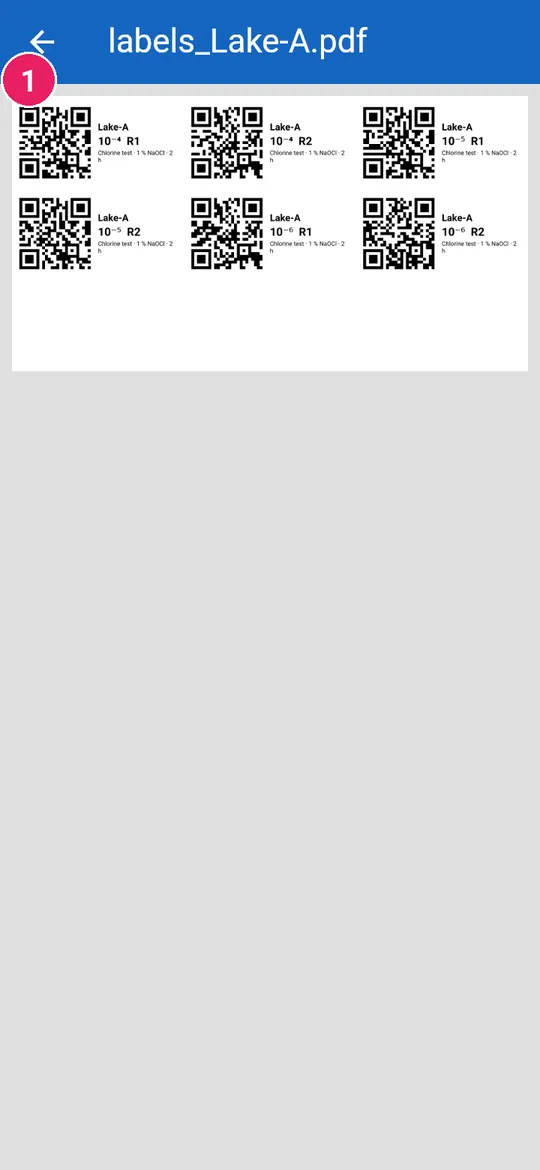
  1. 1One QR label per plateฉลาก QR หนึ่งดวงต่อเพลต

Print the PDF, stick labels on the plates.พิมพ์ PDF แล้วติดฉลากบนเพลต

Scan a labelสแกนฉลาก

3
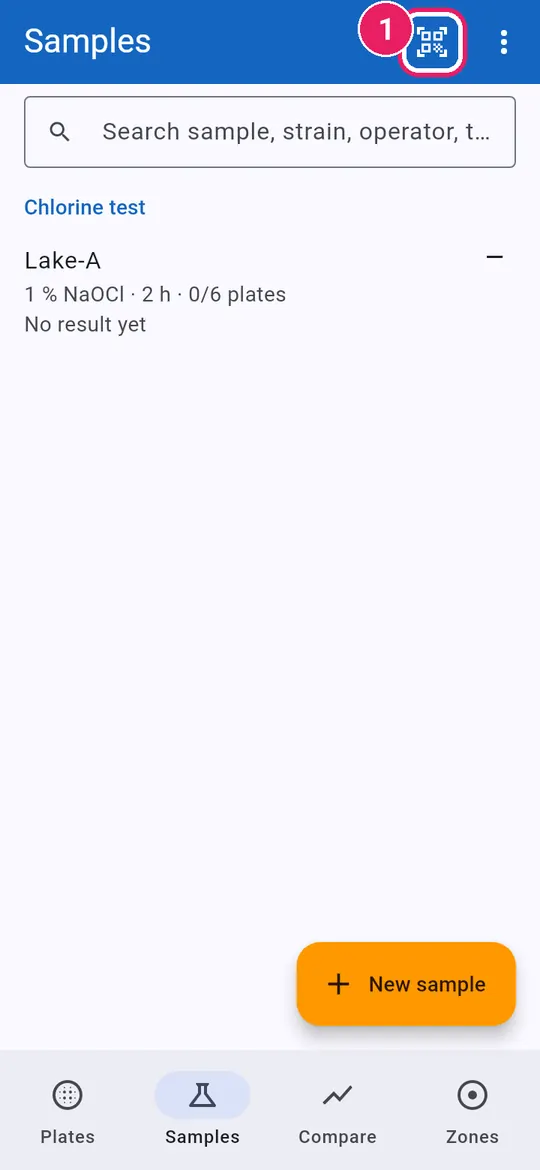
  1. 1On Samples, tap Scan plate labelที่ ตัวอย่าง แตะ สแกนฉลากเพลต
4
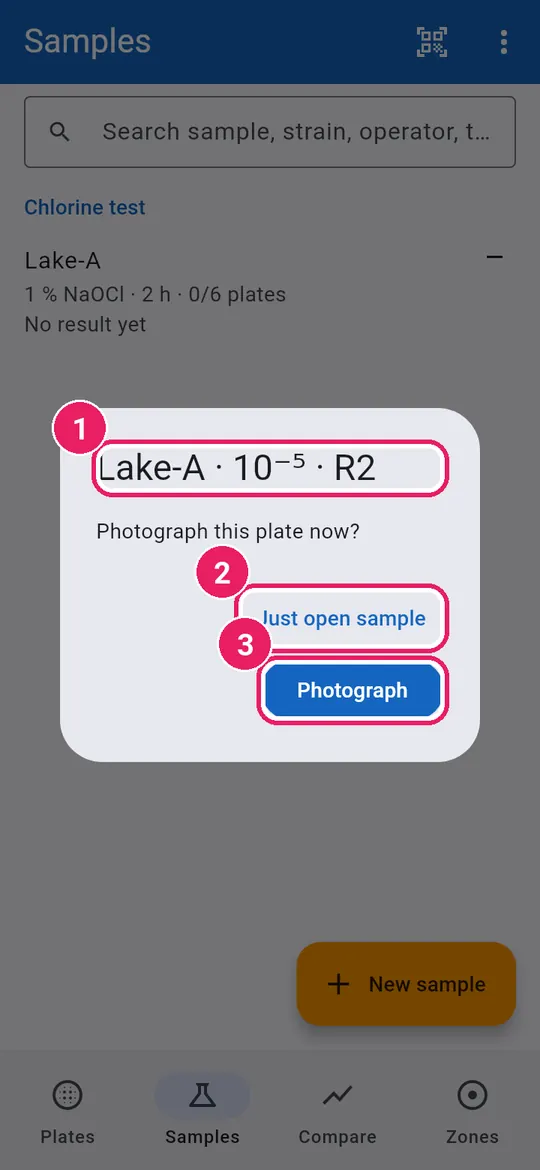
  1. 1The plate on the labelเพลตตามฉลาก
  2. 2Just open sampleเปิดตัวอย่างเท่านั้น
  3. 3Tap Photograph to count itแตะ ถ่ายภาพ เพื่อนับ
5
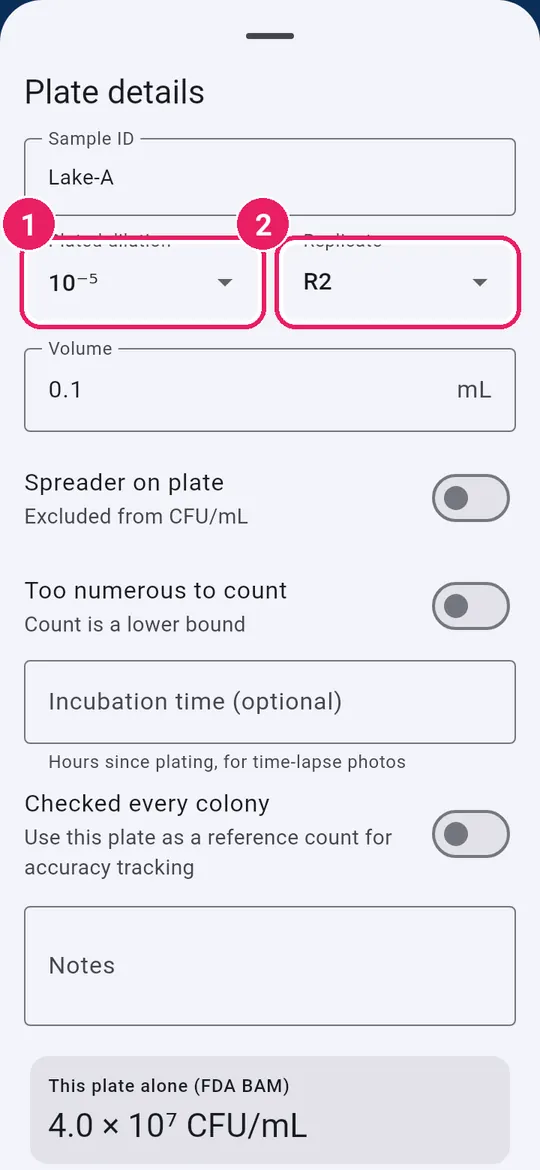
  1. 1Dilution from the labelระดับการเจือจางจากฉลาก
  2. 2Replicate from the labelซ้ำจากฉลาก
6
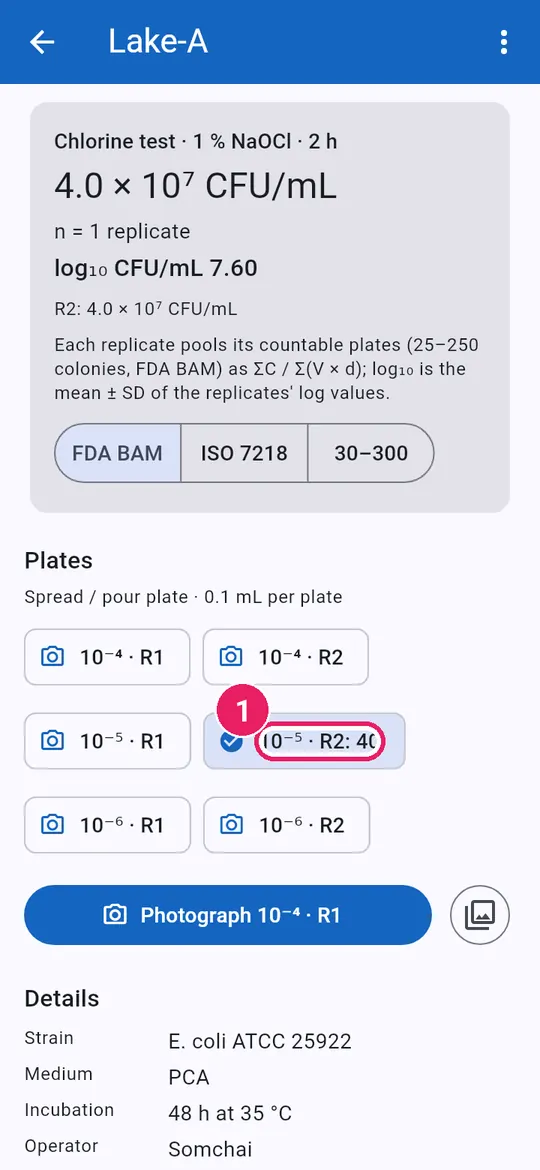
  1. 1The plate is counted in the sampleนับเพลตเข้าในตัวอย่างแล้ว
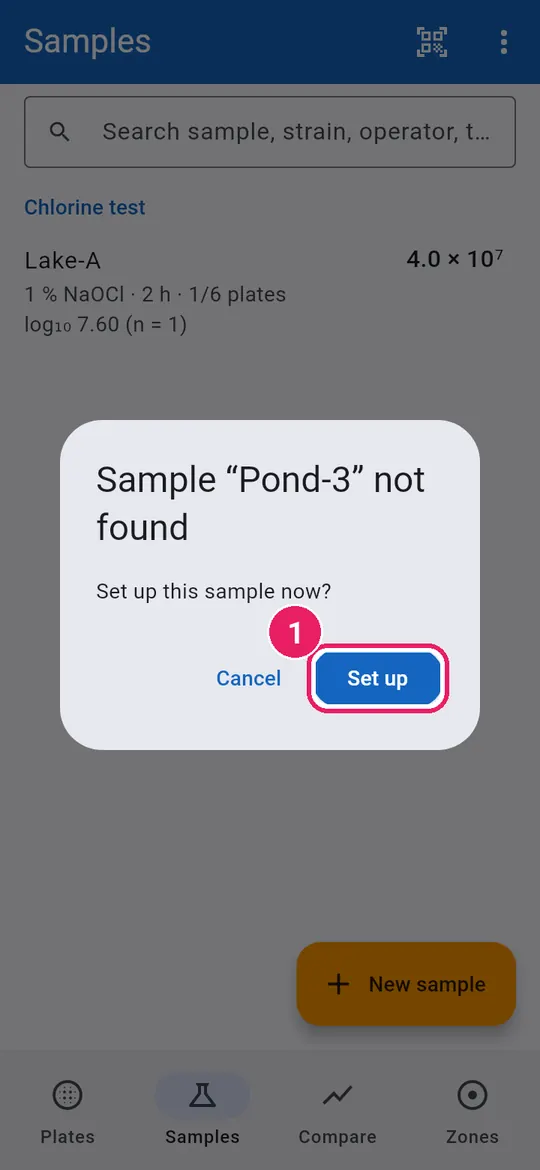
7
  1. 1New sample ID: tap Set upรหัสใหม่: แตะ ตั้งค่า
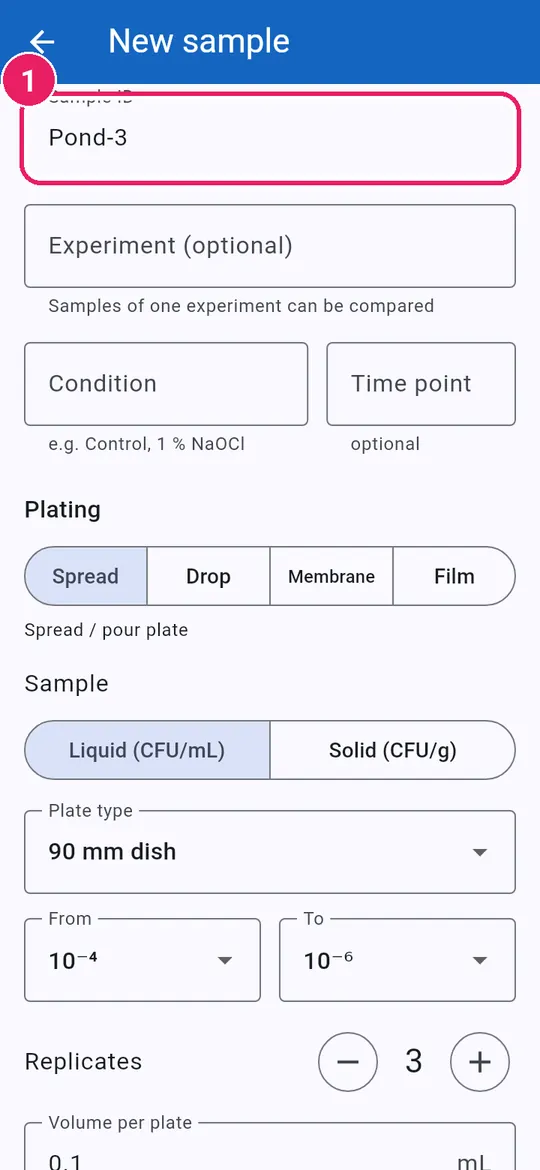
8
  1. 1The ID is filled inกรอกรหัสตัวอย่างให้แล้ว

Scan while savingสแกนขณะบันทึก

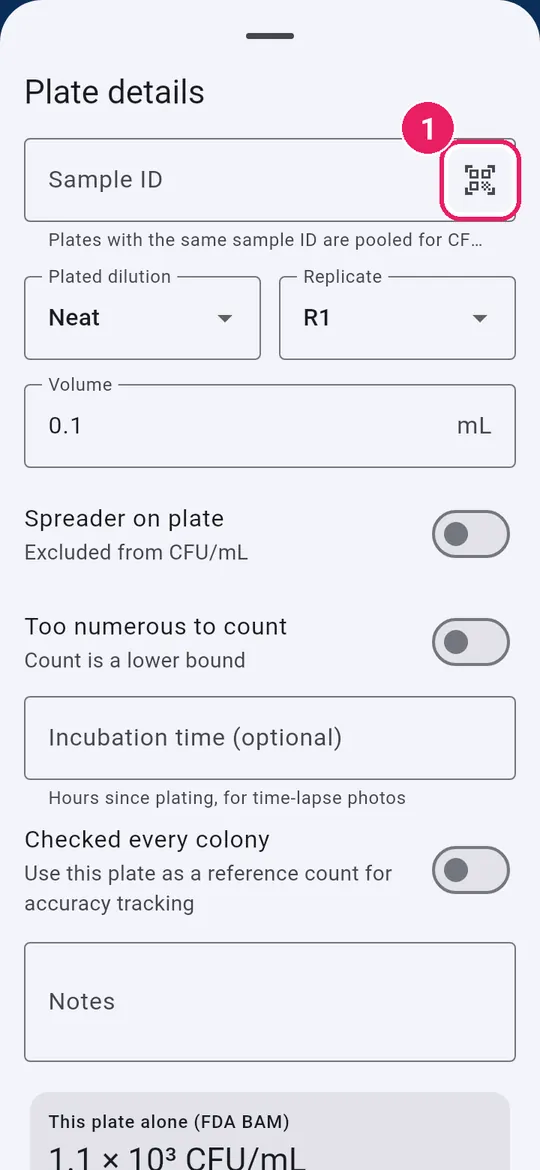
9
  1. 1In Plate details, tap the scan buttonใน รายละเอียดเพลต แตะปุ่มสแกน
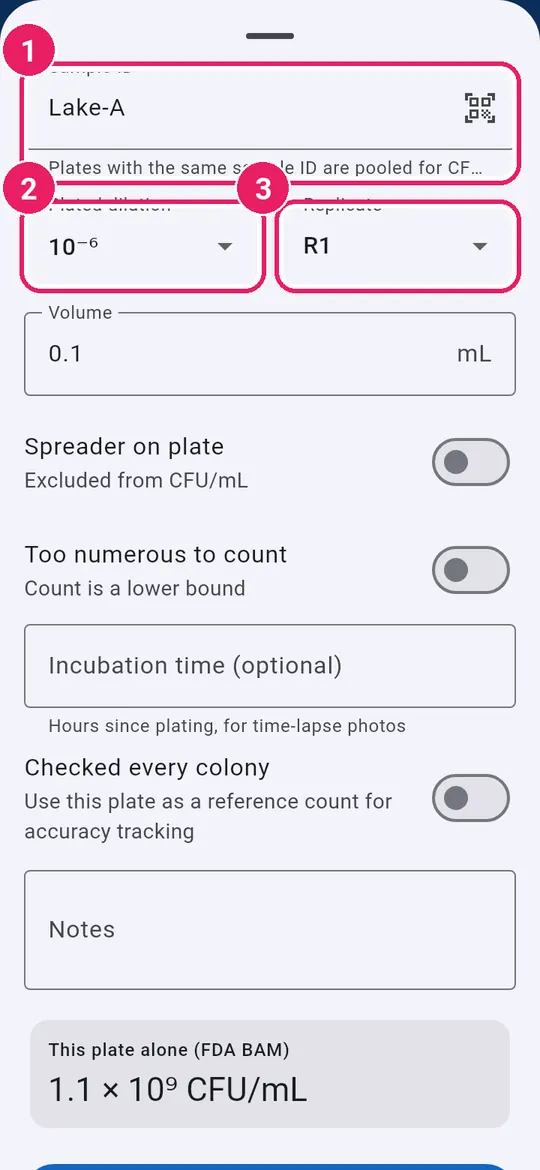
10
  1. 1Sample IDรหัสตัวอย่าง
  2. 2Plated dilutionระดับการเจือจางที่เพาะ
  3. 3Replicateซ้ำที่
↑ Back to contentsกลับไปสารบัญ

Several plates in one photoหลายเพลตในภาพเดียว

One photo, every plate found, each counted and saved.ถ่ายภาพเดียว หาเพลตทั้งหมด นับและบันทึกทีละเพลต

Take the photoถ่ายภาพ

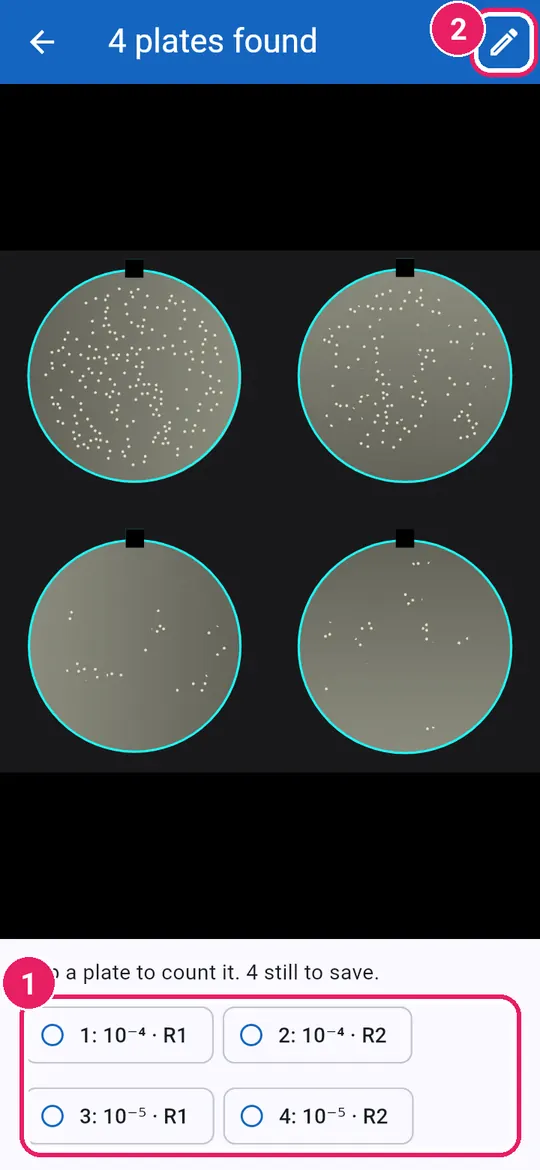
1
  1. 1On Plates, tap Several plates in one photoที่ เพลต แตะ หลายเพลตในภาพเดียว
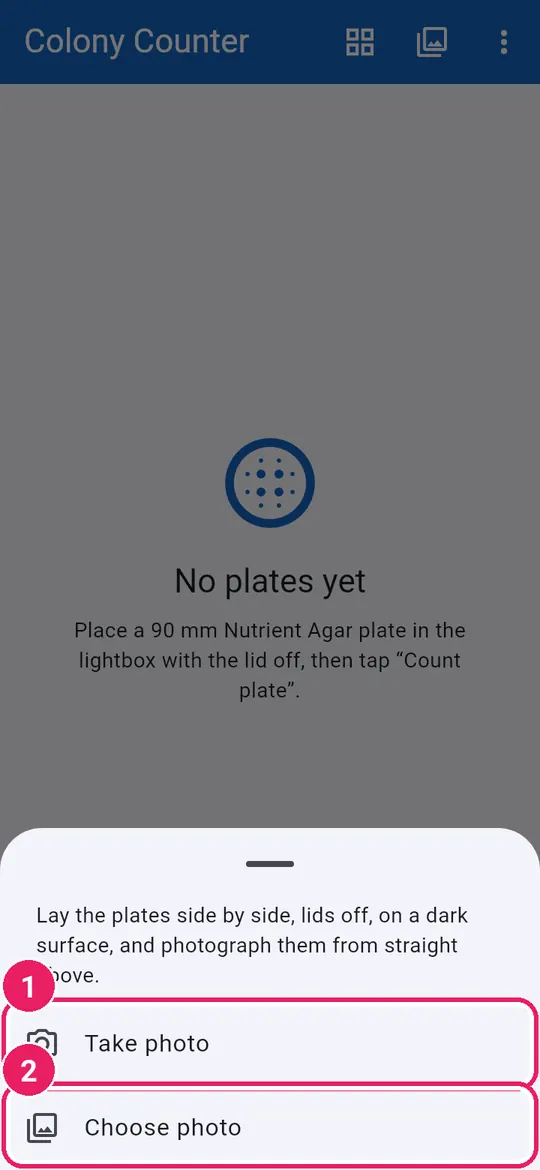
2
  1. 1Take photoถ่ายภาพ
  2. 2Or Choose photoหรือ เลือกภาพ

Lids off, dark surface, straight from above.เปิดฝา วางบนพื้นสีเข้ม ถ่ายจากด้านบนตรง ๆ

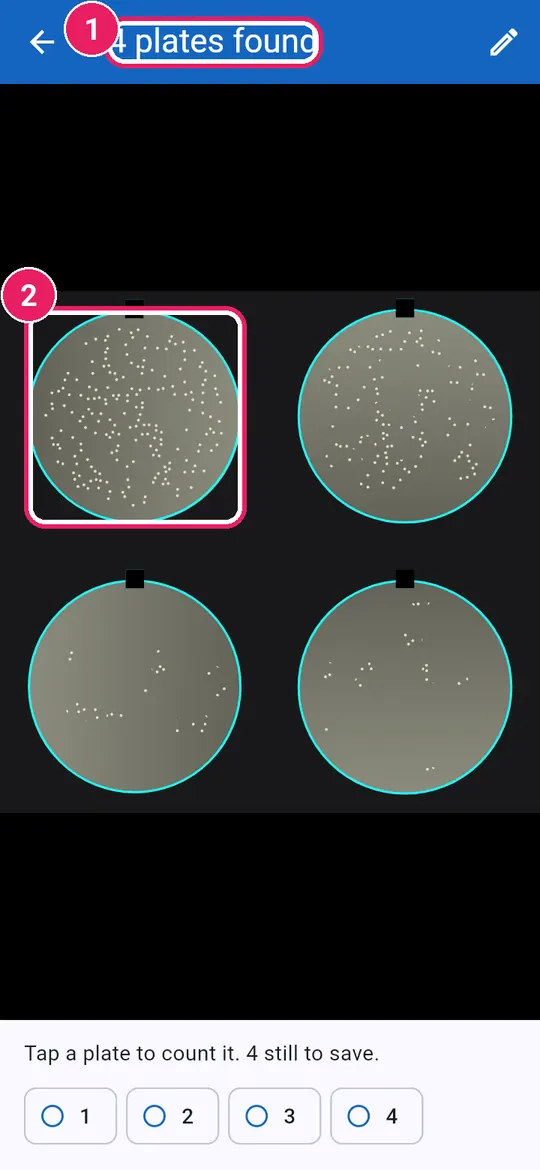
3
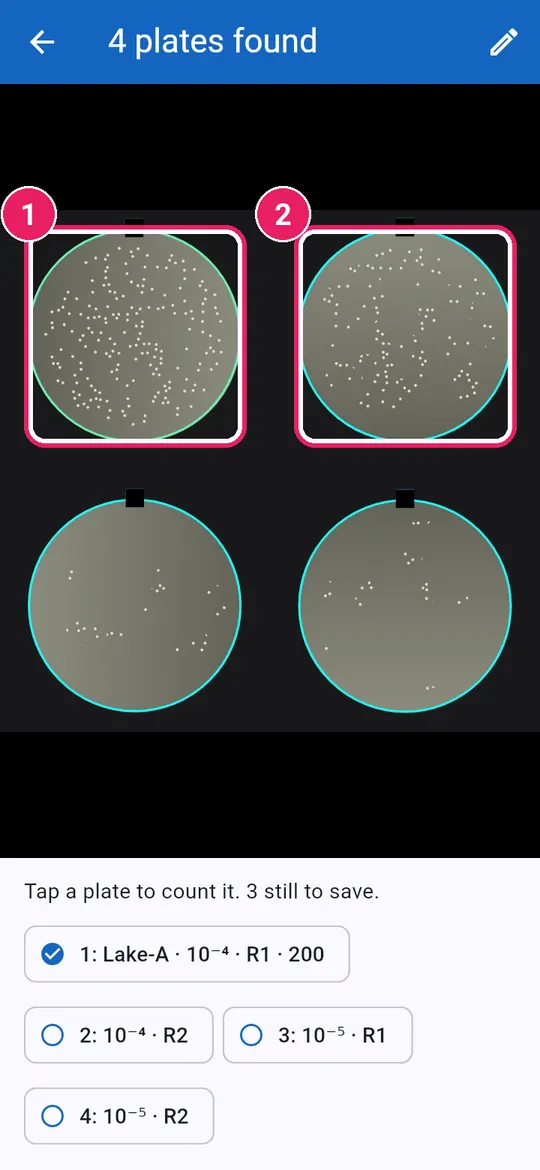
  1. 1How many plates were foundจำนวนเพลตที่พบ
  2. 2Each plate is circled and numberedแต่ละเพลตมีวงกลมและหมายเลข

For a sampleสำหรับตัวอย่าง

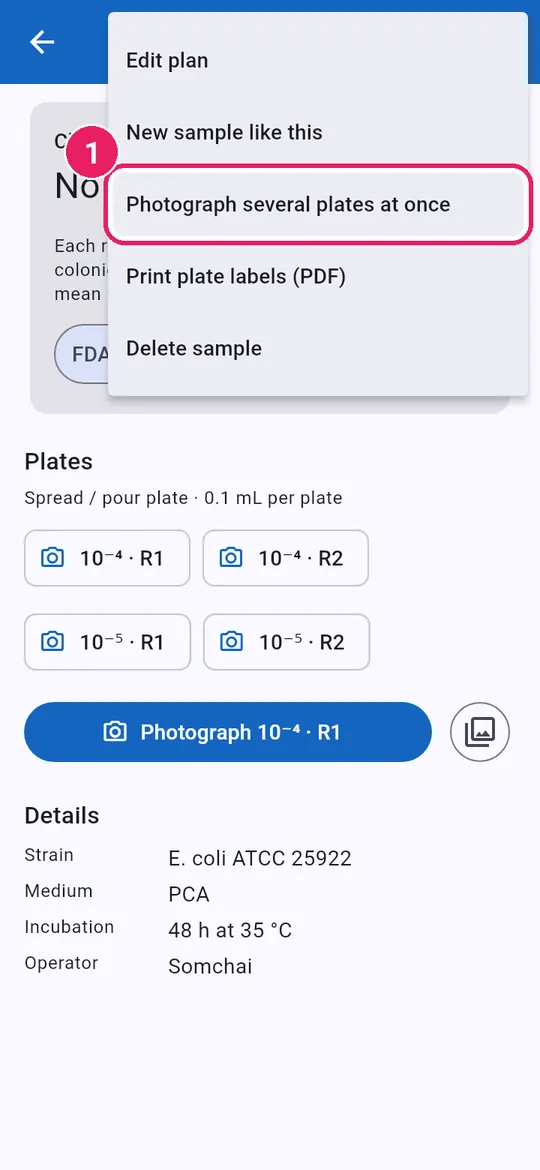
4
  1. 1Sample menu: Photograph several plates at onceเมนูตัวอย่าง: ถ่ายภาพหลายเพลตพร้อมกัน
5
  1. 1Plates get the plan's dilutions in reading orderเพลตได้ระดับการเจือจางตามแผน เรียงตามลำดับ
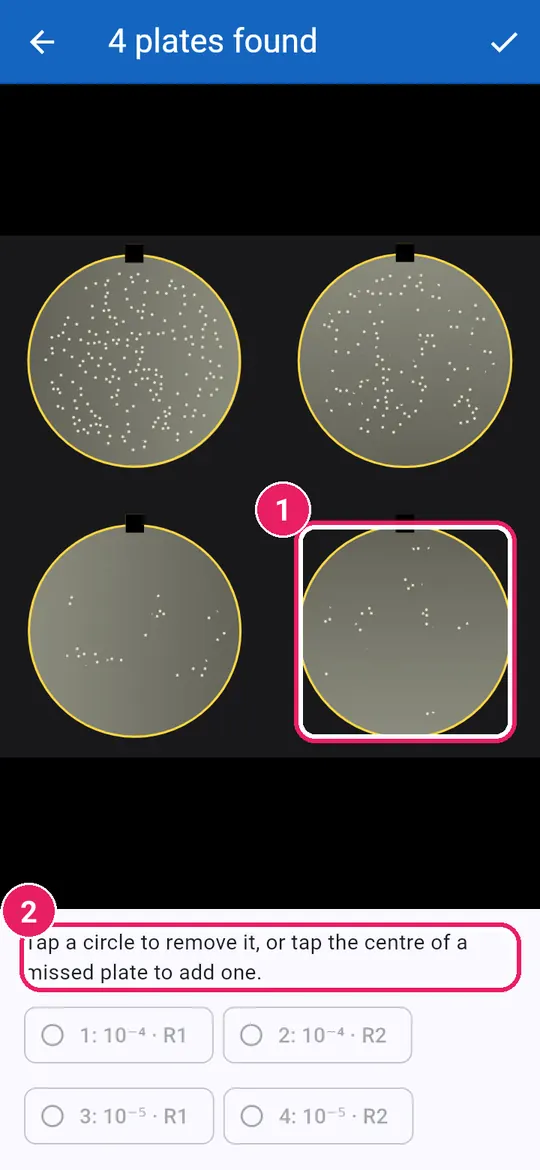
  2. 2Pencil: Add or remove platesดินสอ: เพิ่มหรือลบเพลต

Lay plates left to right, top to bottom.วางเพลตเรียงจากซ้ายไปขวา บนลงล่าง

Fix the circlesแก้วงกลม

6
  1. 1Tap a circle to remove itแตะวงกลมเพื่อลบ
  2. 2Hint for edit modeคำแนะนำในโหมดแก้ไข
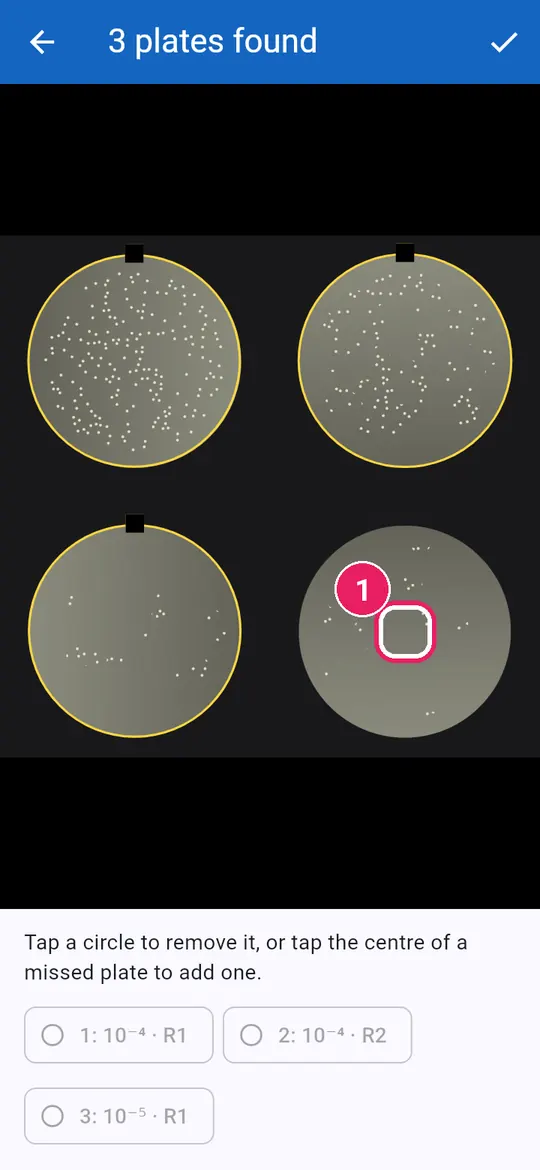
7
  1. 1Tap a missed plate's centre to add itแตะกลางเพลตที่ตกหล่นเพื่อเพิ่ม
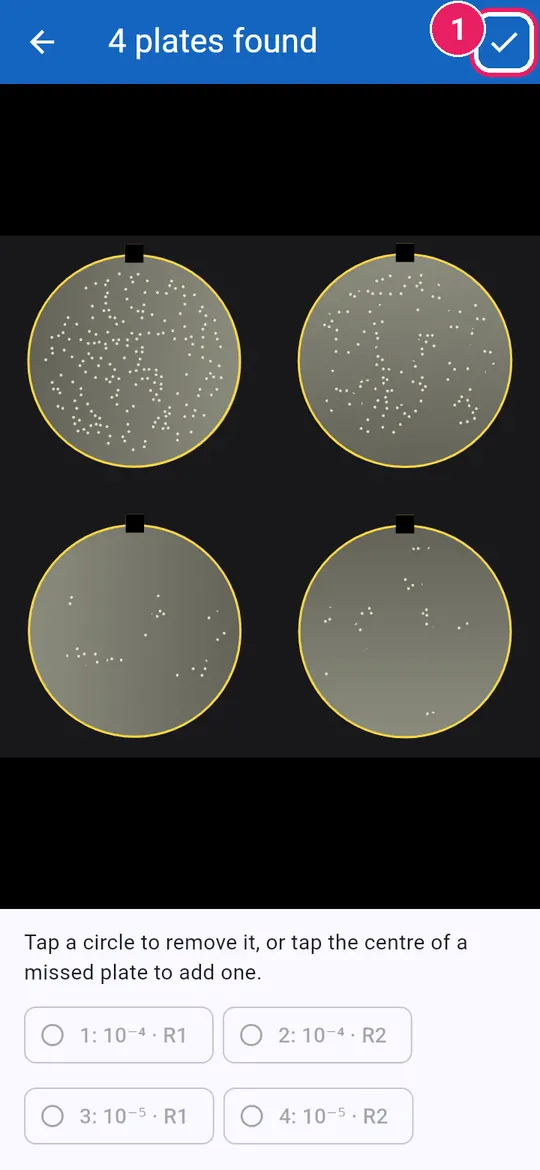
8
  1. 1Tap Doneแตะ เสร็จ

Count each plateนับทีละเพลต

9
  1. 1Check, then Save plate and Saveตรวจ แล้ว บันทึกเพลต และ บันทึก
10
  1. 1Saved plates turn greenเพลตที่บันทึกแล้วเป็นสีเขียว
  2. 2Tap the next plateแตะเพลตถัดไป
11
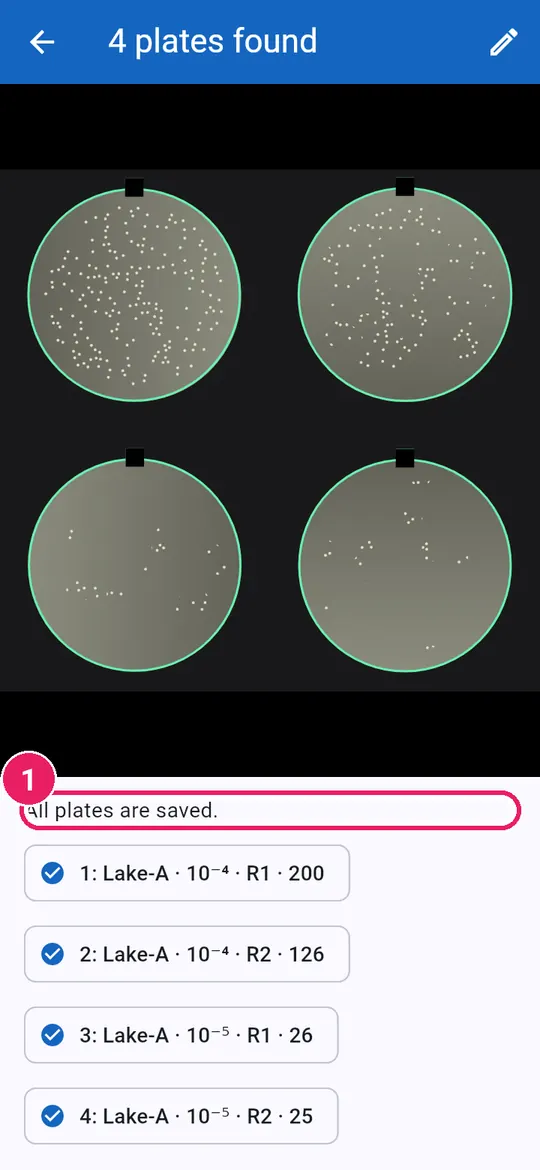
  1. 1All plates are savedบันทึกครบทุกเพลตแล้ว
12
  1. 1Every plate in its placeทุกเพลตอยู่ในตำแหน่งตามแผน
  2. 2The sample resultผลของตัวอย่าง
↑ Back to contentsกลับไปสารบัญ

Compare conditionsเปรียบเทียบสภาวะ

Log reduction, % kill and time-kill curves.log reduction อัตราการฆ่า และกราฟ time-kill

Group the samplesจัดกลุ่มตัวอย่าง

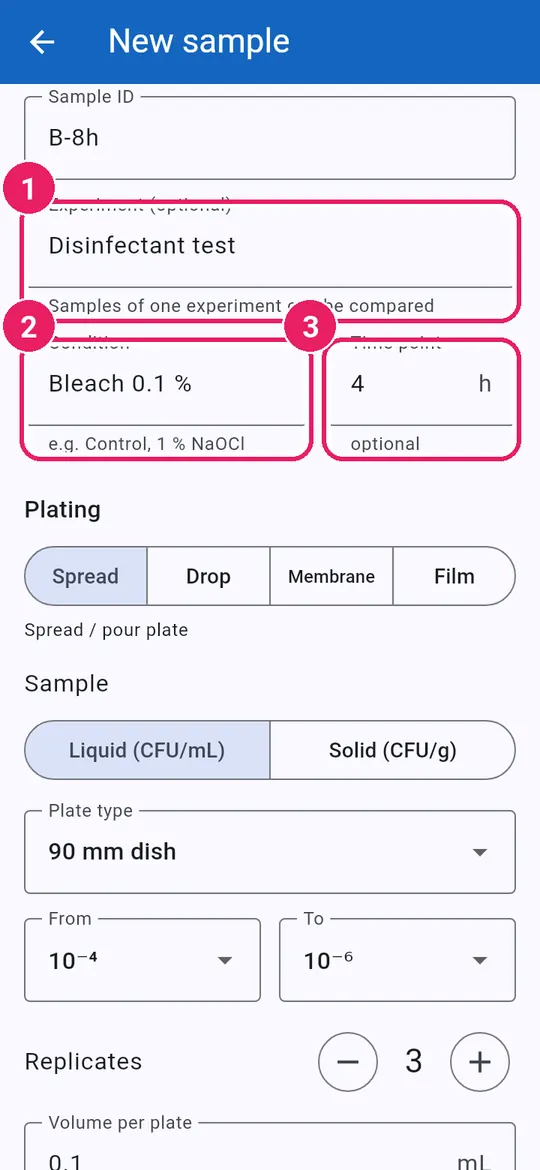
1
  1. 1Same Experiment name for allใส่ การทดลอง ชื่อเดียวกัน
  2. 2Condition, e.g. Controlสภาวะ เช่น ชุดควบคุม
  3. 3Time point in hoursจุดเวลา เป็นชั่วโมง

Replicates of one condition and time are pooled.ซ้ำของสภาวะและเวลาเดียวกันจะรวมกัน

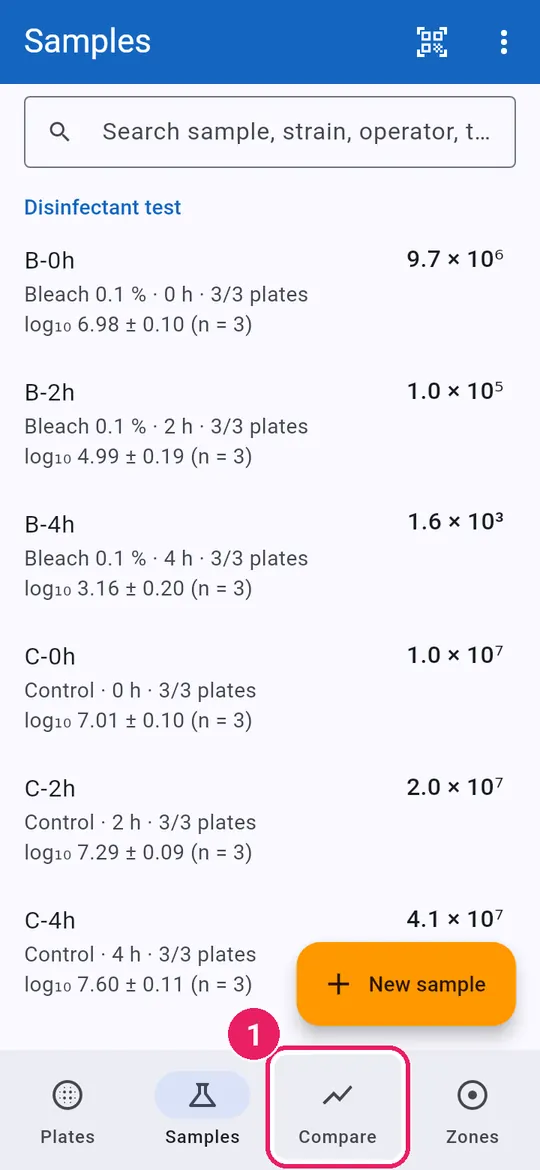
2
  1. 1Tap Compareแตะ เปรียบเทียบ

Read the curvesอ่านกราฟ

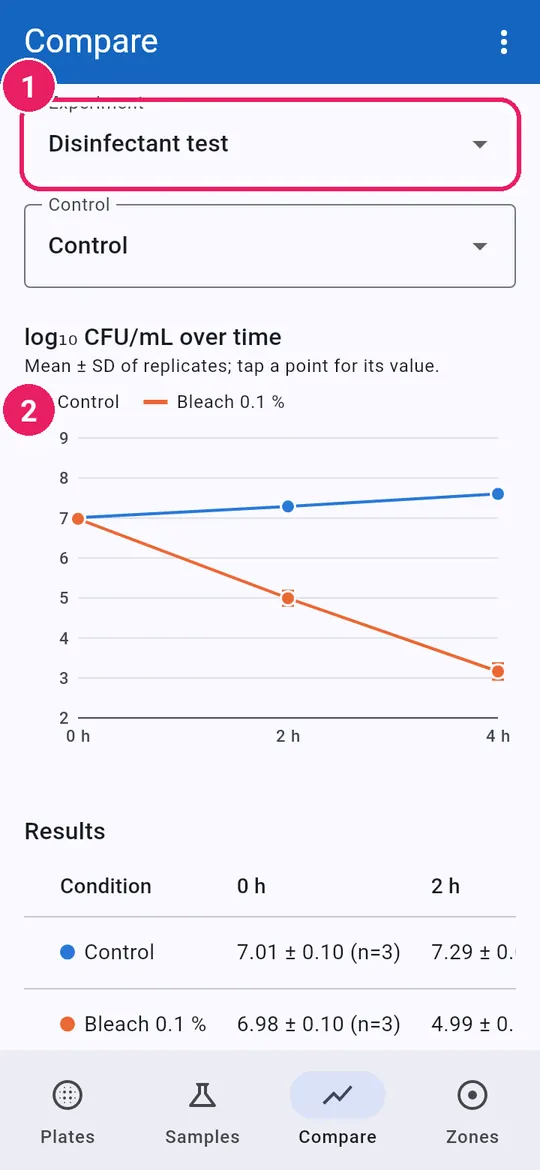
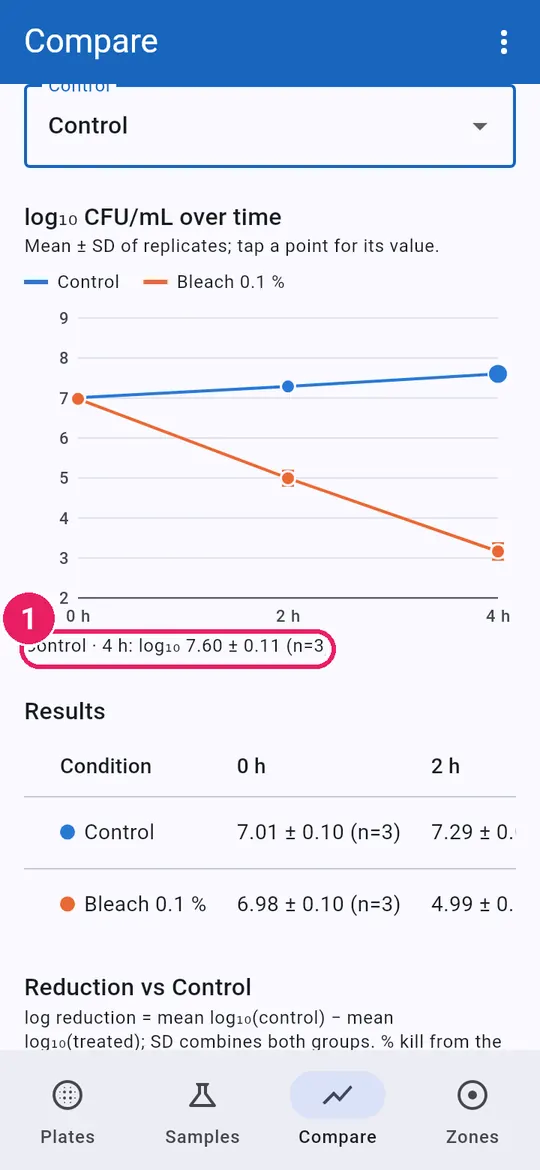
3
  1. 1Choose the Experimentเลือก การทดลอง
  2. 2log₁₀ ± SD over timelog₁₀ ± SD ตามเวลา
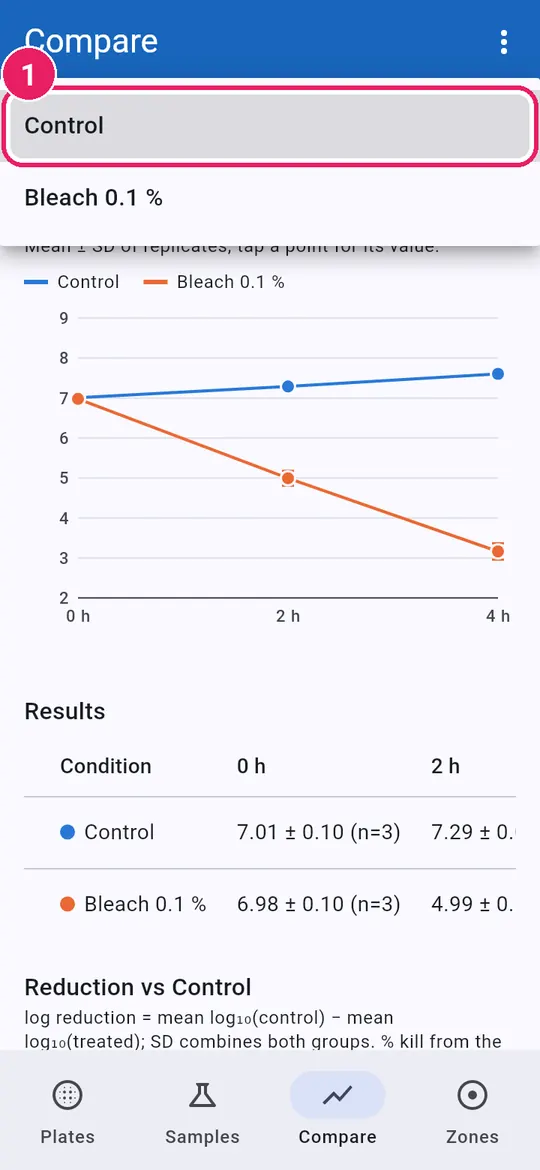
4
  1. 1Pick the Control conditionเลือก ชุดควบคุม
5
  1. 1Tap a point: its valueแตะจุด ดูค่า

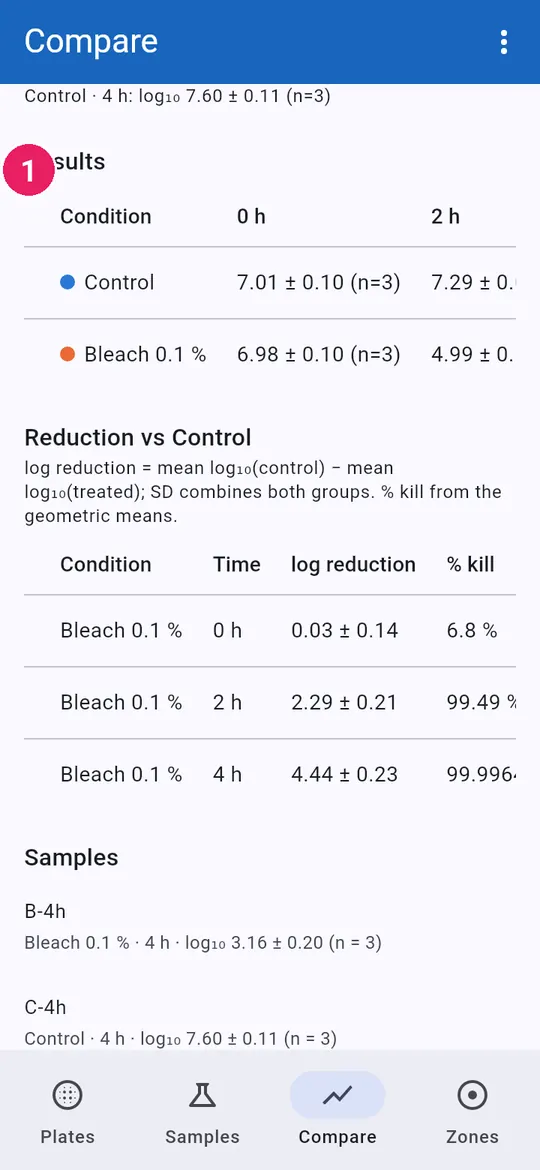
Read the tablesอ่านตาราง

6
  1. 1log₁₀ ± SD per timelog₁₀ ± SD ต่อจุดเวลา

Swipe a table sideways for more columns.ปัดตารางไปด้านข้างเพื่อดูคอลัมน์เพิ่ม

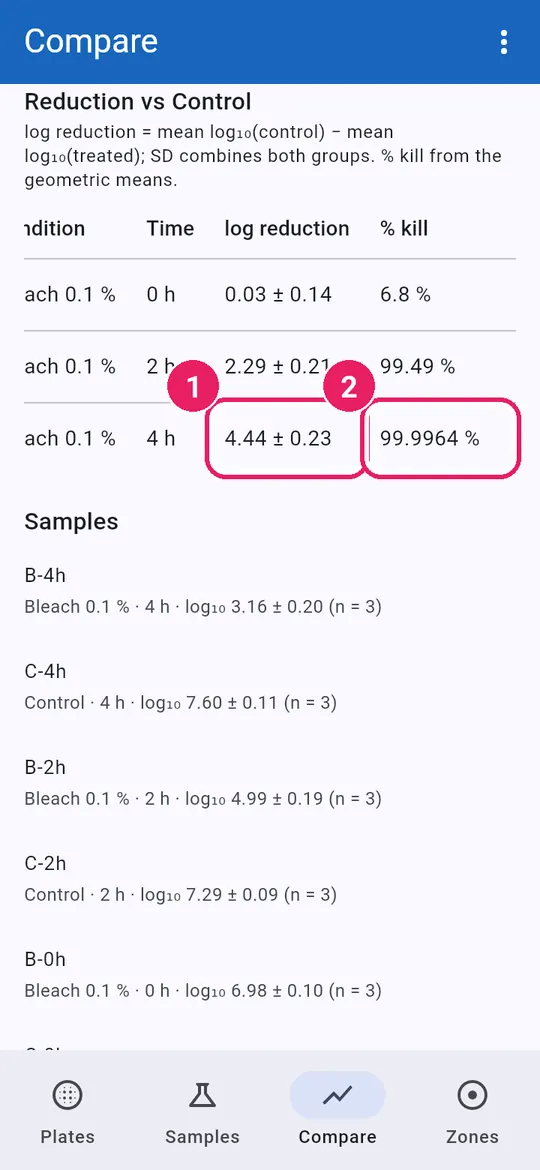
7
  1. 1log reduction ± SDlog reduction ± SD
  2. 2% killอัตราการฆ่า (%)
↑ Back to contentsกลับไปสารบัญ

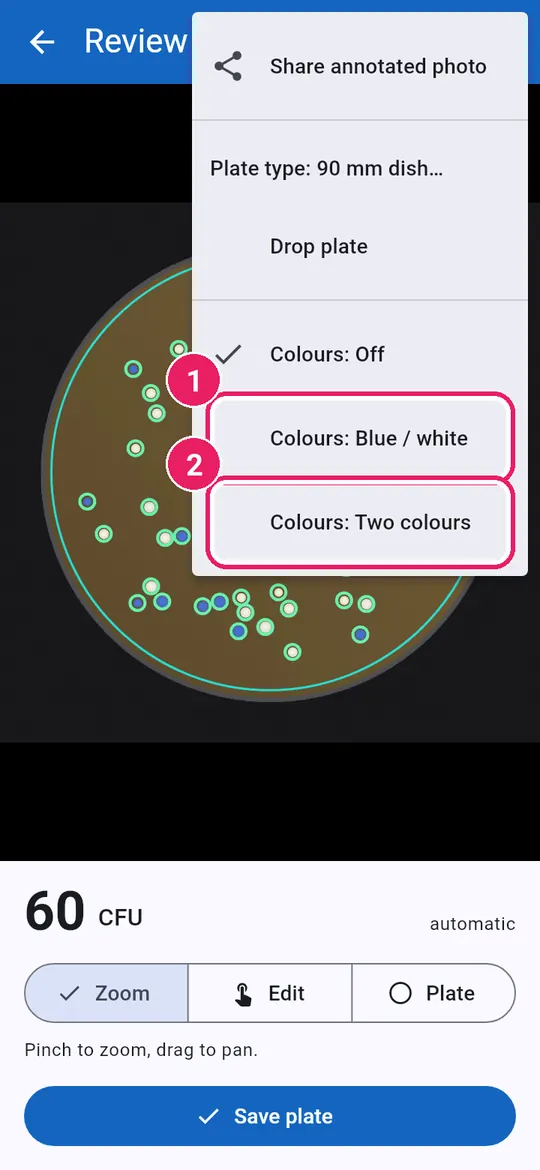
Colony coloursสีโคโลนี

Count blue and white, or two colours, apart.นับสีน้ำเงินกับขาว หรือสองสี แยกกัน

Turn colours onเปิดการแยกสี

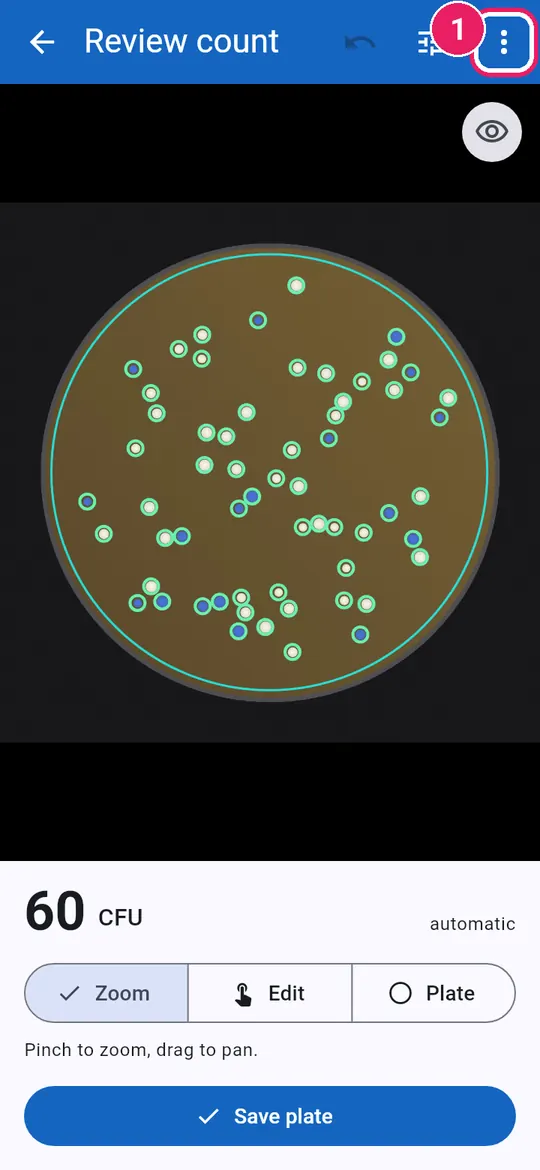
1
  1. 1Tap the menuแตะเมนู
2
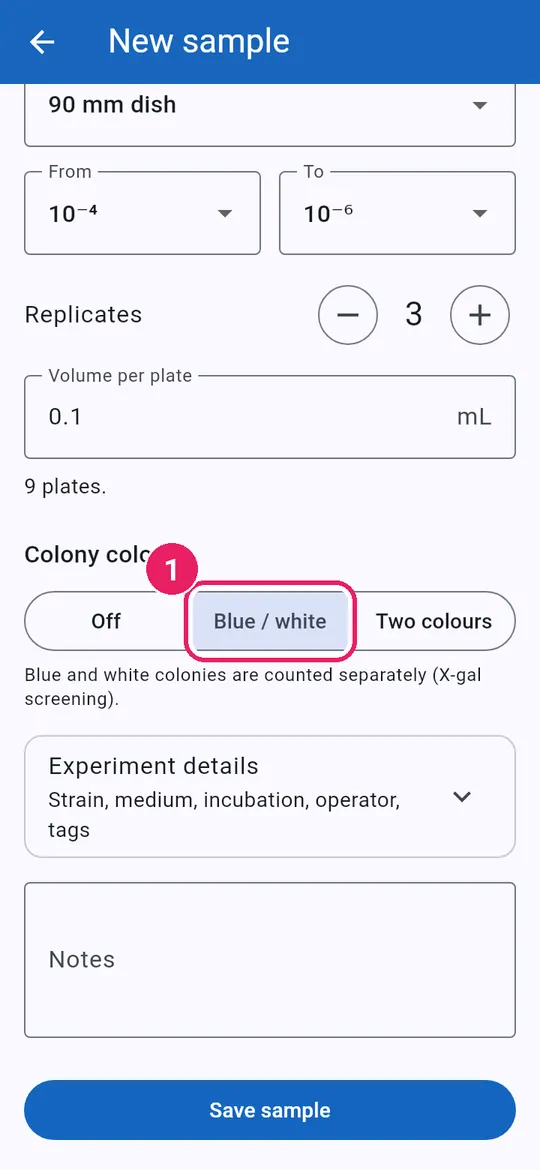
  1. 1Colours: Blue / white (X-gal)สี: สีน้ำเงิน / ขาว (X-gal)
  2. 2Colours: Two colours (chromogenic)สี: สองสี (chromogenic)
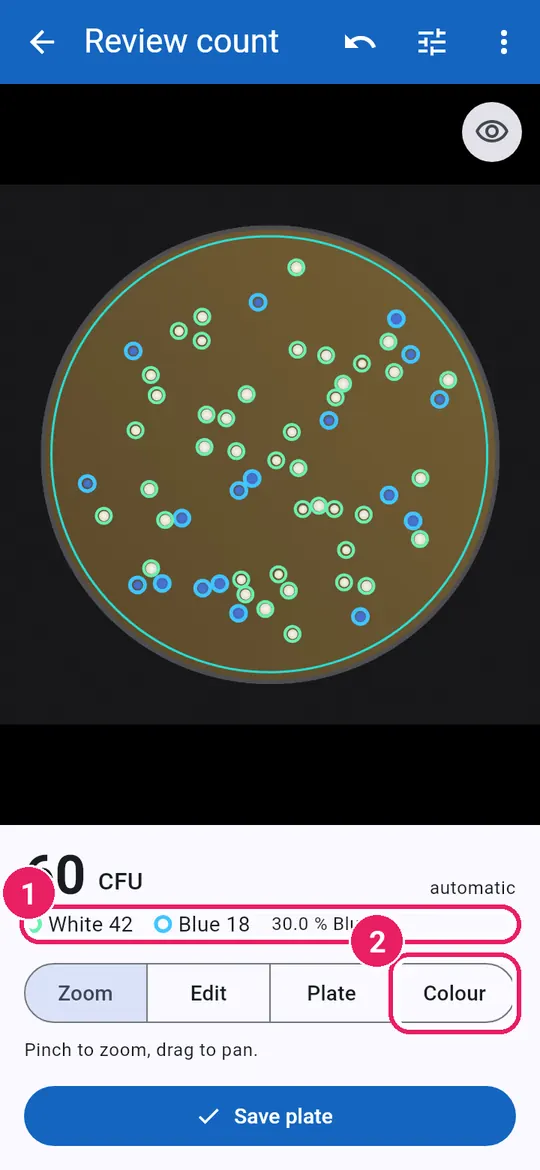
3
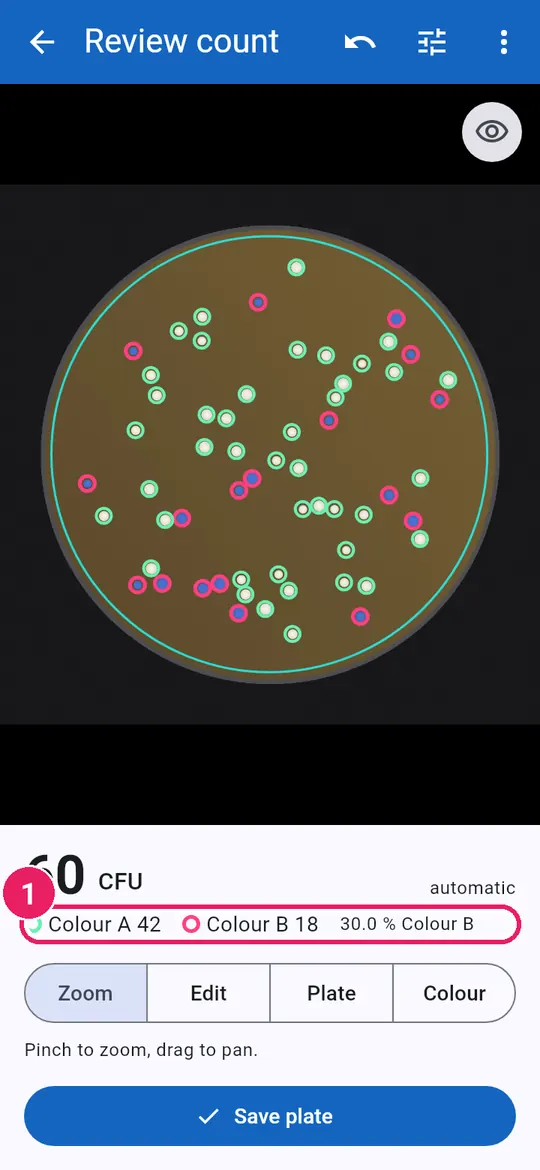
  1. 1Count per colour and %จำนวนต่อสีและ %
  2. 2Tap Colour to fixแตะ สี เพื่อแก้

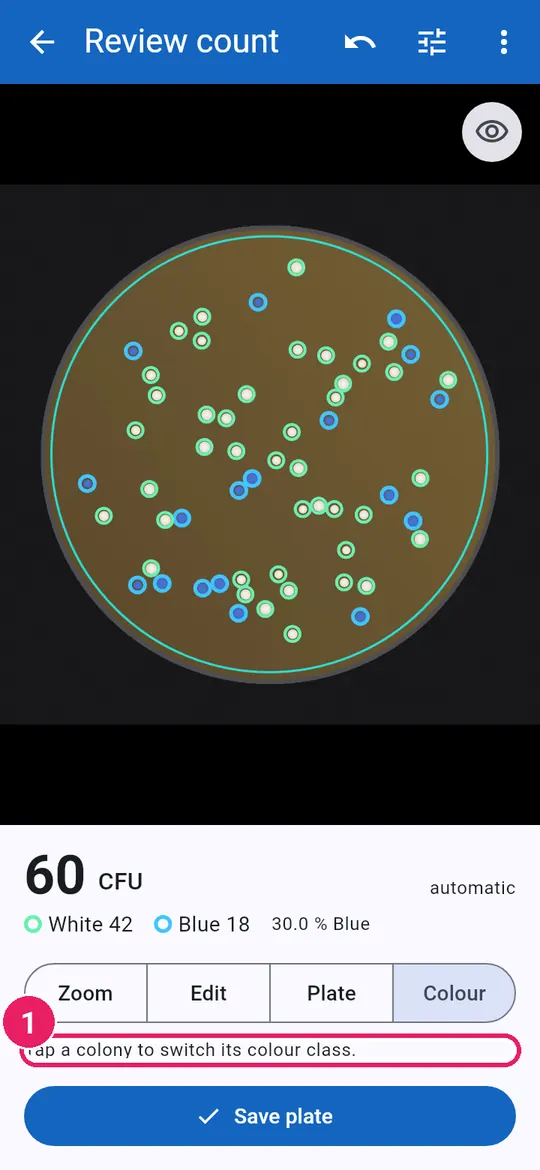
Fix a colony's colourแก้สีของโคโลนี

4
  1. 1Tap a colony to switchแตะโคโลนีเพื่อสลับสี

Zoom in first; undo is top right.ซูมก่อน ปุ่มเลิกทำอยู่มุมขวาบน
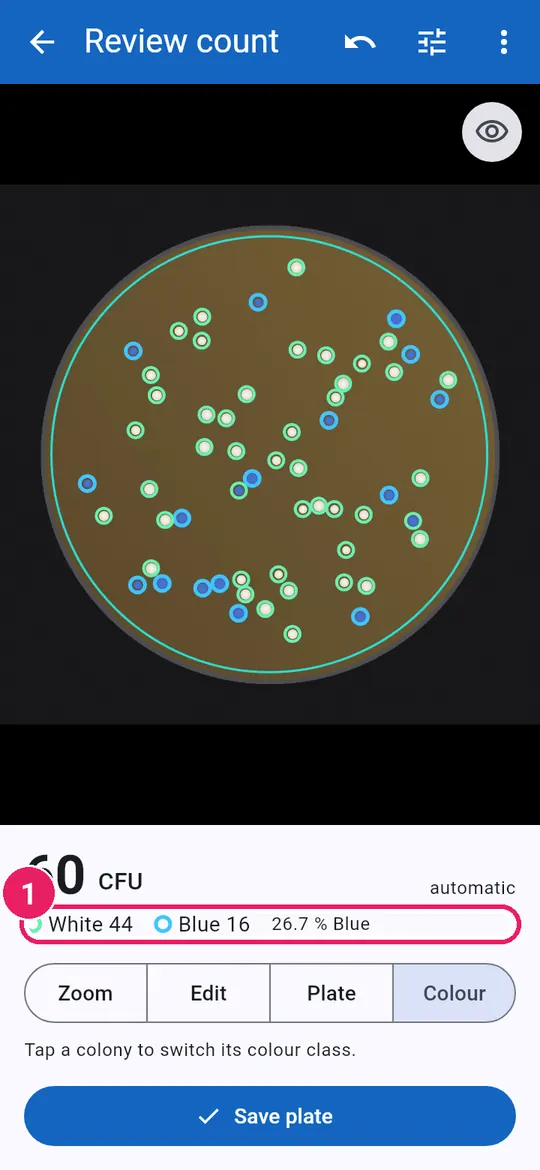
5
  1. 1Counts updateจำนวนเปลี่ยนตาม
6
  1. 1Colour A and Colour Bสี A และ สี B

Colour B is the less common colour.สี B คือสีที่พบน้อยกว่า

For a whole sampleสำหรับทั้งตัวอย่าง

7
  1. 1Choose under Colony coloursเลือกใน สีโคโลนี

Every plate of the sample uses it.ทุกเพลตของตัวอย่างใช้ค่านี้

↑ Back to contentsกลับไปสารบัญ

Plate typesชนิดจาน

Dishes, square plates and membrane filters.จานกลม จานสี่เหลี่ยม และแผ่นกรองเมมเบรน

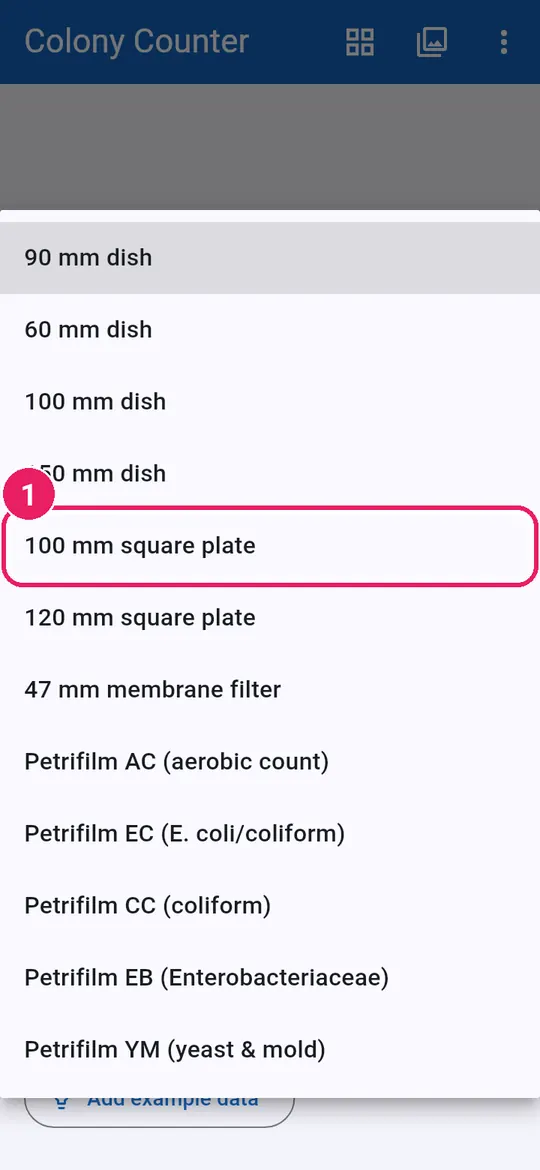
Set your usual plateตั้งจานที่ใช้ประจำ

1
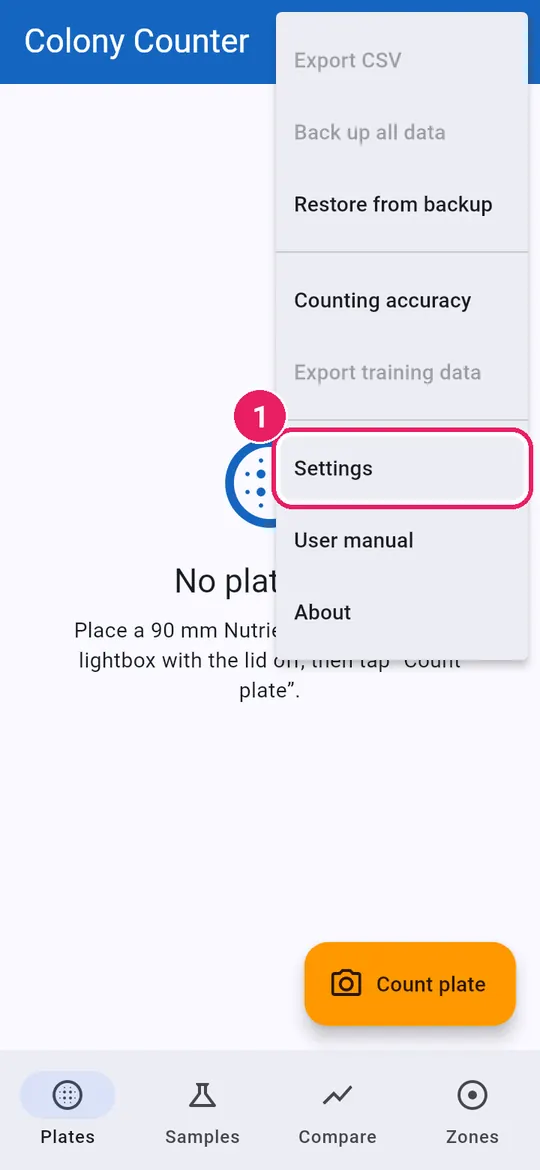
  1. 1Menu, then Settingsเมนู แล้ว การตั้งค่า
2
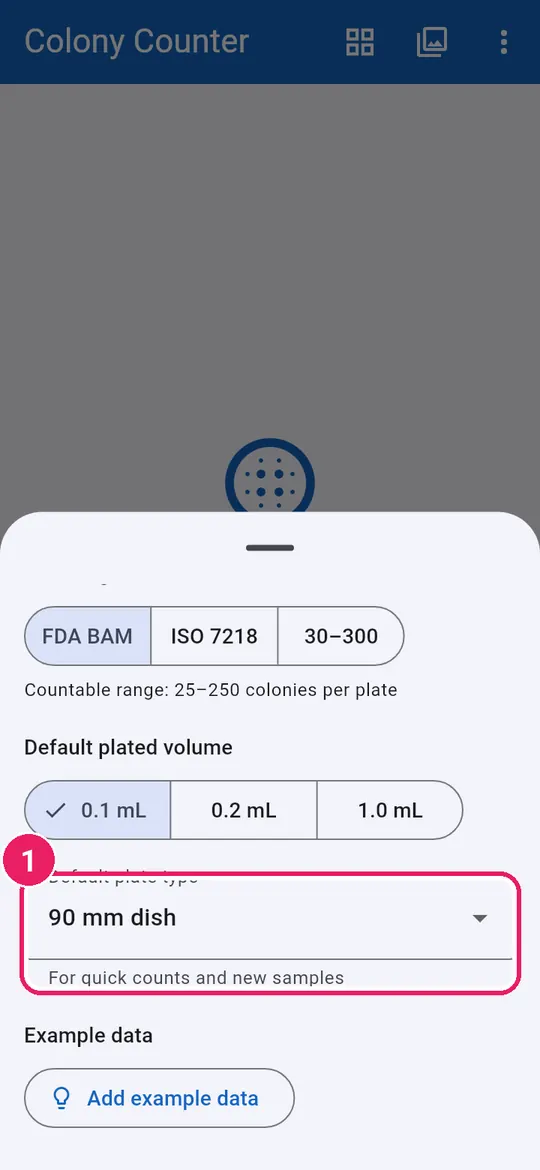
  1. 1Tap Default plate typeแตะ ชนิดจานเริ่มต้น

Used for quick counts and new samples.ใช้กับการนับด่วนและตัวอย่างใหม่

3
  1. 1Choose, e.g. 100 mm square plateเลือก เช่น จานสี่เหลี่ยม 100 มม.

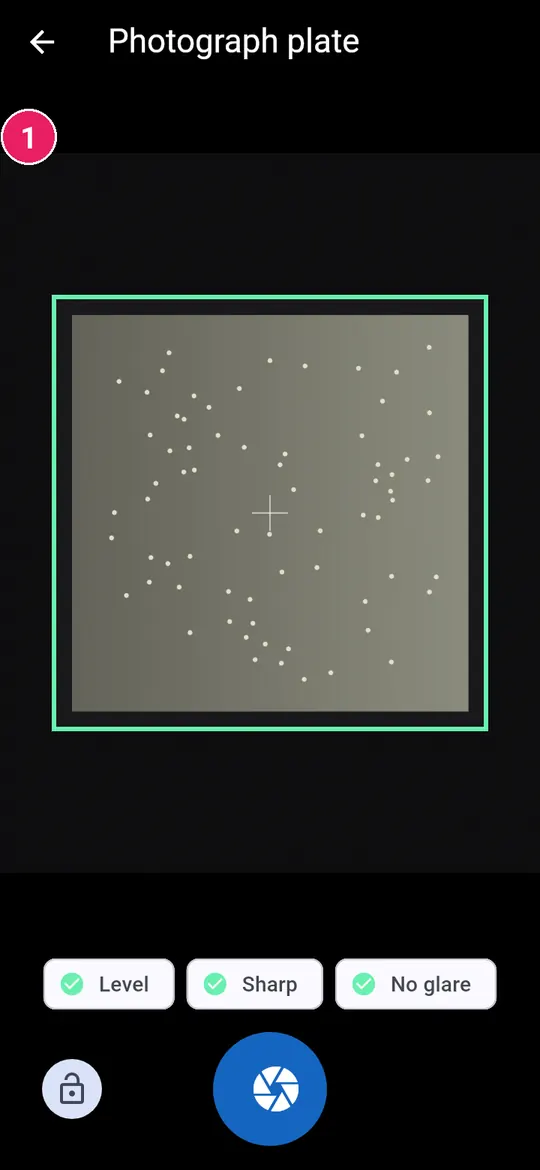
Square platesจานสี่เหลี่ยม

4
  1. 1The guide turns squareกรอบนำทางเป็นสี่เหลี่ยม
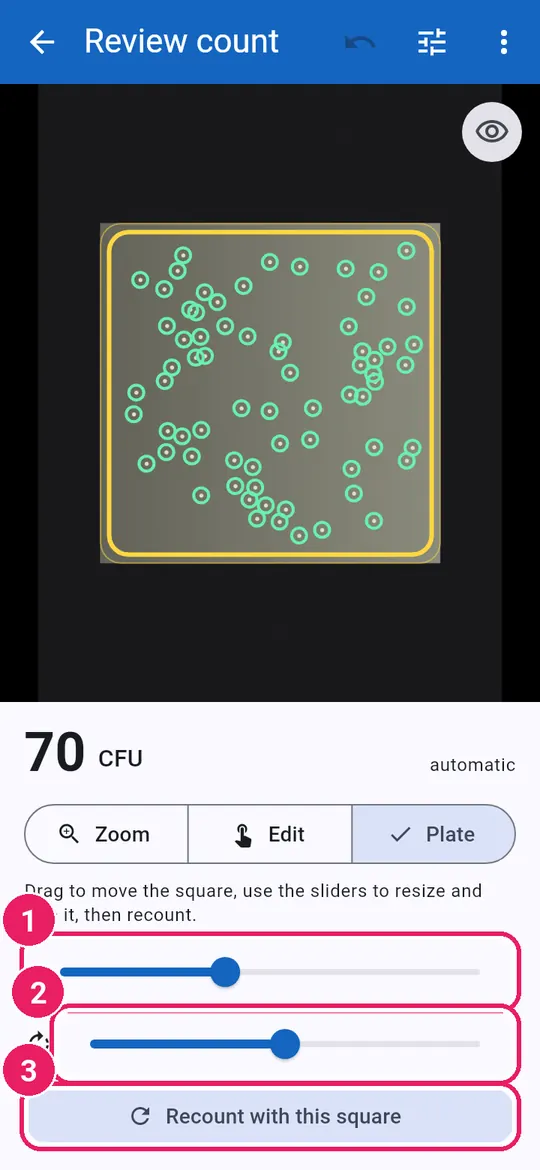
5
  1. 1Tap Plate to adjustแตะ เพลต เพื่อปรับ

Only colonies inside the square count.นับเฉพาะโคโลนีในกรอบ

6
  1. 1Drag to resizeลากเพื่อปรับขนาด
  2. 2Drag to turnลากเพื่อหมุน
  3. 3Tap Recount with this squareแตะ นับใหม่ด้วยกรอบนี้

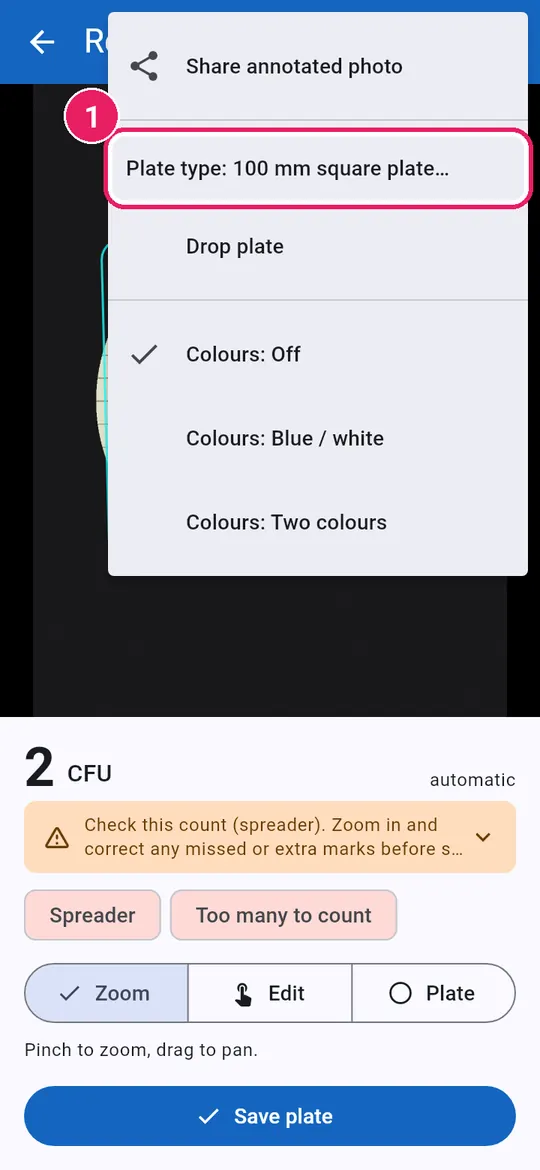
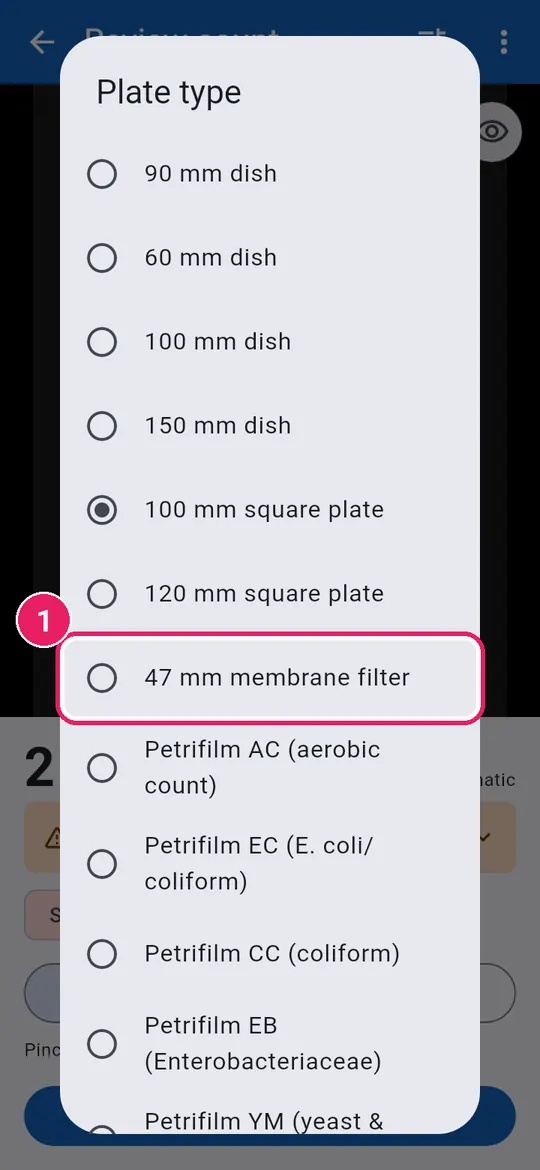
Membrane filtersแผ่นกรองเมมเบรน

7
  1. 1Menu, then Plate typeเมนู แล้ว ชนิดจาน

Wrong type? Change it for this plate.ชนิดไม่ตรง เปลี่ยนเฉพาะเพลตนี้ได้

8
  1. 1Tap 47 mm membrane filterแตะ แผ่นกรองเมมเบรน 47 มม.
9
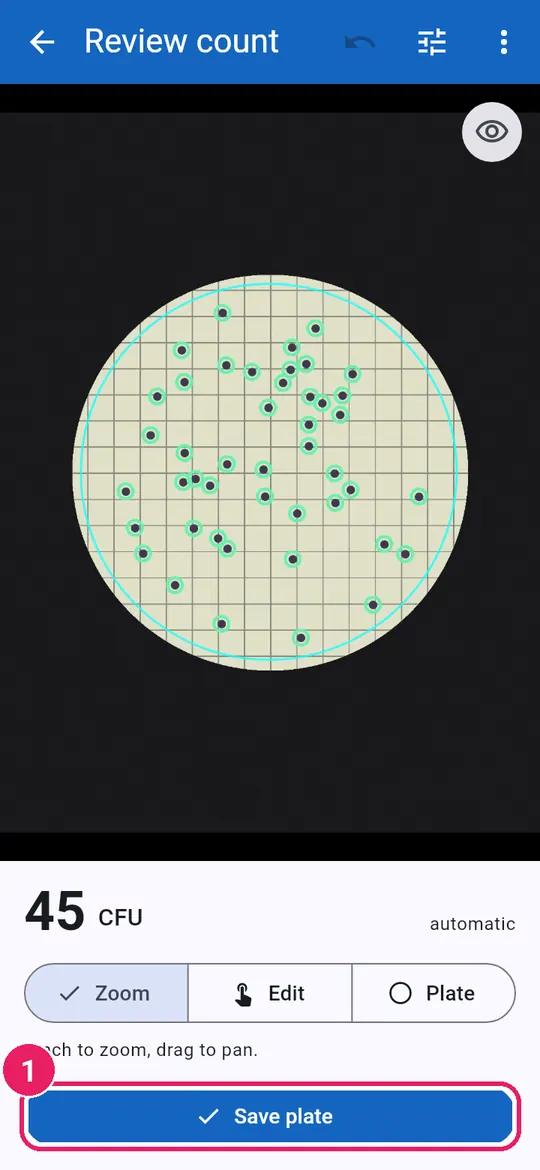
  1. 1Grid not counted; tap Save plateไม่นับเส้นตาราง แตะ บันทึกเพลต
10
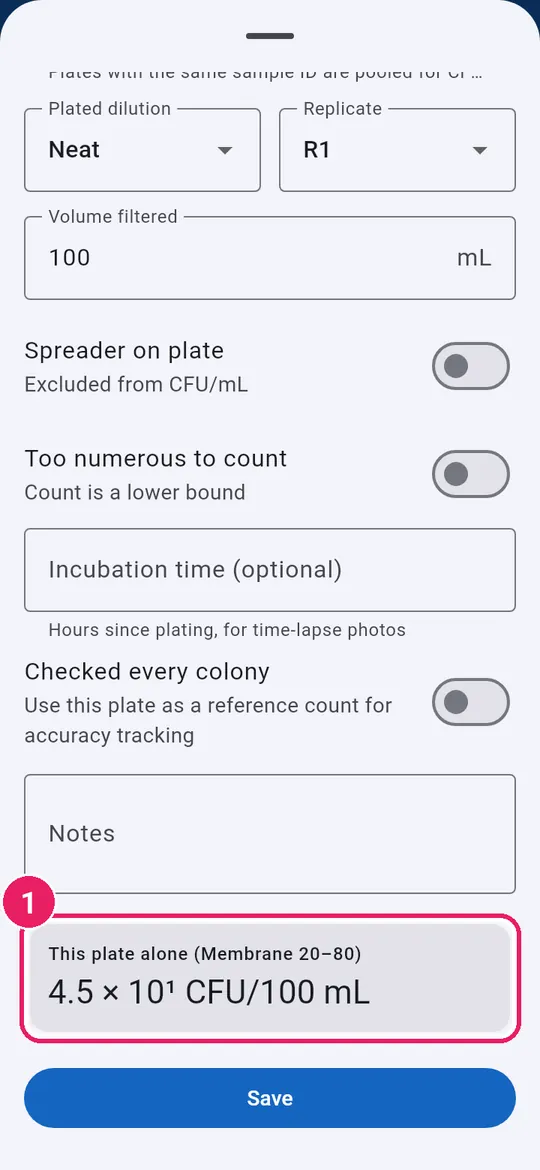
  1. 1Result in CFU/100 mLผลเป็น CFU/100 mL
↑ Back to contentsกลับไปสารบัญ

Time-lapseไทม์แลปส์

Photograph one plate again: see colonies appear and grow.ถ่ายเพลตเดิมซ้ำ ดูโคโลนีปรากฏและโต

Add later photosเพิ่มภาพถ่ายภายหลัง

1
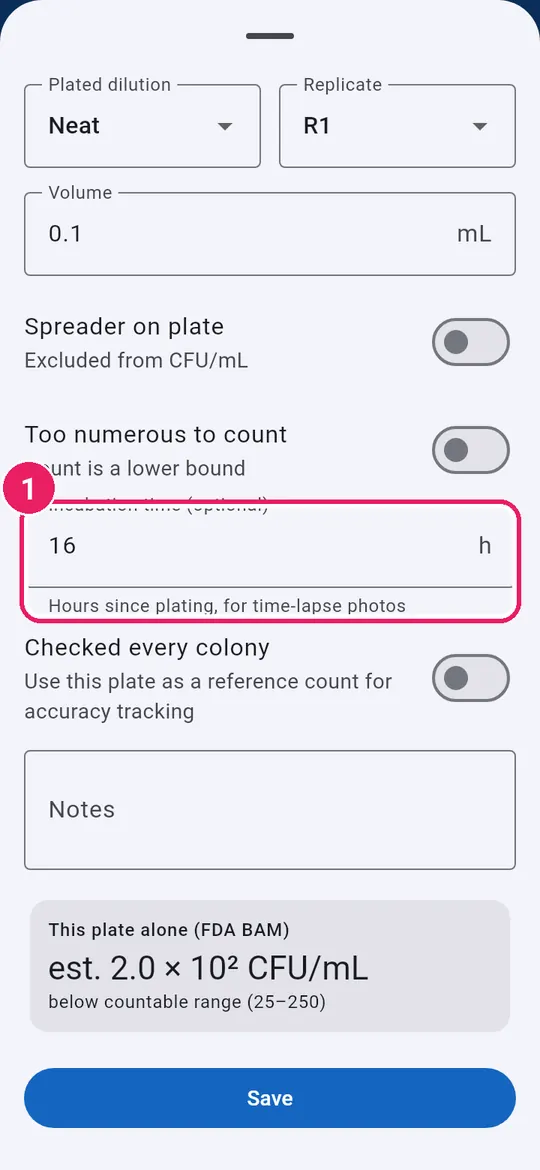
  1. 1Hours since platingจำนวนชั่วโมงหลังเพาะ

Under Incubation time when saving.อยู่ที่ เวลาบ่ม ตอนบันทึก

2
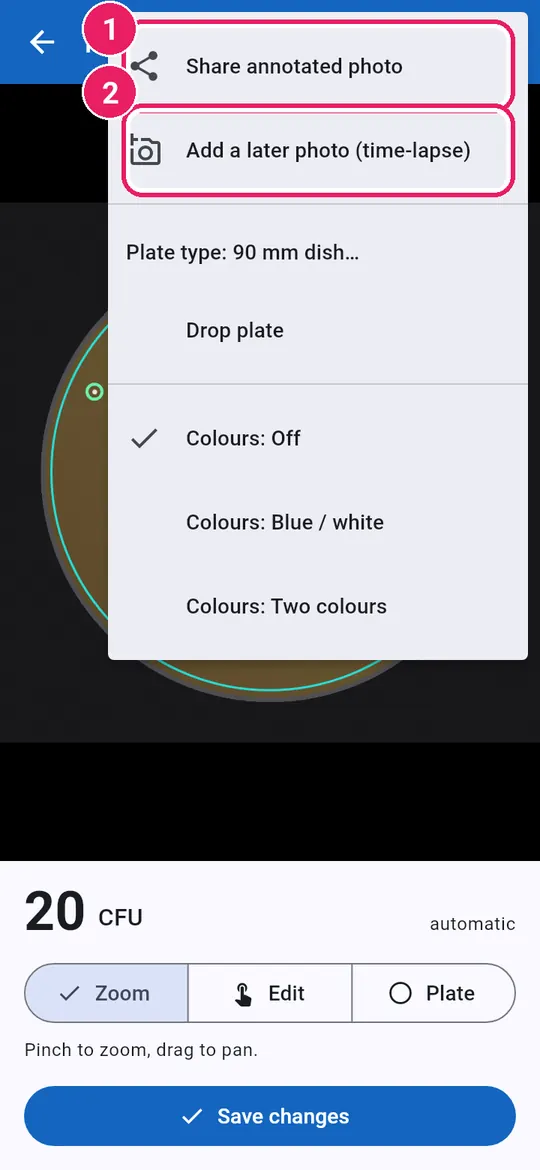
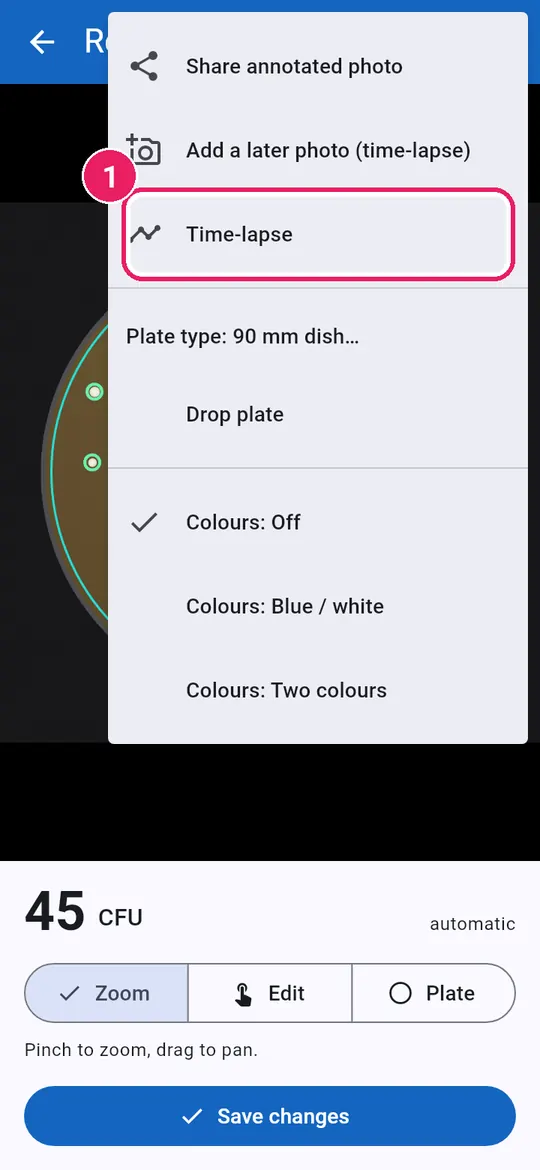
  1. 1Open the saved plate, tap the menuเปิดเพลตที่บันทึก แตะเมนู
3
  1. 1Share annotated photoแชร์ภาพที่มีเครื่องหมาย
  2. 2Tap Add a later photoแตะ เพิ่มภาพถ่ายภายหลัง
4
  1. 1Check the hoursตรวจจำนวนชั่วโมง
  2. 2Tap Saveแตะ บันทึก

Put the plate the same way up.วางเพลตหันทางเดิมทุกครั้ง

Time-lapse viewมุมมองไทม์แลปส์

5
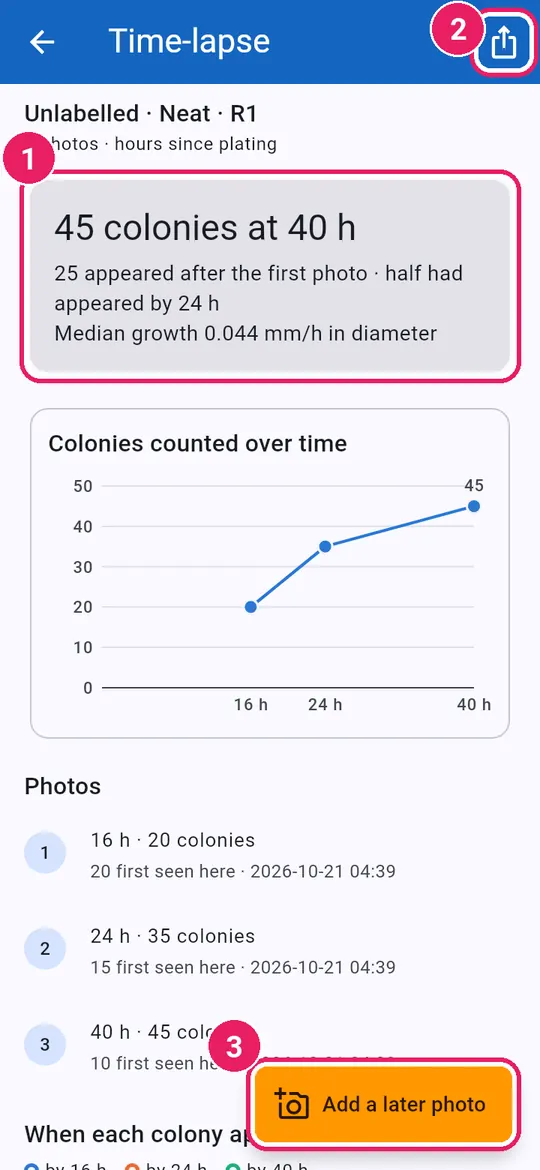
  1. 1Tap Time-lapseแตะ ไทม์แลปส์
6
  1. 1Colonies, appearance, growth mm/hจำนวน การปรากฏ อัตราโต mm/h
  2. 2Share colony table (CSV)แชร์ตารางโคโลนี (CSV)
  3. 3Add a later photoเพิ่มภาพถ่ายภายหลัง
7
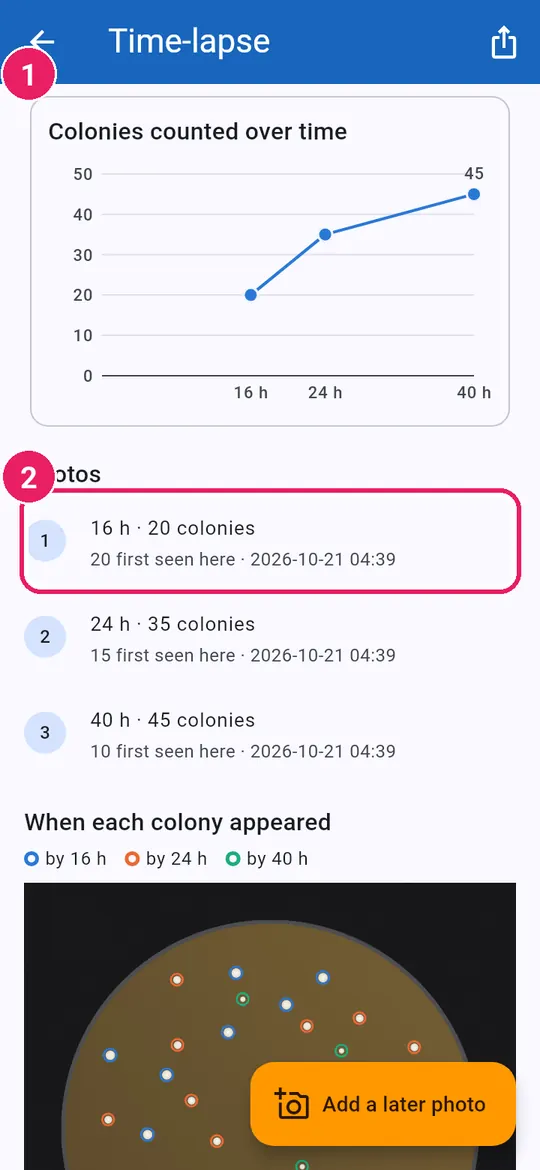
  1. 1Count over timeจำนวนโคโลนีตามเวลา
  2. 2Tap a photo to open itแตะภาพเพื่อเปิด
8
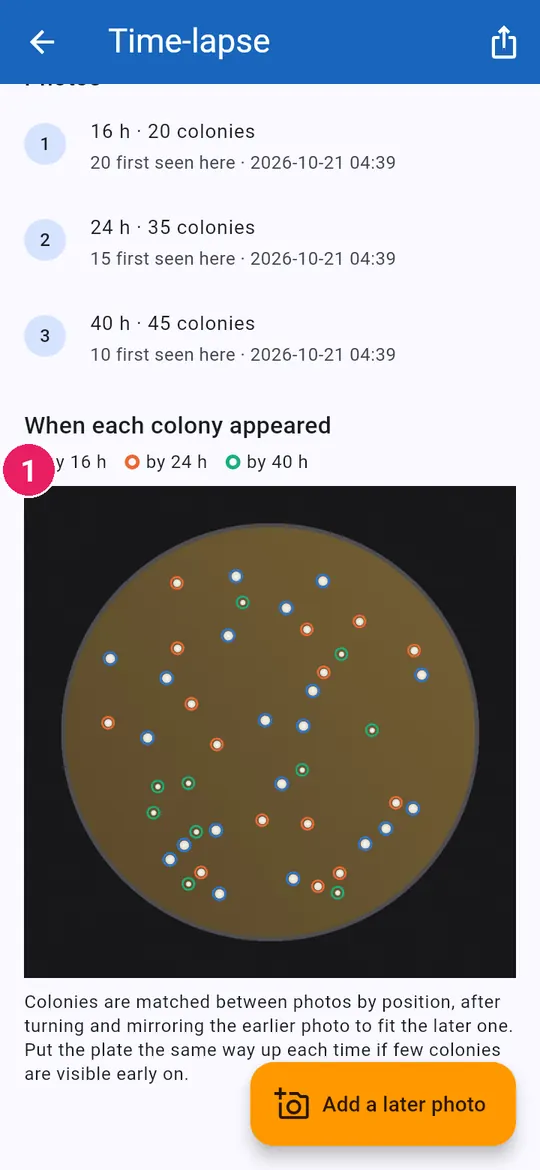
  1. 1Ring colour: when it appearedสีวง: เวลาที่ปรากฏ
↑ Back to contentsกลับไปสารบัญ

Drop platesดรอปเพลต

Plan Miles–Misra drops, photograph, check each drop, read CFU/mL.วางแผนหยดแบบ Miles–Misra ถ่ายภาพ ตรวจทีละหยด อ่าน CFU/mL

Plan the sampleวางแผนตัวอย่าง

1
  1. 1Tap Samplesแตะ ตัวอย่าง
2
  1. 1Tap New sampleแตะ ตัวอย่างใหม่
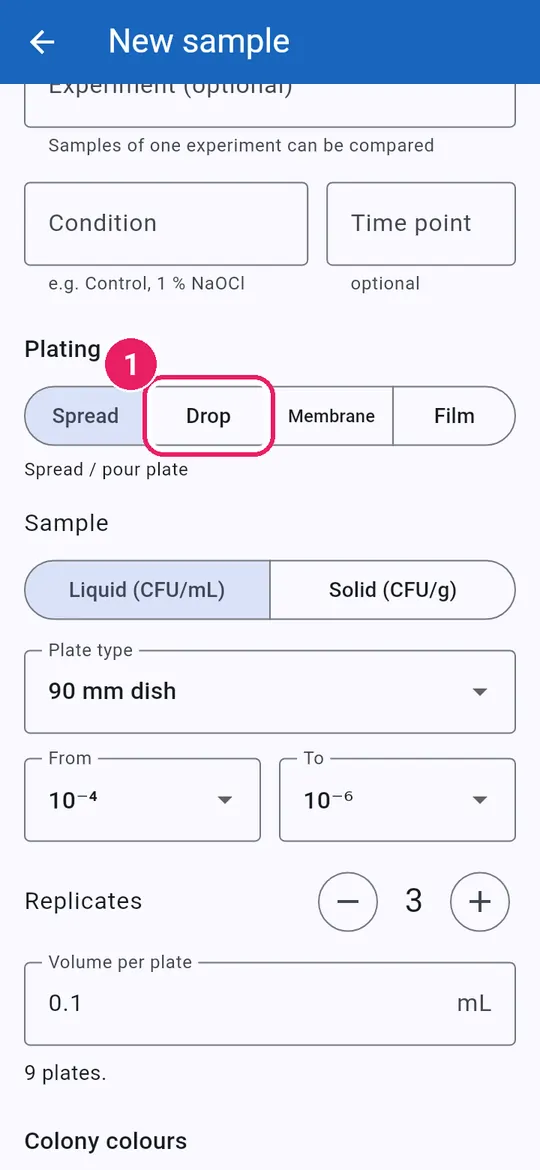
3
  1. 1Tap Dropแตะ ดรอป
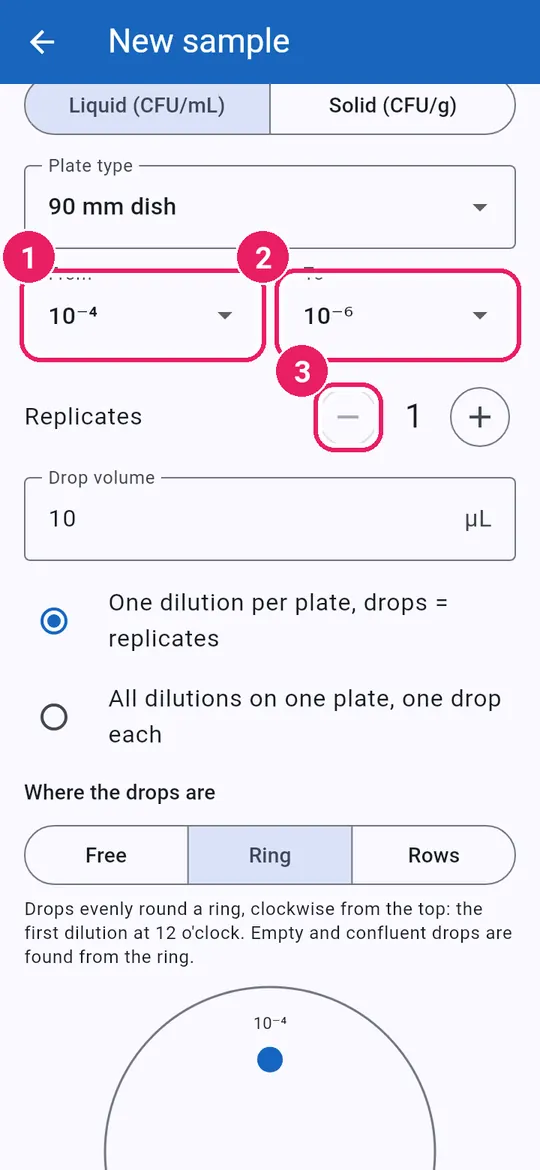
4
  1. 1From: the least dilutedจาก: ระดับที่เจือจางน้อยที่สุด
  2. 2To: the most dilutedถึง: ระดับที่เจือจางมากที่สุด
  3. 3Replicates: one plate eachจำนวนซ้ำ: ซ้ำละหนึ่งเพลต
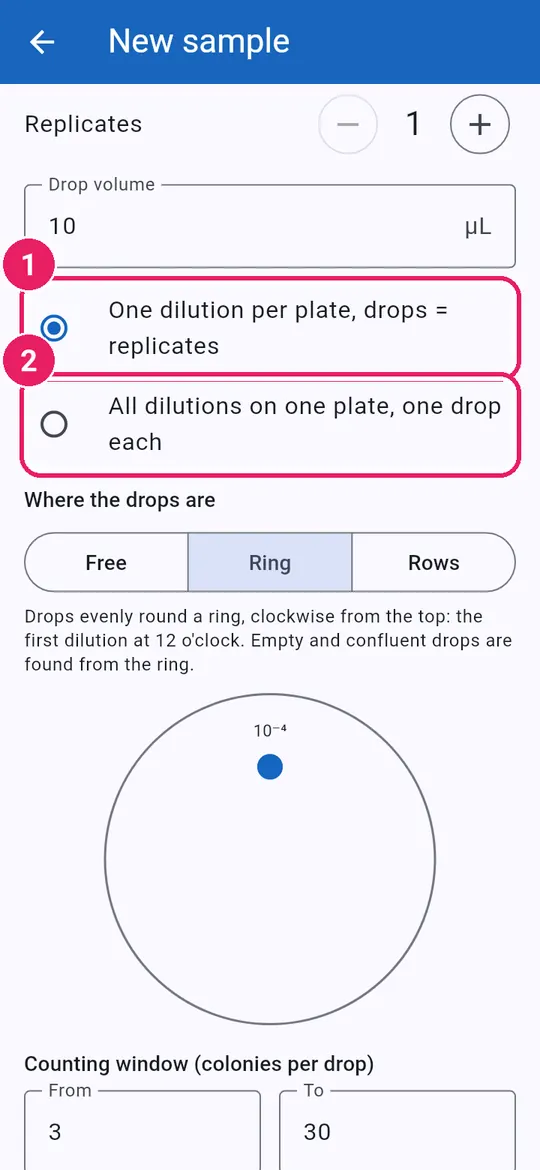
5
  1. 1One dilution per plate, drops = replicatesหนึ่งระดับการเจือจางต่อเพลต หยดแต่ละหยดคือซ้ำ
  2. 2All dilutions on one plateทุกระดับการเจือจางบนเพลตเดียว

This guide uses all dilutions on one plate.คู่มือนี้ใช้แบบทุกระดับการเจือจางบนเพลตเดียว

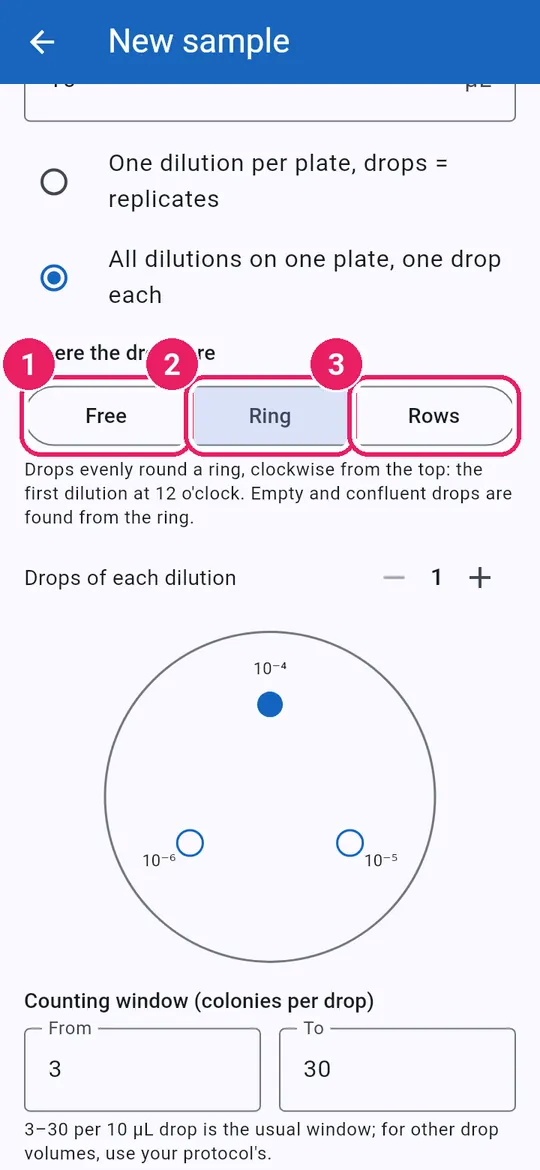
6
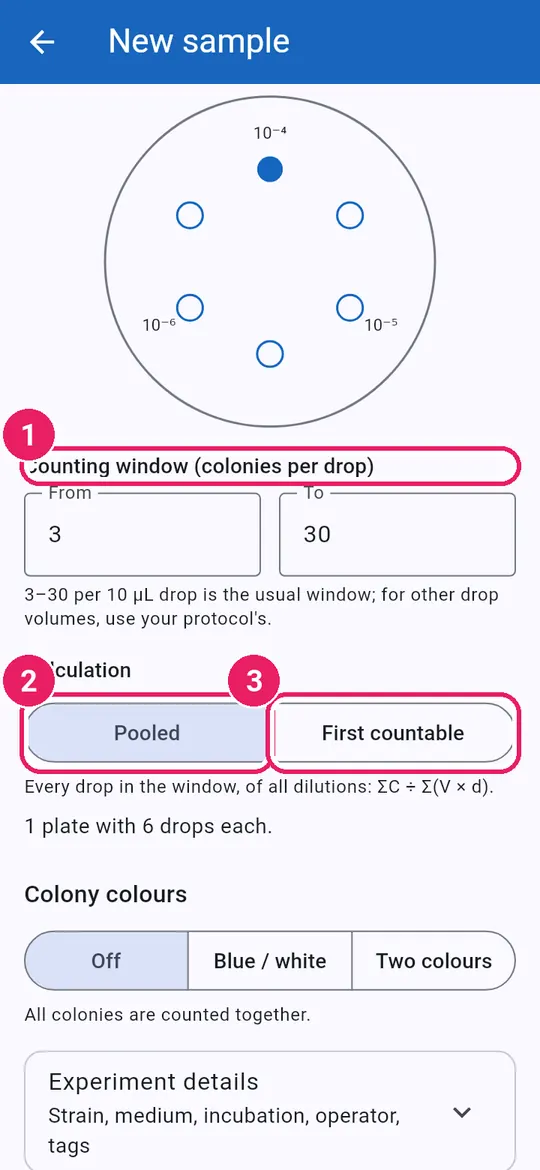
  1. 1Free: drops anywhereอิสระ: หยดที่ใดก็ได้
  2. 2Ring: first dilution at 12 o'clockวงรอบจาน: ระดับแรกที่ 12 นาฬิกา
  3. 3Rows: a row per dilutionเป็นแถว: แถวละหนึ่งระดับ
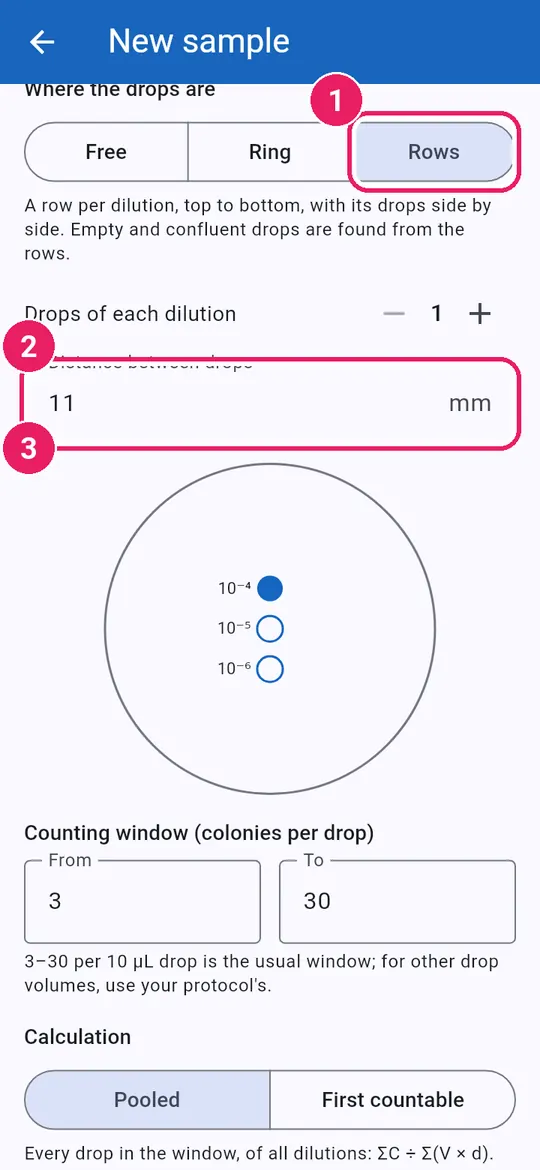
7
  1. 1Tap Rowsแตะ เป็นแถว
  2. 2Distance between dropsระยะห่างระหว่างหยด
  3. 3Where the drops goตำแหน่งของหยดบนจาน
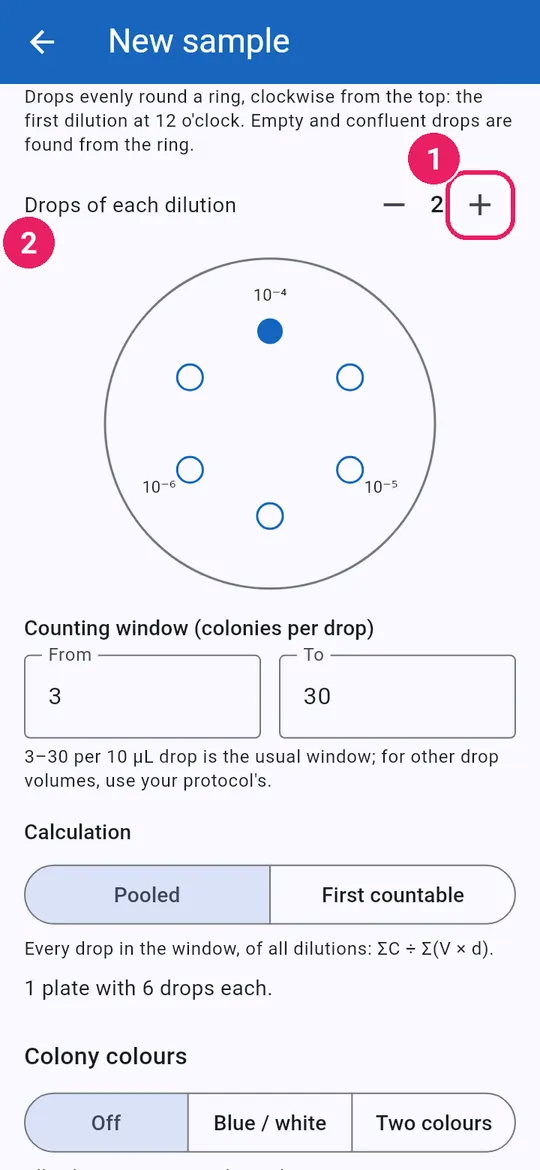
8
  1. 1Drops of each dilution: tap +จำนวนหยดต่อระดับการเจือจาง: แตะ +
  2. 2Check the previewตรวจภาพตัวอย่าง

Back on Ring: two drops of each dilution.กลับมาที่วงรอบจาน: ระดับละสองหยด

9
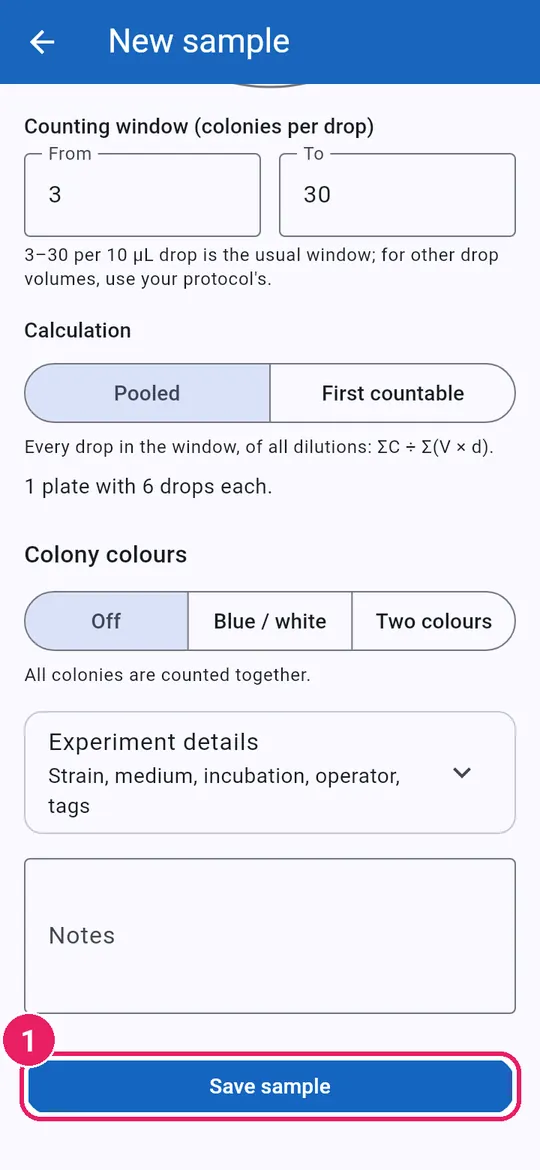
  1. 1Counting window: colonies per dropช่วงที่นับได้: โคโลนีต่อหยด
  2. 2Pooled: every drop in the windowรวมทุกหยด: ทุกหยดที่อยู่ในช่วง
  3. 3First countable: least diluted in windowระดับแรกที่นับได้: ระดับแรกที่อยู่ในช่วง

3–30 colonies per 10 µL drop is usual.ปกติ 3–30 โคโลนีต่อหยด 10 µL

10
  1. 1Tap Save sampleแตะ บันทึกตัวอย่าง

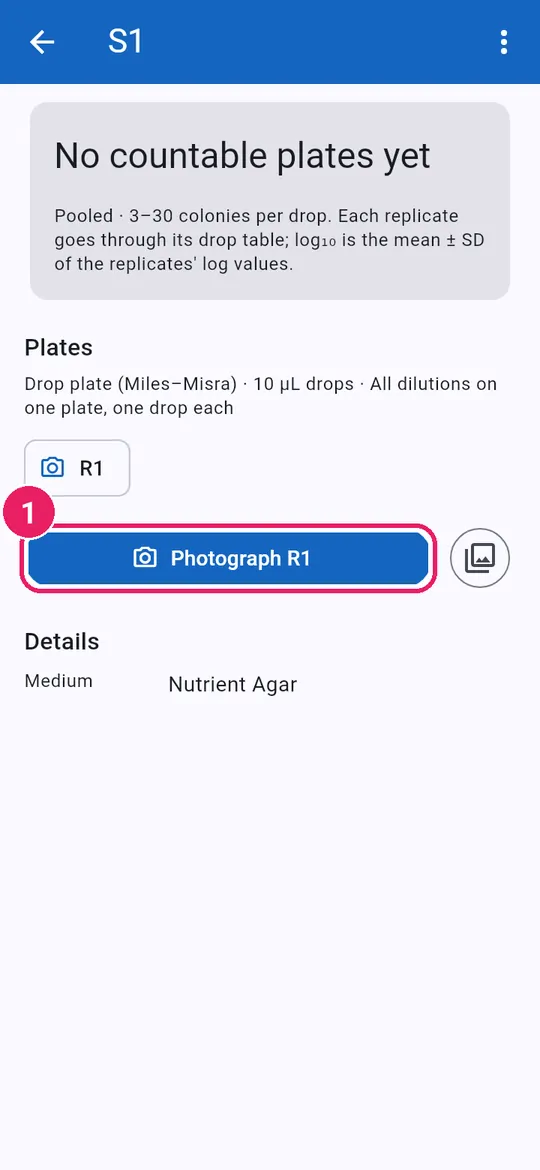
Photograph and check the dropsถ่ายภาพและตรวจหยด

11
  1. 1Tap Photograph R1แตะ ถ่ายภาพ R1

The app tells you which plate is next.แอปบอกว่าต้องถ่ายเพลตใดต่อ

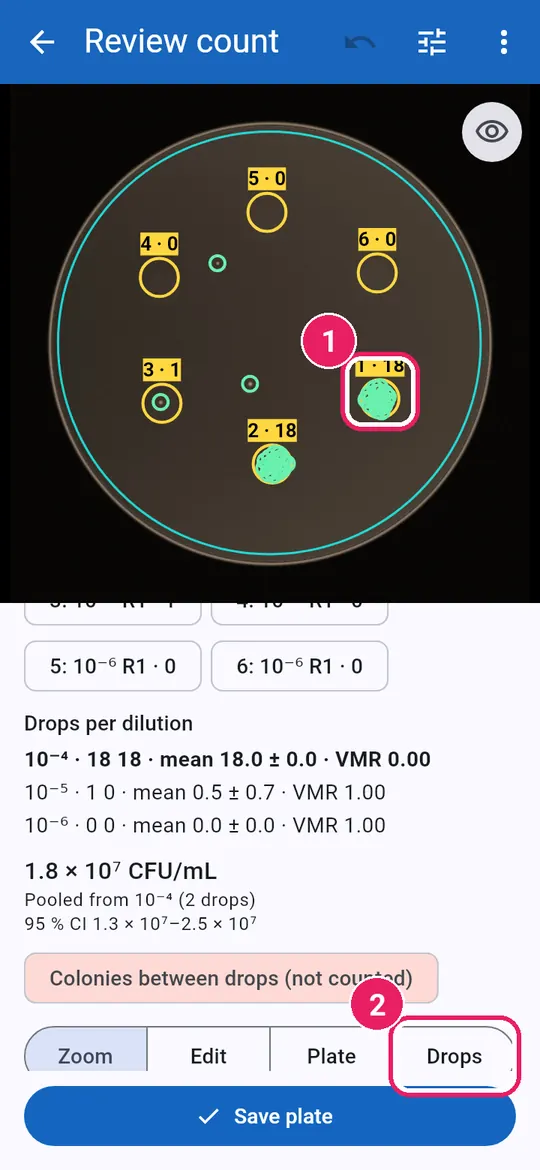
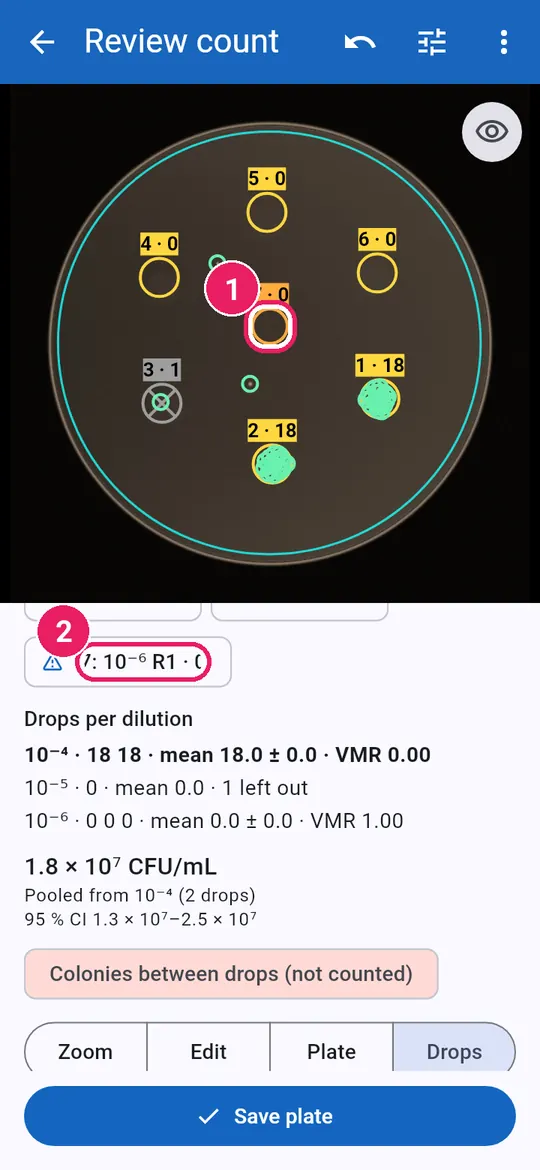
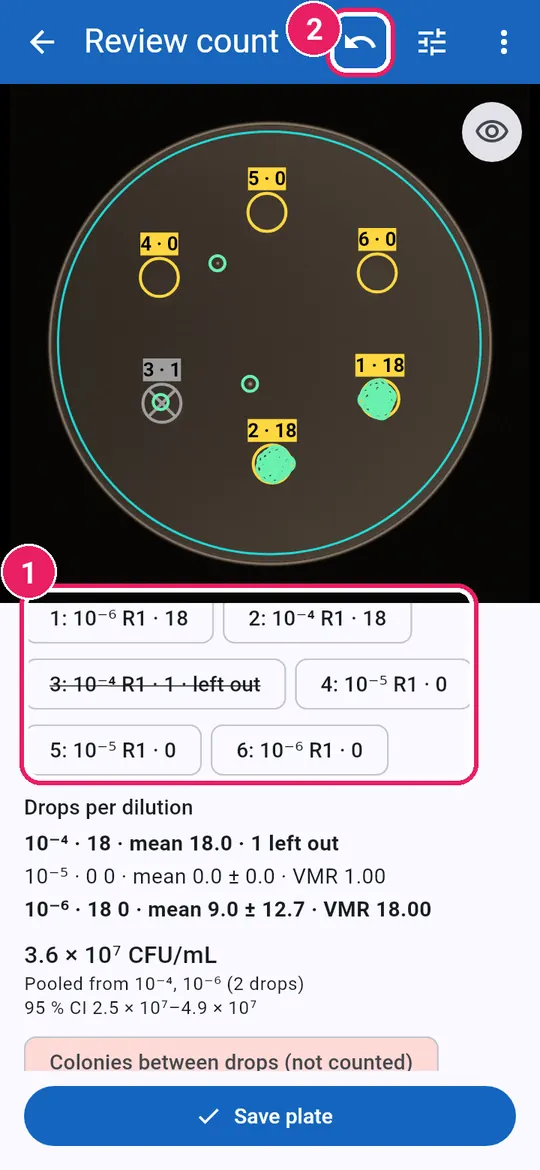
12
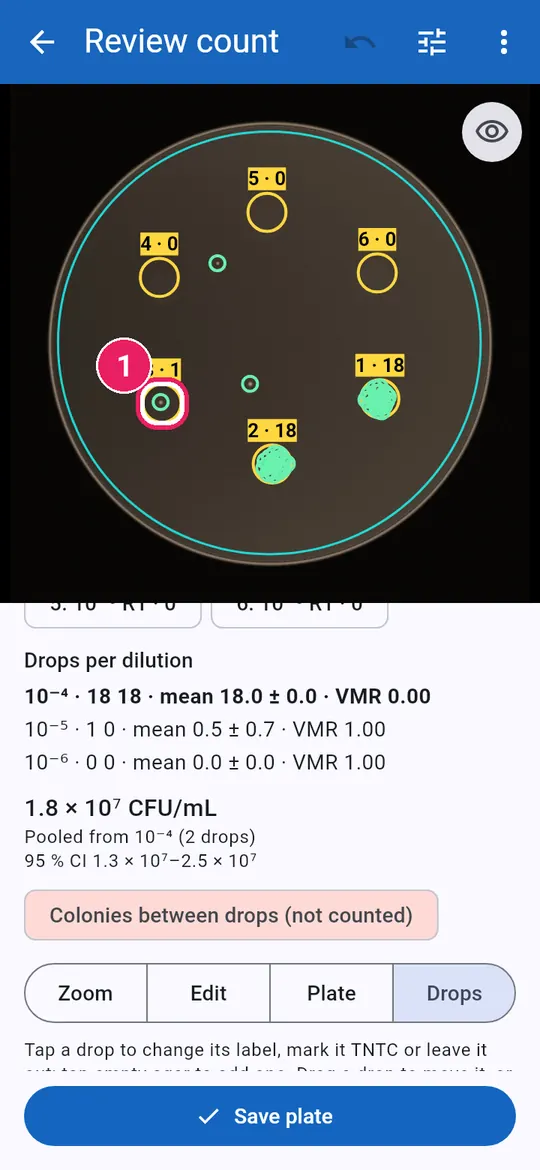
  1. 1Each drop: number · coloniesแต่ละหยด: ลำดับ · จำนวนโคโลนี
  2. 2Tap Dropsแตะ หยด
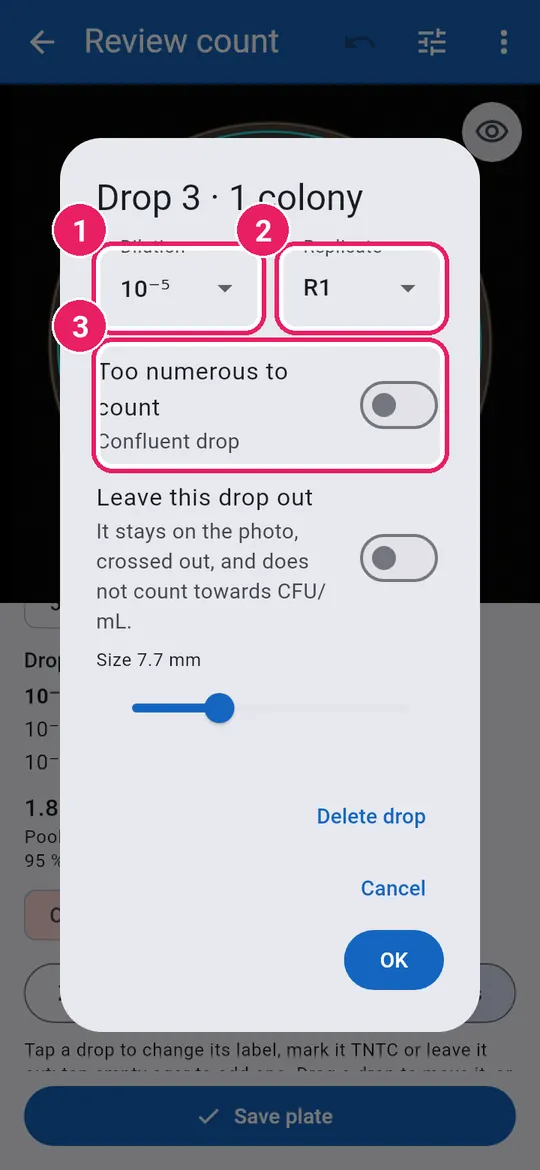
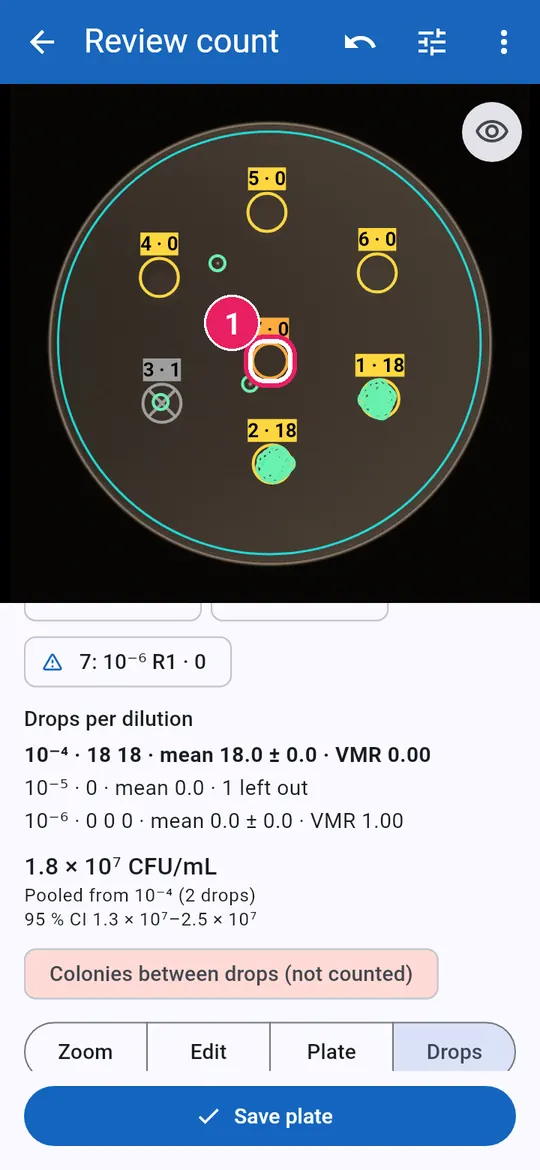
13
  1. 1Tap a dropแตะที่หยด
14
  1. 1Change the Dilutionเปลี่ยน ระดับการเจือจาง
  2. 2Change the Replicateเปลี่ยน ซ้ำที่
  3. 3Too numerous to count: confluent dropมากเกินนับ (TNTC): หยดที่เจริญรวมกัน
15
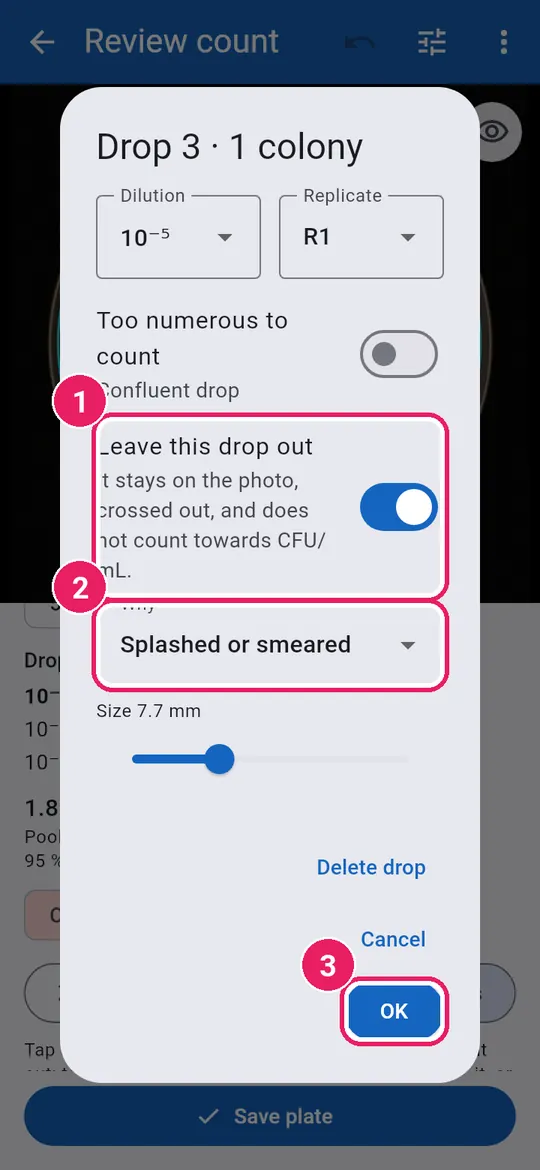
  1. 1Turn on Leave this drop outเปิด ไม่นำหยดนี้มาคำนวณ
  2. 2Pick Whyเลือก เหตุผล
  3. 3Tap OKแตะ ตกลง
16
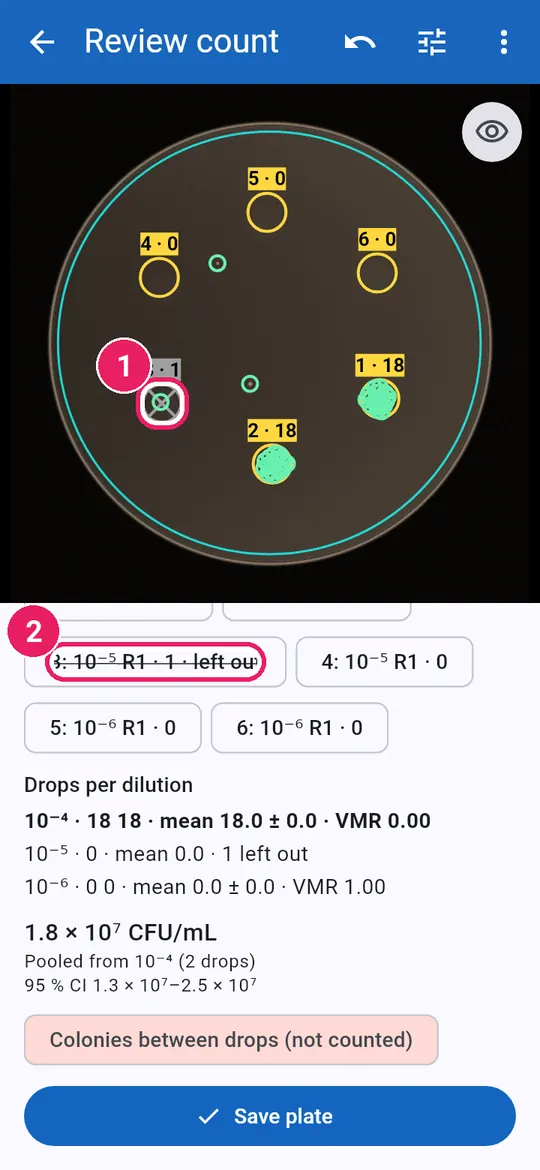
  1. 1Crossed out on the photoถูกขีดฆ่าบนภาพ
  2. 2Its chip says left outป้ายของหยดแสดงว่า ไม่นำมาคำนวณ
17
  1. 1Tap empty agar to add a dropแตะอาหารเลี้ยงเชื้อที่ว่างเพื่อเพิ่มหยด
  2. 2New drop: check its labelหยดใหม่: ตรวจป้ายกำกับ

The warning sign: more drops than the plan.เครื่องหมายเตือน: มีหยดมากกว่าแผน

18
  1. 1Drag a drop to move itลากหยดเพื่อย้าย

Drag empty agar to move all the drops.ลากอาหารเลี้ยงเชื้อที่ว่างเพื่อย้ายทุกหยด

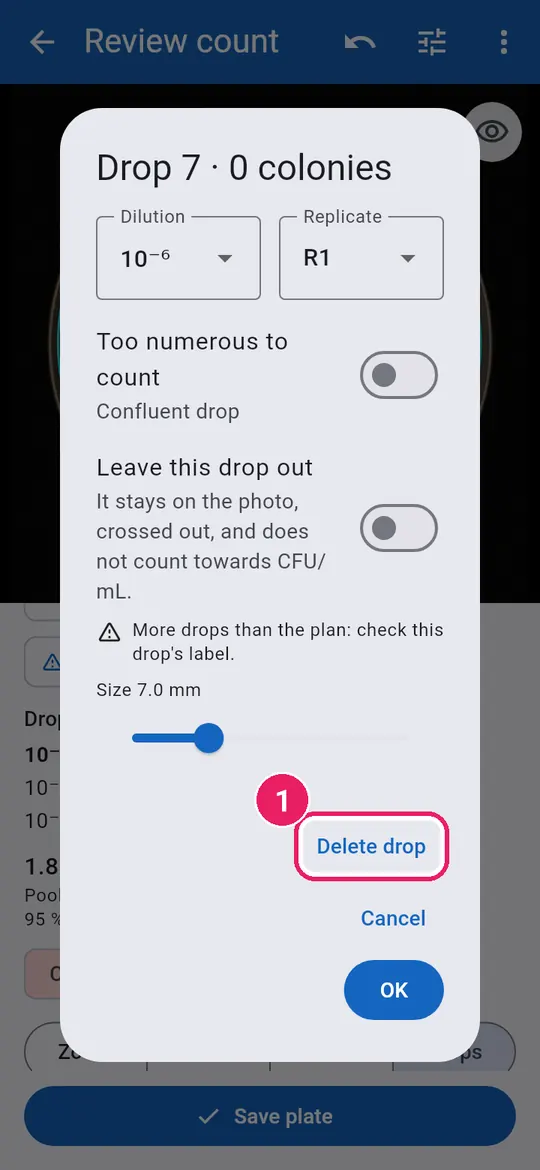
19
  1. 1Tap the drop, then Delete dropแตะที่หยด แล้วแตะ ลบหยด
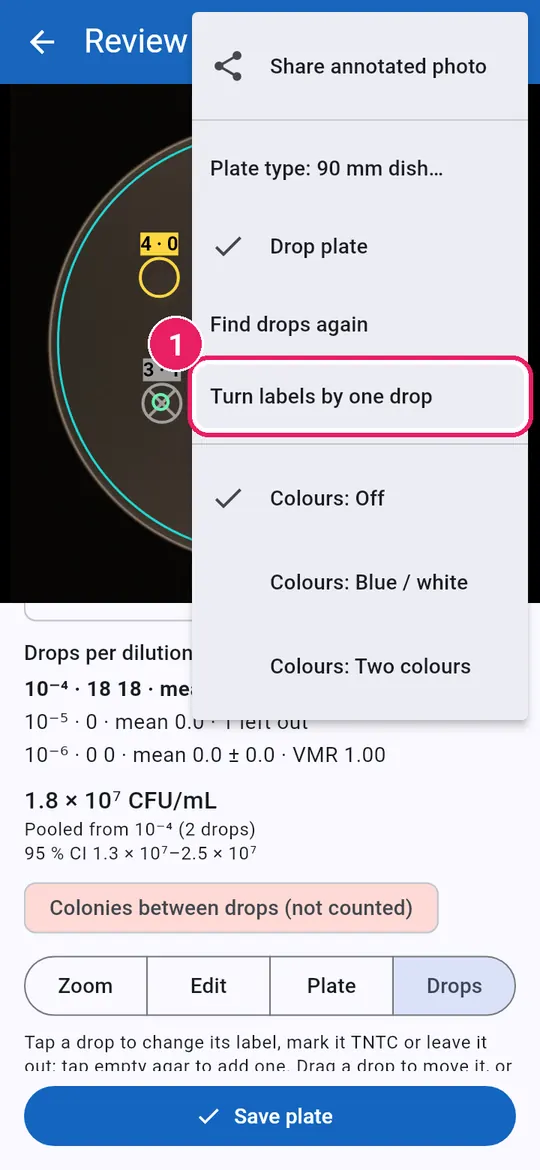
20
  1. 1Tap Turn labels by one dropแตะ เลื่อนป้ายกำกับไปหนึ่งหยด

In the ⋮ menu: for a ring whose first drop is not at 12 o'clock.ในเมนู ⋮ สำหรับวงรอบจานที่หยดแรกไม่อยู่ที่ 12 นาฬิกา

21
  1. 1Every label moved one dropทุกป้ายเลื่อนไปหนึ่งหยด
  2. 2Undo puts them backเลิกทำ เพื่อย้อนกลับ

Read the resultอ่านผล

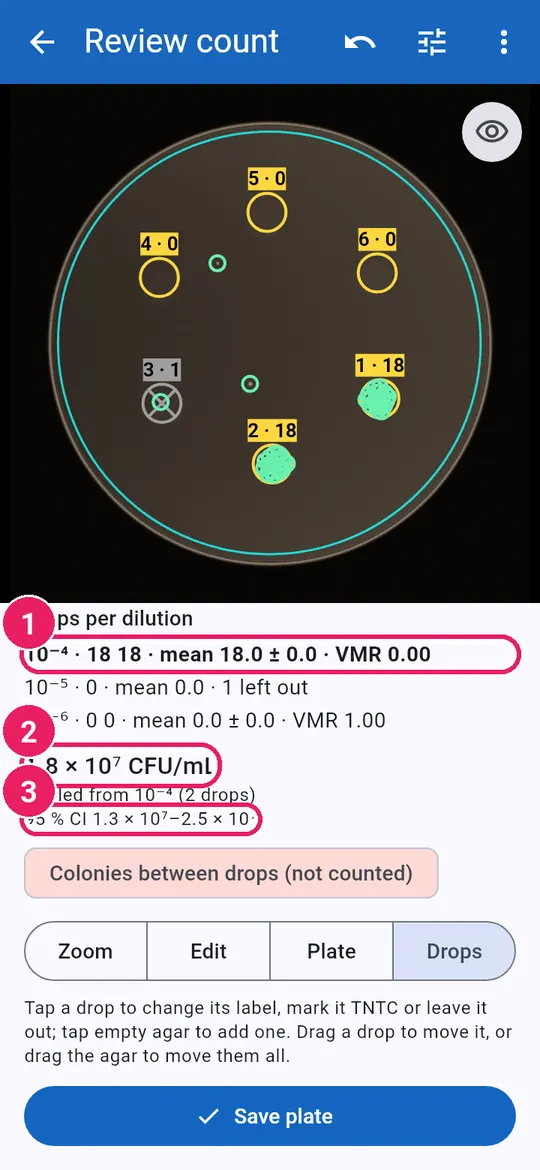
22
  1. 1Counts, mean ± SD, VMR per dilutionจำนวน ค่าเฉลี่ย ± SD และ VMR ต่อระดับ
  2. 2CFU/mL from the dropsCFU/mL จากหยด
  3. 395 % Poisson intervalช่วงความเชื่อมั่น 95 % (ปัวซง)

Poisson check: VMR near 1 means the drops agree.ตรวจแบบปัวซง: VMR ใกล้ 1 แปลว่าหยดสอดคล้องกัน

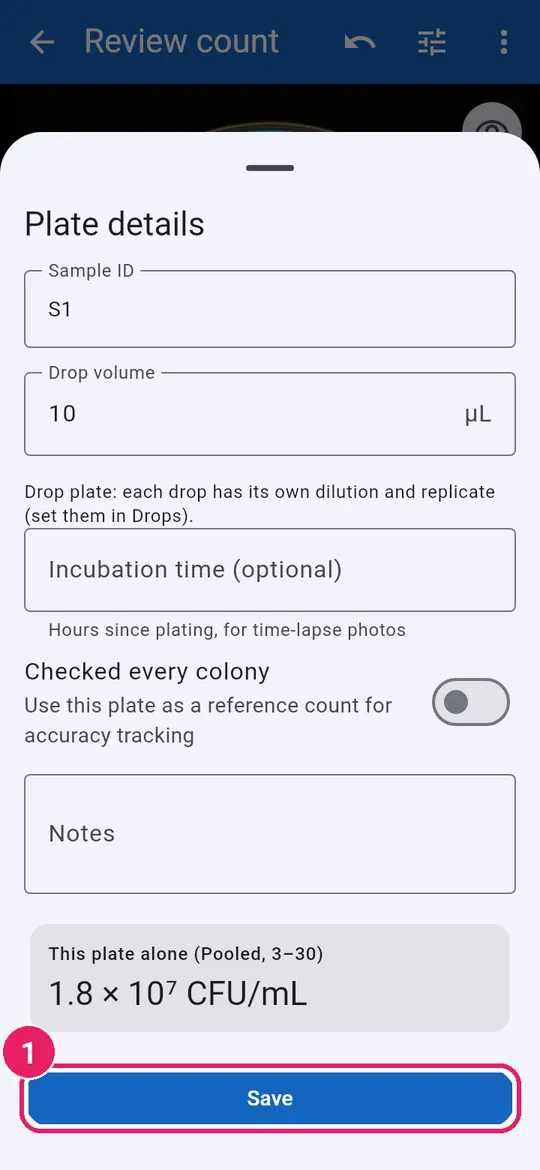
23
  1. 1Tap Saveแตะ บันทึก
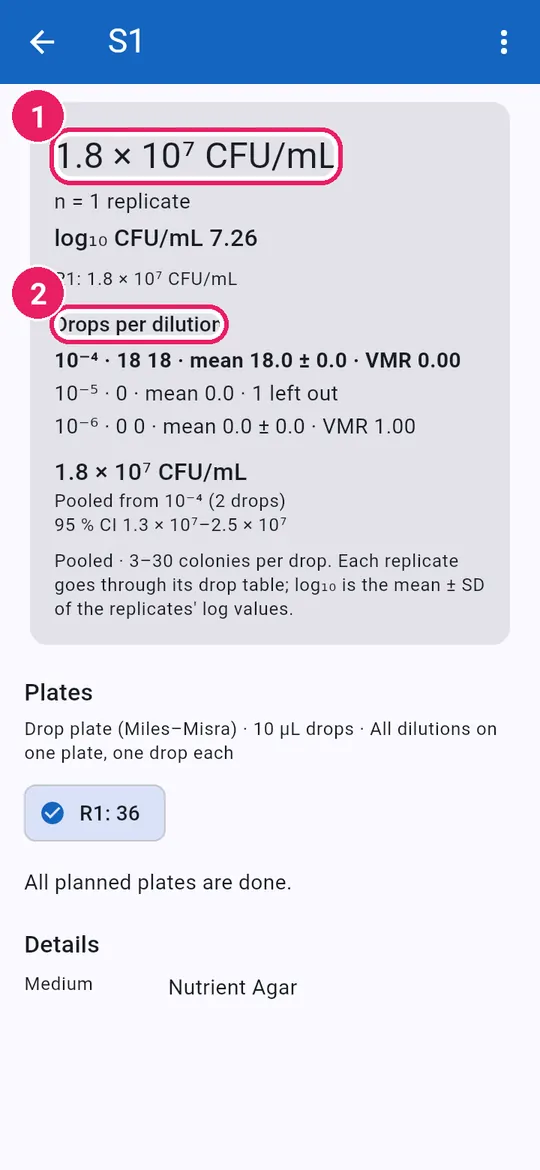
24
  1. 1CFU/mL of the sampleCFU/mL ของตัวอย่าง
  2. 2Drops per dilutionหยดในแต่ละระดับการเจือจาง
↑ Back to contentsกลับไปสารบัญ

Petrifilm platesแผ่น Petrifilm

Film type, photo, check kind, gas and zone, read each result.เลือกชนิดฟิล์ม ถ่ายภาพ ตรวจชนิด แก๊ส และโซน อ่านผลแต่ละชนิด

Plan a film sampleวางแผนตัวอย่างฟิล์ม

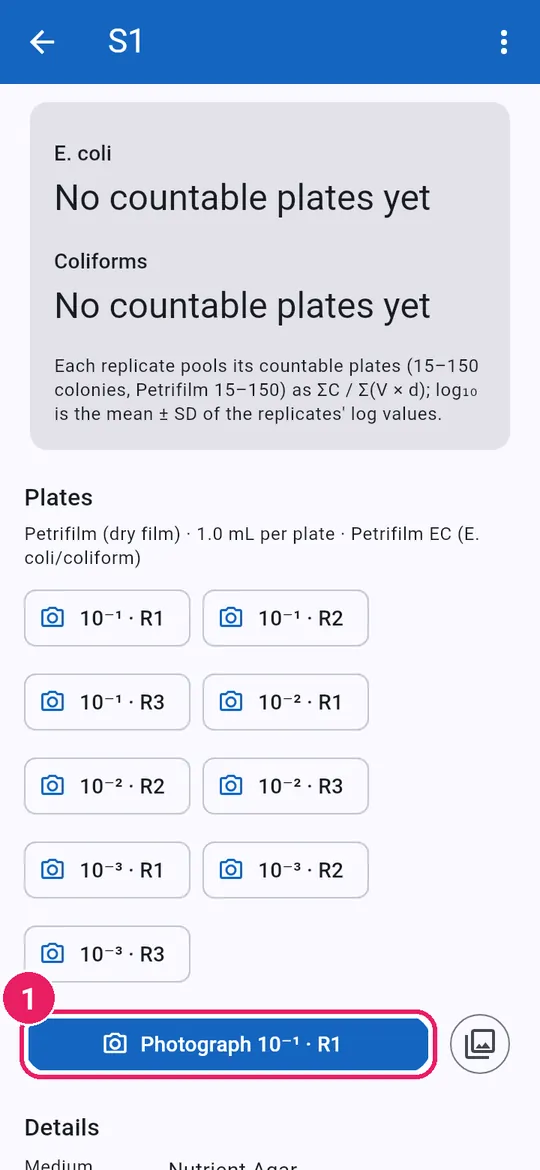
1
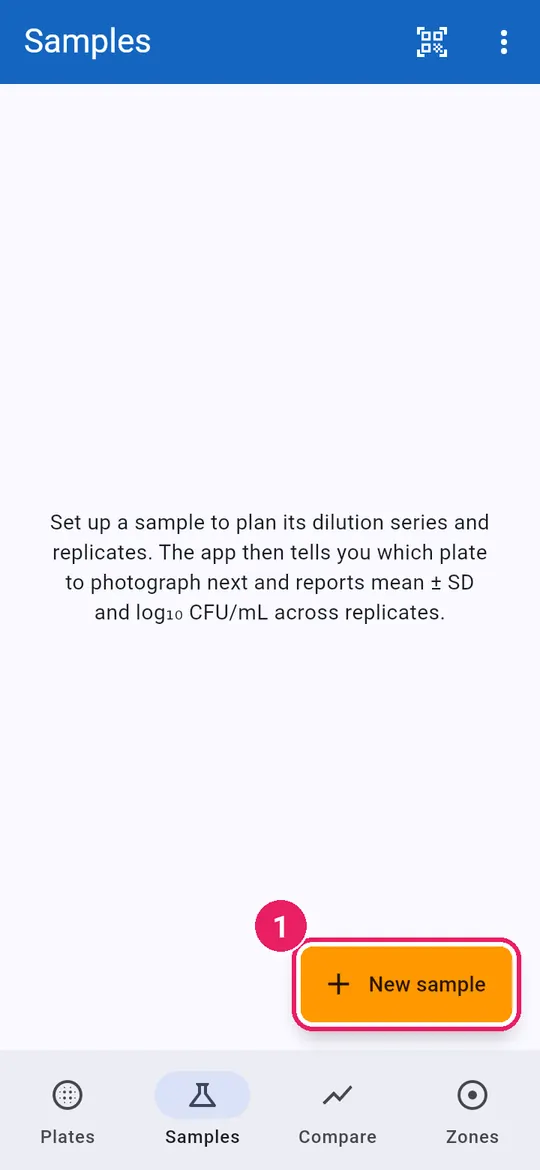
  1. 1Tap New sampleแตะ ตัวอย่างใหม่

On the Samples tab.ในแท็บ ตัวอย่าง

2
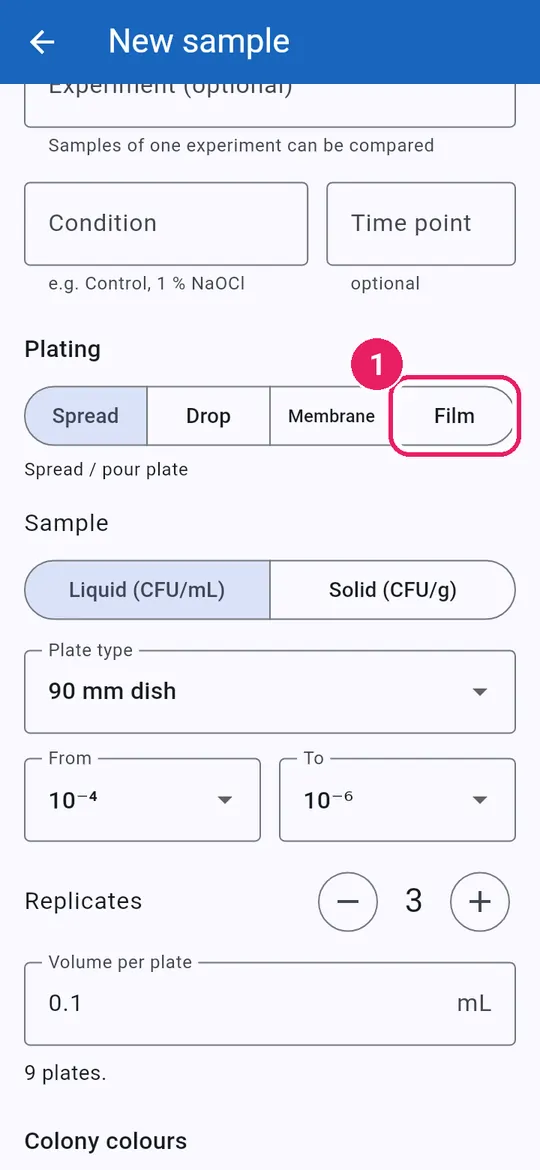
  1. 1Tap Filmแตะ ฟิล์ม
3
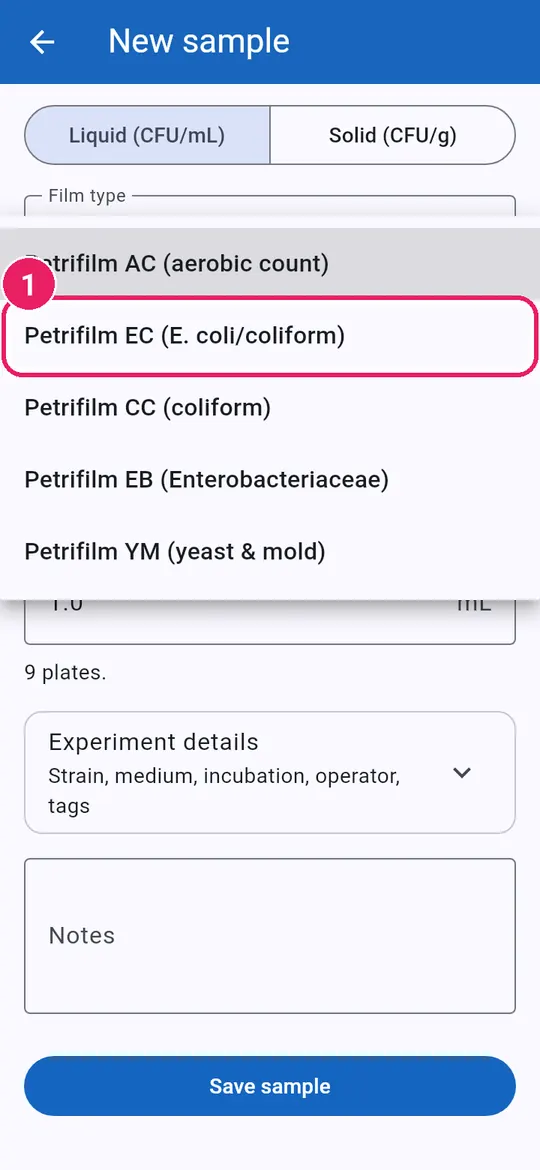
  1. 1Pick the Film typeเลือก ชนิดฟิล์ม

AC aerobic count, EC E. coli/coliform, CC coliform, EB Enterobacteriaceae, YM yeast & mould.AC จุลินทรีย์ทั้งหมด, EC อี. โคไล/โคลิฟอร์ม, CC โคลิฟอร์ม, EB เอนเทอโรแบคทีเรียซีอี, YM ยีสต์และรา

4
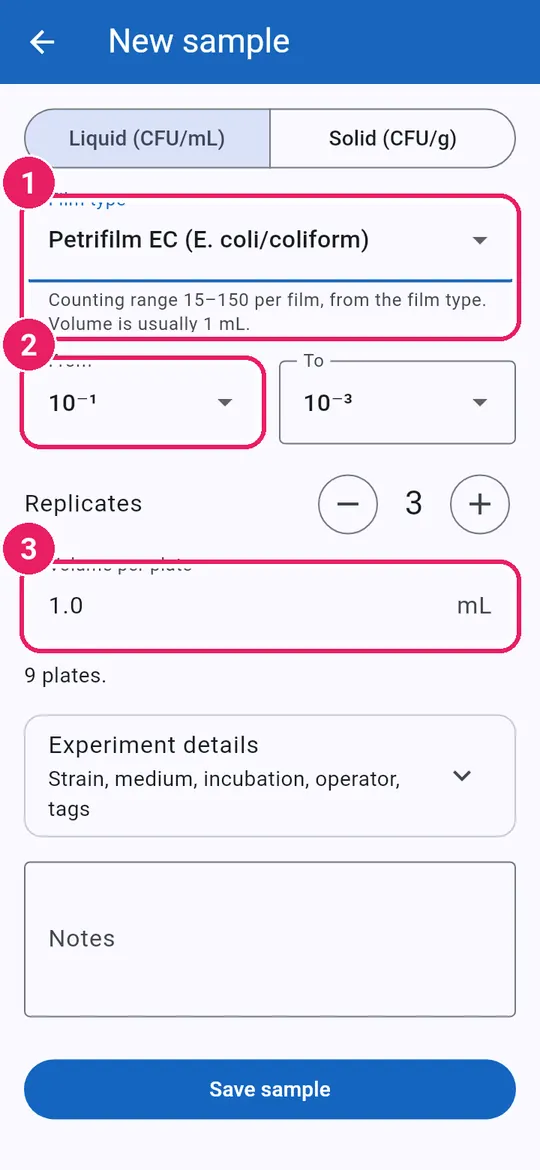
  1. 1Counting range comes from the typeช่วงที่นับได้มาจากชนิดฟิล์ม
  2. 2Dilutions: From and Toระดับการเจือจาง: จาก และ ถึง
  3. 3Volume: usually 1 mLปริมาตร: ปกติ 1 mL

Then tap Save sample.แล้วแตะ บันทึกตัวอย่าง

Photograph and checkถ่ายภาพและตรวจ

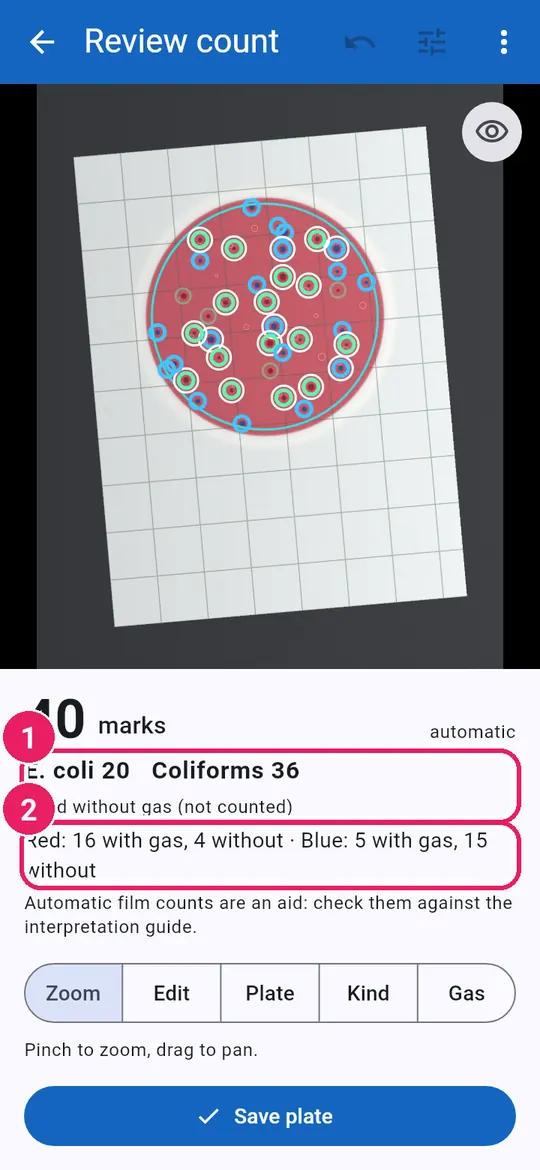
5
  1. 1Tap Photograph 10⁻¹ · R1แตะ ถ่ายภาพ 10⁻¹ · R1

Film flat on a plain background, no glare.วางฟิล์มให้เรียบบนพื้นสีเรียบ ไม่มีแสงสะท้อน

6
  1. 1Count of each resultจำนวนของแต่ละผล
  2. 2Red and blue, with and without gasสีแดงและสีน้ำเงิน มีและไม่มีแก๊ส

EC: blue with gas = E. coli; red or blue with gas = coliforms.EC: สีน้ำเงินมีแก๊ส = อี. โคไล; สีแดงหรือสีน้ำเงินมีแก๊ส = โคลิฟอร์ม

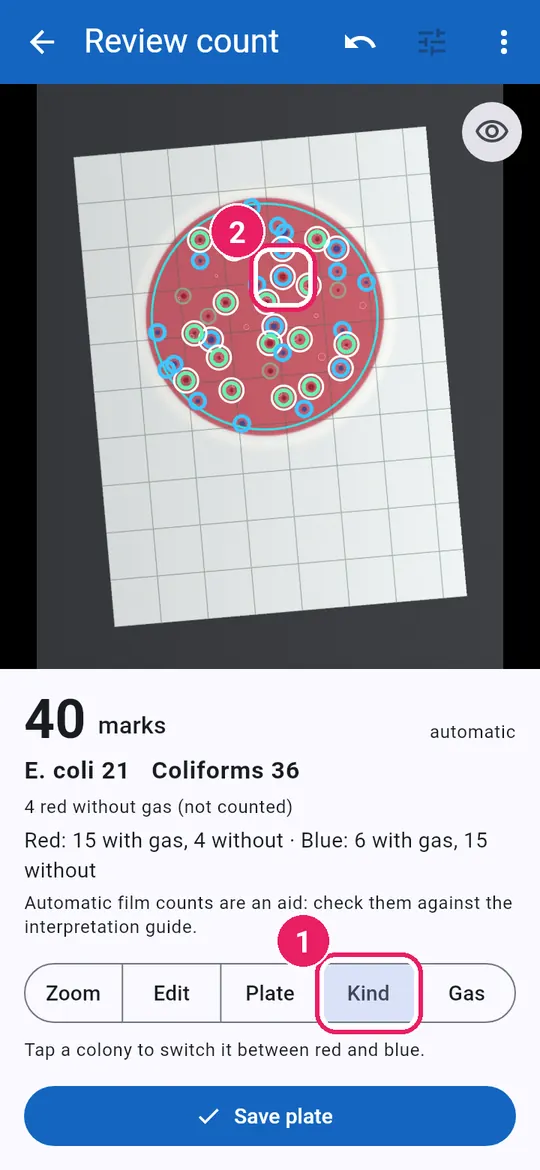
7
  1. 1Tap Kindแตะ ชนิด
  2. 2Tap a colony: red ↔ blueแตะโคโลนี: สลับสีแดง ↔ สีน้ำเงิน

On YM films, Kind switches yeast ↔ mould.บนฟิล์ม YM ชนิด จะสลับยีสต์ ↔ รา

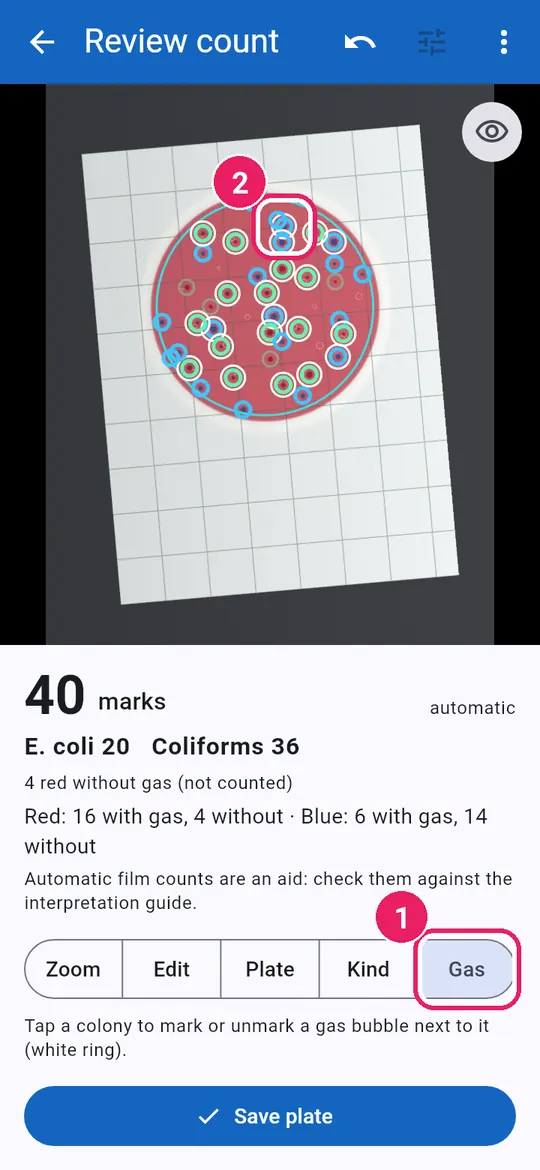
8
  1. 1Tap Gasแตะ แก๊ส
  2. 2Tap a colony: gas bubble on/offแตะโคโลนี: ใส่หรือเอาฟองแก๊สออก
9
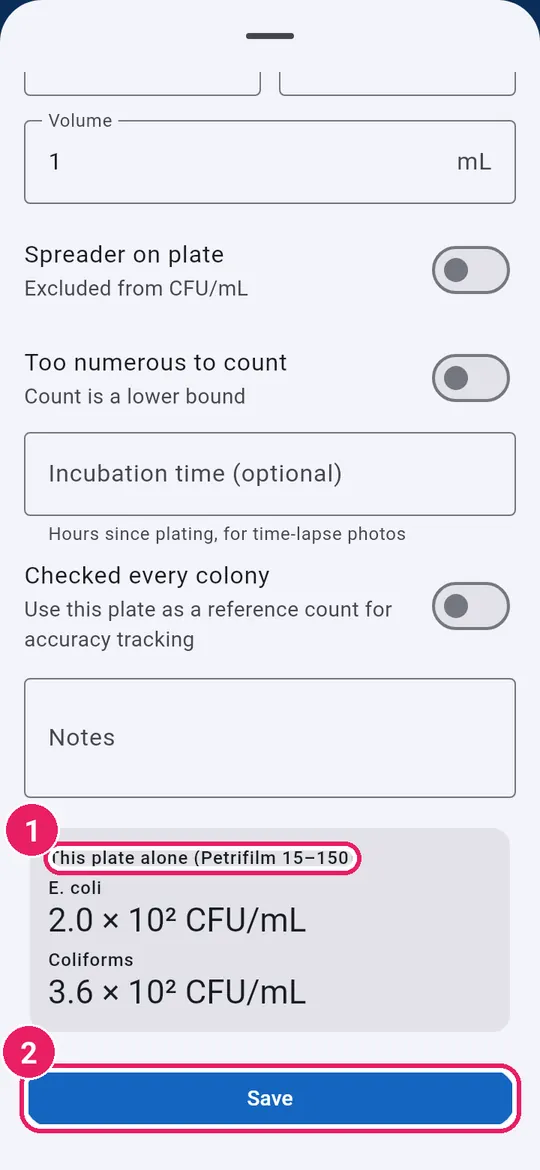
  1. 1This film alone, range 15–150เฉพาะแผ่นนี้ ช่วง 15–150
  2. 2Tap Saveแตะ บันทึก
10
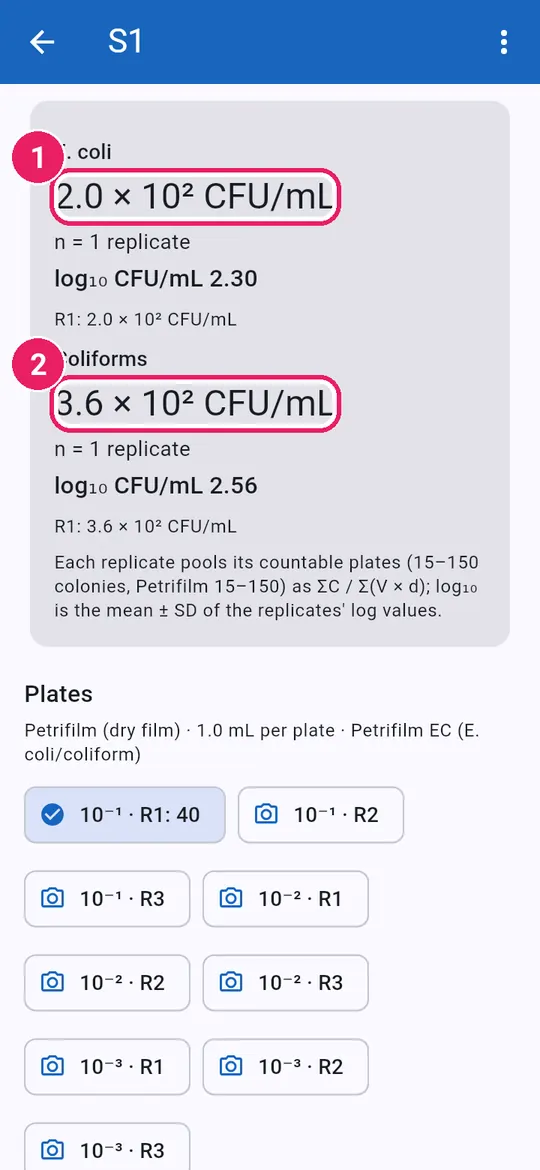
  1. 1E. coli CFU/mLอี. โคไล CFU/mL
  2. 2Coliforms CFU/mLโคลิฟอร์ม CFU/mL

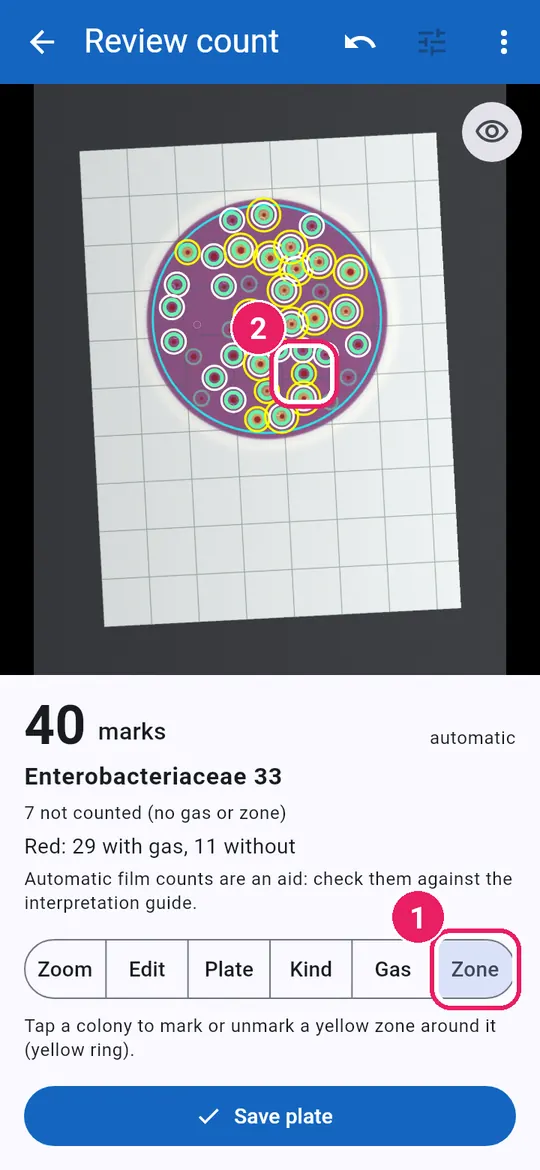
EB films: the yellow zoneฟิล์ม EB: โซนสีเหลือง

11
  1. 1Tap Zoneแตะ โซน
  2. 2Tap a colony: yellow zone on/offแตะโคโลนี: ใส่หรือเอาโซนสีเหลืองออก

EB counts red colonies with gas or a yellow zone.EB นับโคโลนีสีแดงที่มีแก๊สหรือโซนสีเหลือง

Crowded filmsฟิล์มที่โคโลนีหนาแน่น

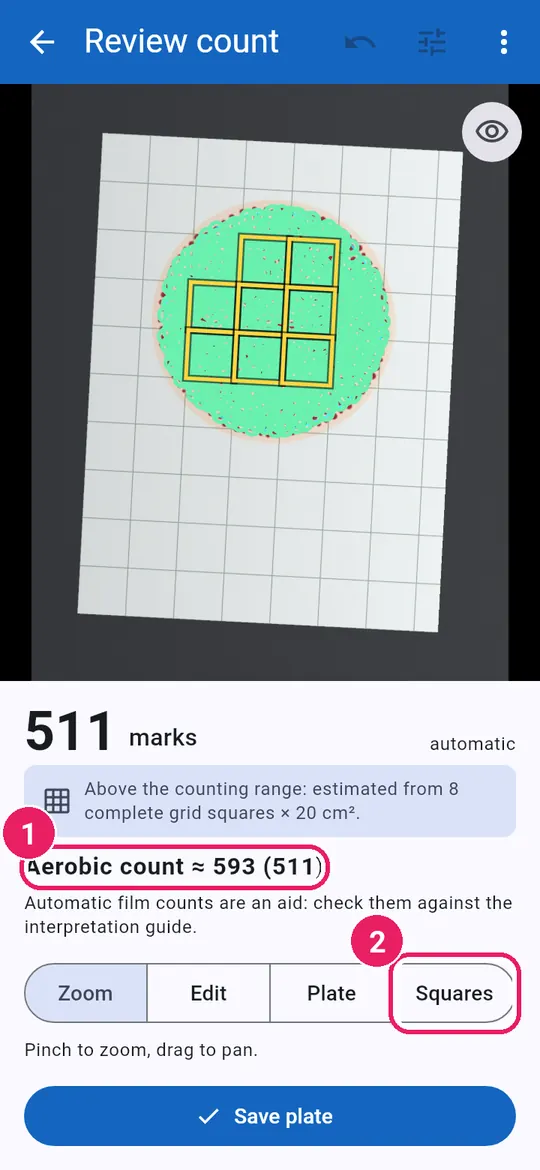
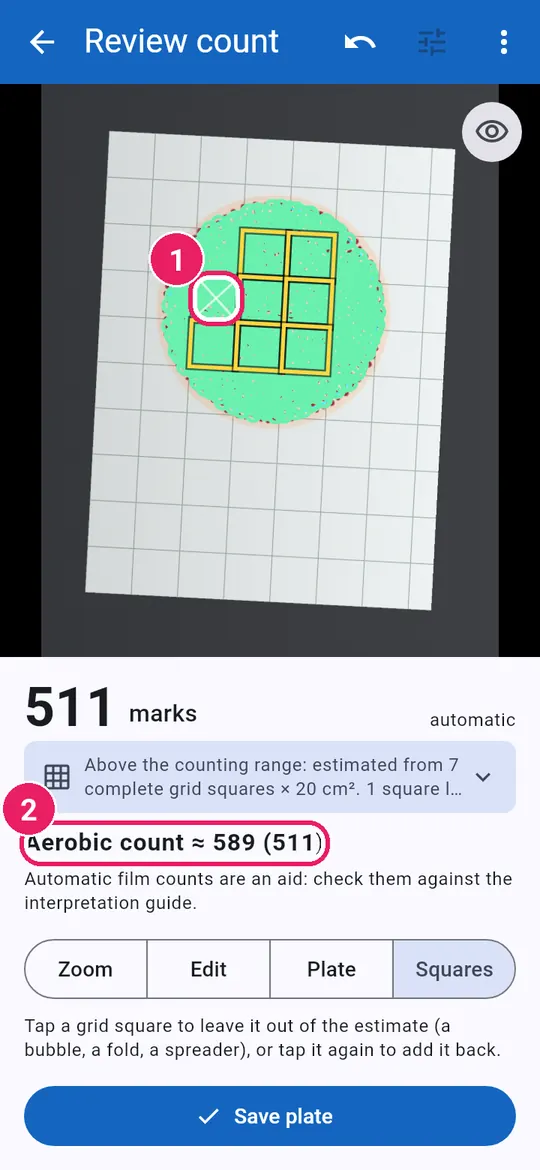
12
  1. 1Estimate ≈ (marks counted)ค่าประมาณ ≈ (จุดที่นับได้)
  2. 2Tap Squaresแตะ ช่อง

Above the range: estimated from grid squares.เกินช่วงที่นับได้: ประมาณจากช่องตาราง

13
  1. 1Tap a bad square to skip itแตะช่องที่เสียเพื่อไม่นำมาประมาณ
  2. 2The estimate updatesค่าประมาณเปลี่ยนตาม

Tap it again to add it back.แตะอีกครั้งเพื่อนำกลับมา

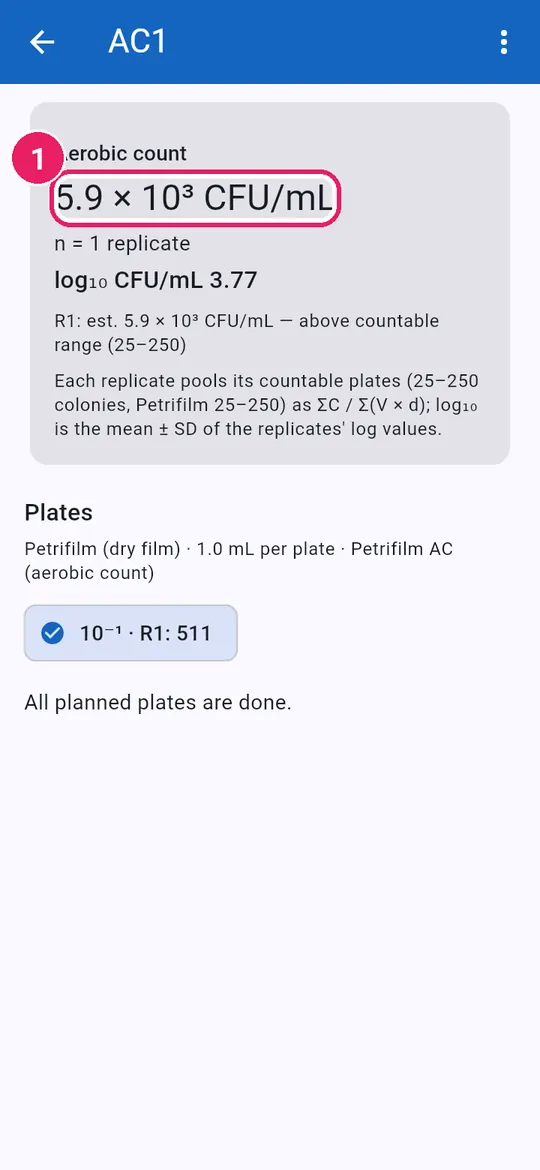
14
  1. 1Estimated CFU/mLCFU/mL ที่ประมาณได้

Petrifilm and Neogen are trademarks of Neogen Corporation; this app is not made or endorsed by Neogen.Petrifilm และ Neogen เป็นเครื่องหมายการค้าของ Neogen Corporation แอปนี้ไม่ได้จัดทำหรือรับรองโดย Neogen

↑ Back to contentsกลับไปสารบัญ

Measure inhibition zonesวัดโซนยับยั้ง

Set up, photograph, check each disk, save, compare.ตั้งค่า ถ่ายภาพ ตรวจทีละแผ่น บันทึก เปรียบเทียบ

Startเริ่มต้น

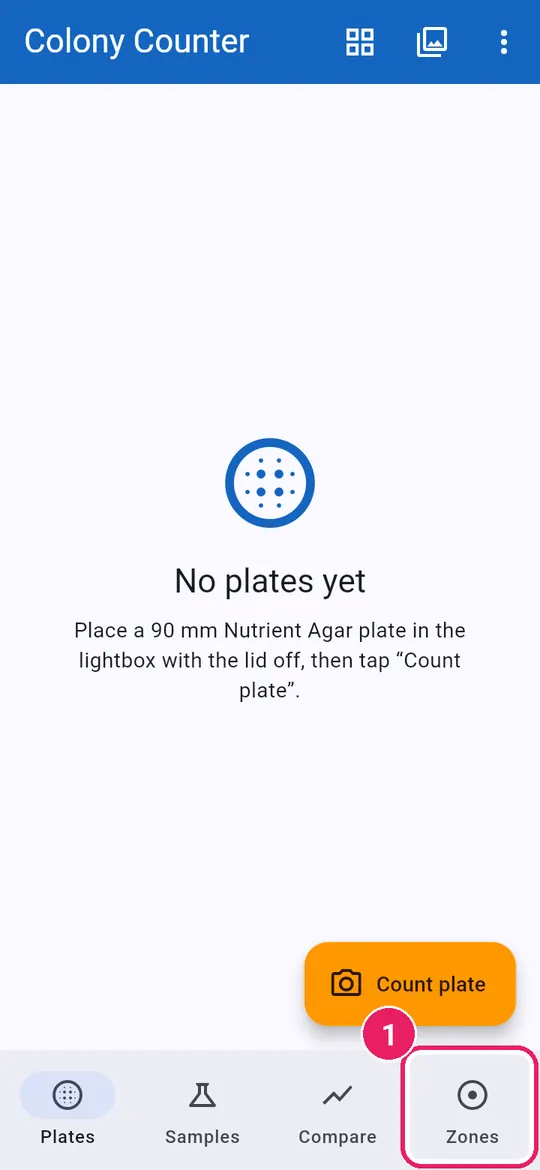
1
  1. 1Tap Zonesแตะ โซนยับยั้ง
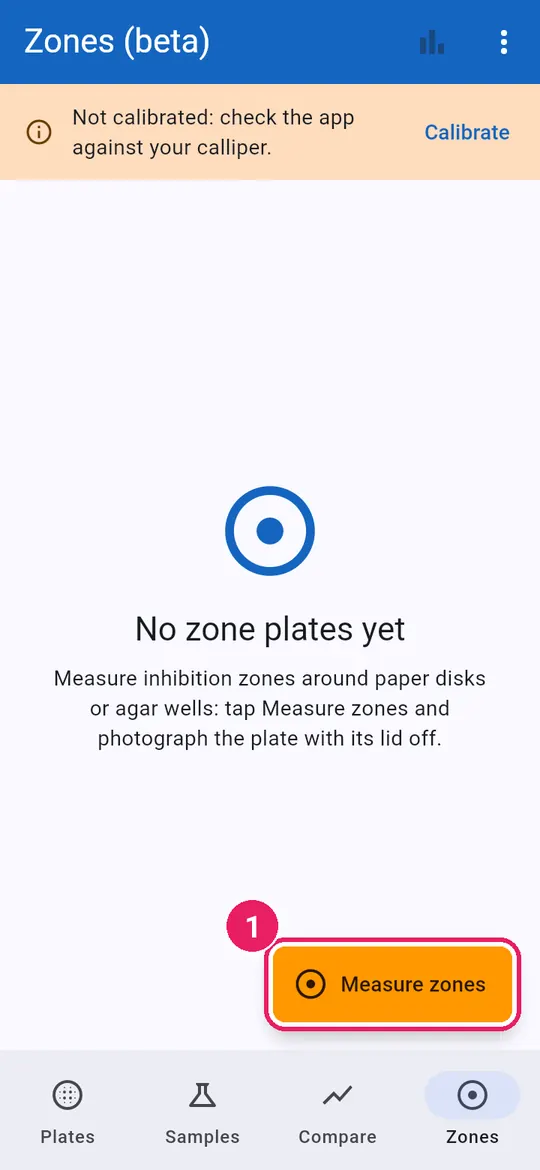
2
  1. 1Tap Measure zonesแตะ วัดโซนยับยั้ง
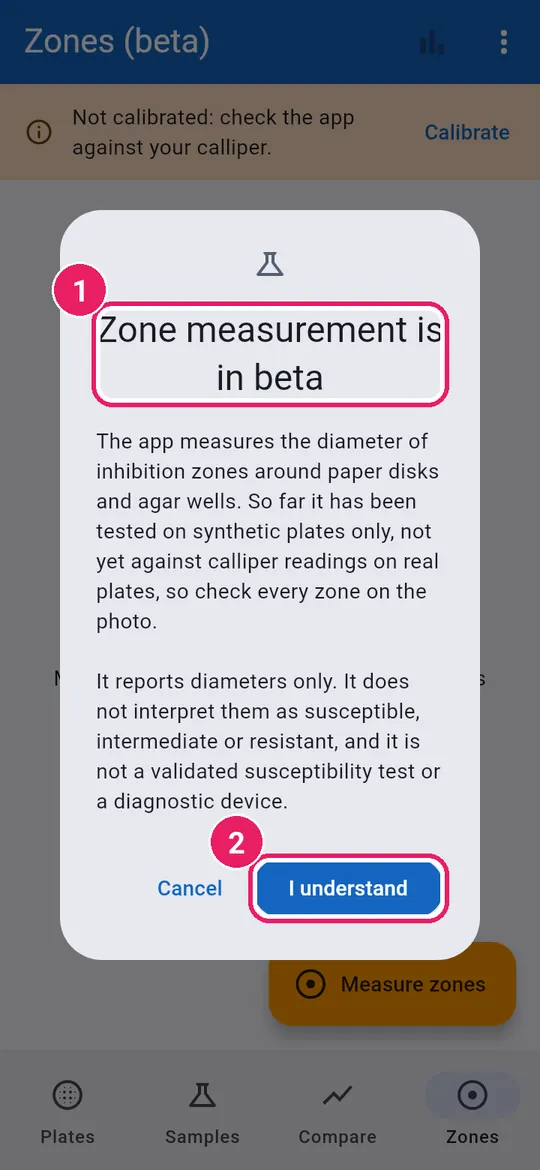
3
  1. 1Read once: betaอ่านครั้งแรก: รุ่นเบต้า
  2. 2Tap I understandแตะ เข้าใจแล้ว

Beta: diameters only, no susceptible, intermediate or resistant interpretation.รุ่นเบต้า: วัดเส้นผ่านศูนย์กลางเท่านั้น ไม่แปลผลเป็นไว ปานกลาง หรือดื้อ

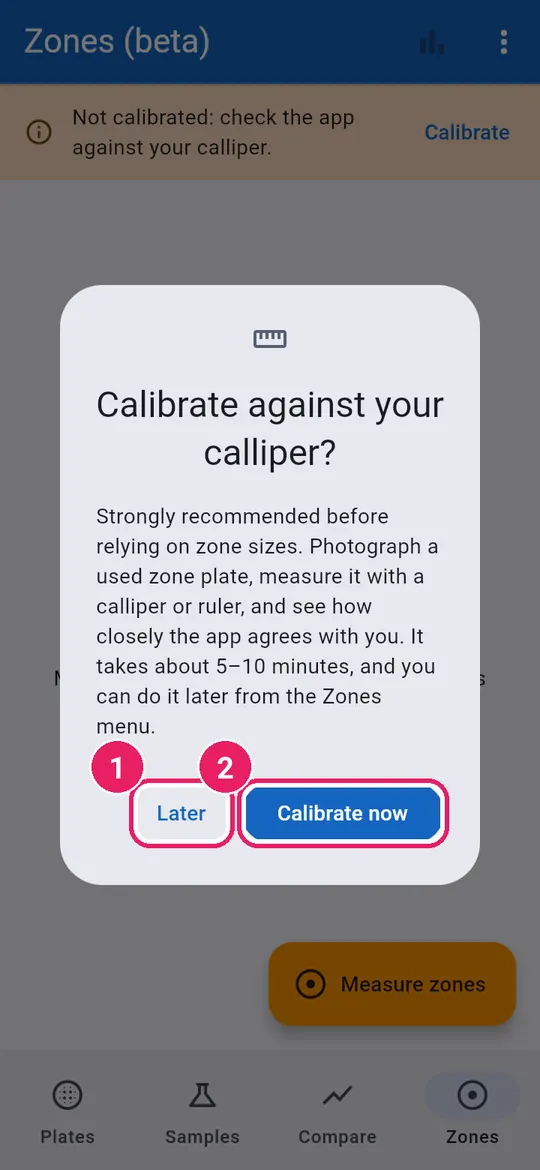
4
  1. 1Later: measure a plate nowภายหลัง: วัดเพลตเลย
  2. 2Calibrate now: see Calibrationปรับเทียบตอนนี้: ดูบทปรับเทียบ

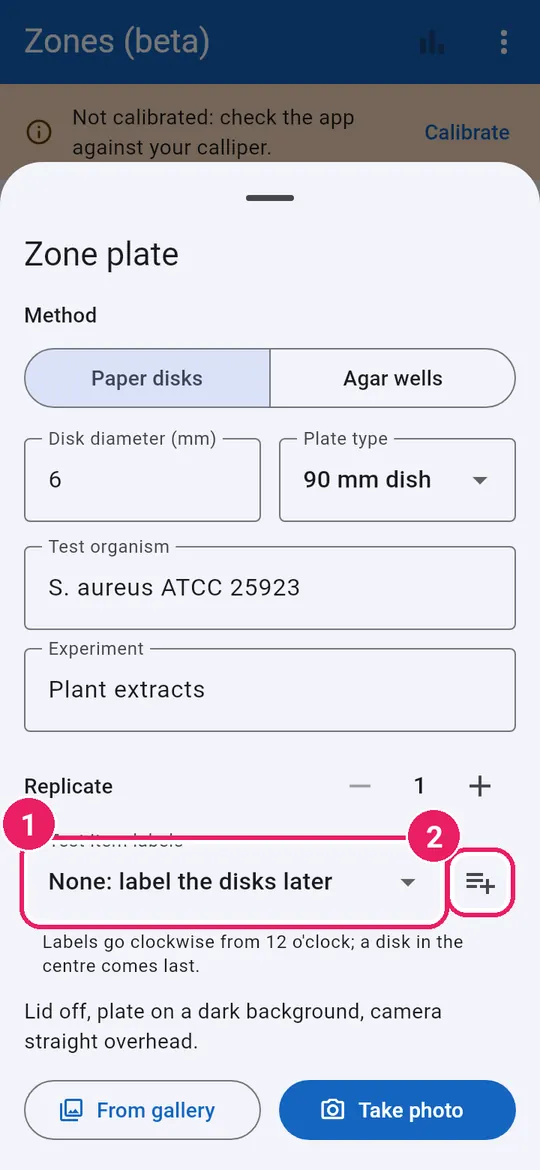
Set up the plateตั้งค่าเพลต

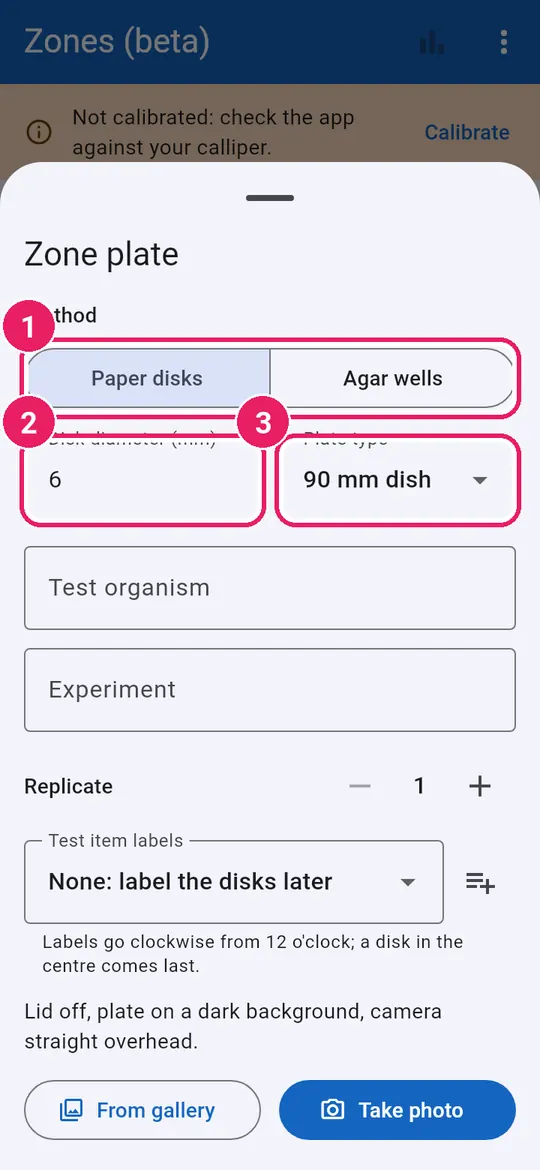
5
  1. 1Paper disks or Agar wellsแผ่นกระดาษ หรือ หลุมวุ้น
  2. 2Disk or well size, mmขนาดแผ่นหรือหลุม (มม.)
  3. 3Pick the Plate typeเลือก ชนิดจาน
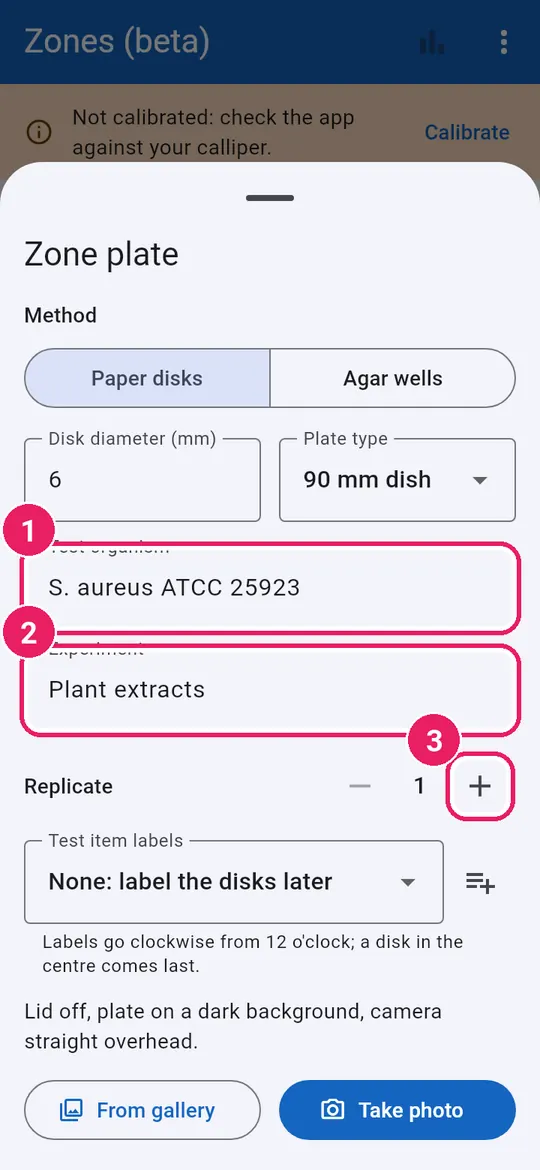
6
  1. 1Type the Test organismพิมพ์ เชื้อทดสอบ
  2. 2Type the Experimentพิมพ์ การทดลอง
  3. 3Replicate numberเลข ซ้ำที่

The replicate counts up by itself for the same experiment.เลขซ้ำที่เพิ่มเองเมื่อใช้การทดลองเดิม

7
  1. 1Pick a list of labelsเลือกรายการ ชื่อสารทดสอบ
  2. 2Or tap New label listหรือแตะ สร้างรายการชื่อใหม่
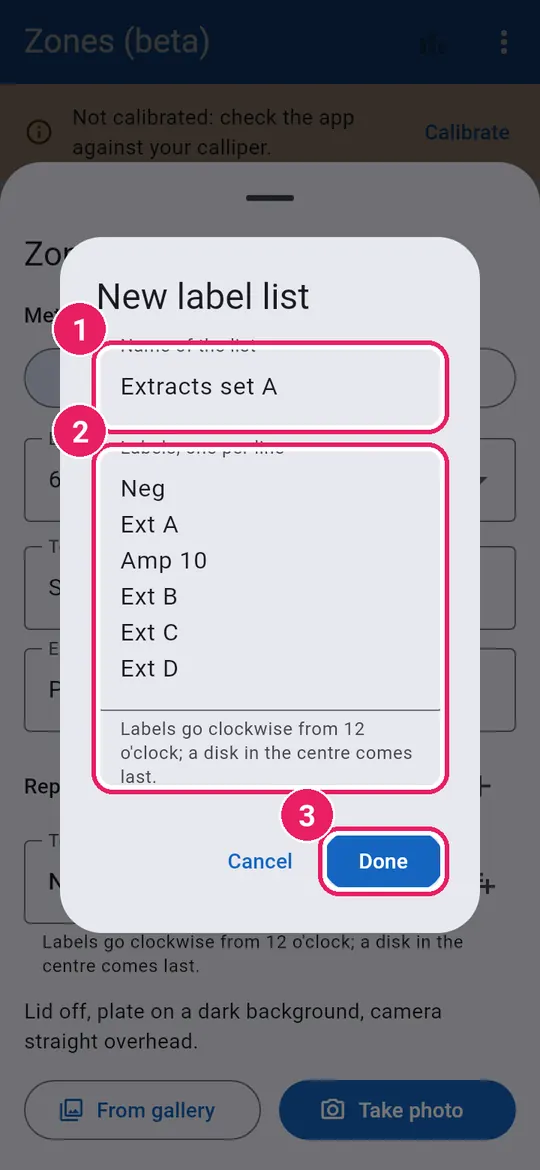
8
  1. 1Name the listตั้ง ชื่อรายการ
  2. 2One label per lineบรรทัดละหนึ่งชื่อ
  3. 3Tap Doneแตะ เสร็จ

Labels go clockwise from 12 o'clock; a centre disk comes last.ชื่อเรียงตามเข็มนาฬิกาจาก 12 นาฬิกา แผ่นตรงกลางเป็นลำดับสุดท้าย

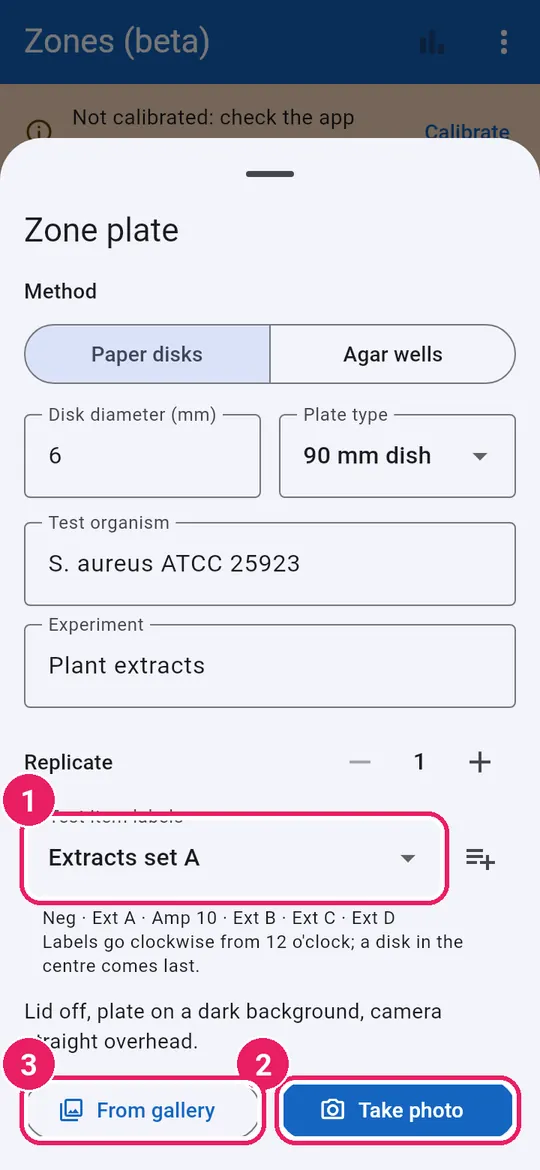
9
  1. 1Your labels, in orderชื่อสารทดสอบตามลำดับ
  2. 2Tap Take photoแตะ ถ่ายภาพ
  3. 3Or From galleryหรือ จากคลังภาพ

Lid off, dark background, camera straight overhead.เปิดฝา พื้นสีเข้ม กล้องตรงเหนือเพลต

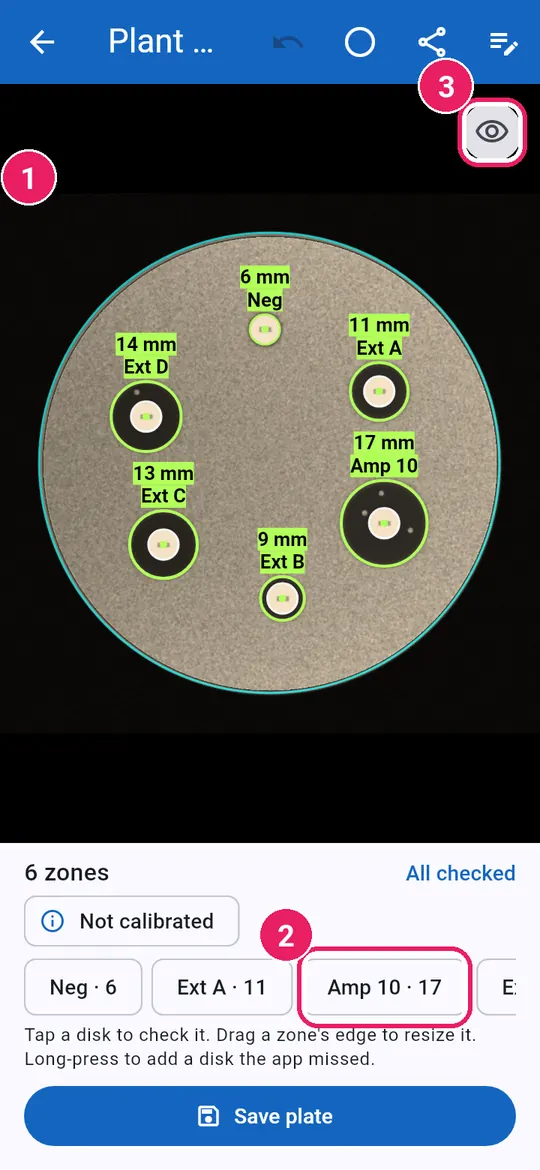
Check each diskตรวจทีละแผ่น

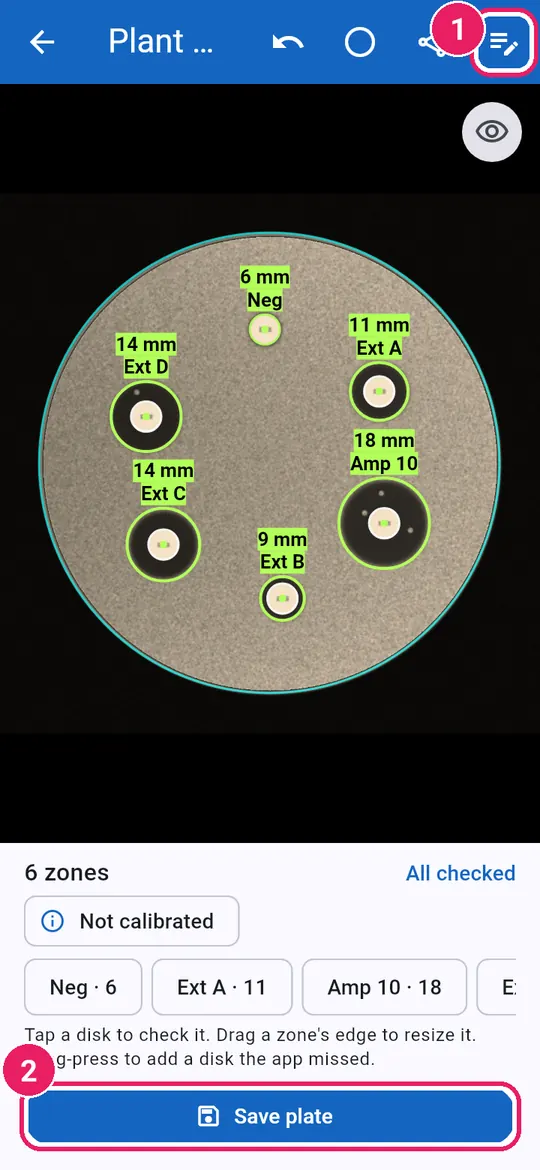
10
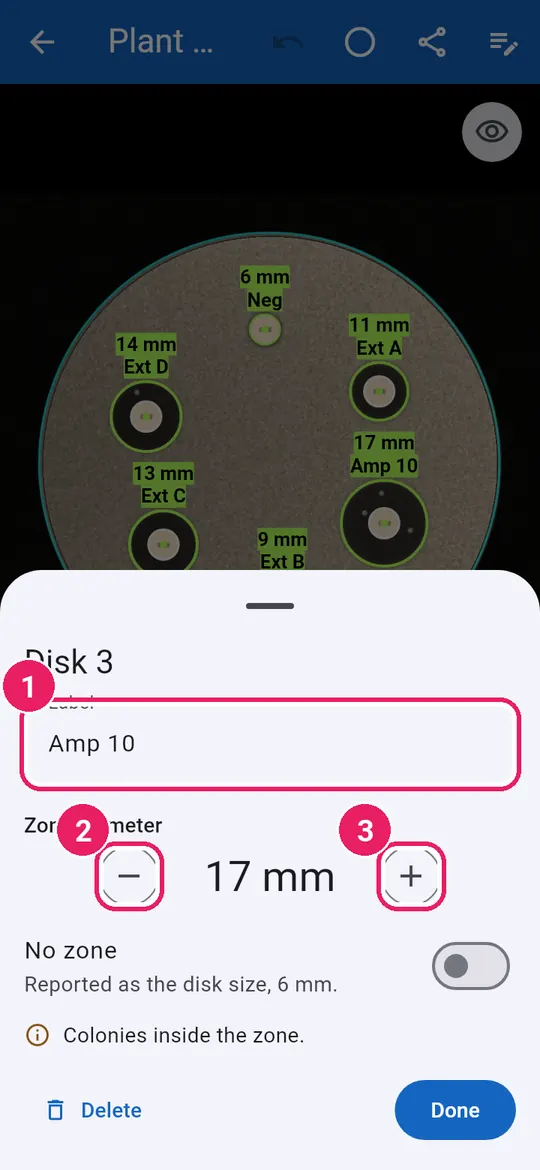
  1. 1Each zone with its sizeแต่ละโซนพร้อมขนาด
  2. 2Tap a disk to check itแตะแผ่นเพื่อตรวจ
  3. 3Hide marks to see the plateซ่อนเครื่องหมาย เพื่อดูเพลต

Amber zones need a check; green ones are fine.โซนสีเหลืองต้องตรวจ สีเขียวใช้ได้

11
  1. 1Its labelชื่อสารทดสอบ
  2. 21 mm smallerเล็กลง 1 มม.
  3. 31 mm largerใหญ่ขึ้น 1 มม.
12
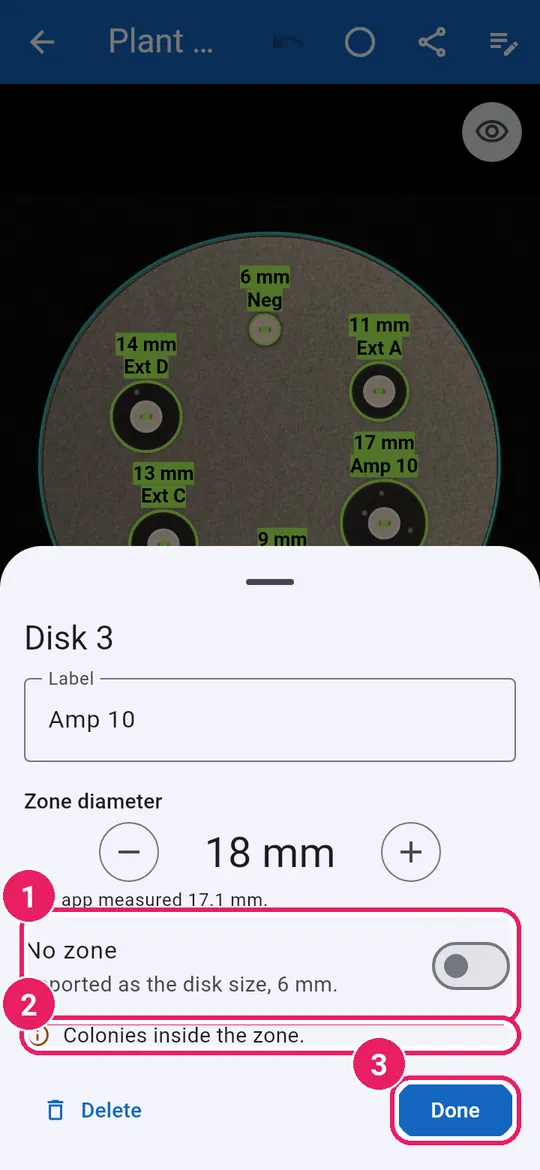
  1. 1No zone: reported as disk sizeไม่มีโซนยับยั้ง: รายงานเป็นขนาดแผ่น
  2. 2Read the warningอ่านคำเตือน
  3. 3Tap Doneแตะ เสร็จ
13
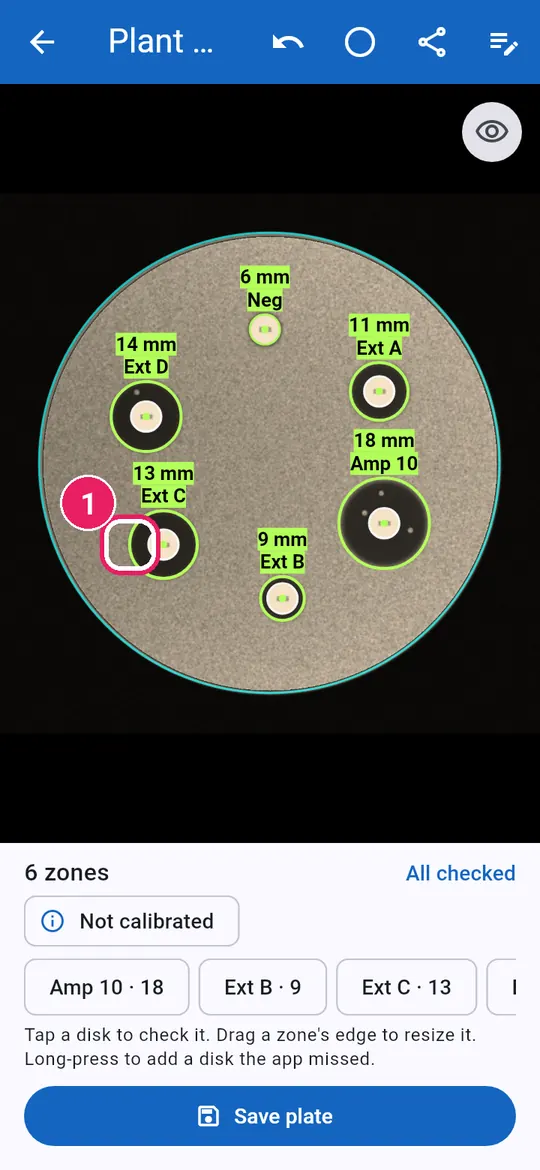
  1. 1Or drag a zone's edgeหรือลากขอบโซน
14
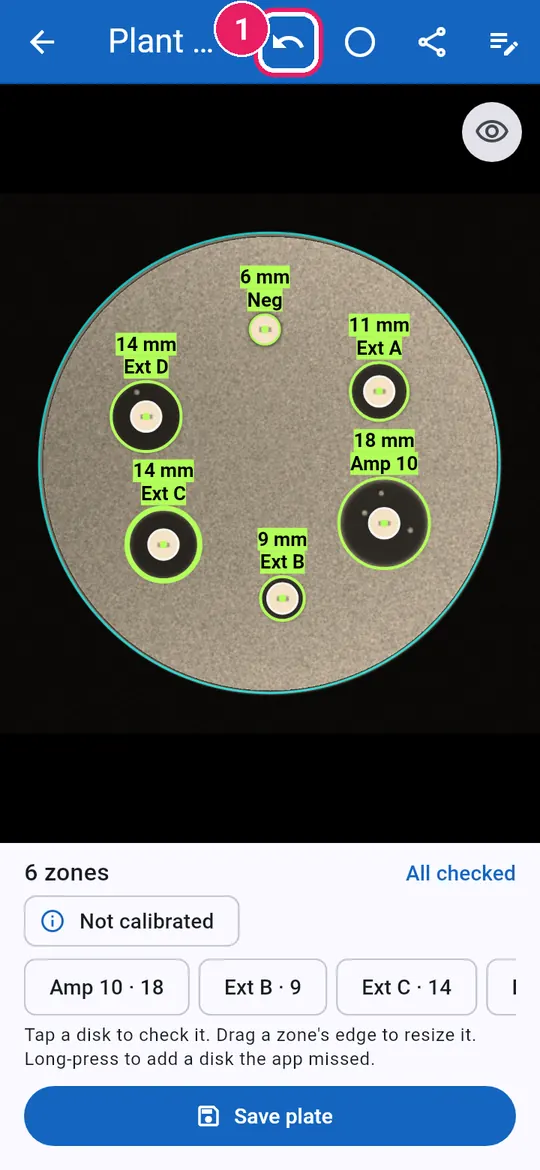
  1. 1Undo a changeเลิกทำ การแก้ไข

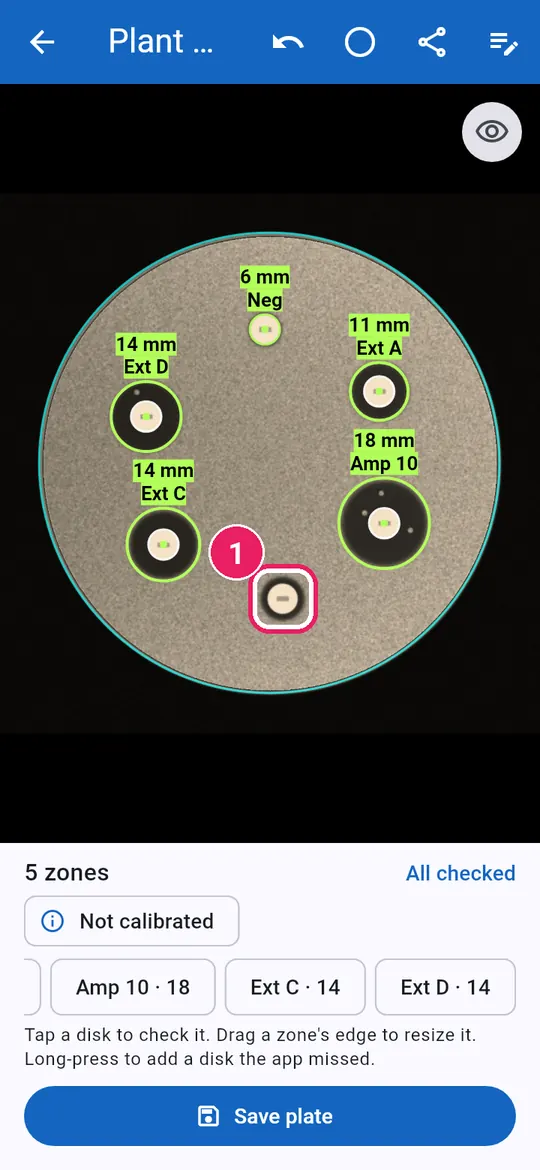
Wrong or missed disksแผ่นผิดหรือแผ่นที่หาไม่พบ

15
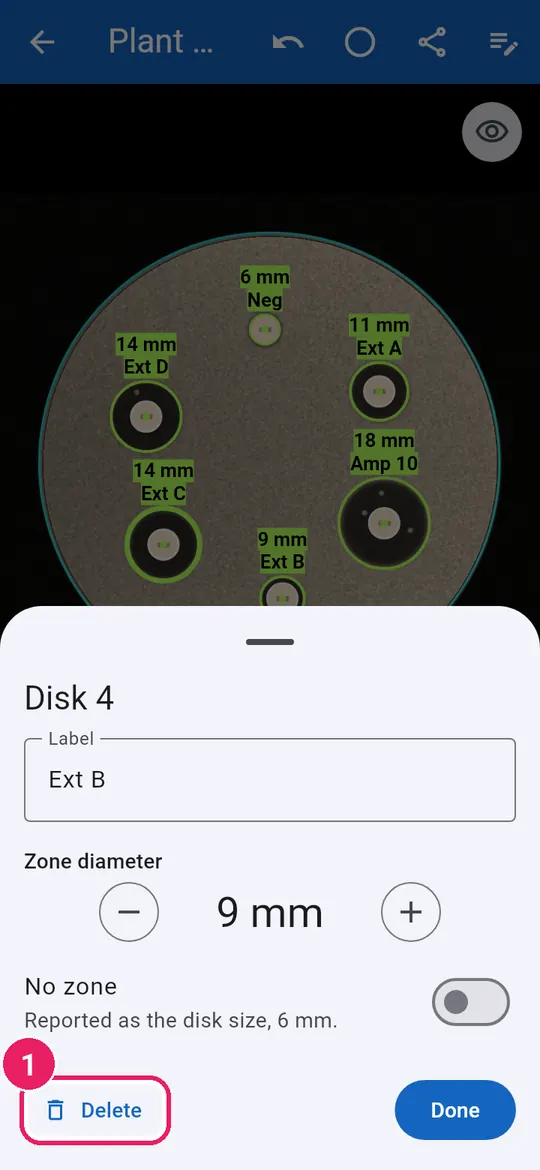
  1. 1Delete a wrong diskลบ แผ่นที่ผิด
16
  1. 1Long-press a missed diskกดค้างที่แผ่นที่หาไม่พบ
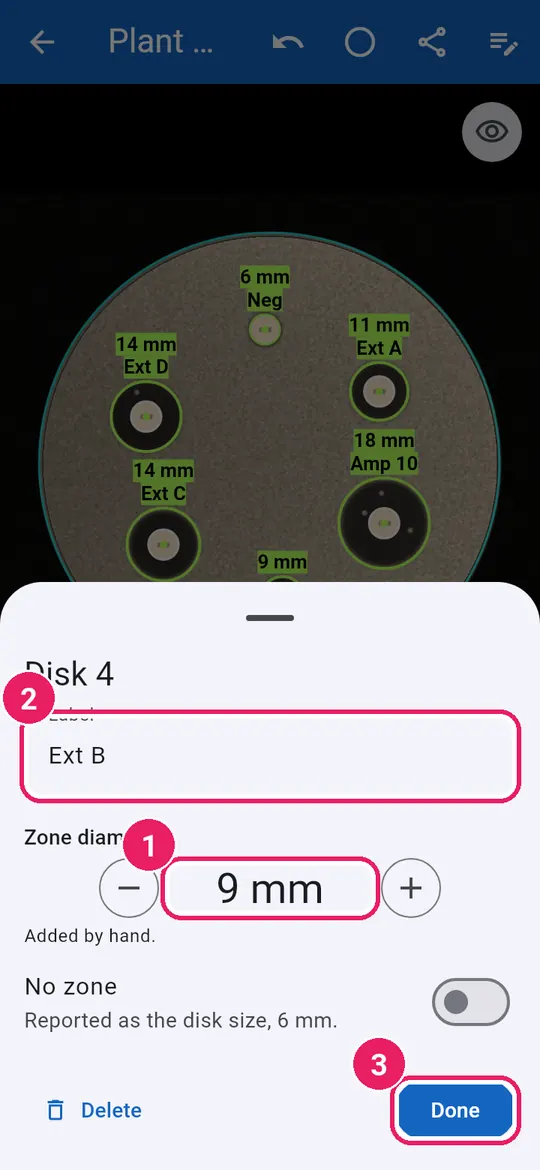
17
  1. 1Its zone is measuredแอปวัดโซนให้
  2. 2Type its labelพิมพ์ชื่อสารทดสอบ
  3. 3Tap Doneแตะ เสร็จ

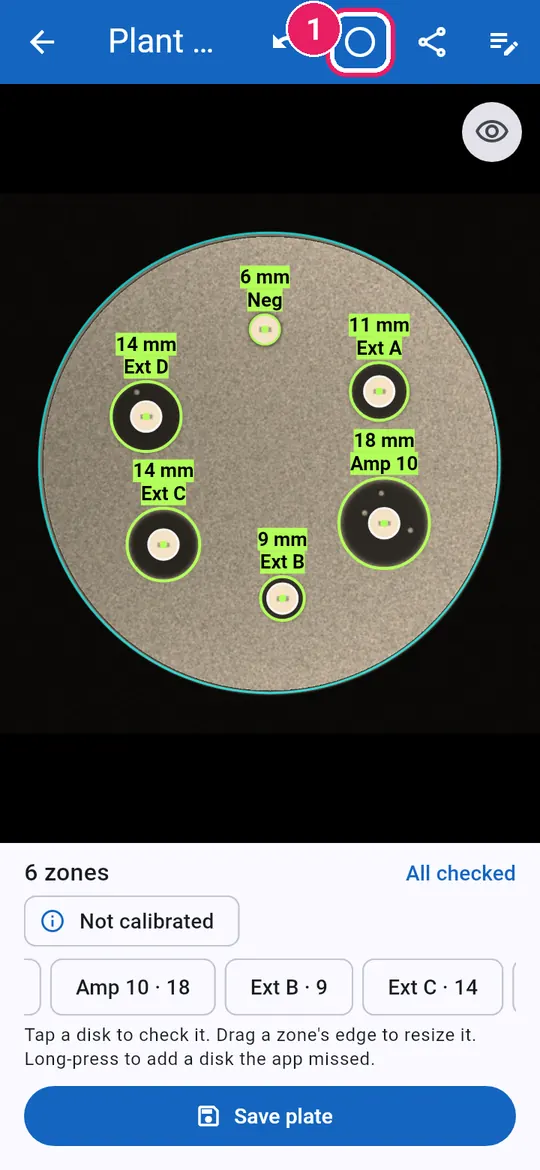
Fix the plate circleแก้วงขอบเพลต

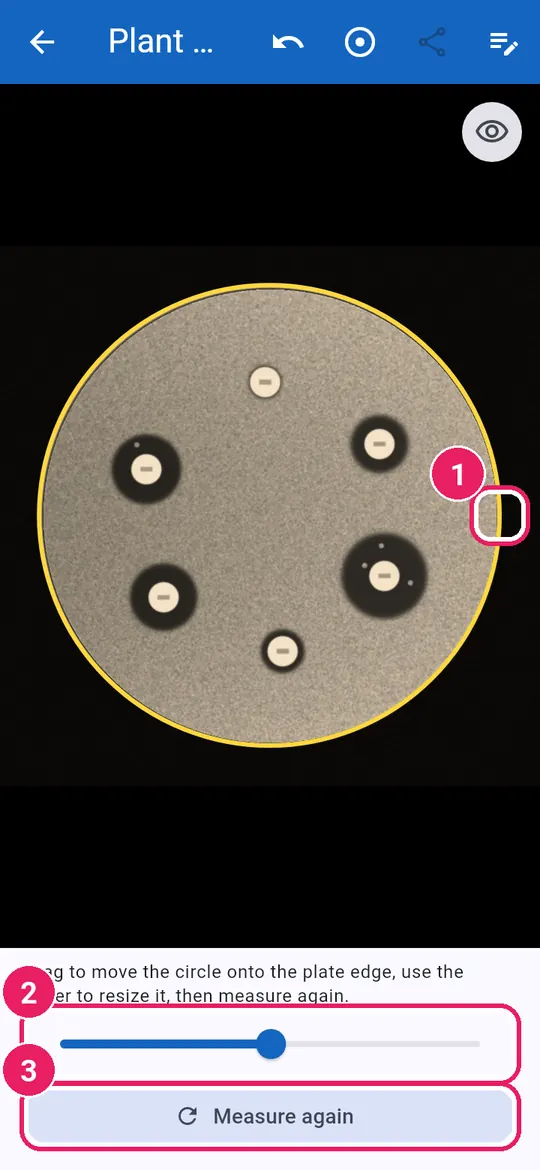
18
  1. 1Tap Fix plate circleแตะ แก้วงขอบเพลต

Only when the blue circle misses the plate edge.ใช้เมื่อวงสีฟ้าไม่ตรงขอบเพลต

19
  1. 1Drag onto the plate edgeลากให้ตรงขอบเพลต
  2. 2Slide to resizeเลื่อนเพื่อปรับขนาด
  3. 3Tap Measure againแตะ วัดใหม่

Save and compareบันทึกและเปรียบเทียบ

20
  1. 1Details: change namesรายละเอียด: แก้ชื่อ
  2. 2Tap Save plateแตะ บันทึกเพลต
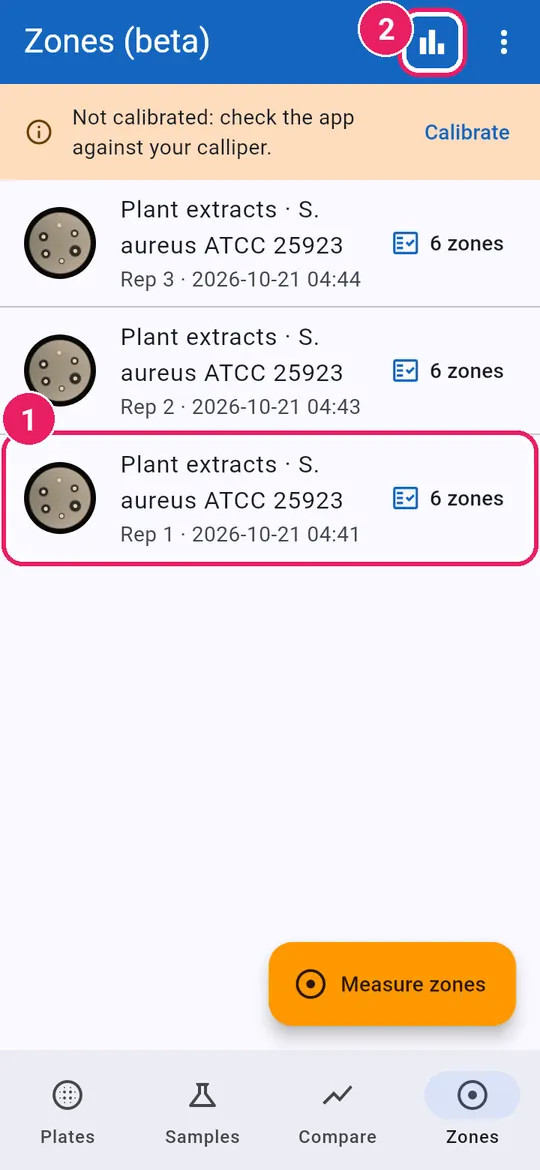
21
  1. 1Tap a plate to open itแตะเพลตเพื่อเปิด
  2. 2Tap Resultsแตะ ผลการวัด

Photograph each replicate the same way. Swipe left to delete.ถ่ายเพลตซ้ำแต่ละแผ่นแบบเดียวกัน ปัดซ้ายเพื่อลบ

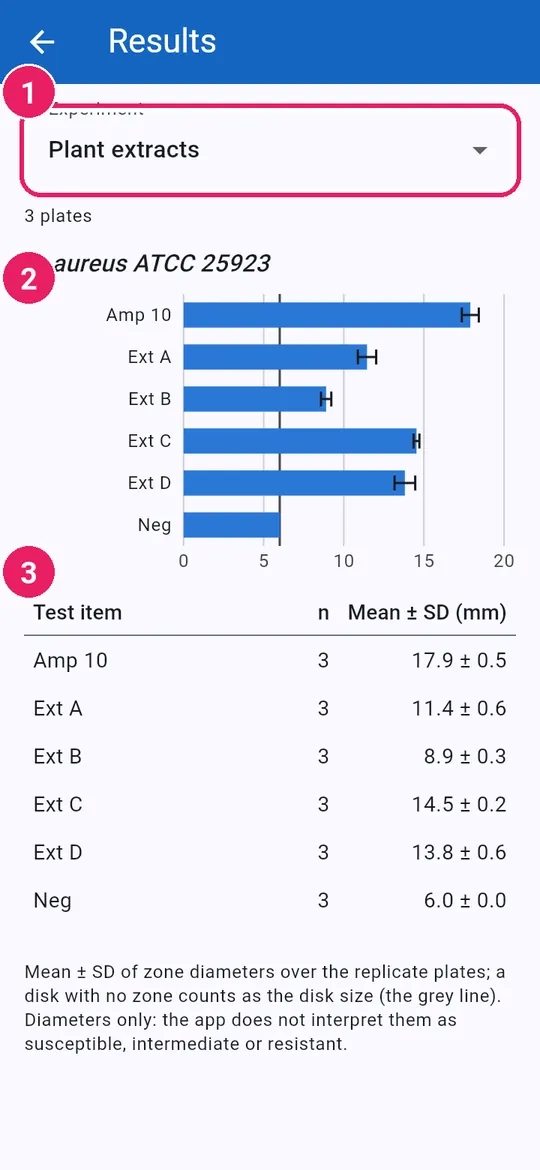
22
  1. 1Pick the Experimentเลือก การทดลอง
  2. 2Mean ± SD per test itemค่าเฉลี่ย ± SD ของแต่ละสาร
  3. 3The same as a tableค่าเดียวกันในตาราง

Export and shareส่งออกและแชร์

23
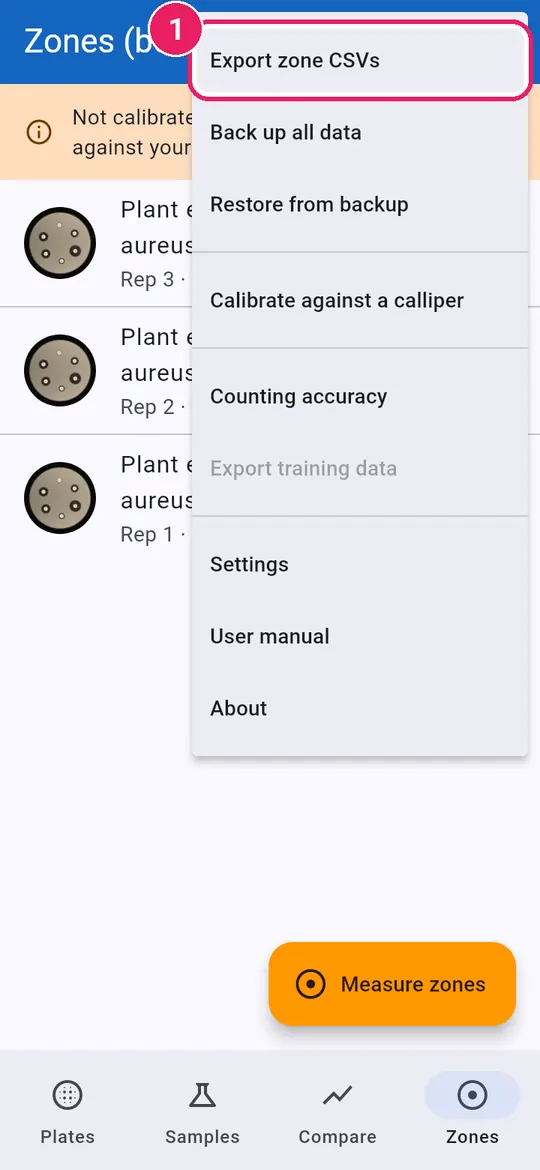
  1. 1Menu: Export zone CSVsเมนู: ส่งออก CSV ของโซนยับยั้ง
24
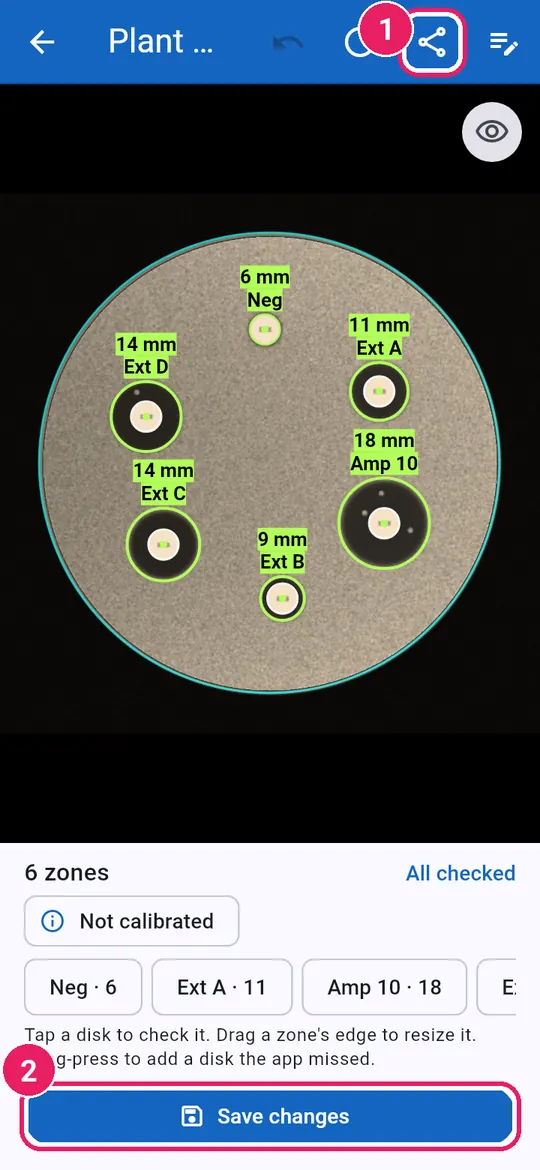
  1. 1Share annotated photoแชร์ภาพที่มีเครื่องหมาย
  2. 2After edits: Save changesหลังแก้ไข: บันทึกการแก้ไข
↑ Back to contentsกลับไปสารบัญ

Calibrate against a calliperปรับเทียบกับเวอร์เนียร์

Measure a used plate yourself and see how well the app agrees.วัดเพลตที่ใช้แล้วด้วยตัวเอง แล้วดูว่าแอปวัดได้ใกล้เคียงแค่ไหน

Startเริ่มต้น

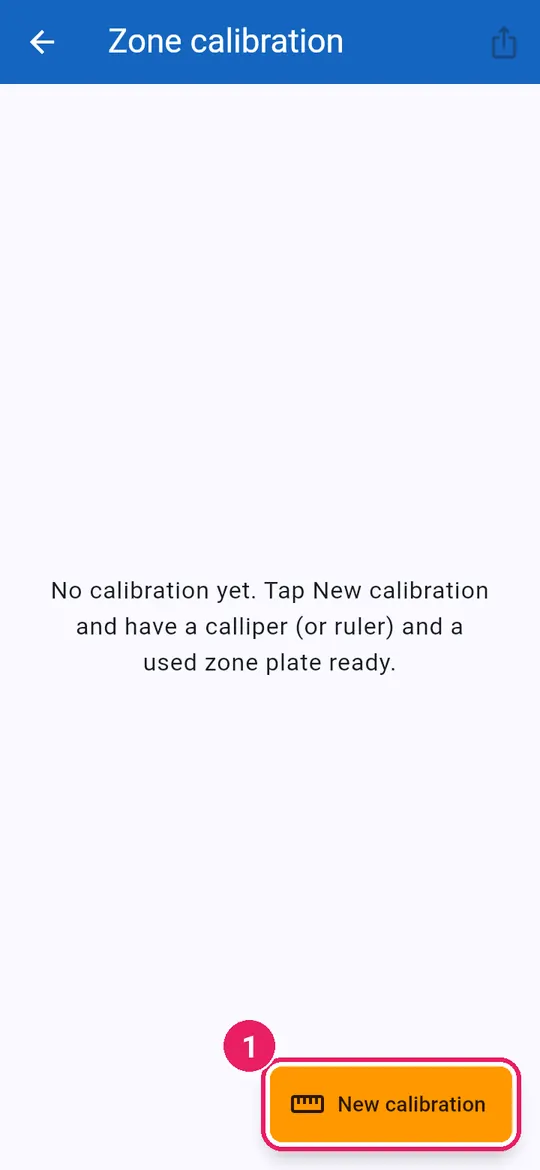
1
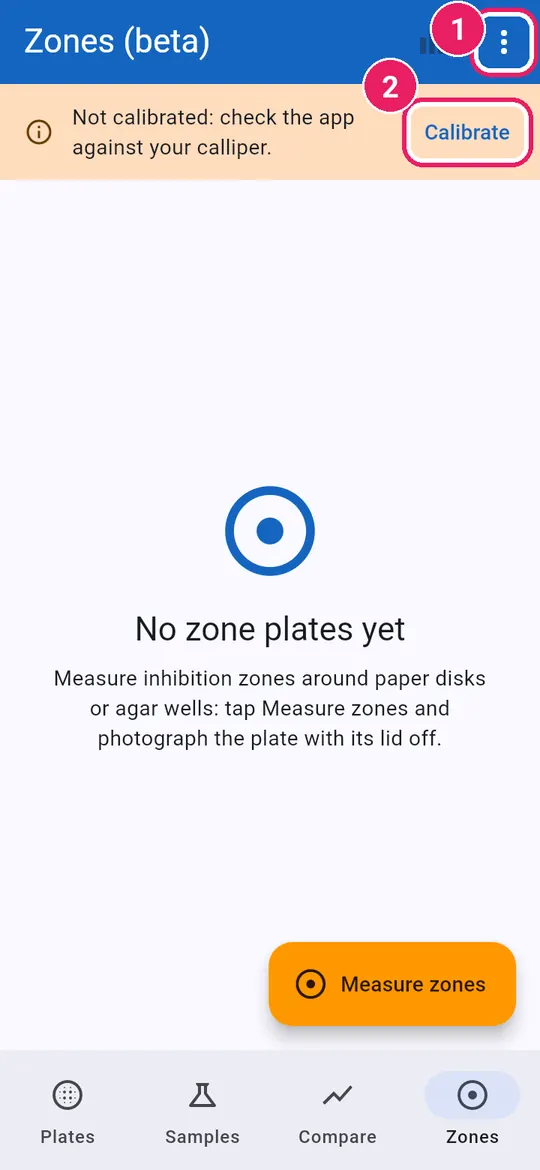
  1. 1Open the menuเปิดเมนู
  2. 2Or tap Calibrateหรือแตะ ปรับเทียบ

Check only: calibration never changes a measurement.ใช้ตรวจเท่านั้น การปรับเทียบไม่เปลี่ยนค่าที่วัด

2
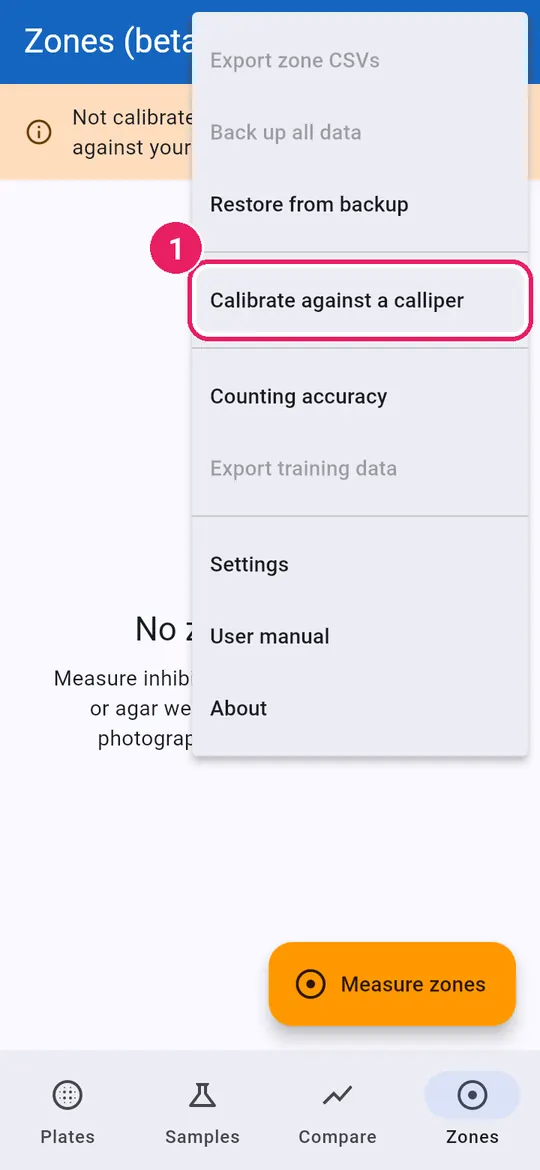
  1. 1Tap Calibrate against a calliperแตะ ปรับเทียบกับเวอร์เนียร์
3
  1. 1Tap New calibrationแตะ ปรับเทียบใหม่
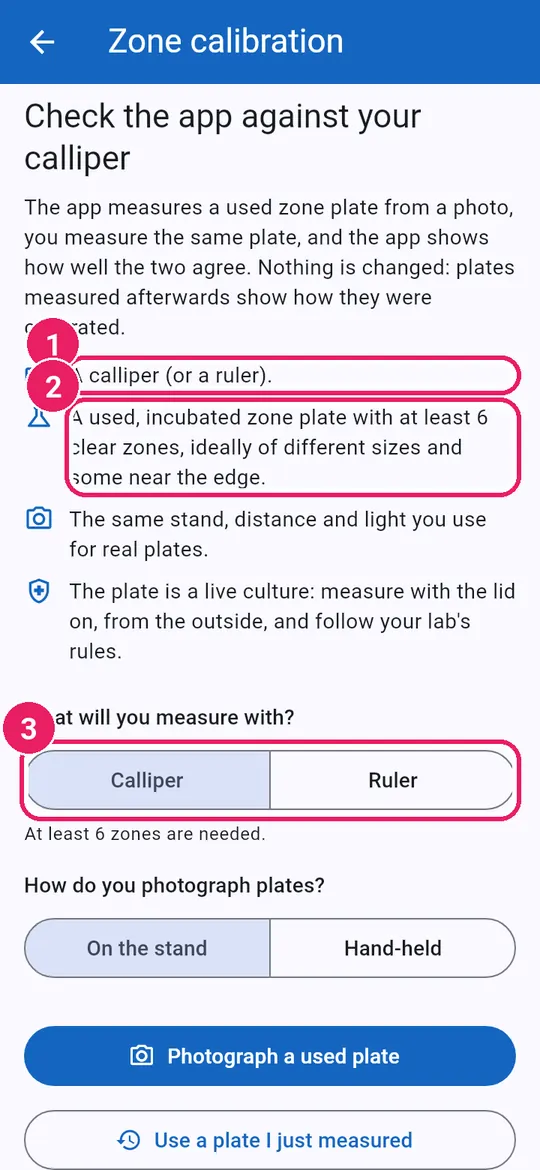
4
  1. 1A calliper or a rulerเวอร์เนียร์หรือไม้บรรทัด
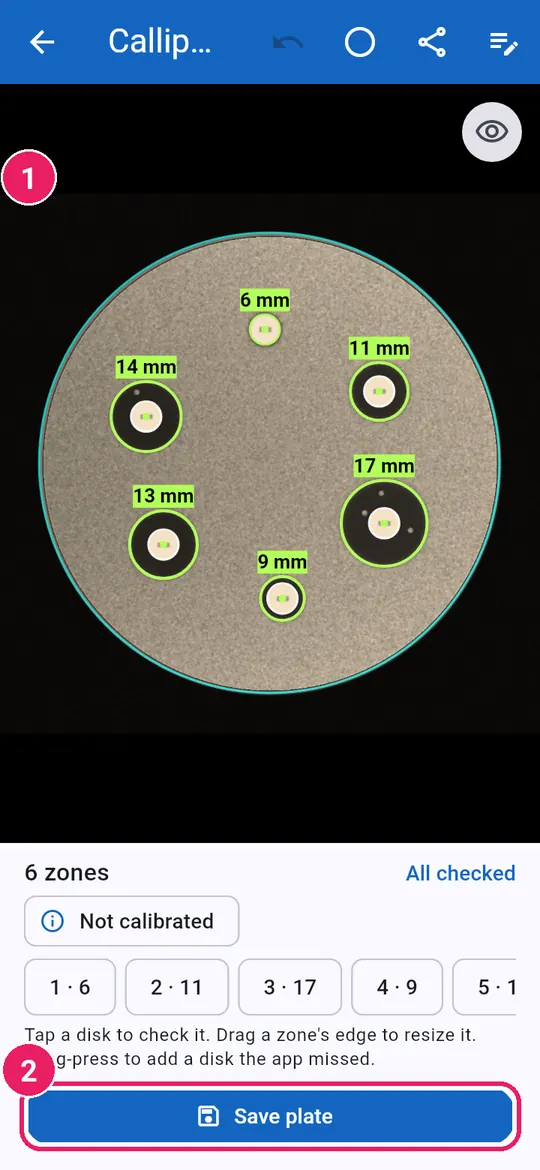
  2. 2A used plate, 6+ clear zonesเพลตที่ใช้แล้ว มีโซนชัด 6 โซนขึ้นไป
  3. 3Calliper or Rulerเวอร์เนียร์ หรือ ไม้บรรทัด

A ruler needs at least 8 zones.ไม้บรรทัดต้องวัดอย่างน้อย 8 โซน

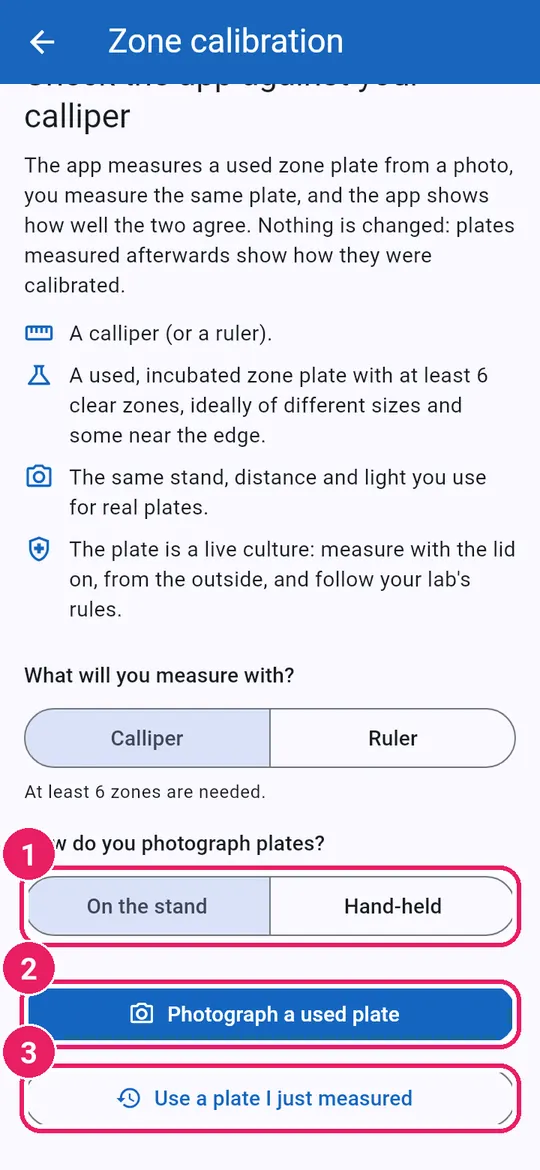
5
  1. 1On the stand or Hand-heldบนขาตั้ง หรือ ถือด้วยมือ
  2. 2Tap Photograph a used plateแตะ ถ่ายภาพเพลตที่ใช้แล้ว
  3. 3Or Use a plate I just measuredหรือ ใช้เพลตที่เพิ่งวัด

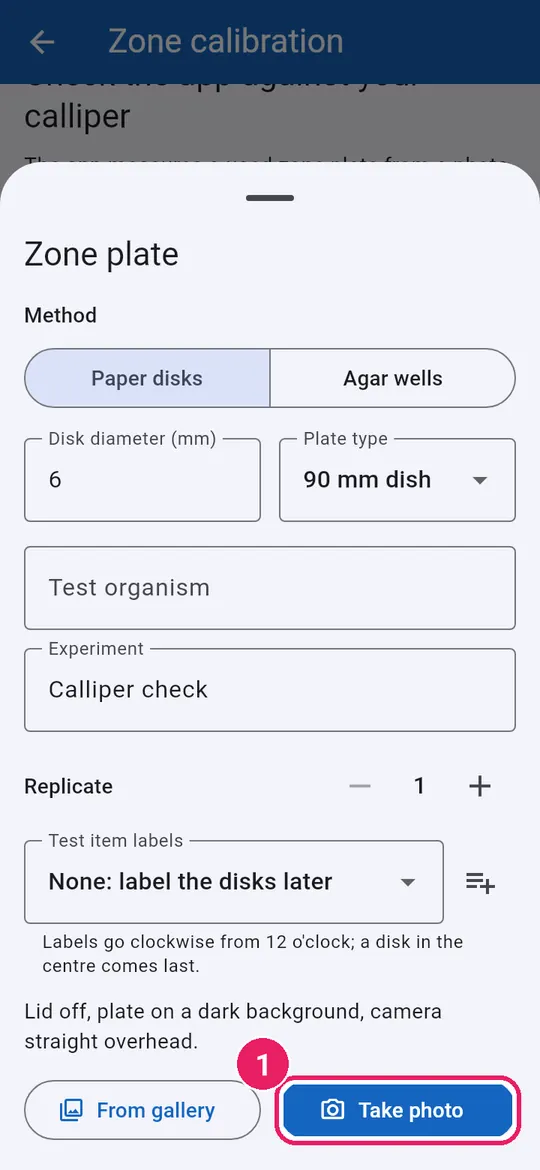
Photograph the plateถ่ายภาพเพลต

6
  1. 1Tap Take photoแตะ ถ่ายภาพ

Same stand, distance and light as your real plates.ใช้ขาตั้ง ระยะ และแสงแบบเดียวกับเพลตจริง

7
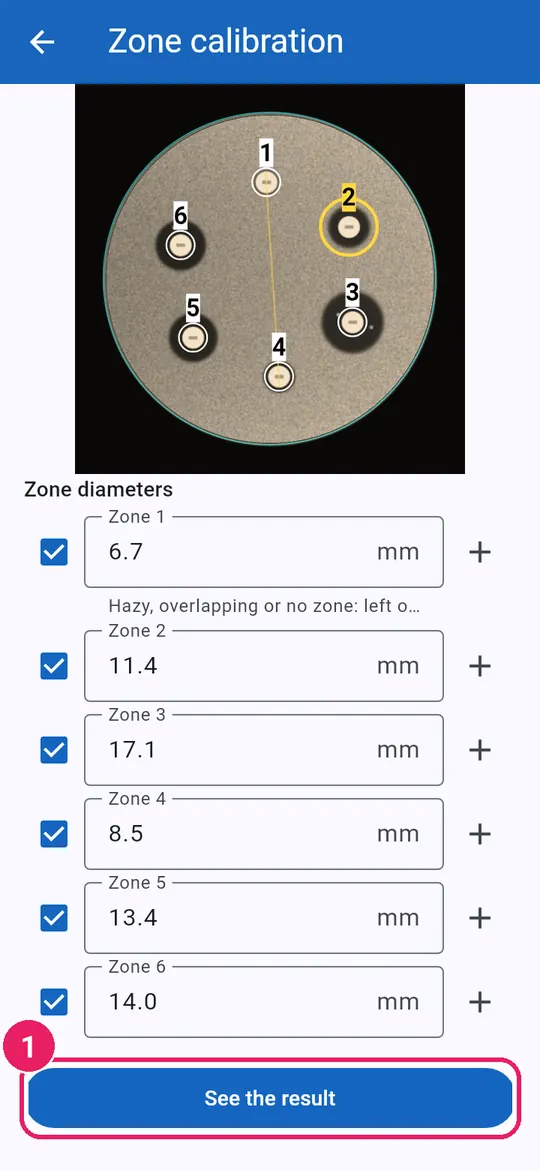
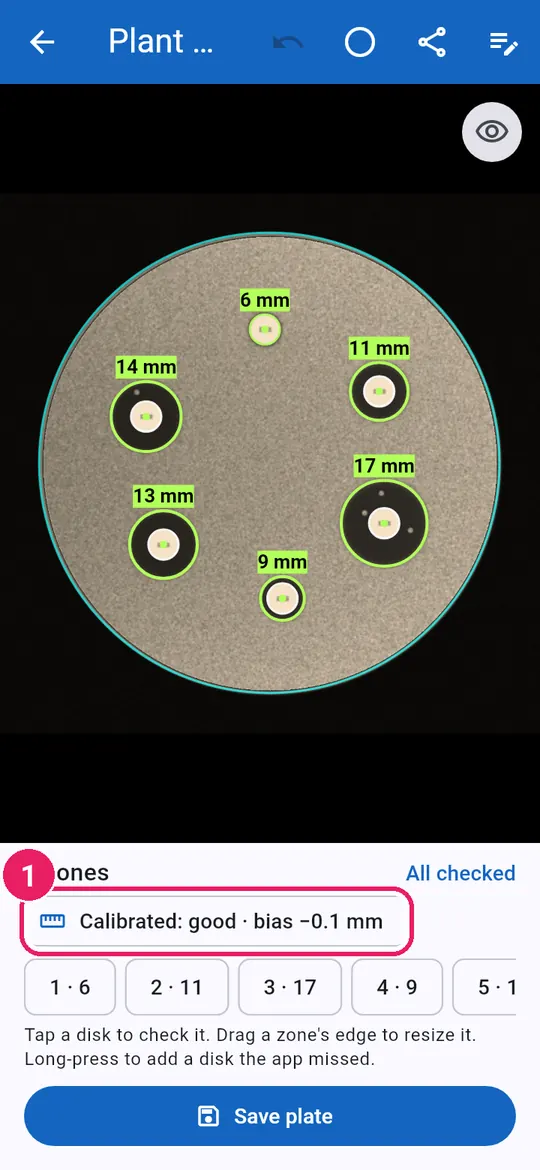
  1. 1Check the zones as usualตรวจโซนตามปกติ
  2. 2Tap Save plateแตะ บันทึกเพลต

Measure with your calliperวัดด้วยเวอร์เนียร์

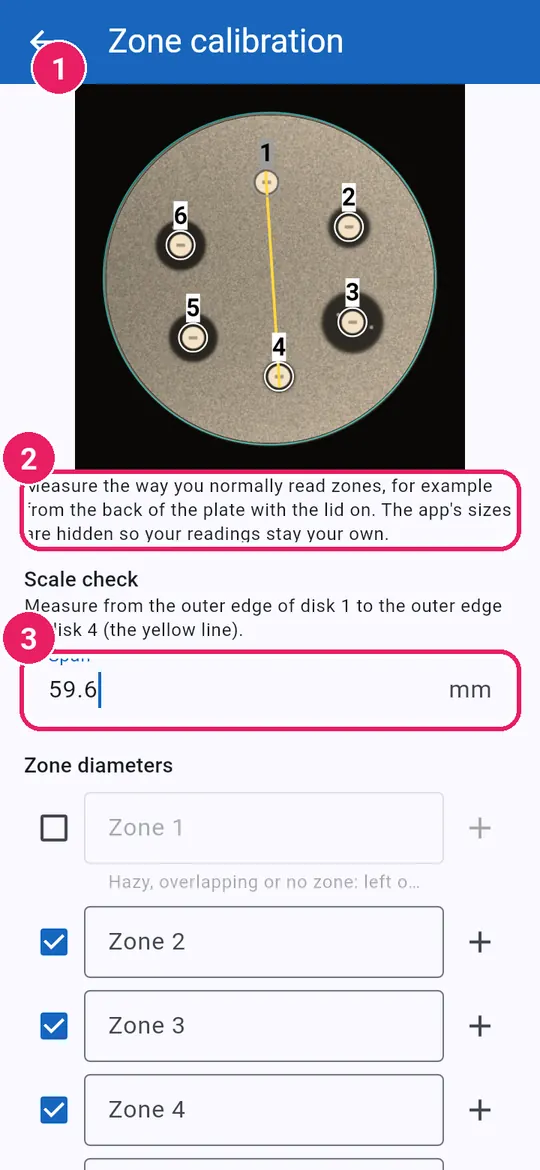
8
  1. 1Yellow line: disk to diskเส้นสีเหลือง: จากแผ่นถึงแผ่น
  2. 2App sizes stay hiddenซ่อนขนาดที่แอปวัดไว้
  3. 3Type the Span, outer edgesพิมพ์ ระยะ จากขอบนอก

Measure the way you always read zones, lid on.วัดแบบที่คุณอ่านโซนเป็นประจำ ปิดฝาไว้

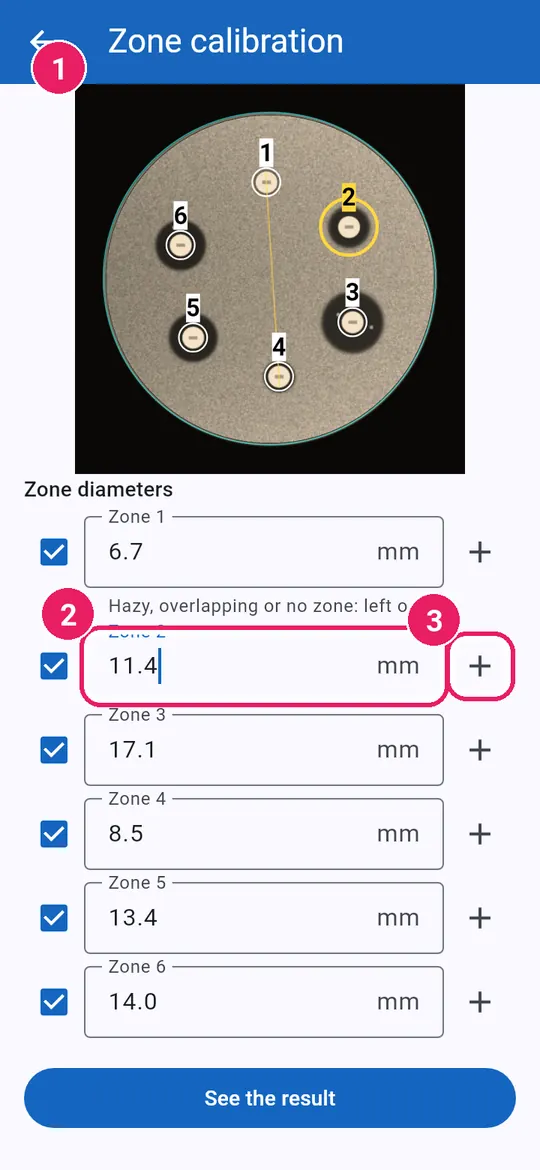
9
  1. 1The zone being typed lights upโซนที่กำลังพิมพ์จะสว่างขึ้น
  2. 2Type each zone's diameterพิมพ์เส้นผ่านศูนย์กลางแต่ละโซน
  3. 3Not round: add a second readingไม่กลม: เพิ่มการวัดอีกแนว
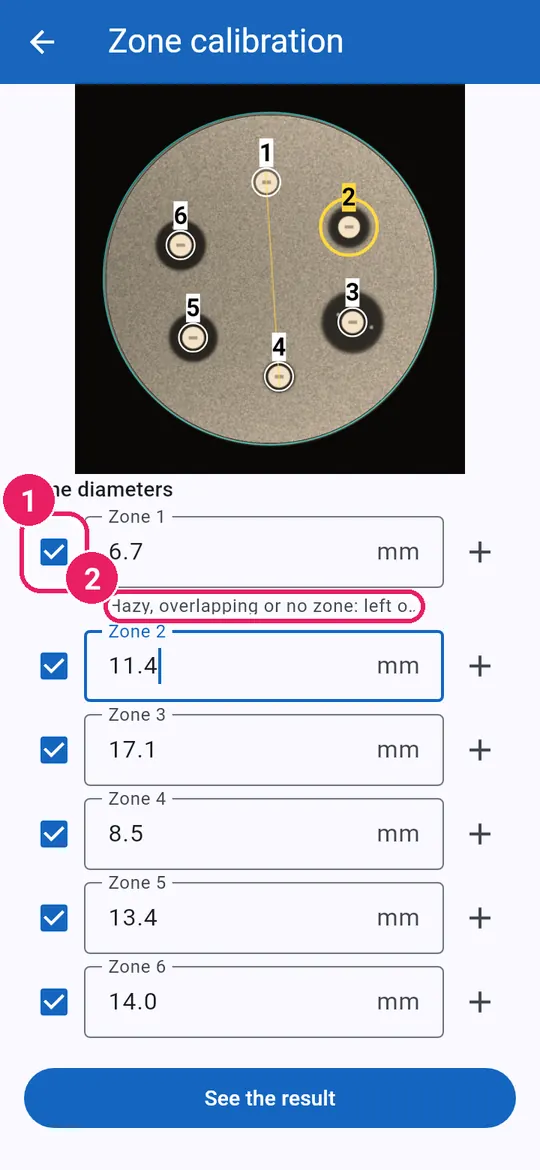
10
  1. 1Tick to include itเลือกเพื่อนำมาคิด
  2. 2Doubtful zones start untickedโซนที่ไม่แน่ใจยังไม่ถูกเลือก
11
  1. 1Tap See the resultแตะ ดูผลลัพธ์

The resultผลลัพธ์

12
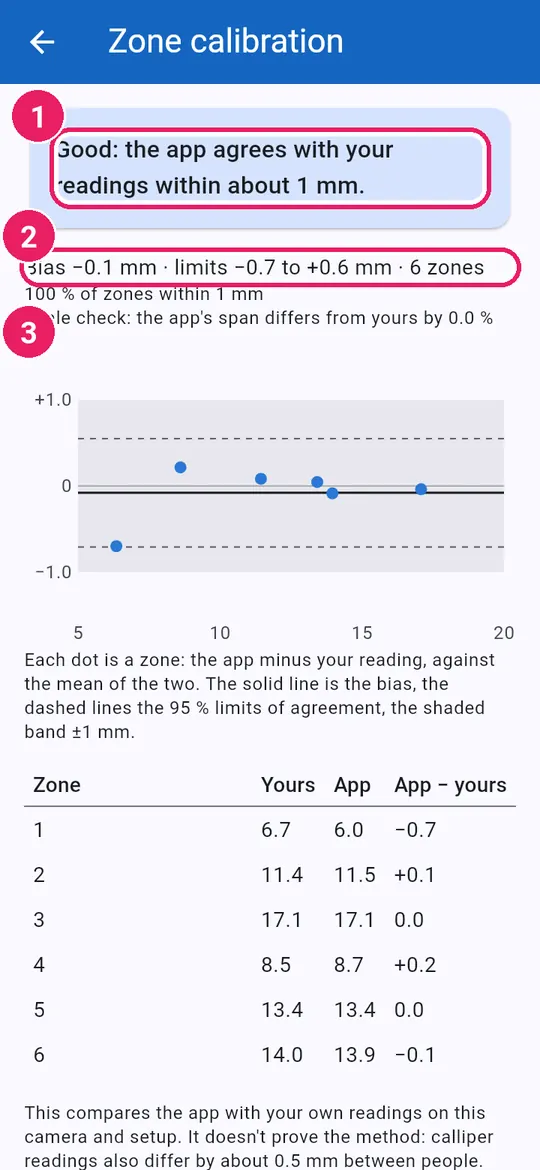
  1. 1The verdictผลการประเมิน
  2. 2Bias and limits of agreementค่าเบี่ยงเบนและช่วงความสอดคล้อง
  3. 3Each dot is one zoneแต่ละจุดคือหนึ่งโซน

If it is not good, a hint says what to change.ถ้าผลยังไม่ดี แอปจะแนะนำว่าควรปรับอะไร

13
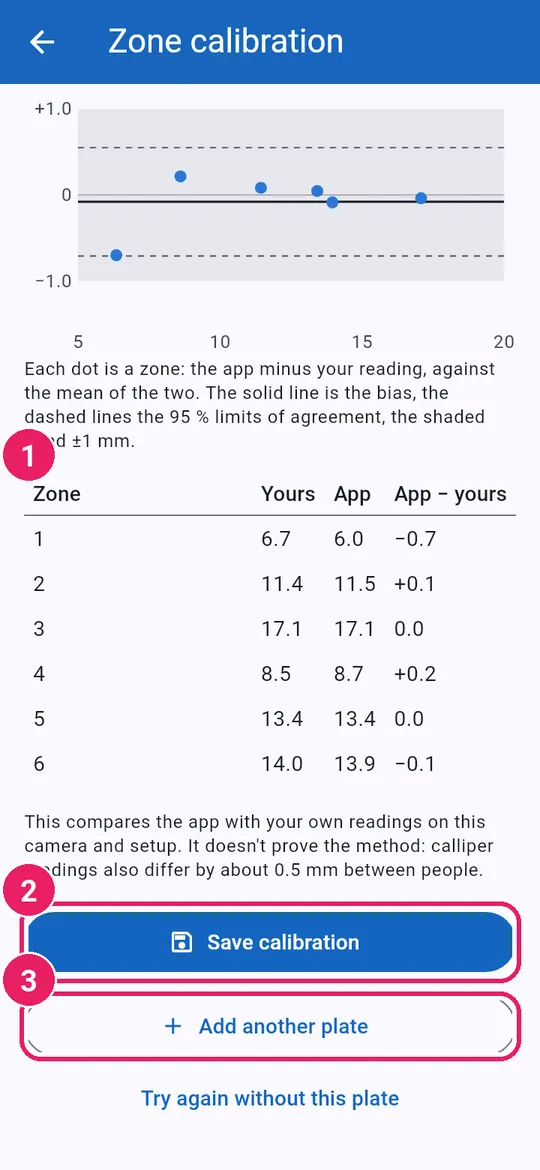
  1. 1Your reading against the appค่าของคุณเทียบกับแอป
  2. 2Tap Save calibrationแตะ บันทึกการปรับเทียบ
  3. 3Or Add another plateหรือ เพิ่มเพลตอีกแผ่น
14
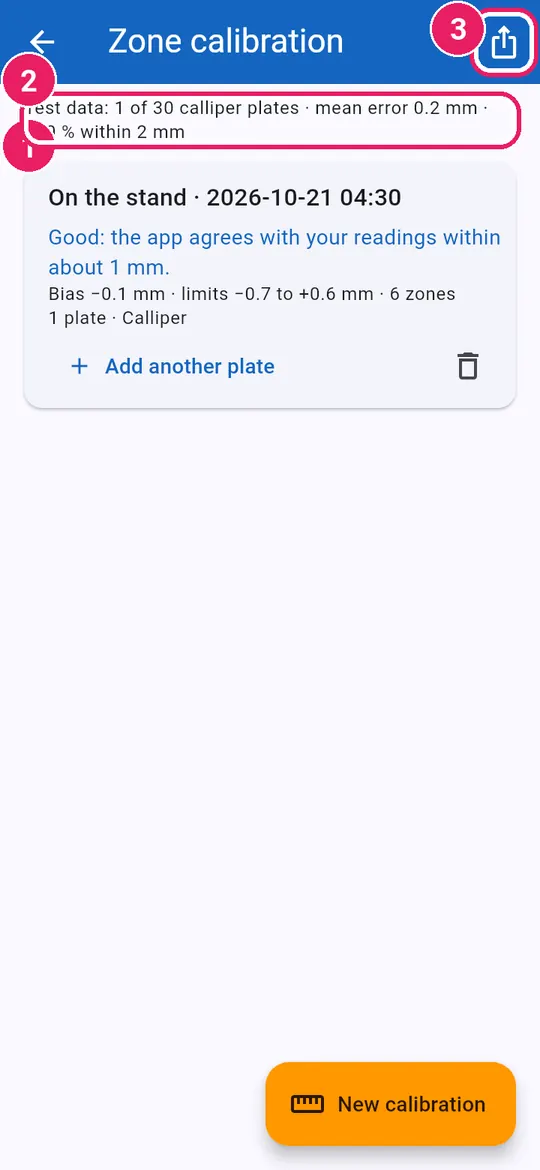
  1. 1Your saved calibrationการปรับเทียบที่บันทึกไว้
  2. 2Test data so farข้อมูลทดสอบที่มีตอนนี้
  3. 3Share as test dataแชร์เป็นข้อมูลทดสอบ

Shared calliper plates help take zones out of beta.เพลตที่วัดด้วยเวอร์เนียร์ช่วยให้ฟีเจอร์วัดโซนพ้นจากเบต้า

On your zone platesบนเพลตวัดโซน

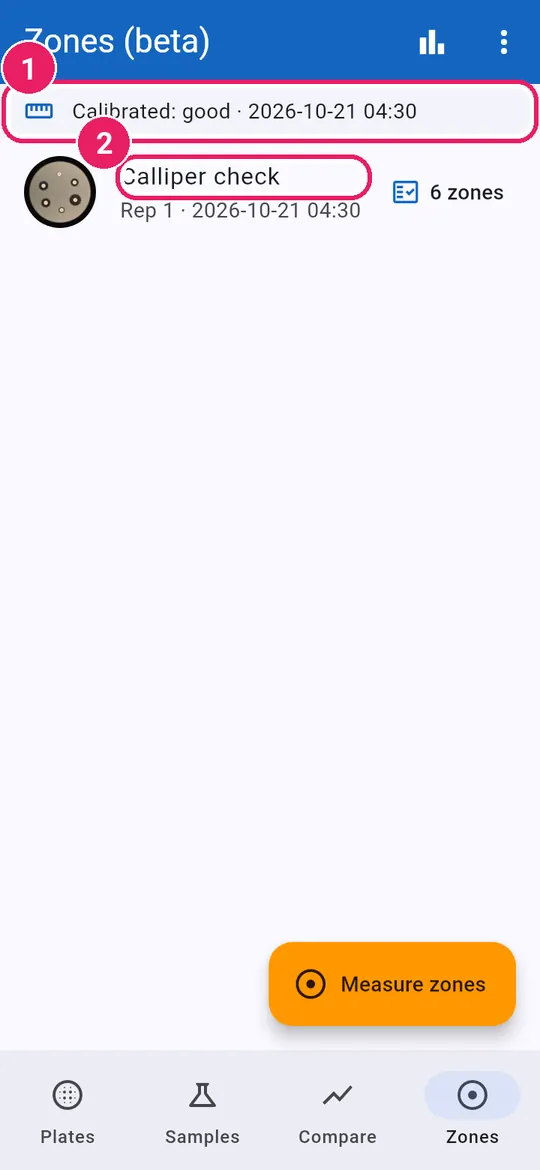
15
  1. 1Calibrated: verdict and dateปรับเทียบแล้ว: ผลและวันที่
  2. 2The calibration plateเพลตที่ใช้ปรับเทียบ
16
  1. 1New plates show their calibrationเพลตใหม่แสดงการปรับเทียบ

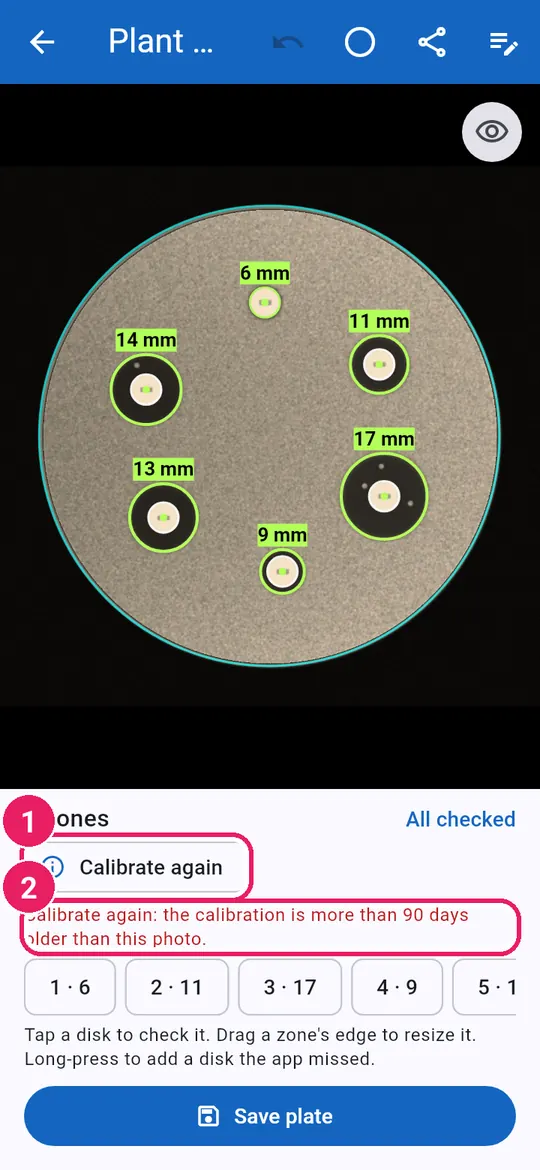
Calibrate againปรับเทียบใหม่

17
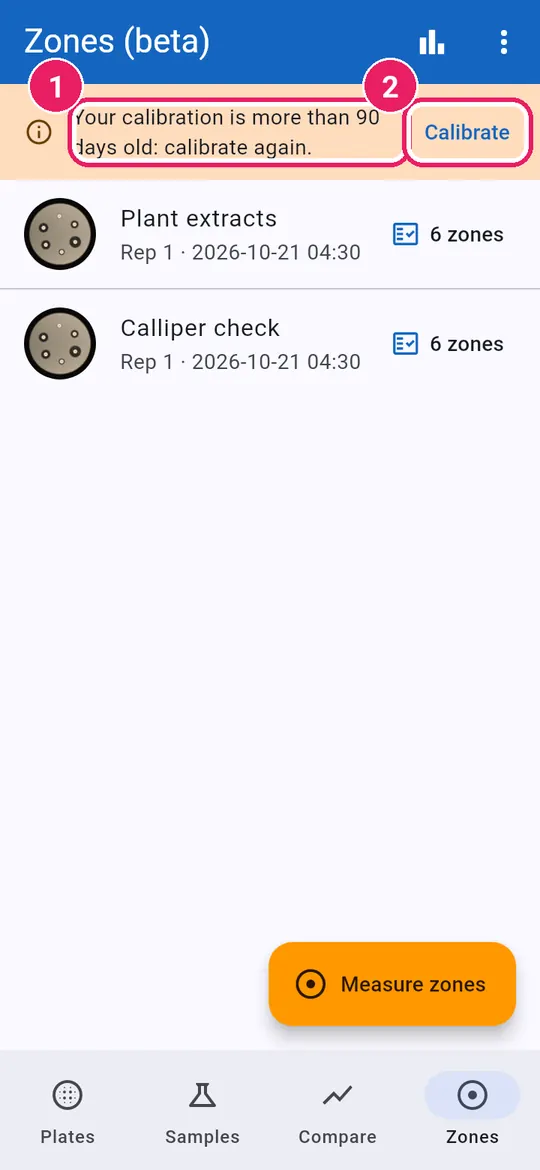
  1. 1After 90 days: calibrate againเกิน 90 วัน: ควรปรับเทียบใหม่
  2. 2Tap Calibrateแตะ ปรับเทียบ
18
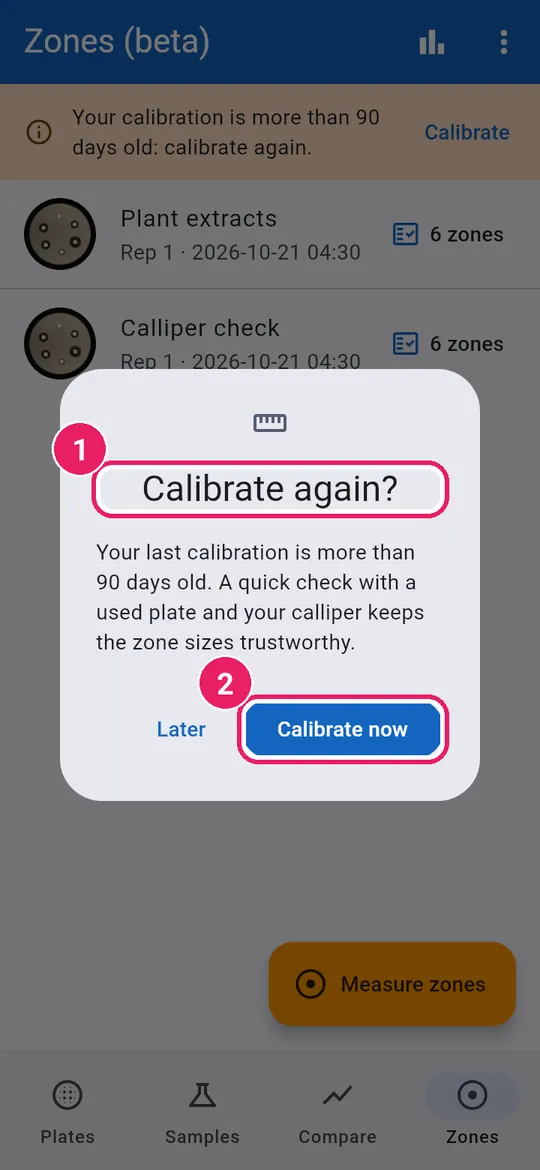
  1. 1Asked before the next plateถามก่อนวัดเพลตถัดไป
  2. 2Tap Calibrate nowแตะ ปรับเทียบตอนนี้
19
  1. 1Calibrate againควรปรับเทียบใหม่
  2. 2Why: read the reasonเหตุผลที่ควรปรับเทียบใหม่

A new camera or stand height also asks for it.เปลี่ยนกล้องหรือความสูงขาตั้งก็ต้องปรับเทียบใหม่

↑ Back to contentsกลับไปสารบัญ

Counting accuracyความแม่นยำการนับ

Check a plate now and then; see how well the app counts.ตรวจเพลตเป็นครั้งคราว แล้วดูว่าแอปนับแม่นแค่ไหน

Check a plate when askedตรวจเพลตเมื่อแอปขอ

1
  1. 1Every 10th plate asks for a checkทุกเพลตที่ 10 แอปจะขอให้ตรวจ
  2. 2Tap Edit, fix every markแตะ แก้ไข แล้วแก้ทุกจุด
  3. 3Tap Save plateแตะ บันทึกเพลต

Zoom in: remove wrong marks, add missed colonies, set clusters.ซูมเข้า ลบจุดที่ผิด เพิ่มโคโลนีที่ตกหล่น และตั้งค่ากลุ่มก้อน

2
  1. 1Turn on Checked every colonyเปิด ตรวจทุกโคโลนีแล้ว
  2. 2Tap Saveแตะ บันทึก

Works on any plate you checked fully, asked or not.ใช้ได้กับทุกเพลตที่ตรวจครบ แม้แอปไม่ได้ขอ

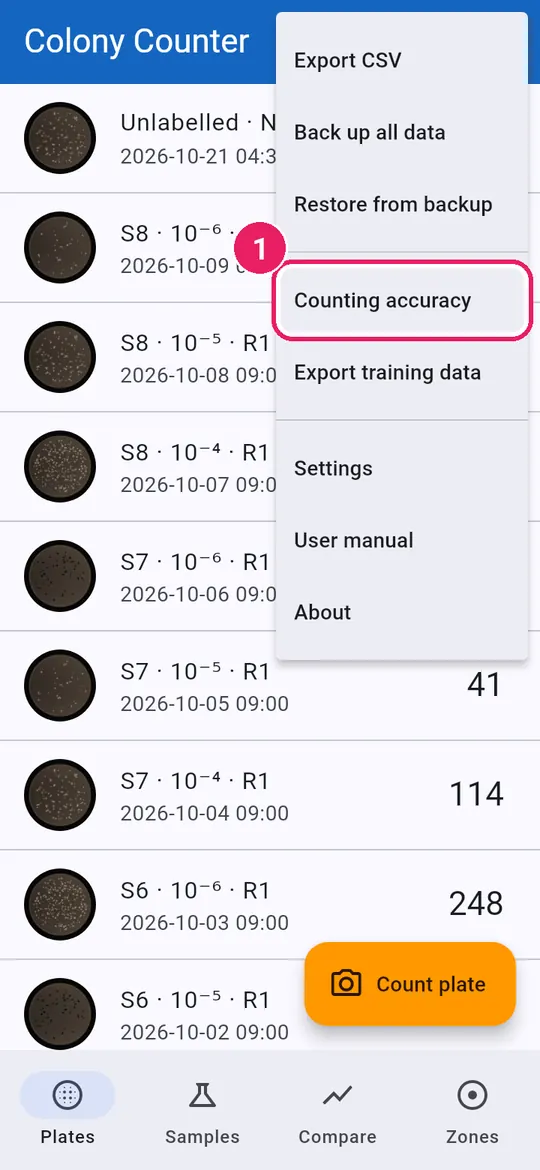
See how accurate the count isดูความแม่นยำของการนับ

3
  1. 1Tap ⋮, then Counting accuracyแตะ ⋮ แล้ว ความแม่นยำการนับ
4
  1. 1Share of plates within ±10 %สัดส่วนเพลตที่คลาดเคลื่อนไม่เกิน ±10 %
  2. 2Mean error: typical size of errorความคลาดเคลื่อนเฉลี่ย: ผิดไปโดยเฉลี่ยเท่าไร
  3. 3Bias below 0: app counts too fewความเอนเอียงติดลบ: แอปนับน้อยไป

Percentages use plates with 10 or more colonies.ร้อยละคิดจากเพลตที่มี 10 โคโลนีขึ้นไป

5
  1. 1One dot per checked plateหนึ่งจุดต่อหนึ่งเพลตที่ตรวจแล้ว
  2. 2Tap a dot for its numbersแตะจุดเพื่อดูตัวเลข

On the line: exact. Shaded: within ±10 %. Orange: flagged.บนเส้น: ตรงพอดี แถบเทา: ไม่เกิน ±10 % สีส้ม: ถูกแจ้งให้ตรวจ

6
  1. 1Errors by colony count rangeความคลาดเคลื่อนตามช่วงจำนวนโคโลนี
  2. 2Flagged plates should have larger errorsเพลตที่ถูกแจ้งควรคลาดเคลื่อนมากกว่า
  3. 3Tap a plate to open itแตะเพลตเพื่อเปิดดู

How often to be askedให้แอปขอตรวจบ่อยแค่ไหน

7
  1. 1Choose Every 10th, 20th, 50th or Neverเลือก ทุก 10, 20, 50 เพลต หรือ ไม่ต้อง

At the bottom of Counting accuracy. Default: every 10th.อยู่ท้ายหน้า ความแม่นยำการนับ ค่าเริ่มต้น: ทุก 10 เพลต

↑ Back to contentsกลับไปสารบัญ

Export and back upส่งออกและสำรองข้อมูล

The ⋮ menu on Plates: CSV, backup, restore, training data.เมนู ⋮ ในแท็บ เพลต: CSV สำรอง กู้คืน ข้อมูลฝึกโมเดล

Export resultsส่งออกผล

1
  1. 1Export CSV: share four CSV filesส่งออก CSV: แชร์ไฟล์ CSV สี่ไฟล์

plates, samples, colonies and drops: open in Excel.plates, samples, colonies และ drops เปิดใน Excel ได้

Back up and restoreสำรองและกู้คืน

2
  1. 1Back up all data: one zipสำรองข้อมูลทั้งหมด: ได้ไฟล์ zip เดียว

On the web, data lives in this browser: back up often.บนเว็บ ข้อมูลอยู่ในเบราว์เซอร์นี้เท่านั้น ควรสำรองบ่อย ๆ

3
  1. 1Restore from backup: pick the zipกู้คืนจากข้อมูลสำรอง: เลือกไฟล์ zip

Also moves data to another phone or browser.ใช้ย้ายข้อมูลไปโทรศัพท์หรือเบราว์เซอร์อื่นได้ด้วย

4
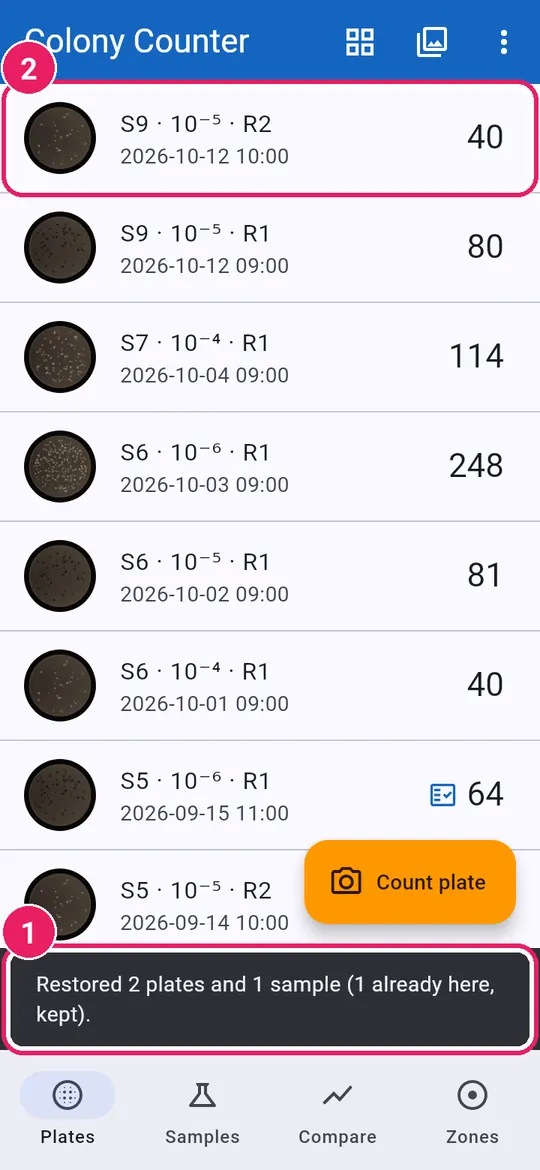
  1. 1How many plates were addedจำนวนเพลตที่เพิ่มเข้ามา
  2. 2Restored plates join your listเพลตที่กู้คืนรวมอยู่ในรายการ

Restore merges: plates already here are kept.กู้คืนแบบรวม: เพลตที่มีอยู่แล้วไม่ถูกเขียนทับ

Export training dataส่งออกข้อมูลสำหรับฝึกโมเดล

5
  1. 1Tap Export training dataแตะ ส่งออกข้อมูลสำหรับฝึกโมเดล
6
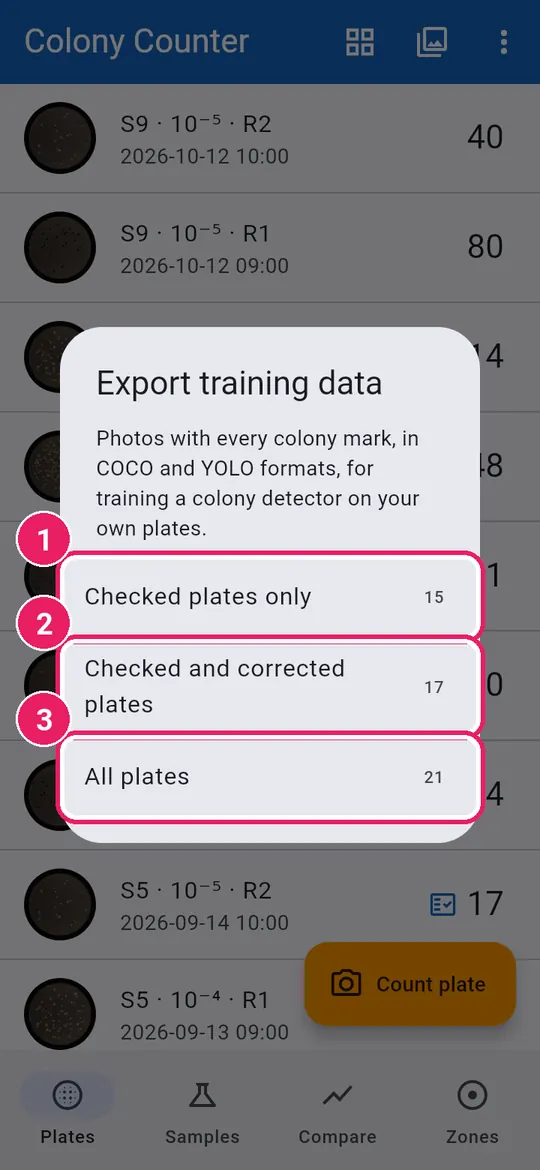
  1. 1Checked plates only: most reliableเฉพาะเพลตที่ตรวจทุกโคโลนีแล้ว: น่าเชื่อที่สุด
  2. 2Checked and corrected plates: more photosเพลตที่ตรวจแล้วและที่แก้ไขแล้ว: ภาพมากขึ้น
  3. 3All plates: includes unchecked countsทุกเพลต: รวมที่ยังไม่ได้ตรวจ

You get one zip: photos with COCO and YOLO marks.ได้ไฟล์ zip เดียว: ภาพพร้อมตำแหน่งแบบ COCO และ YOLO

↑ Back to contentsกลับไปสารบัญ